
How to Track Broadcast Delivery and Results
How to Track Broadcast Delivery and Results
What Is This?
After sending a broadcast campaign, you'll want to know whether your messages actually reached your customers. The Broadcast Batches page gives you a real-time view of every broadcast's delivery status, so you can spot problems early and measure results.
Real-Life Example
Siti runs a cafe in Petaling Jaya and just sent a WhatsApp broadcast to 500 customers about her new laksa bowl. An hour later, she checks her Broadcast Batches page and sees that 350 messages were delivered, 120 were read, and 15 failed. She notices a few customers marked as "No Account" — meaning they don't have WhatsApp on that number. Siti removes those contacts from future broadcasts to keep her list clean. By the end of the day, 400 customers have read the message, and she sees a spike in laksa orders the next morning.
What Your Customers Will See
Your customers do not see broadcast tracking — this is an admin-only feature. Customers only see the messages they receive on WhatsApp, SMS, or email.
How to Check Your Broadcast Results
-
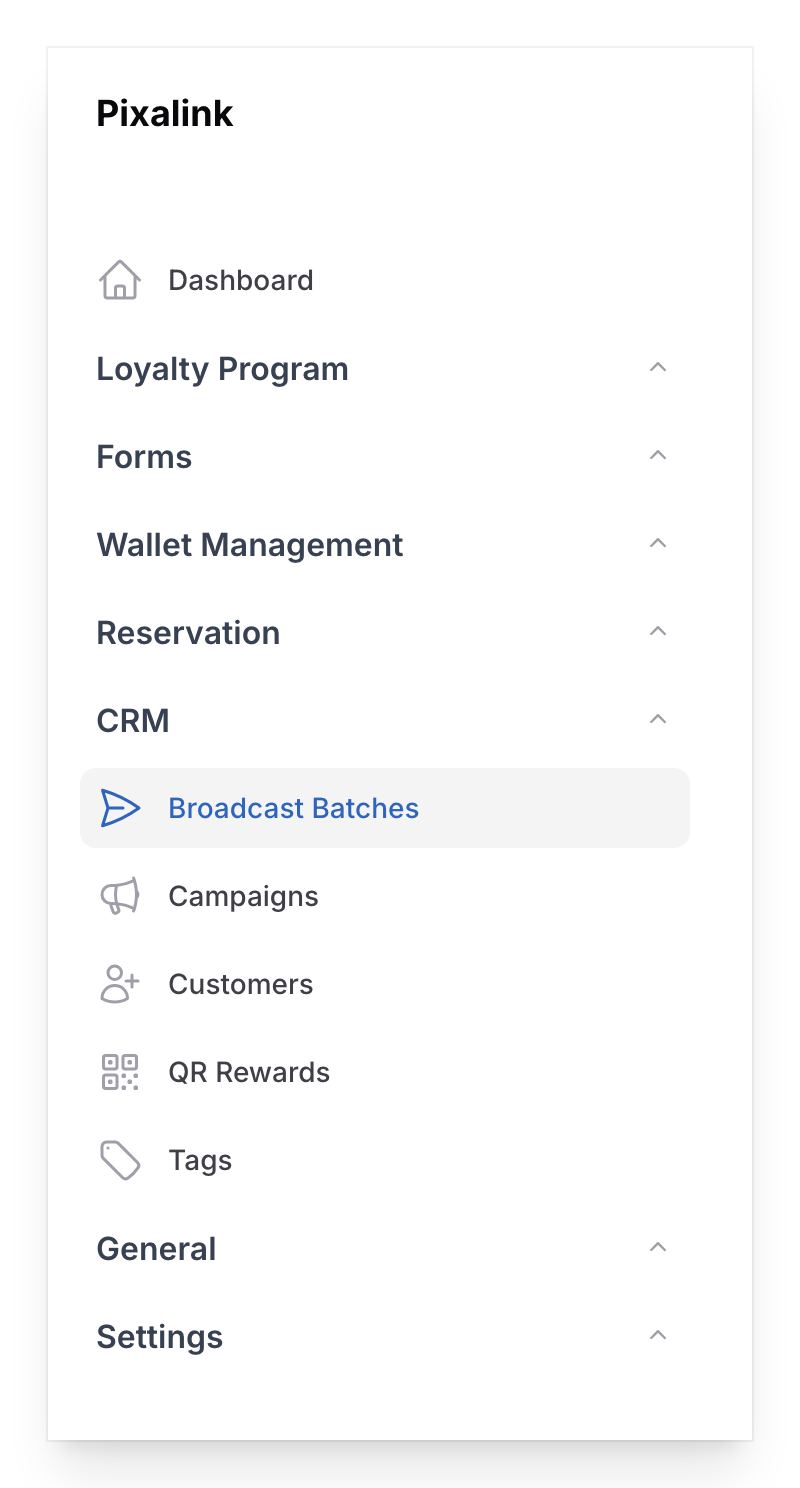
Go to Admin Panel → CRM → Broadcast Batches
-
Review your list of broadcast batches. Each row shows the campaign name, current status, sending mode, total customers, and progress.
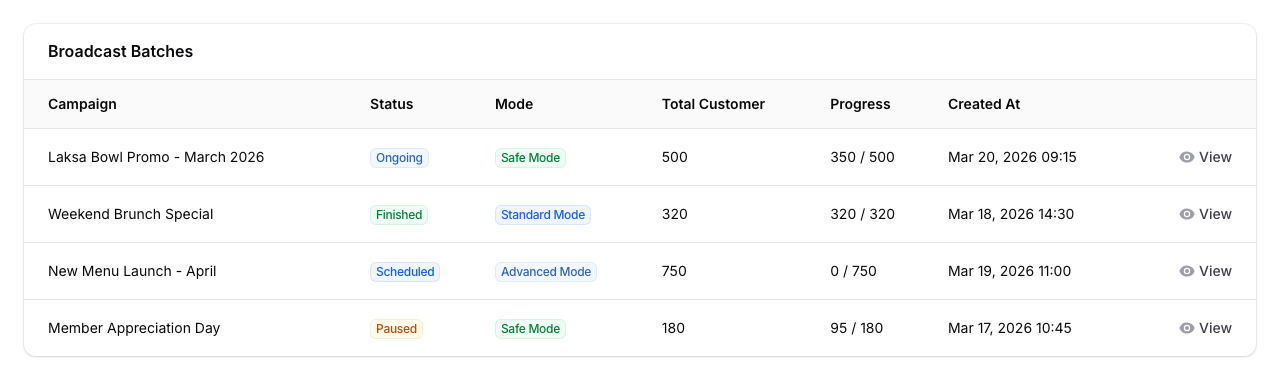
- Status tells you where the broadcast is right now:
- Scheduled — waiting to start sending
- Ongoing — currently sending messages
- Finished — all messages sent
- Paused — you paused it manually
- Suspended — stopped because WhatsApp was logged out
- Progress shows how many messages have been sent out of the total (e.g., "210 / 587")
- Status tells you where the broadcast is right now:
-
Click View on any batch to open its detail page. At the top, you'll see four summary cards.

- Total — all messages in this batch
- Scheduled — messages waiting to be sent
- Sending — messages being sent right now
- Sent & Delivered — messages sent from the system or confirmed delivered to the customer's phone
-
Scroll down to see the batch details: name, status, mode, linked campaign, total customers, and schedule settings.
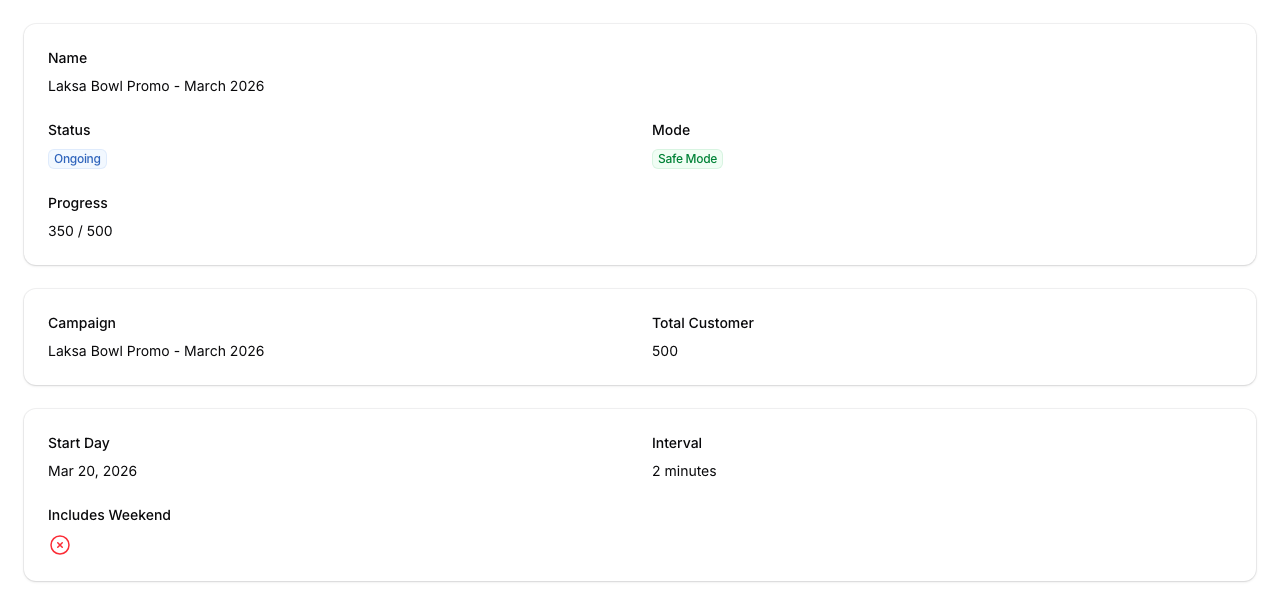
The schedule fields shown depend on your broadcast mode — Standard, Safe Mode, and Advanced Mode each display different schedule settings.
-
Scroll further to the Broadcasts section to see every individual message. Each row shows the customer's phone number, email, name, channel, delivery status, when it was sent, and when it was scheduled. You can filter by status using the tabs at the top of this table — only tabs with messages appear, so you'll quickly see how many were Delivered, Read, Failed, and so on.
The individual message statuses tell you exactly what happened:
- Scheduled — message is queued and waiting to be sent
- Sending — message is actively being sent right now
- Delivered — message reached the customer's phone
- Read — customer opened and read the message
- Sent — message left the system but delivery isn't confirmed yet
- Failed — message could not be sent
- No Account — the phone number doesn't have a WhatsApp account
- Not in Group — the phone number is not in the relevant WhatsApp group
- Paused — message sending was paused
- Suspended — message sending was suspended due to connection loss
- Yellow Card — WhatsApp flagged your message; slow down your sending
How to Work Out Delivery Rate and Read Rate
Pixalink shows a count for each status in the Broadcasts tabs. Each message sits in one tab only, so a message that was read is counted under Read, not Delivered. Use these counts to work out your rates:
- Total sent = Sent + Delivered + Read
- Delivery rate = (Delivered + Read) ÷ Total sent × 100
- Read rate = Read ÷ Total sent × 100
For example, Siti's tabs show Sent 30, Delivered 350 and Read 120. Her total sent is 500. Her delivery rate is 470 ÷ 500 = 94%, and her read rate is 120 ÷ 500 = 24%.
Shows Sent but the Customer Didn't Get It
Sent means the message left Pixalink. It does not mean it reached the customer's phone. Only Delivered and Read confirm that. If a customer says they got nothing:
- Check the phone number on their profile, including the country code.
- Check that the number has a WhatsApp account. A number without one shows No Account.
- Check that your WhatsApp number is still connected in Admin Panel → Settings → Configurations.
- Look at the message status again later. It moves to Delivered or Read once WhatsApp confirms it, or to Failed if it could not be sent.
Still stuck? Send the campaign name and the customer's number to our support team and we will check.
How to Pause or Resume a Broadcast
If you need to stop a broadcast that's still sending:
- Click Pause Broadcast (red button) at the top of the batch detail page. This button appears on Scheduled, Ongoing, and Suspended batches. It pauses all scheduled and sending messages.
To restart a paused broadcast:
- Click Resume (green button). If your batch uses Advanced Mode, you'll be asked to pick a new schedule before resuming.
Good to Know
- A Yellow Card status means WhatsApp thinks you're sending too many messages too fast. If you see this, pause the broadcast and read our WhatsApp Number Warm-Up Guide before continuing.
- If your broadcast shows Suspended, your WhatsApp connection was lost. Reconnect your WhatsApp in Admin Panel → Settings → Configurations, then resume the batch.
- The Progress column updates in real time — refresh the page to see the latest numbers.
- You can delete individual messages from the Broadcasts table if needed, but you can't undo a sent message.