
How to Stop Piled-Up WhatsApp Messages After a Disconnect
What Is This?
When your WhatsApp gets logged out, you may worry that messages are piling up. You don't want customers to get a flood of old messages once you reconnect.
This guide explains what Pixalink holds back, what it doesn't, and how to stop a broadcast for good.
How It Works
Pixalink treats two kinds of WhatsApp messages differently.
| Automatic messages | Broadcast messages | |
|---|---|---|
| Example | "You earned 120 points" after a visit | A promotion sent to many customers |
| While WhatsApp is disconnected | Skipped, not saved up | The whole batch is paused |
| After you reconnect | Not replayed | Stays paused until you click Resume |
| Anything to clean up? | No | Yes, decide per batch |
Automatic messages skipped because WhatsApp is disconnected are not replayed when you reconnect. A message already waiting to be sent at the moment you reconnect can still arrive. Your customers keep their points and rewards either way.
For broadcasts, Pixalink checks each WhatsApp batch that has messages due today. If your WhatsApp is disconnected, it pauses that whole batch.
How to stop or clean up a broadcast
-
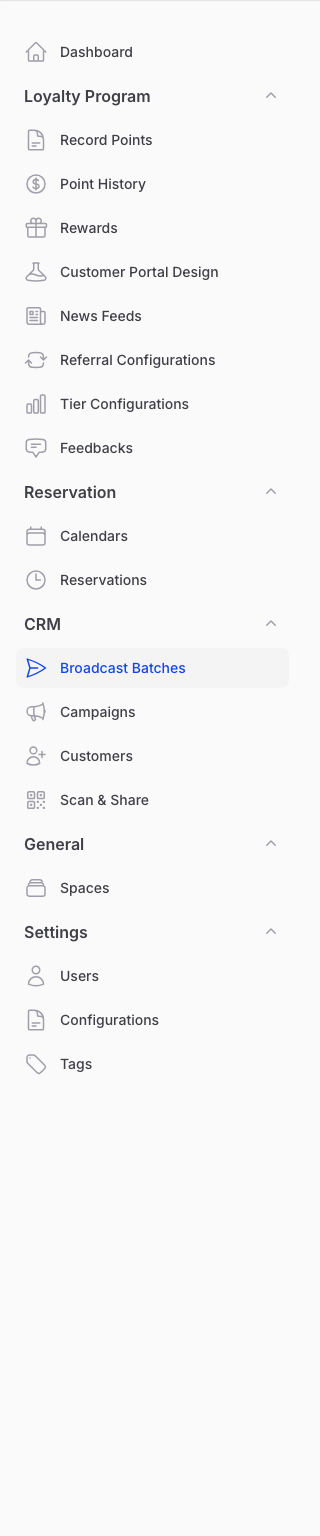
Go to CRM → Broadcast Batches.
-
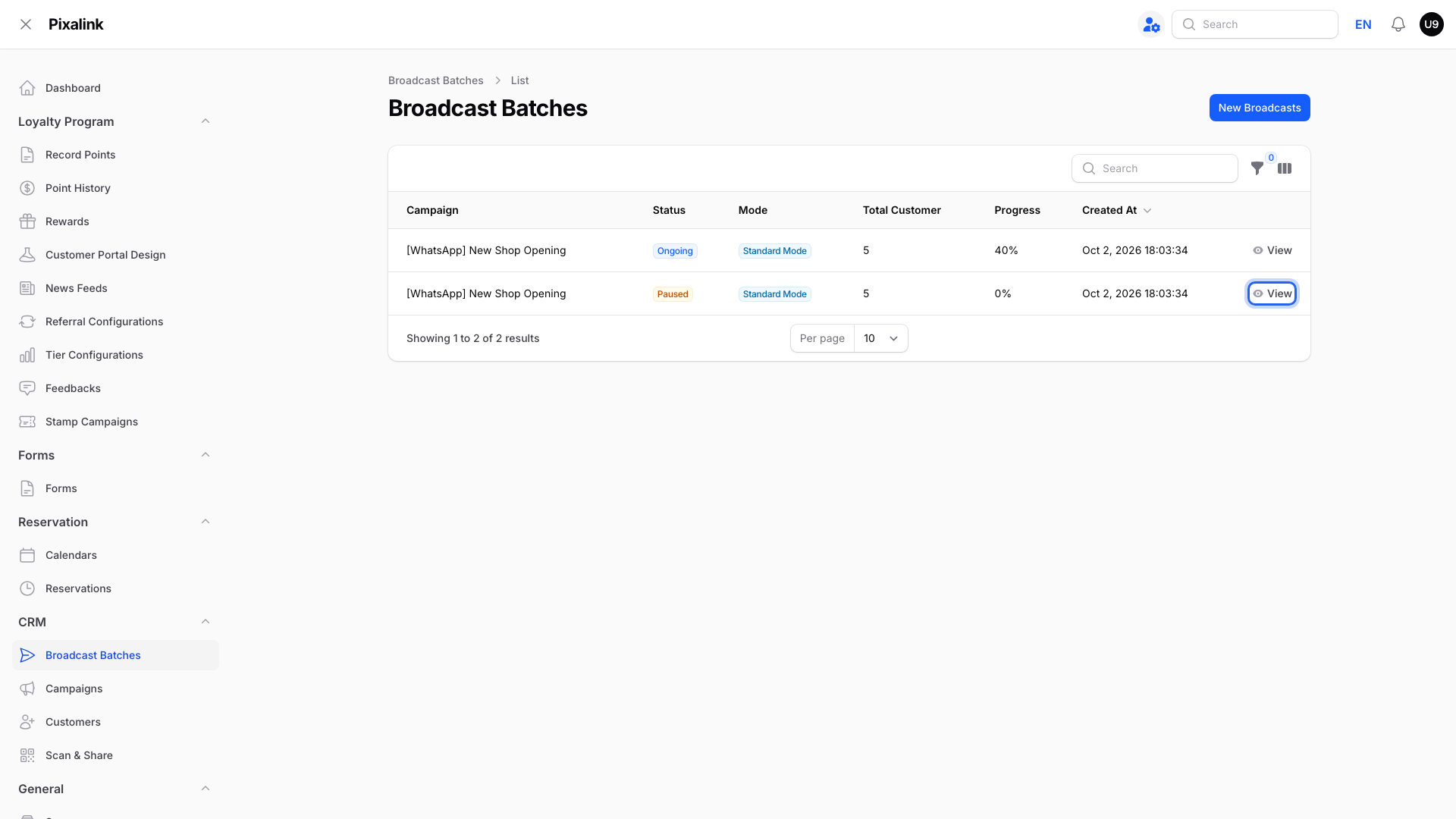
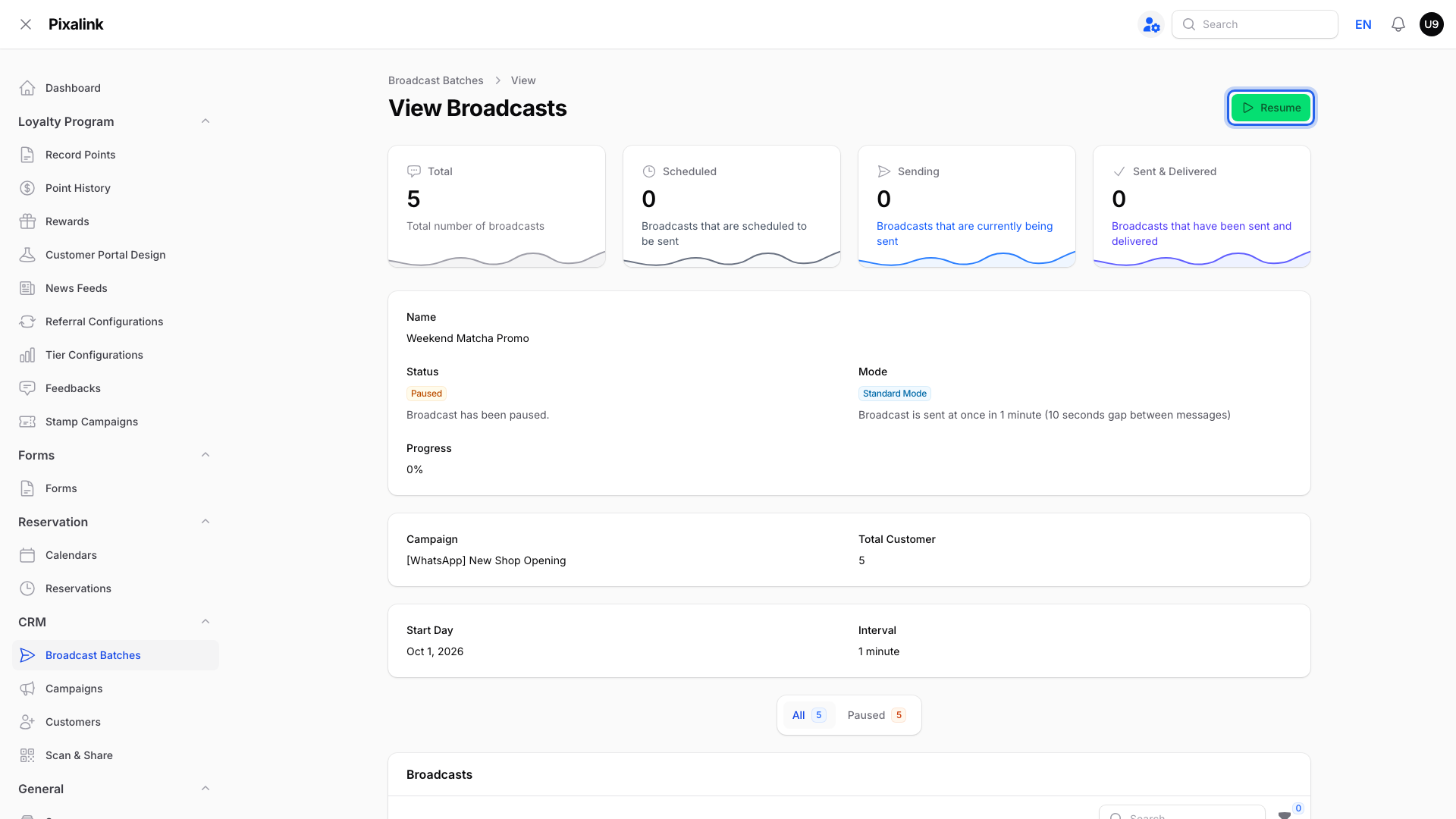
Click View on the batch you want to check. A batch Pixalink paused for you shows the Paused status.
-
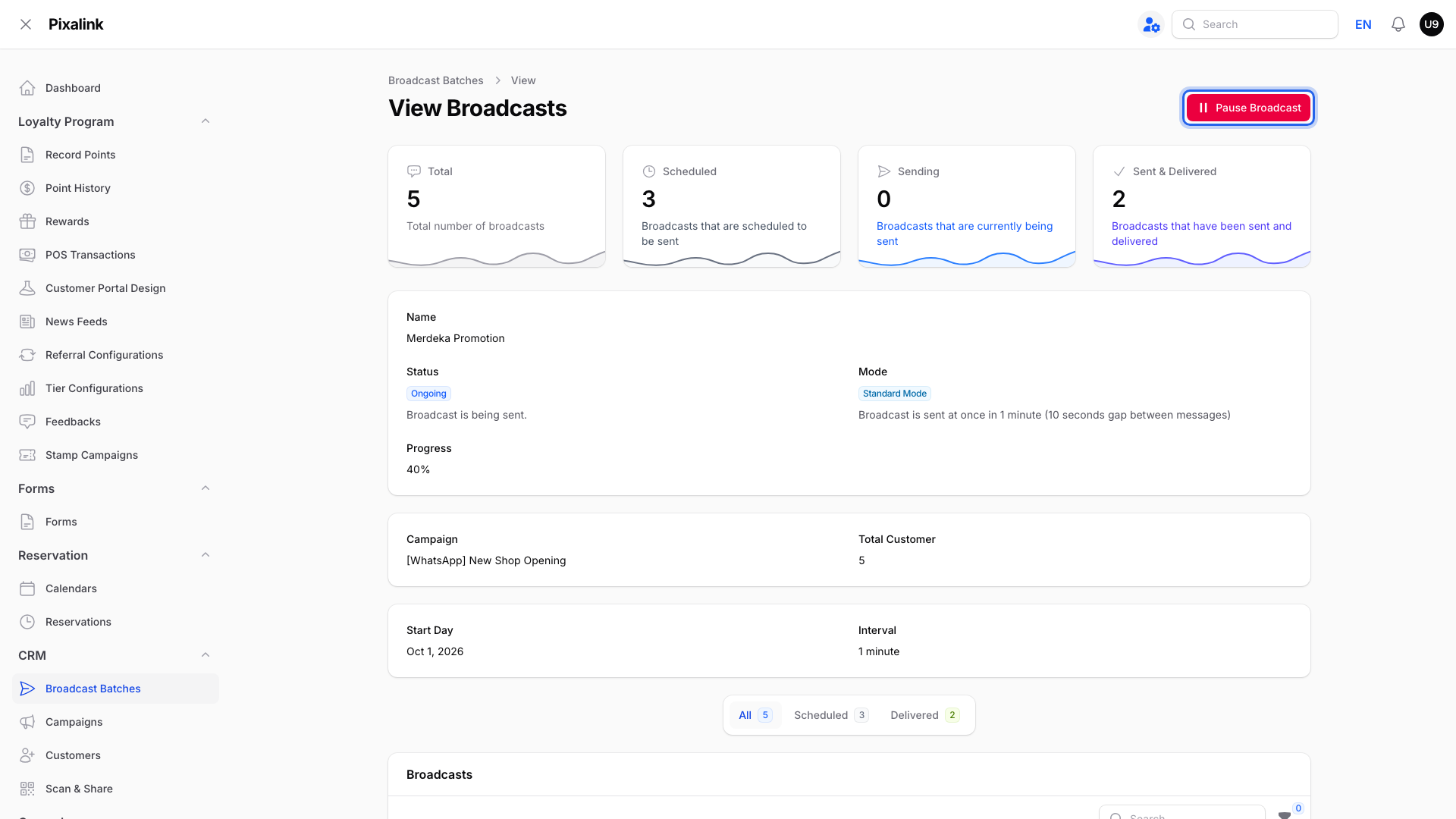
To stop a batch that is still sending, click Pause Broadcast at the top right.
-
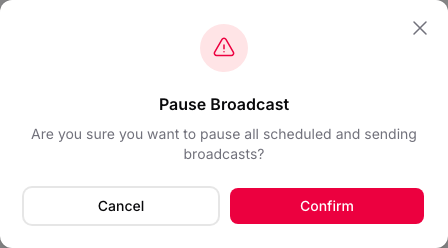
Click Confirm. Every message that is still scheduled or sending in this batch is paused.
-
Leave the batch paused if the message is out of date. Paused messages never send unless you click Resume.
-
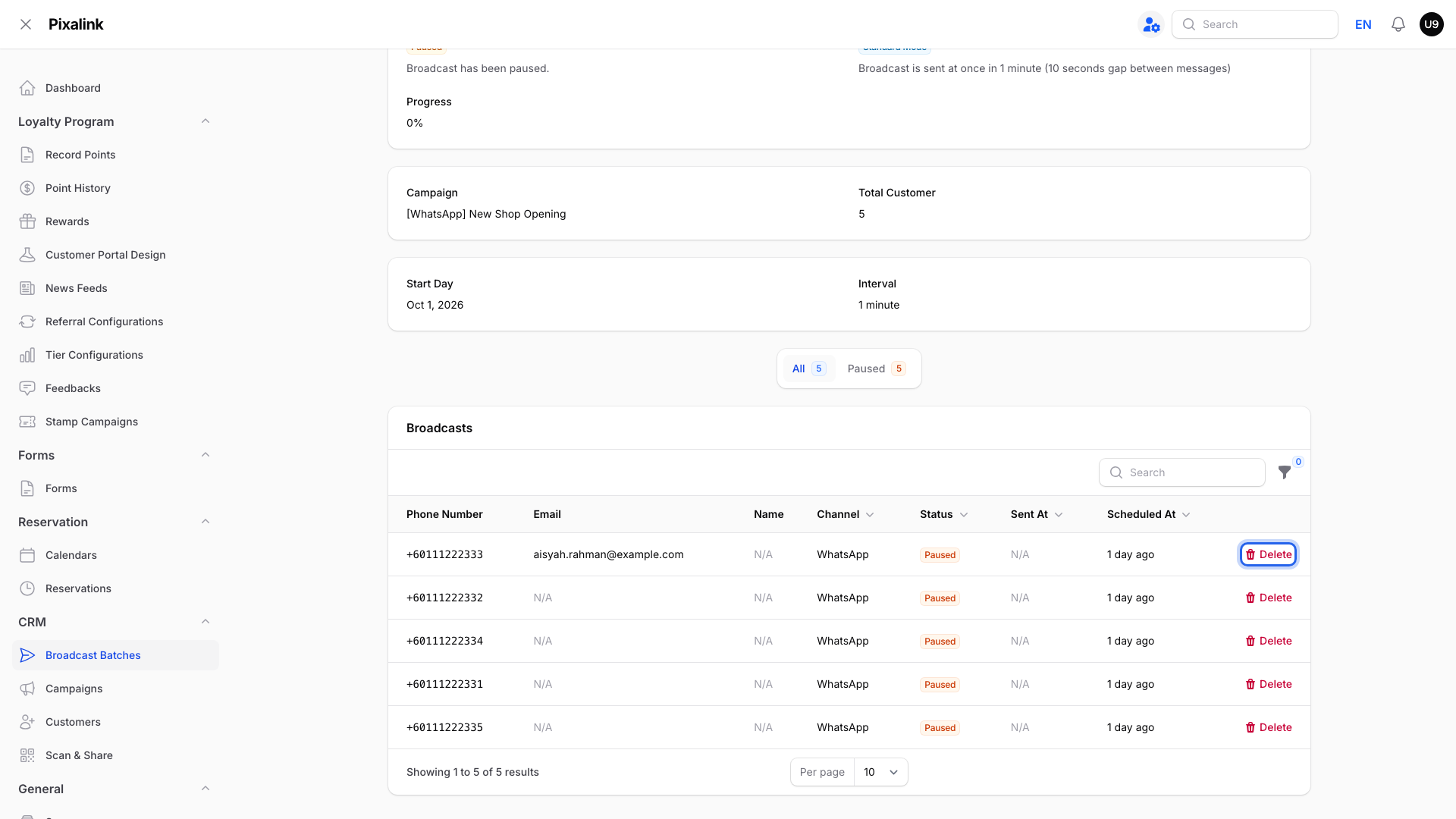
To remove one customer's pending message, scroll to the Broadcasts table and click Delete on that row. This removes the broadcast record. It cannot recall a message already sent.
Note
There is no button to cancel every batch at once. Open and pause each batch you want to stop.
Real-Life Example
Priya runs a matcha café in Bangsar. Her WhatsApp got logged out of Pixalink over a long weekend, and her Merdeka promotion was due on the Monday.
On Tuesday she relinks WhatsApp and opens CRM → Broadcast Batches. The promotion batch shows Paused. The sale is over, so she simply leaves it paused. None of her customers get an out-of-date promotion.
Good to Know
- Resume schedules the remaining paused messages again. The sending mode controls their new dates and times. Only resume if the message is still relevant.
- If a batch uses Advanced Mode, Resume asks you to pick new sending days and times first.
- Resume only works once your WhatsApp is connected again. Until then, the button takes you to the Configurations page to log in to WhatsApp.
- A message that has already left Pixalink can't be called back.
- Pausing and deleting only affect broadcasts. Automatic messages start again by themselves once your WhatsApp is reconnected.
Tip
Reconnect first, then decide. Paused batches wait for you, so you can review them at any time.
Need Help?
If a batch you paused keeps sending, contact our support team.