
How to Connect Your WhatsApp Business Account
How to Connect Your WhatsApp Business Account
What Is This?
Connecting your WhatsApp Business account lets Pixalink send loyalty notifications directly to your customers through WhatsApp. Once connected, your customers automatically receive messages when they earn points, redeem rewards, or hit a new tier.
Real-Life Example
Siti runs a bubble tea shop in Subang Jaya. She used to print receipts showing points earned, but most customers threw them away and forgot about their rewards. After connecting her WhatsApp Business account to Pixalink, every customer now gets an instant WhatsApp message when they earn points or unlock a reward. Within two weeks, Siti noticed more customers coming back to redeem — her repeat visits went up by 30%. The whole setup took her less than five minutes.
How to Set It Up
-
Go to Admin Panel → Settings → Configurations
-
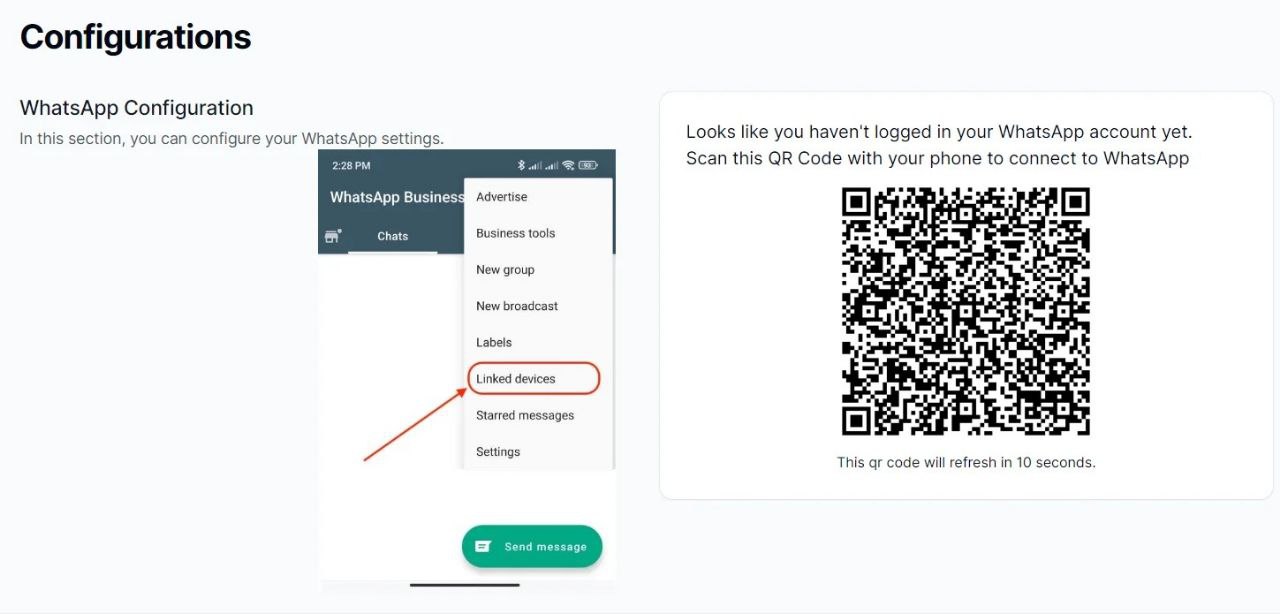
Scroll down to the WhatsApp Configuration section. You'll see a QR code on the screen.
-
Open WhatsApp Business on your phone.
-
Go to Settings → Linked Devices and tap Link a Device.
-
Scan the QR code shown on the Configurations page with your phone's camera.
-
Tap Continue on the confirmation prompt in WhatsApp to complete the link.
-
Wait a few seconds. The Configurations page will update to show your connected phone number and profile picture.
That's it — your WhatsApp Business account is now linked and ready to send notifications.
What Your Customers Will See
After you connect, customers who have a WhatsApp number in their profile will start receiving loyalty notifications as WhatsApp messages. These include points earned, rewards redeemed, and tier updates. The messages come from your business phone number, so customers see your business name in their chat list.
Good to Know
- Use WhatsApp Business, not personal WhatsApp. Personal accounts aren't supported and may get blocked.
- The QR code refreshes every few seconds. This is normal — scan it promptly when it appears.
- One connection per account. Each WhatsApp Business number can only be linked to one Pixalink account at a time.
- To disconnect, go back to the same Configurations page and click Logout. A new QR code will appear if you want to reconnect.
- If the connection drops, simply return to the Configurations page, scan a fresh QR code, and you'll be back online.
What's Next?
- Set up which notifications your customers receive under Settings → Configurations → Notification Settings
- Learn how to create your first loyalty reward