
How to Connect WhatsApp Cloud API (Meta) for Your Business
Cloud API is Meta's official WhatsApp Business Platform for sending template-based broadcast campaigns. Unlike other WhatsApp connection methods, Cloud API sends your messages through Meta's own servers — which means higher delivery rates, no risk of your WhatsApp number being banned, and proper delivered/read tracking.
This guide shows you how to prepare your Meta account and hand three connection details to Pixalink, so our team can switch Cloud API on for your business.
What you'll need to collect
You'll gather three values from your Meta account and send them to Pixalink:
- A System User Access Token — a permanent, non-expiring token
- Your Phone Number ID
- Your WABA ID — WhatsApp Business Account ID
Pixalink completes the actual connection on our side once you send these over.
Before you start: create a Meta App
You need a Meta App registered under your Meta Business portfolio with the "Connect with customers through WhatsApp" use case enabled.
Follow the step-by-step guide here: How to Create a Meta App for WhatsApp Cloud API.
Everything stays under your own Meta account — you create and manage the app, and you grant the Pixalink app access in the steps below.
Before Step 1: three things that save weeks
- Add your Pixalink onboarding contact to your Meta account. Then we can check problems ourselves instead of asking you for screenshots.
- In Meta Business Suite, go to Business Settings → Users → People → Add, enter your Pixalink contact's email, and give full control.
- In developers.facebook.com, open your app → App roles → Roles → Add People, and add them as Administrator.
- Check you have one WhatsApp Business Account. If you set one up before, you may have two. Use the one that holds the number you are connecting, and tell us its WABA ID (Step 3).
- Add a payment method to that WhatsApp Business Account. Without it, Meta refuses every message template. Go to Meta Business Suite → Settings → Accounts → WhatsApp Accounts → select your account → Settings → Payment Settings → Add Payment Method. Send us a screenshot of that page showing the WABA ID.
Meta also needs to verify your business (Business Settings → Security Center → Business verification). This can take a few weeks. We will keep your messages going by SMS in the meantime if you need it.
Step 1: Create a permanent Access Token
Short-lived tokens from the Graph API Explorer expire after a few hours. For a lasting connection, create a System User token instead.
- Go to Meta Business Suite and open Business Settings.
- In the left sidebar, go to Users then System Users.
- Click Add to create a new System User (or select an existing one) and set the role to Admin.
- Click the system user's name, then click Assign Assets.
- Select WhatsApp Accounts, check your WhatsApp Business Account, enable Full Control, and click Save.
- Click Assign Assets again. Select Apps, check the Pixalink app, enable Manage App, and click Save.
- Click Generate New Token and select the Pixalink app from the dropdown.
- Check both of these permissions:
whatsapp_business_managementwhatsapp_business_messaging
- Set the token expiry to Never expires.
- Click Generate Token and copy it immediately — Meta will not show it again.
Both permissions are required. A token with only
whatsapp_business_messagingcan send messages but cannot manage templates. If setup later shows "You do not have permission" errors, the token is missingwhatsapp_business_management— generate a new one with both boxes checked.
🔒 Treat the Access Token like a password. Anyone with it can message on your behalf. Only share it with Pixalink through a secure channel (see Step 4).
Step 2: Find your Phone Number ID
- In Meta Business Suite, go to Business Settings then Accounts then WhatsApp Accounts.
- Select your WhatsApp Business Account.
- Click the phone number you want to use for broadcasting.
- The Phone Number ID is shown on the phone number details page — a long numeric string (e.g.
387937354407185).
Step 3: Find your WABA ID
The WABA ID (WhatsApp Business Account ID) is different from the Phone Number ID.
- In the same WhatsApp Accounts section of Business Settings, select your account.
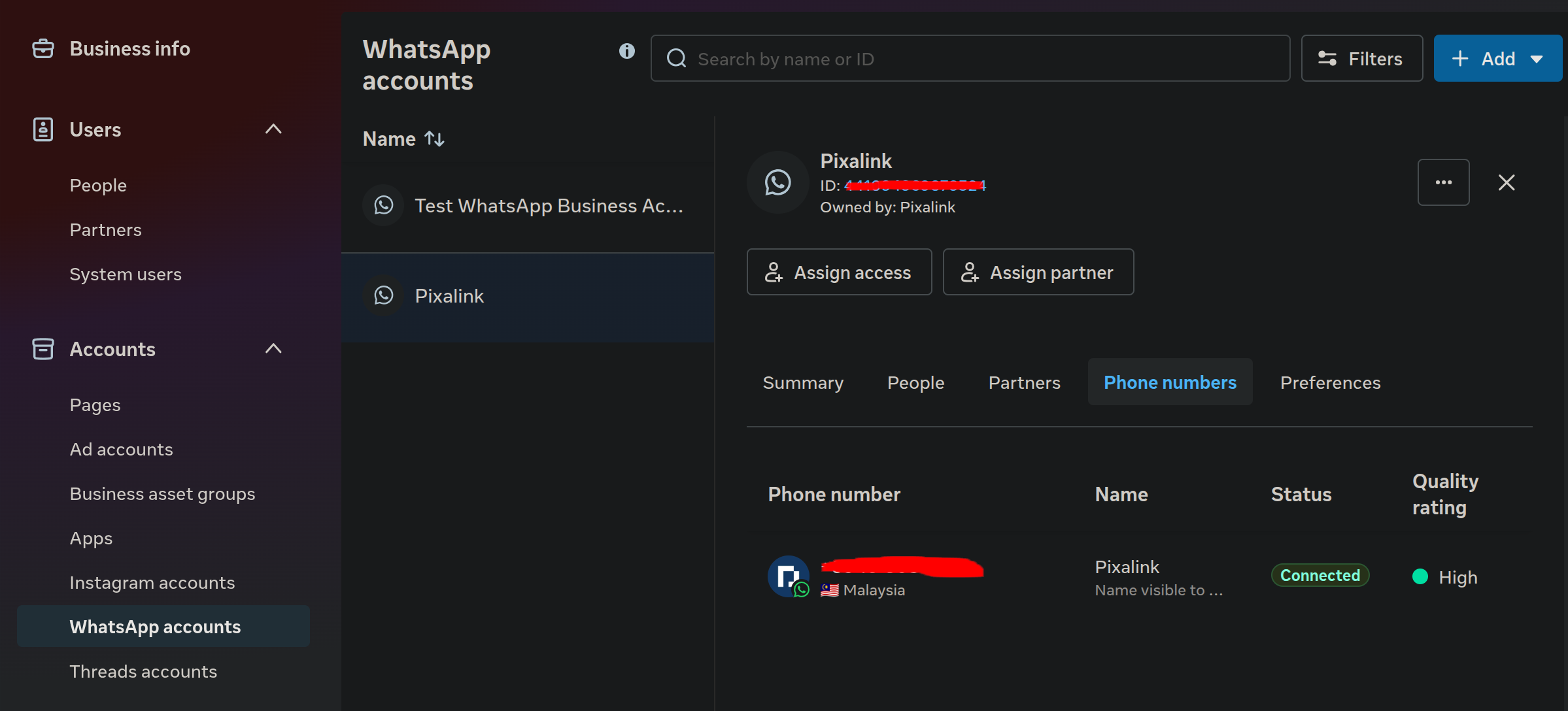
- The WABA ID appears in the account details, or in the URL when viewing the account (e.g.
404141429447970).
Step 4: Send the details to Pixalink
Once you have all three values, send them to your Pixalink account manager or Pixalink support:
- Phone Number ID (from Step 2)
- WABA ID (from Step 3)
- System User Access Token (from Step 1)
Because the Access Token is sensitive, please share it through a secure channel — ask your account manager for a secure link if you're unsure. Our team enters the details on Pixalink's side and verifies the connection for you.
Step 5: Confirm it's working
After Pixalink activates the connection, you'll be able to:
- See your Cloud API WhatsApp number on your Configurations page under WhatsApp settings
- Turn on Use Cloud API Template when creating WhatsApp campaigns
- Create template campaigns that are submitted to Meta for approval
If you don't see the Cloud API option in your campaign form, contact Pixalink support to confirm the connection is active.
Troubleshooting
| Issue | Cause | Fix |
|---|---|---|
| The Pixalink app is not in the token dropdown | The Pixalink app isn't assigned to your System User | Complete Step 1.6 — assign the Pixalink app with Manage App access |
| "You do not have permission" errors | Token is missing whatsapp_business_management |
Generate a new token with both permissions checked (Step 1.8) |
| Meta rejects a template | Content policy issue (e.g. a variable at the very start or end of the text) | Review Meta's template guidelines and resubmit |
| You can't see the Cloud API toggle in campaigns | The connection isn't active yet | Confirm with Pixalink support that Steps 4–5 are complete |
| Templates can't be submitted at all | No payment method on the WhatsApp Business Account being used, or it was added to a different one | Add it on the right account (see Before Step 1) and send us the screenshot |
| Your business and number show as unknown | Meta has not verified your business yet | Check Business verification in Security Center. Once Meta approves it, this clears |