
When Do I Need to Re-Link WhatsApp to Pixalink?
What Is This?
Pixalink sends your points, rewards and broadcast messages through your WhatsApp. If that link drops, customers stop getting messages.
This guide explains what "re-link" means, when you need to do it, and how to tell that you're connected again.
How It Works
Pixalink joins your WhatsApp as a linked device, the same way WhatsApp Web does. So there are two separate logins:
| Your phone's WhatsApp app | Pixalink's link | |
|---|---|---|
| What it is | WhatsApp on your phone | A linked device on that WhatsApp |
| Where you see it | Your phone | Settings → Configurations |
| How to fix it | Log in on your phone | Scan a new QR code |
When we ask you to re-link, we mean Pixalink's link. You don't need to log out of WhatsApp on your phone.
Check what the WhatsApp box shows
Go to Settings → Configurations and look at the WhatsApp box.
How to re-link
The QR code and your phone's menus need a live WhatsApp connection, so this part has no screenshots.
- Open WhatsApp on your phone and go to Linked Devices.
- Tap Link a Device.
- Scan the QR code on the Pixalink Configurations page.
- Wait for the page to show your profile and phone number.
If the WhatsApp app on your phone asks you to log in again, do that first. Then check Configurations and scan the QR code if one shows.
Real-Life Example
Farah runs a nail salon in Petaling Jaya. Overnight, after a WhatsApp update, her link to Pixalink drops.
In the morning, she gets an email saying "Your WhatsApp is Disconnected". She opens Settings → Configurations and sees a QR code. Her WhatsApp app still works on her phone, so she doesn't log out of anything. She taps Link a Device and scans the code. Her profile and number appear, and her points messages start going out again.
Get Told When the Link Drops
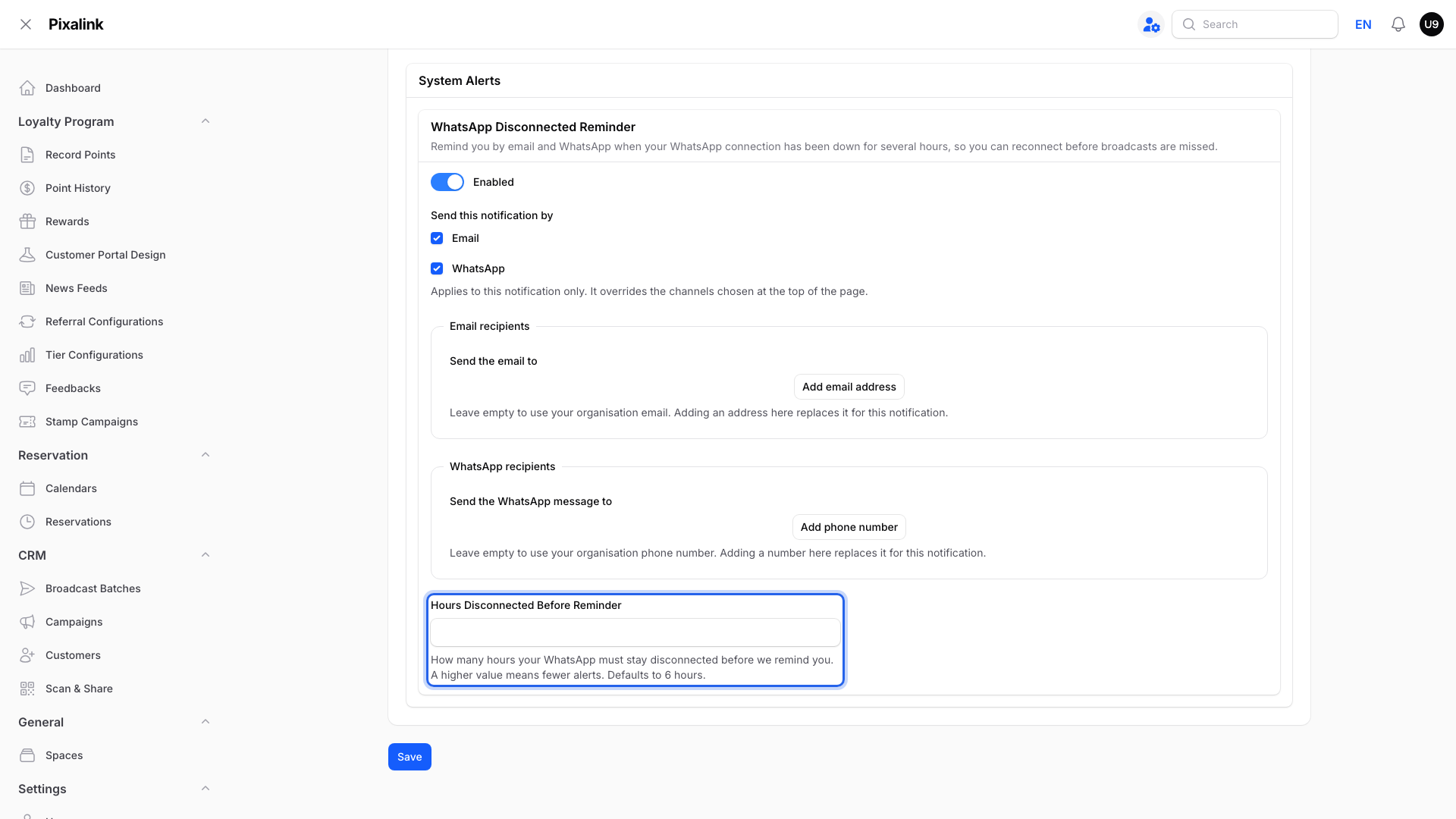
If disconnect reminders are enabled, Pixalink alerts you through your selected channels after the link has stayed down for the chosen number of hours. Reminders are sent during the day.
Set this on the System tab of Notification Settings, under WhatsApp Disconnected Reminder. Switch on Enabled, pick Email, WhatsApp or both, and enter the Hours Disconnected Before Reminder. Then click Save.
Good to Know
- The QR code expires quickly. If it changes, scan the new one. The page makes a fresh code by itself.
- Scan from one phone only, and keep the Configurations page open in one browser tab while you link.
- Linking a brand-new WhatsApp Business number? Warm it up first before sending broadcasts.
- Using the official WhatsApp number from Meta? It has no QR code, so there is nothing to re-link.
Warning
Automatic messages skipped during a disconnect are not replayed, but messages already waiting can arrive later. Pixalink pauses eligible batches due that day when their sending channel is unavailable. Check each batch's status after reconnecting.
Need Help?
If the QR code keeps failing, contact our support team.