Updated Sep 2, 2026
Zu Wei
2 min read
13 views

How to Turn Off WhatsApp Disconnected Reminders

How to Turn Off WhatsApp Disconnected Reminders

What Is This?

Pixalink keeps an eye on your WhatsApp connection and warns you when it has been down for hours. The alert is on by default. You can switch it off in four clicks, or keep it and change how it reaches you, who receives it, and how long it waits.

Video Walkthrough
Real-Life Example

Siti runs Rasa Sayang restaurant in Shah Alam. Every Friday she sends a lunch promotion to her regulars over WhatsApp. Her phone sometimes drops the connection overnight, so Pixalink emails and messages her a reminder the next morning. Siti already checks the connection before every broadcast, so the extra messages only add noise to a busy service. She opens her notification settings and switches the reminder off. Her mornings are quiet again, and she still reconnects the line herself whenever she spots it is down.

How to Set It Up

  1. Go to Admin Panel → Settings → Configurations.

    Pixalink admin sidebar with the Configurations item highlighted

  2. Scroll down to Notification Settings and click the System tab.
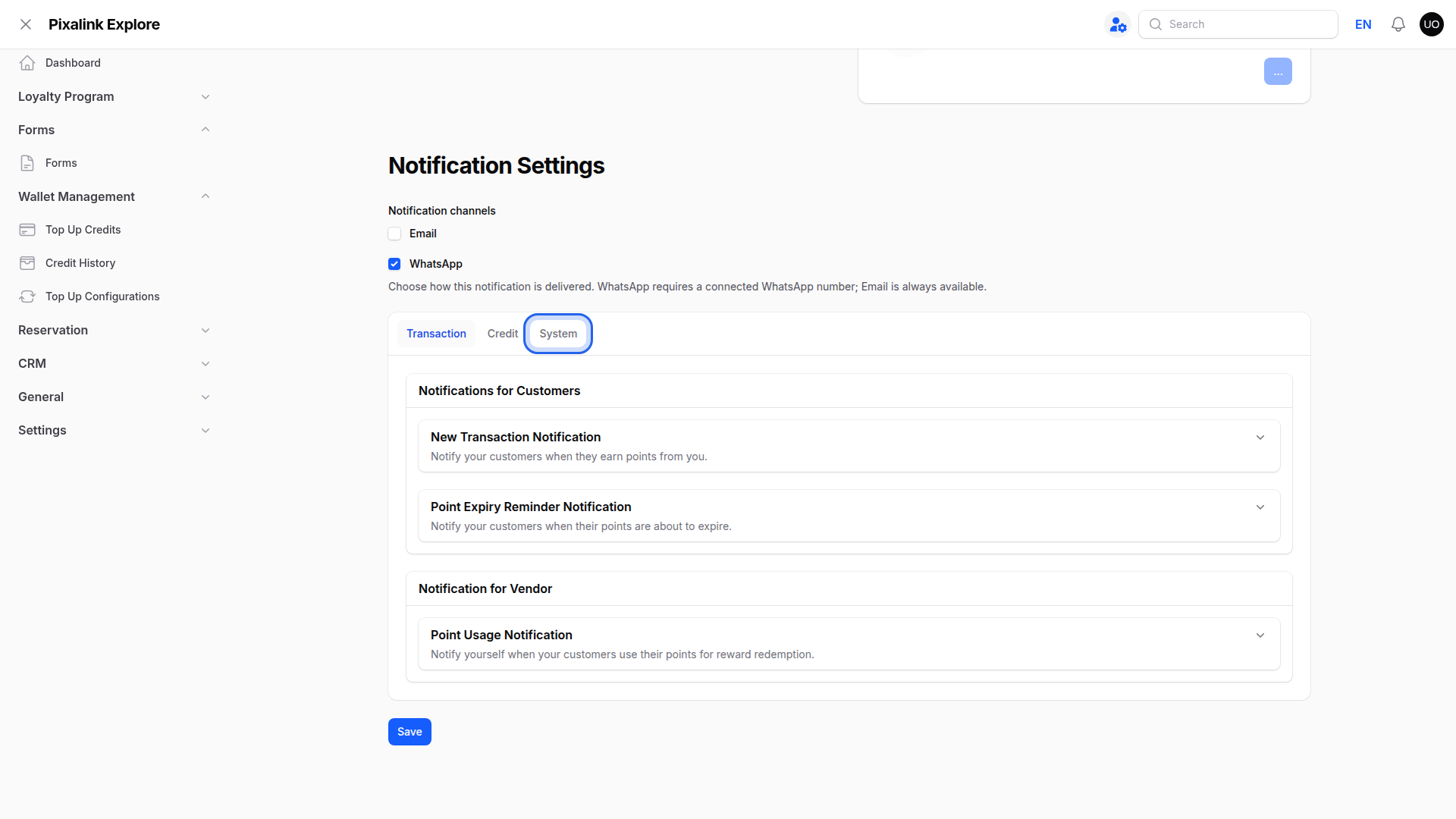
    Notification Settings section on the Configurations page with the System tab highlighted

  3. Switch Enabled off under WhatsApp Disconnected Reminder.
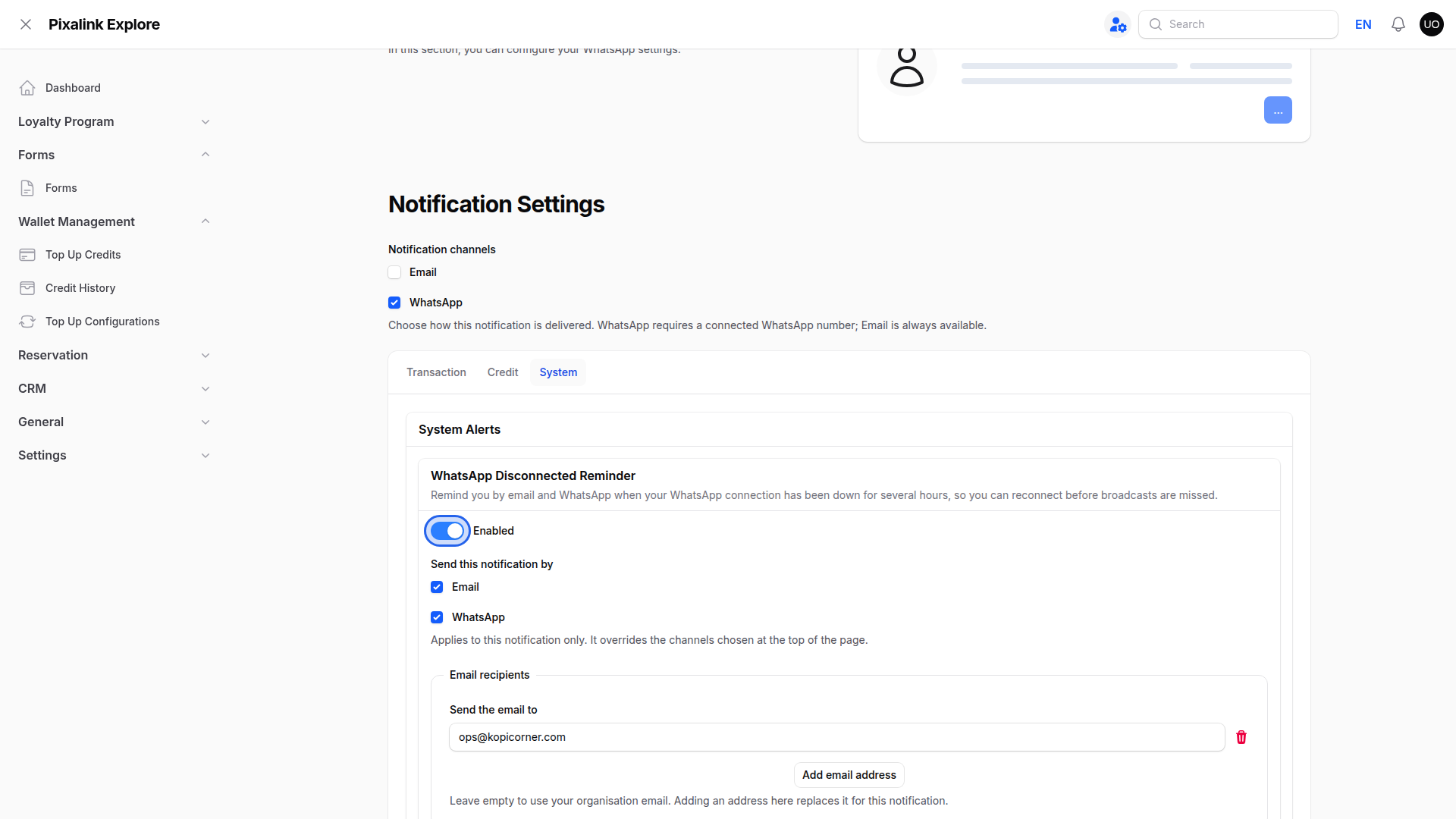
    System Alerts panel with the WhatsApp Disconnected Reminder Enabled switch on and highlighted

  4. Click Save to store your choice.

    Notification Settings form with the Save button highlighted below the System Alerts panel

Keep It, But Retune It

Leave Enabled on and you get three controls instead.

Send this notification by picks Email, WhatsApp or both for this alert alone, whatever the channels at the top of the page say. Email recipients and WhatsApp recipients decide who it goes to. Both fall back to your business email and phone number while they are empty, so add an address or a number to send it to the person who fixes the line.
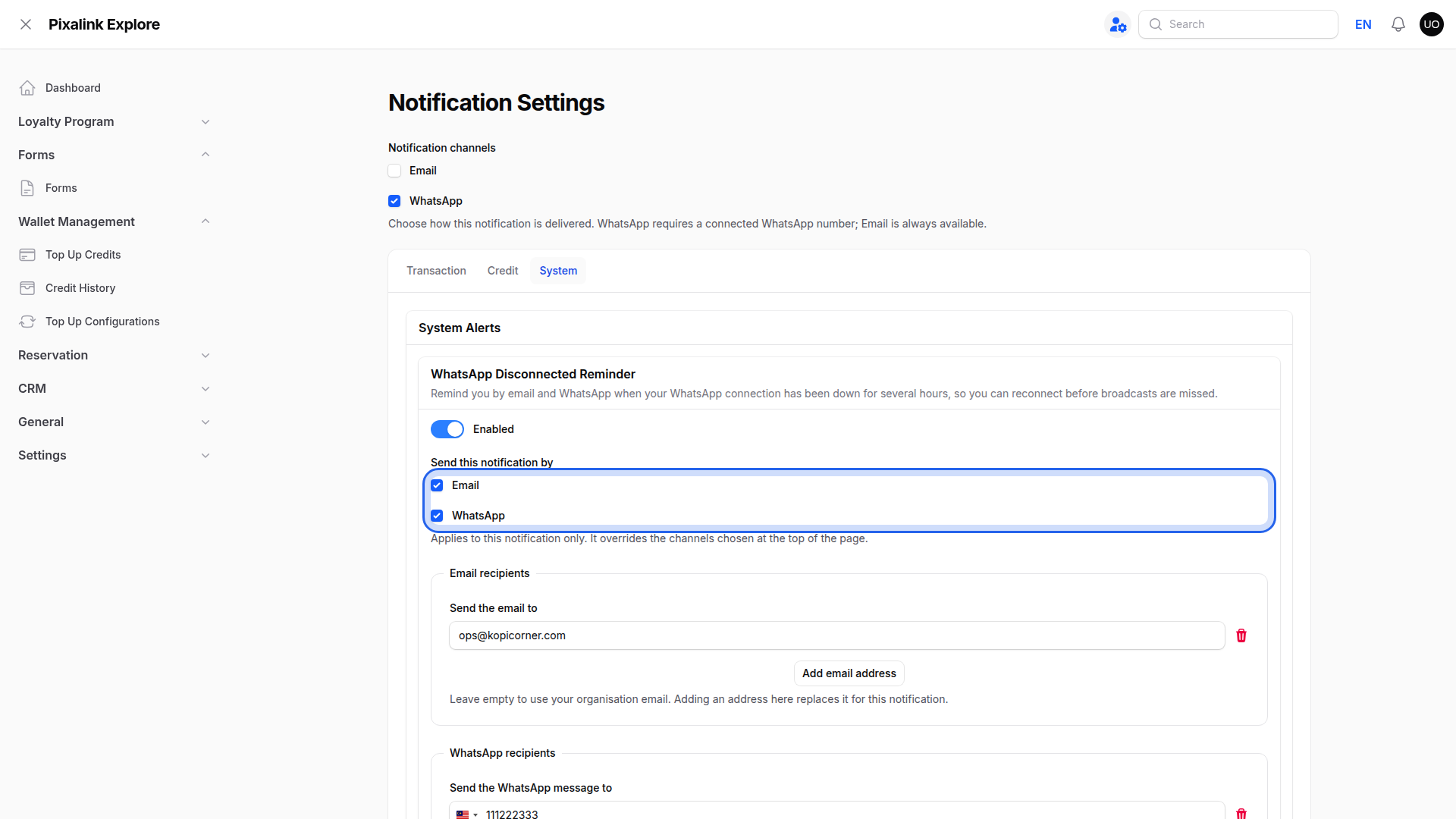
Send this notification by highlighted with Email and WhatsApp ticked, above the Email recipients and WhatsApp recipients fields

Hours Disconnected Before Reminder sets the wait. The default is 6 hours and the highest is 72.
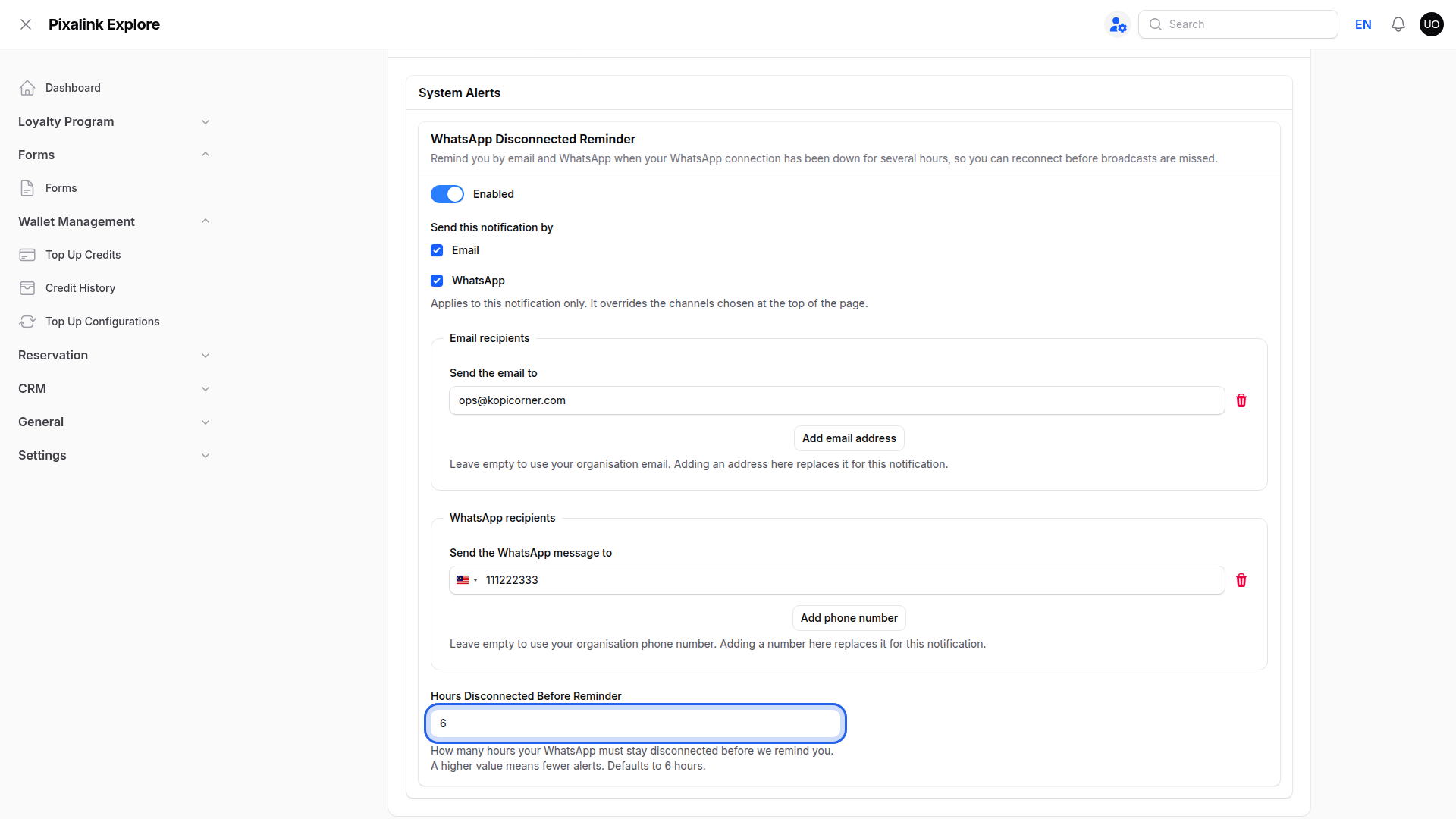
Hours Disconnected Before Reminder field highlighted, showing the default value of 6

What Your Customers Will See

Nothing changes for your customers. This alert only ever goes to you and your team, never to the people who shop with you.

Good to Know

  • Press Save even when the switch already looks off. Your choice is only stored once you save.
  • The alert arrives at most once a day.
  • Switching it off does not fix the line. While WhatsApp stays disconnected, your broadcasts and automated messages still will not reach customers.
  • You can switch it back on at any time.

Need Help?

Contact the Pixalink support team and we will walk you through the settings together.

What's Next?

Video transcript: How to Turn Off WhatsApp Disconnected Reminders
Pixalink monitors your WhatsApp connection. When it stays down for several hours, you receive an alert. This alert is on by default. This guide covers all four options. Change how it reaches you, change who receives it, make it arrive less often, or switch it off completely. Start in the Admin Panel. Scroll to the bottom of the left menu, to the Settings group. Select Configurations. The Configurations page carries your WhatsApp setup at the top, and Notification Settings below it. Scroll down to Notification Settings. There are three tabs. Transaction and Credit control the messages your customers receive. System holds the alerts sent to you. Open System. Under System Alerts you will find the WhatsApp Disconnected Reminder. The Enabled switch is on, which is the default for every account. That is why the alert reaches you today. Send this notification by controls how the alert travels. Tick Email, WhatsApp, or both. This setting belongs to this alert alone, so it overrides the channels chosen at the top of the page. Untick one channel to quieten the alert without switching it off. Below that, choose who receives it. Email recipients and WhatsApp recipients both start empty, which means the alert goes to your organisation email and phone number. Add an address or a number and it goes there instead. This is how you route a connection alert to the person who actually fixes it. Hours Disconnected Before Reminder sets how long the line must stay down before you are told. The default is 6 hours. Raise the number for fewer alerts. The maximum is 72 hours, which is three days. To stop the alert completely, click the Enabled switch. It turns grey, and every setting under it disappears. Click Save at the bottom of the block. Every change here applies only once saved. Save even when the switch already appears grey. A confirmation message appears, and the alert stops. One point to remember. Switching the alert off does not repair the connection. While WhatsApp stays disconnected, your broadcasts and automated messages are not delivered, so check the line before every send. You can switch the alert back on at any time.

Was this article helpful?

Thank you for your feedback!

0 found this helpful 0 did not

Search