
Why the Configurations Menu Is Missing
What Is This?
Find the WhatsApp settings you need to keep customer messages running. Configurations sits under Settings, but appears only when your business and login meet the conditions below.
How It Works
The menu only shows when both of these are true:
| Check | What it means |
|---|---|
| WhatsApp is ready | Your business has WhatsApp set up, or self-connection is enabled. If self-connection is enabled, Configurations can appear before you link a number. |
| Your login can open it | The main owner login always can. Other logins depend on the access you gave them. |
What a hidden menu looks like
In this example, Settings shows Users and Tags without Configurations. Your business may have other settings.
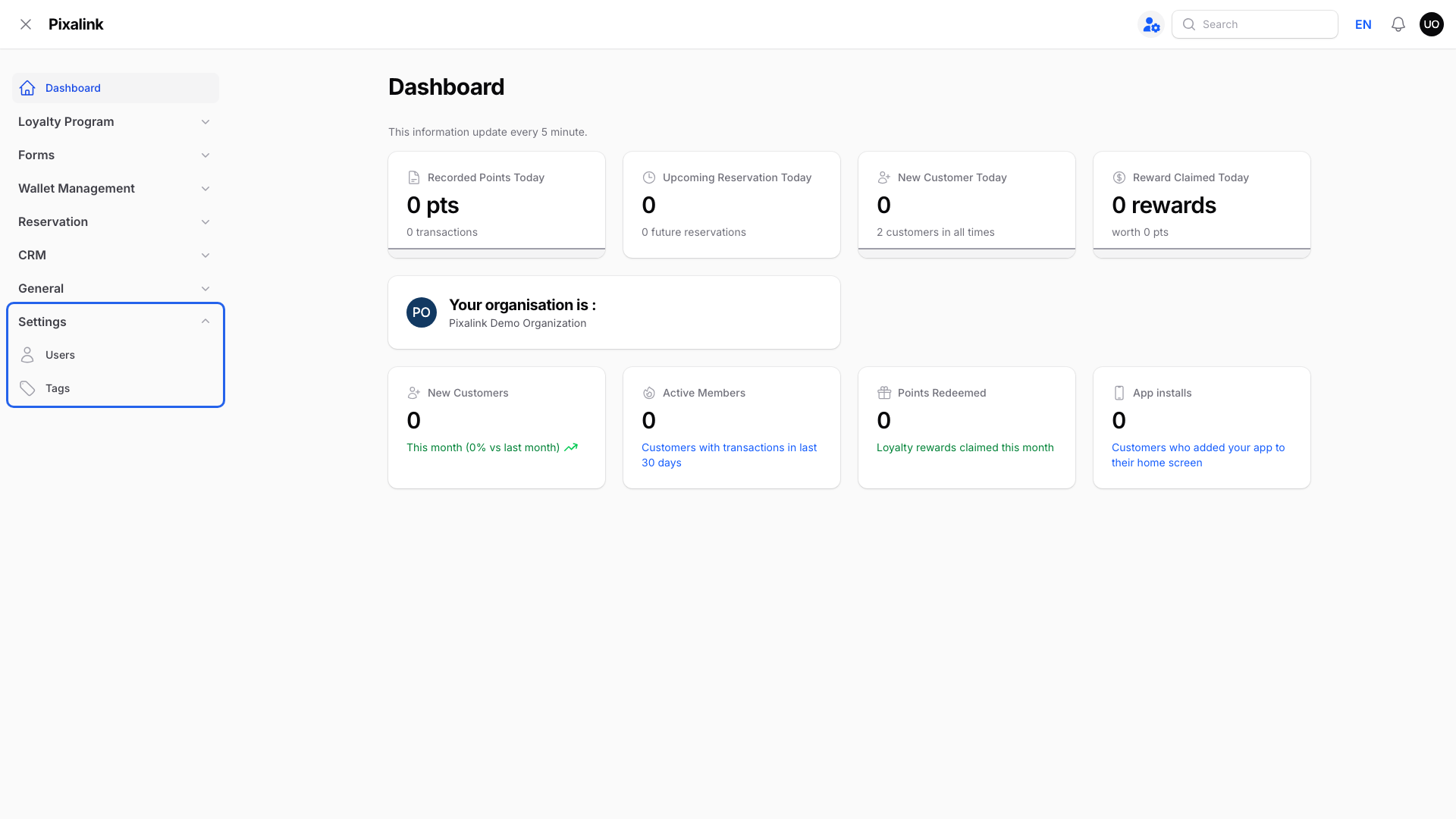
Check a team member's login
If another team member can see Configurations but you can't, the difference may be your login's access. The owner can see each login under Settings → Users.
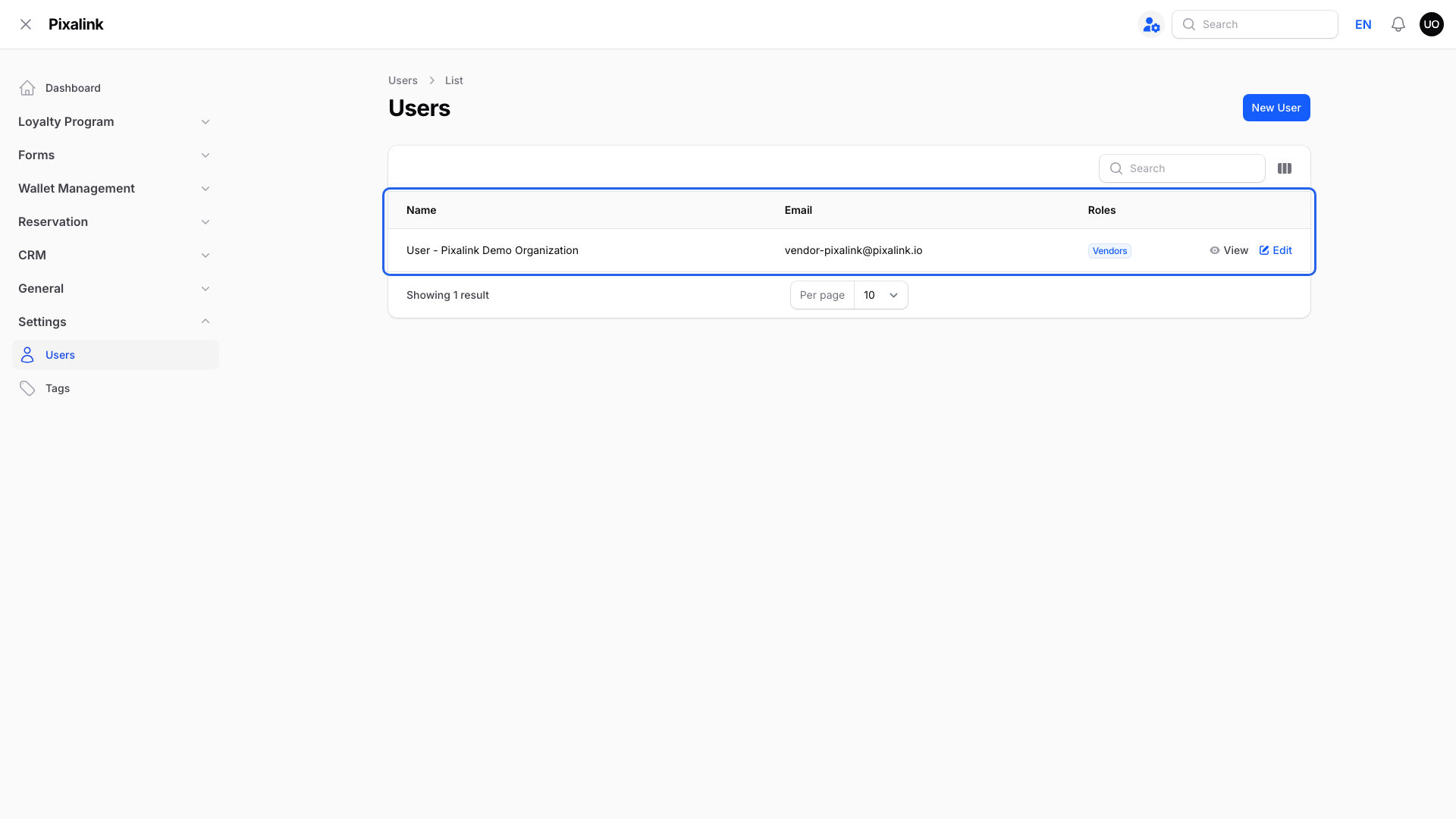
The business owner can review team access using How to invite your team and manage roles.
HQ users and outlet users
Every login is one of two kinds. The Limit Access to ... field on the user's page decides which.
- HQ user: the field is left empty. The login sees every outlet. Owners and head-office staff are HQ users.
- Outlet user: one or more outlets are picked. The login sees only those outlets' data.
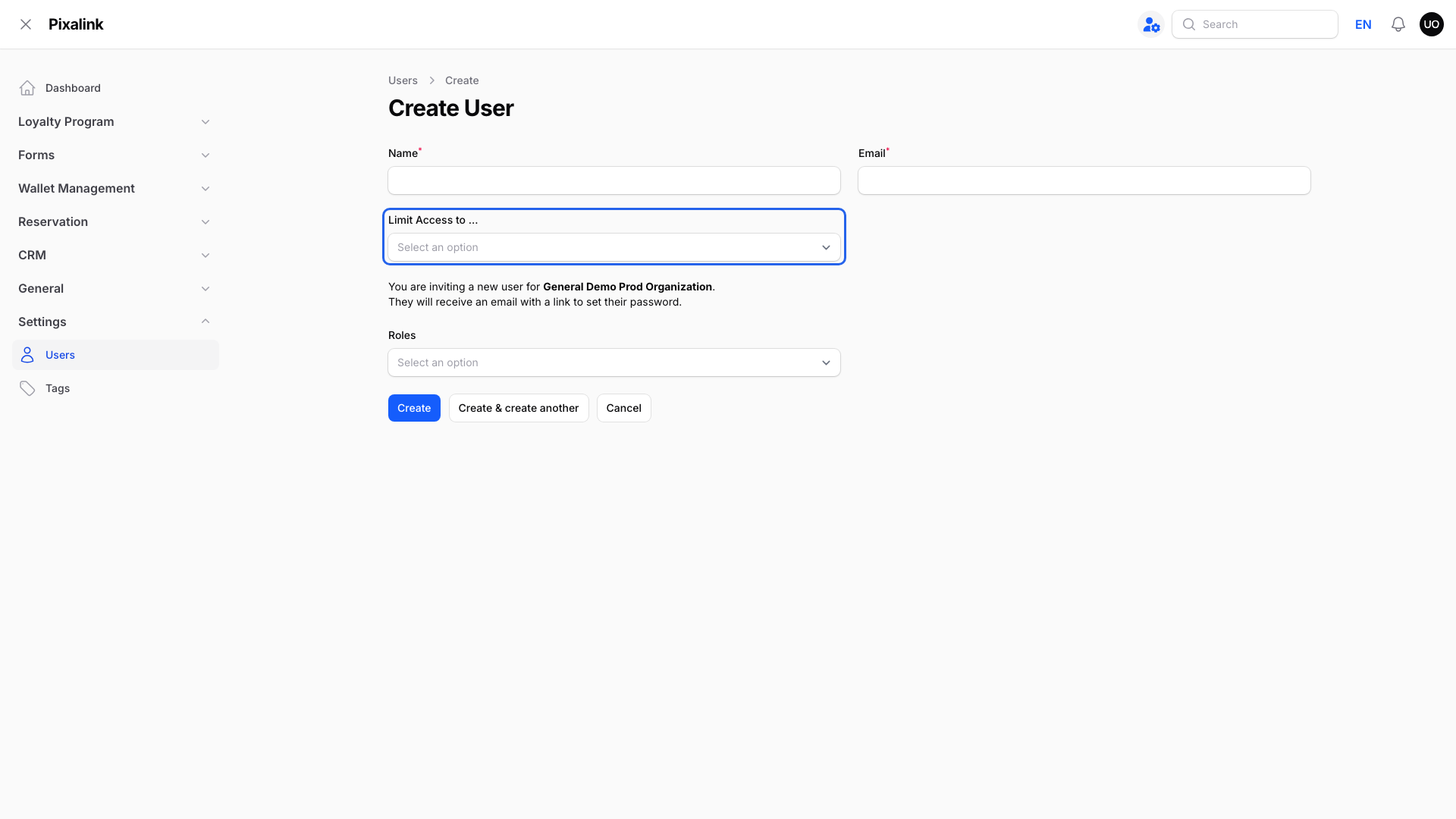
Configurations is a business-wide page, so being an outlet user does not hide it by itself. What hides it is the login's role. Roles made for outlet staff, such as Vendor - Branch Manager and Staff - Points Only, don't include it. If an outlet user needs Configurations, give their login a role that includes it.
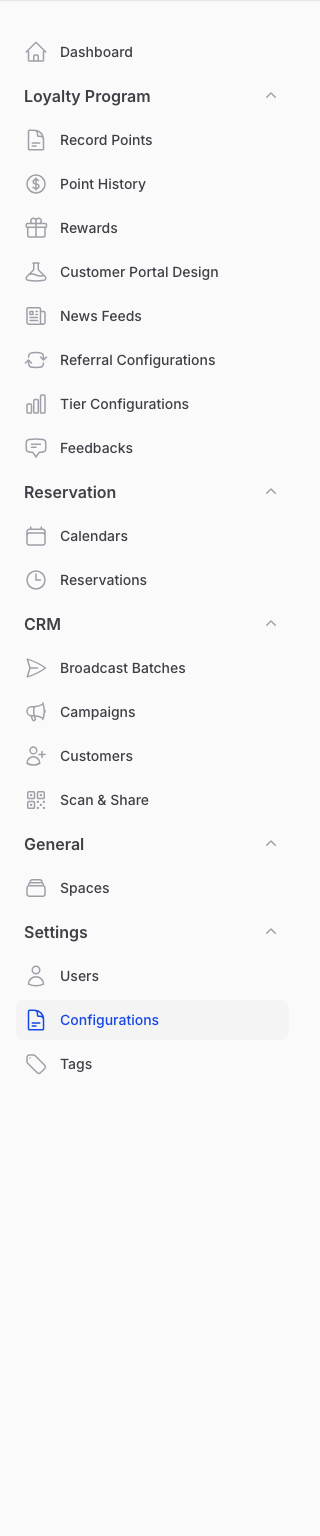
When both checks pass
Configurations appears under Settings.
Real-Life Example
Wei Lin runs a sushi bar in Mont Kiara. She logs in and wants to change her points message, but Settings shows no Configurations.
Her shop does not have WhatsApp set up on Pixalink yet. She asks the Pixalink team to set up her WhatsApp line. The next day, Configurations shows up under Settings. Her cashier still can't see it, because his login only has access to give points at the counter. That's fine for his job.
Good to Know
- After WhatsApp setup, refresh the page. The menu appears if your login can open it.
- Some businesses can connect their own official WhatsApp number. For them, the menu appears even before a number is linked, so they can start the connection.
- Custom team access can also affect which settings each login sees.
- Hiding the menu does not stop any messages. It only hides the settings page from that login.
Tip
Not sure which check is failing? Log in as the owner. If the owner can't see Configurations either, WhatsApp is not set up yet.
Need Help?
If you are the owner and the menu is still missing, contact our support team and ask them to check your WhatsApp setup.