
Why a Broadcast Reached No One
What Is This?
You send a broadcast and it reaches nobody. Two things cause this most often. Either everyone already got that campaign, or nobody on your list can be reached on its channel. Here is how to tell them apart, and what to do.
How It Works
Reason 1: they already got this campaign
The skip rule is tied to the campaign, not the words in it. Once a broadcast reaches a customer with your Come Back Treat campaign, they are skipped next time. You can see the rule on the broadcast form. Under Add All Customers it says: Customer who already received this campaign will be ignored.
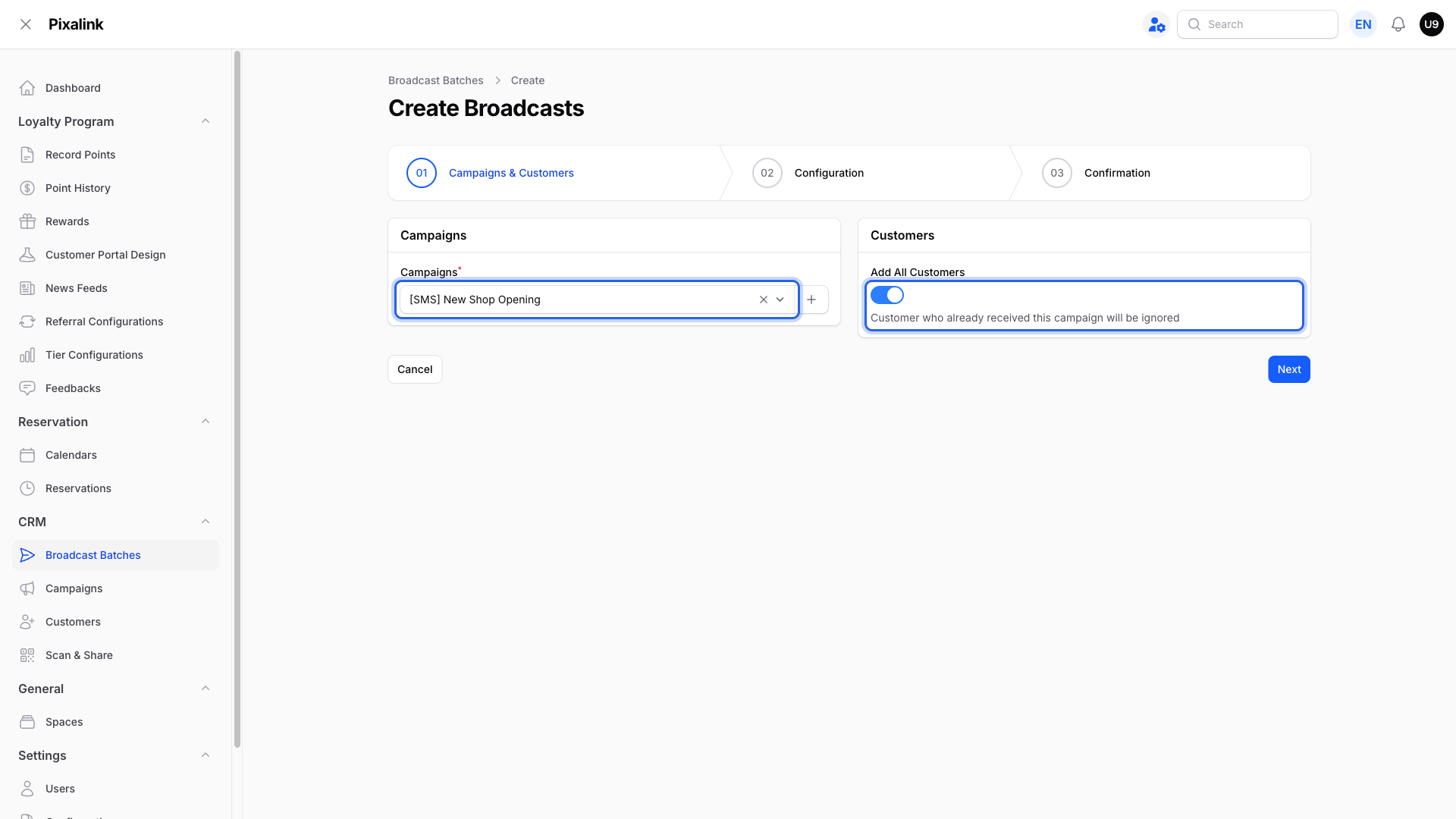
A customer is skipped only when their message is Scheduled, Sending, Sent, Delivered or Read. Every other status leaves them in the list, including Failed, Paused, Withheld and No Account. Withheld means your messaging credit ran out. Top up and they can be reached again.
What to do: make a new campaign with the same message, then broadcast that one. Build it from the Campaigns page and switch it Active first. The skip rule counts each campaign on its own, so a new one makes your whole list eligible again.
Caution
Using Official WhatsApp? A new campaign needs a new message template that WhatsApp must approve, which can take a day. You also cannot make a second New Customer, Birthday, Big Spender, Shop Anniversary or Membership Day campaign. For those, contact our support team.
Reason 2: nobody can be reached on that channel
A campaign can send on one channel or several. An Email only campaign needs an email address on file. Customers without one are left out before anything is sent. So if nobody on your list has an email address, the broadcast reaches no one.
What to do: add the missing email addresses, pick different customers, or add WhatsApp or SMS to the campaign. Those channels reach everyone on your list, so the wall goes away.
Checking a broadcast that already went out
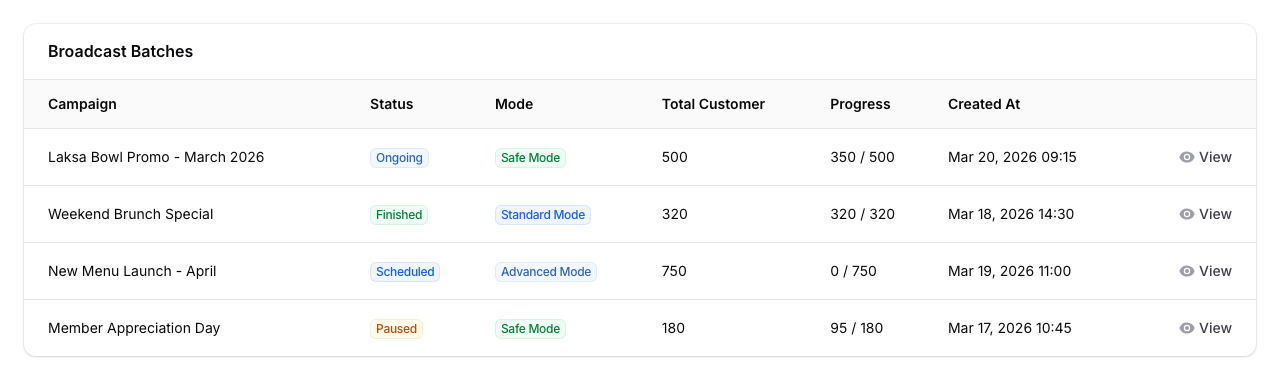
Go to Admin Panel → CRM → Broadcast Batches.
Look at Total Customer. A 0 means nobody was lined up, so nothing went out. The status still reads Finished, with the note "Broadcast has been sent". Trust the number.
Real-Life Example
Siti runs Rasa Sayang restaurant in Shah Alam. She emails her Come Back Treat offer to all 800 customers in August. In September she sends the same campaign again, and it reaches nobody. So she makes a new campaign, Come Back Treat September, with the same message. This time only 300 get it. The other 500 have no email address on file. Siti adds WhatsApp to the campaign, and those 500 get it too.
Good to Know
- A third cause: everyone on your list is marked Do Not Contact or Blocked. See Why Some Tagged Customers Don't Get Your Broadcasts.
- Do Not Contact and Blocked customers are left out first, before the other checks.
- Pixalink saves a "Broadcast reached no one" warning in your notification bell, top right. Nothing pops up, so check Total Customer too.
- Customers whose message failed stay eligible when you send the broadcast yourself. Automatic campaigns differ: follow-ups, Win Back Lost Customer and Big Spender never retry a customer they have tried once.
- Keep the old campaign. Deleting it erases its delivery records and the first send's results.
Testing a Broadcast on Yourself or Your Staff
To see how a message looks before the real send, use Send Preview instead of a broadcast.
- Go to Admin Panel → CRM → Campaigns and open the campaign.
- Click Send Preview and pick yourself or your staff. You can pick more than one person.
- The message goes out in about 10 seconds, on every channel the campaign uses.
A few things to know:
- You and your staff must be saved as customers first, with your own phone number or email. Send Preview and broadcasts only send to people on your Customers list.
- A preview does not count as receiving the campaign. Your staff will still get the real broadcast later.
- A real broadcast leaves out anyone marked Do Not Contact or Blocked, and anyone who already got this campaign. If a staff member is marked that way, they will not get the broadcast.
Need Help?
Did a broadcast reach fewer people than expected? Send the campaign name to the Pixalink support team and we will check.