
How to Send a Test Campaign Message to Yourself
What Is This?
See your campaign message on your own phone before your customers get it. Send Preview sends the message only to the people you pick, such as you and your staff. Catch a typo or a broken link first.
Real-Life Example
Siti runs Rasa Sayang restaurant in Shah Alam. She writes a Come Back Treat message for 800 customers. Before sending, she opens the campaign and clicks Send Preview. She picks herself and her manager. The message arrives on both phones. Siti spots a wrong date, fixes it, and sends the real broadcast with no mistakes.
How to Set It Up
-
Go to Admin Panel → CRM → Campaigns.

Campaigns is in the CRM group.
-
Click View on the campaign you want to test.

You can also use Send Preview from the campaign's Edit page.
-
Click Send Preview at the top right.
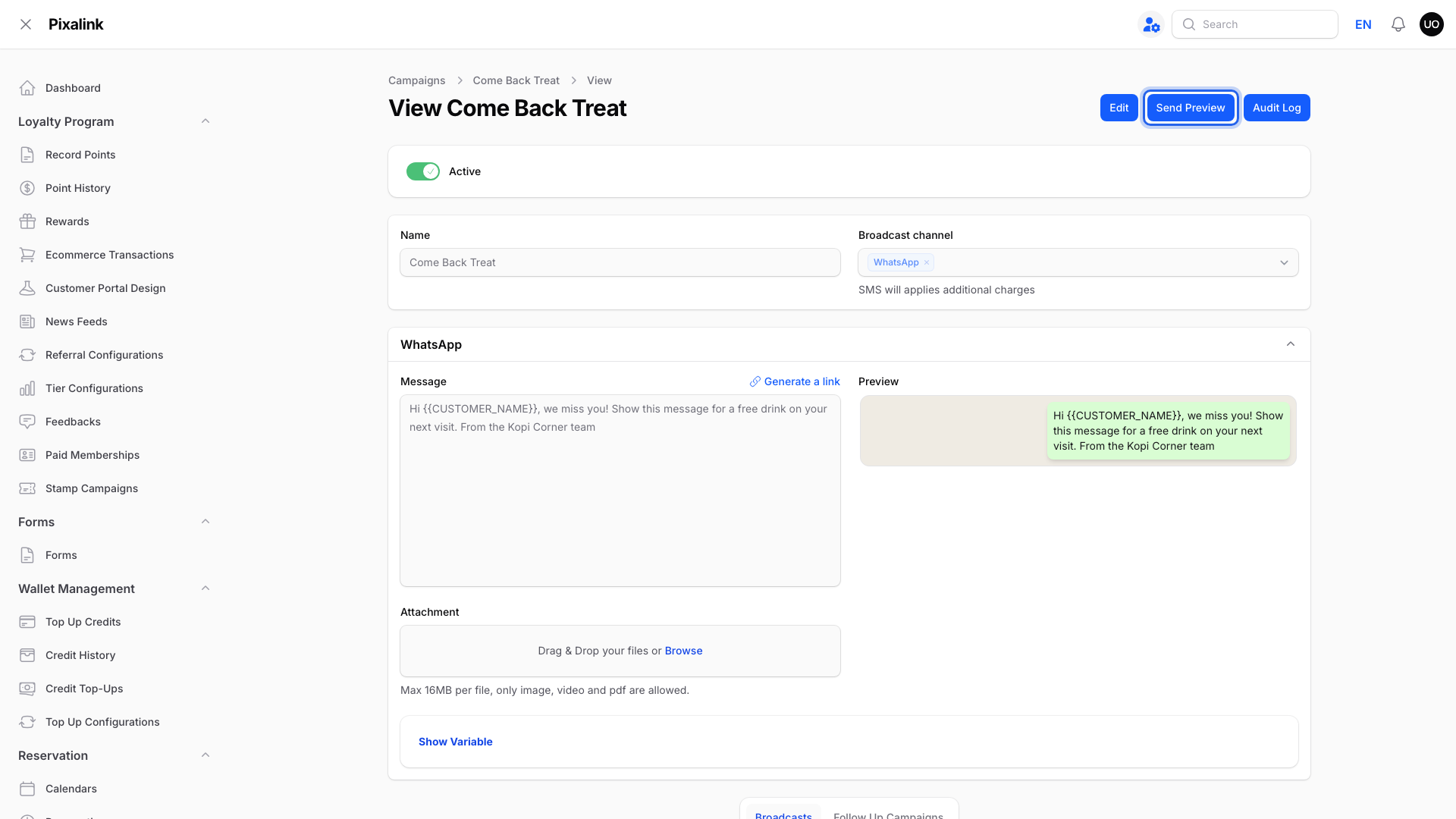
The WhatsApp box shows the message as it will look.
-
Type your name or phone number in Customer, then pick yourself from the list.

The list is empty until you type. You can pick more than one person.
-
Click Submit.
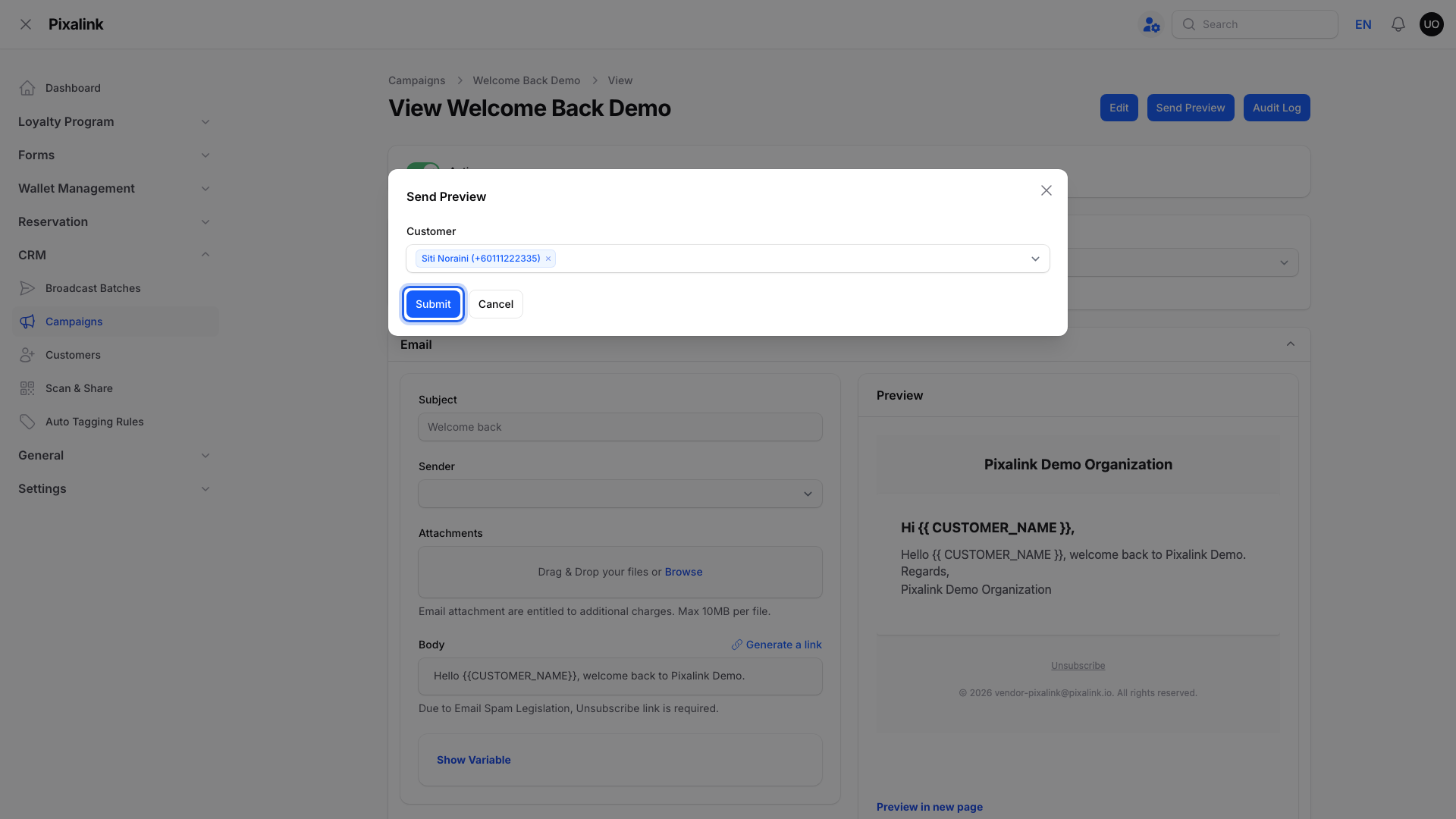
Pixalink sends the preview straight away.
What Your Customers Will See
Only the people you pick in Customer get the preview. Pick yourself and your staff, not real customers.
Good to Know
- Add yourself as a customer first. Customer lists only people on your Customers list, so save your own phone number and email there.
- Every channel goes out. The preview uses each channel the campaign sends on. Email needs a valid email address, push needs the portal app with notifications on, and SMS needs messaging credit.
- A preview doesn't stop a broadcast you send yourself. You and your staff still get the real broadcast later. It can stop an automatic campaign, such as Birthday or Big Spender, from sending you the same campaign later.
- Follow-up campaigns count too. If the campaign has an active follow-up, the people you pick can get the follow-up as well.
- A preview reaches people a broadcast skips. It still goes to someone marked Do Not Contact. The real broadcast leaves them out.
Need Help?
If typing your name in Customer finds no one, you aren't on your Customers list yet. Add yourself under CRM → Customers, then open Send Preview again.