
Win Back Lost Customers
Win Back Lost Customers
What Is This?
Win Back is an automated campaign that detects customers who haven't made a purchase in a set number of days, then sends them a personalised message to bring them back. Once set up, it runs on its own every night — no manual tracking needed.
Real-Life Example
Farah owns a café and notices some regulars have gone quiet. She sets up a Win Back campaign with a 14-day trigger. When Wei Lin hasn't visited in 14 days, she automatically gets a WhatsApp message — "We miss you! Come back for 20% off your next cup." Wei Lin pops in that evening. Farah never had to lift a finger.
How to Set It Up
-
Go to CRM → Campaigns in the left sidebar
-
Click Create Campaign and select ✨ Win Back Lost Customer
-
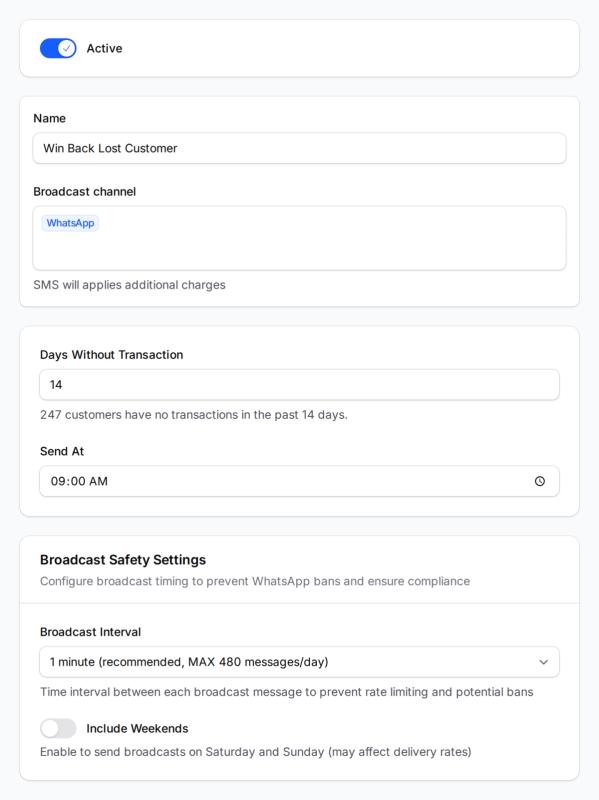
Fill in the campaign form:
- Days Without Transaction — how many days of inactivity before the campaign triggers (default: 14 days, range: 1–365)
- Send At — the time of day messages go out (default: 9:00 AM)
- Broadcast Channels — Email, SMS, or WhatsApp (SMS and WhatsApp have additional charges and require prior setup)
-
Make sure the Active toggle is turned on, then click Save
The system checks every night in the early morning (around 4:30 AM) and schedules messages for any newly inactive customers, starting from your configured send time. Messages go out between 9:00 AM and 5:00 PM: a send time after 5:00 PM starts at 9:00 AM the next day, and weekends are skipped unless Include Weekends is turned on. Messages are spaced out rather than sent all at once.
What Your Customers Will See
Customers receive a personalised message on whichever channels you chose. The message addresses them by name and can include an offer or incentive. It reads like a personal outreach, not a mass blast — most customers appreciate it rather than feeling spammed.
Good to Know
- Each customer receives this campaign only once — the system won't send it again if they stay inactive after receiving it, or if they lapse again later
- Customers marked Do Not Contact or Blocked are skipped. If they opt back in, they are considered again at the next nightly check
- Only purchase transactions reset the inactivity timer — redeeming rewards, checking their balance, earning referral points, and birthday rewards do NOT count
- If a customer makes a purchase in the morning of the same day a message is scheduled, the message will still go out (scheduling happens overnight, around 4:30 AM)
- You can run multiple Win Back campaigns at different thresholds — e.g., one at 14 days and another at 30 days — to target different customer segments. Each campaign works on its own, so a customer can receive one message from each
- New campaigns start checking customers from the next overnight check (around 4:30 AM) after you activate them
- Each Win Back campaign also appears under CRM → Automations, marked as managed from the campaign. Edit or switch it off here in CRM → Campaigns, not from Automations
What's Next?
- Set up a Birthday Reward to automatically reward customers on their birthday
- Create a Membership Day Campaign to run a monthly promotion for all customers
- Check your campaign history under CRM → Campaigns to see how many messages went out