
What Are Message Variables Like {{CUSTOMER_NAME}}?
What Is This?
Words in double curly brackets, like {{CUSTOMER_NAME}}, are variables. They let one message feel personal to every customer.
When the message is sent, Pixalink swaps each variable for that customer's real details. You write the message once, and each customer sees their own name and points.
How It Works
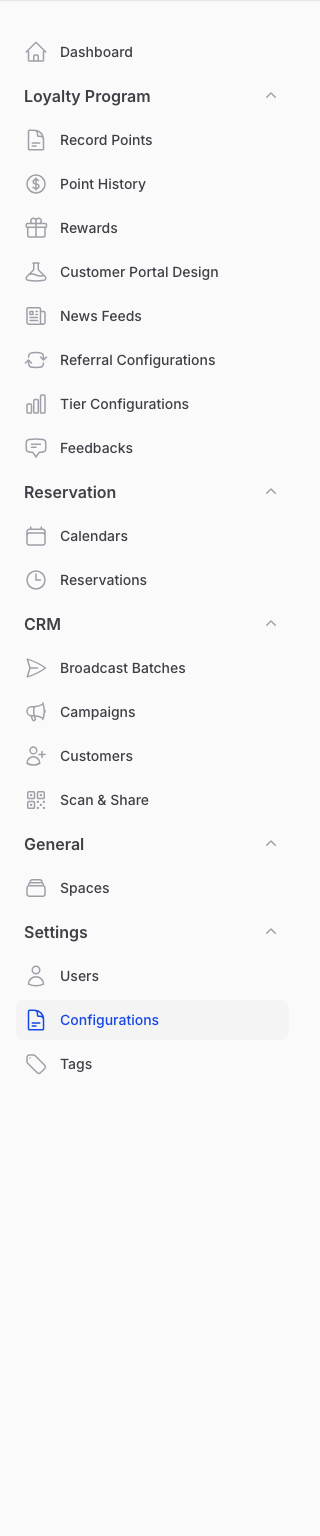
Your customer notifications live in Settings → Configurations, under Notification Settings.
Note
Configurations only appears once WhatsApp is set up for your business. See why the Configurations menu is missing.
Open the Transaction tab, then New Transaction Notification.
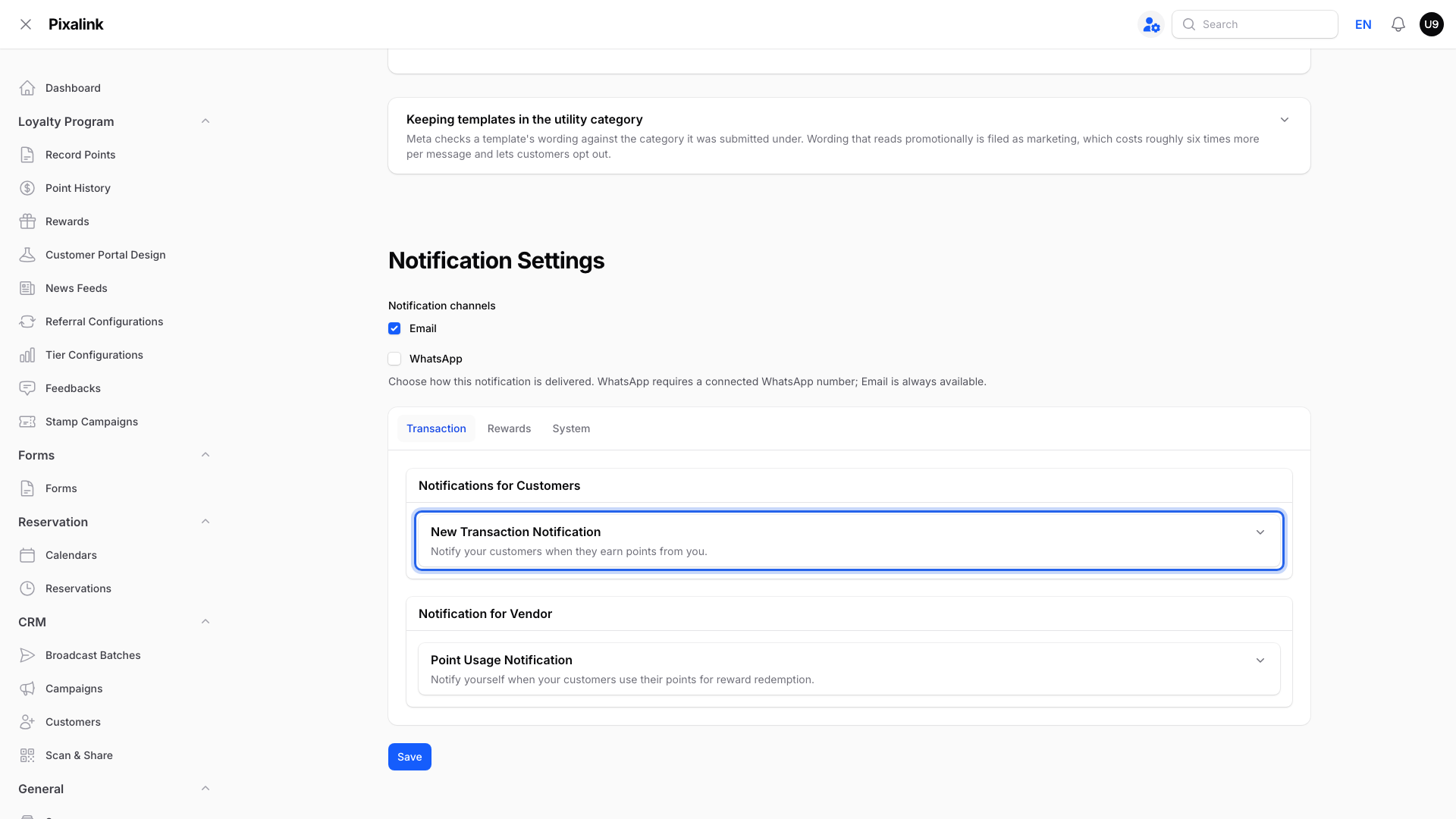
The Message box holds the text. The variables are the parts in curly brackets.
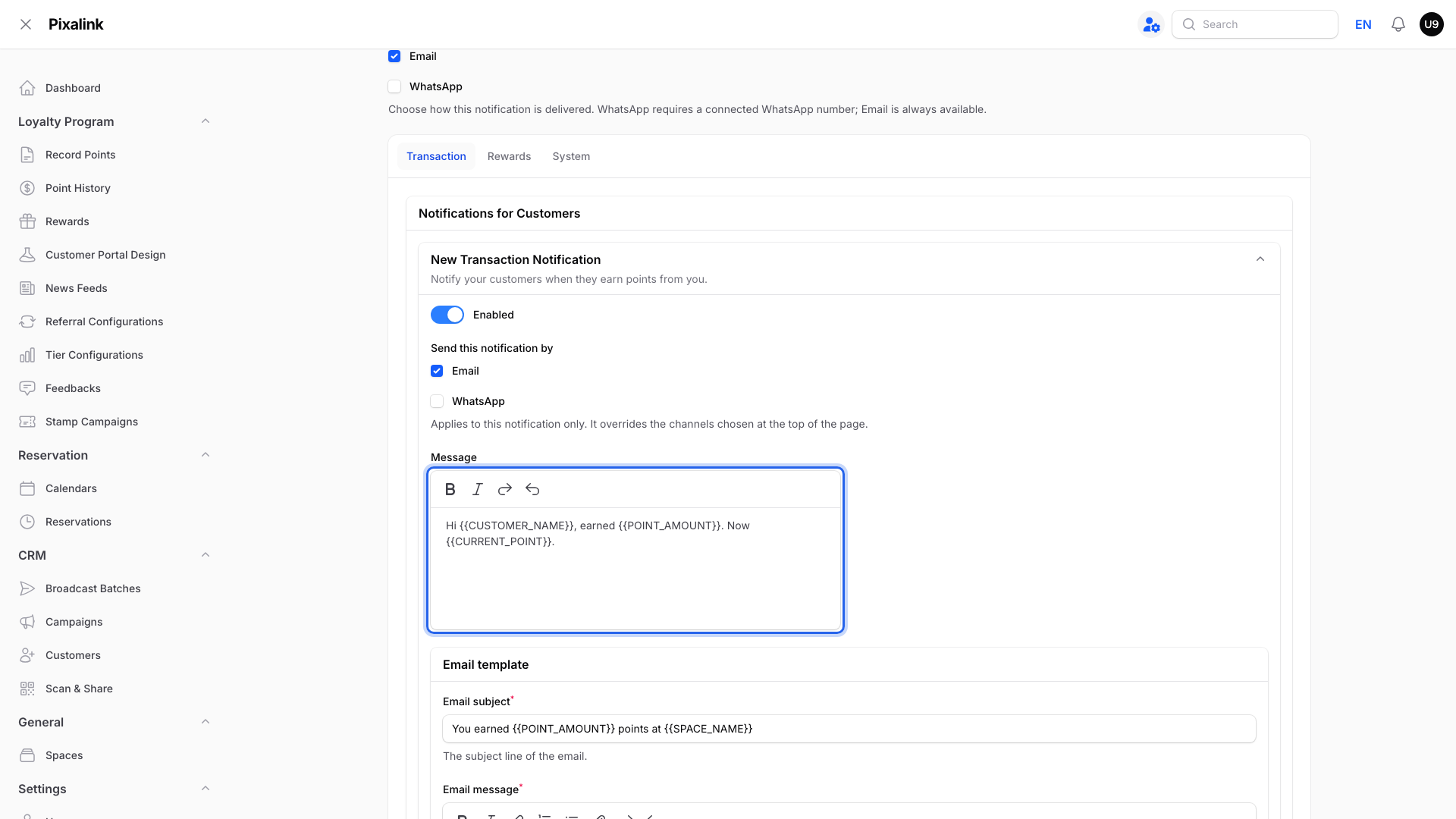
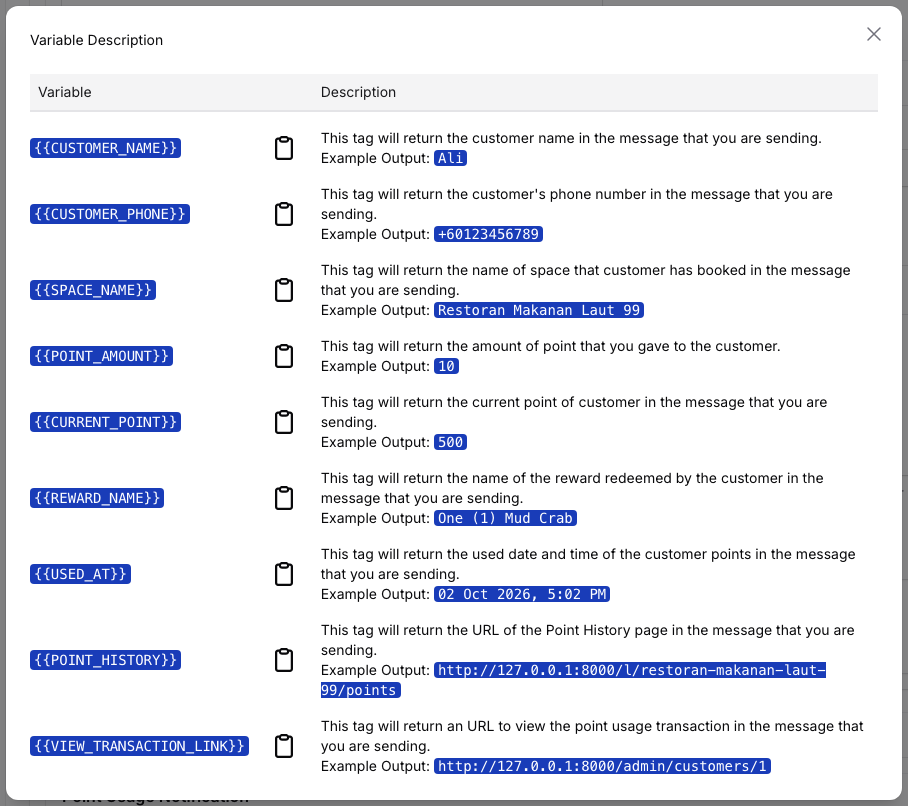
The preview below shows the message with sample details filled in. Click Show Variable to see every variable this notification can use.
Each variable has a short meaning and an example. Click the clipboard icon to copy one, then paste it into your message.
Can I Use the Same Variables in a Campaign?
Only some of them. A campaign message is not linked to one purchase, so it has a shorter list. Open a campaign in CRM → Campaigns and click Show Variable under the message.
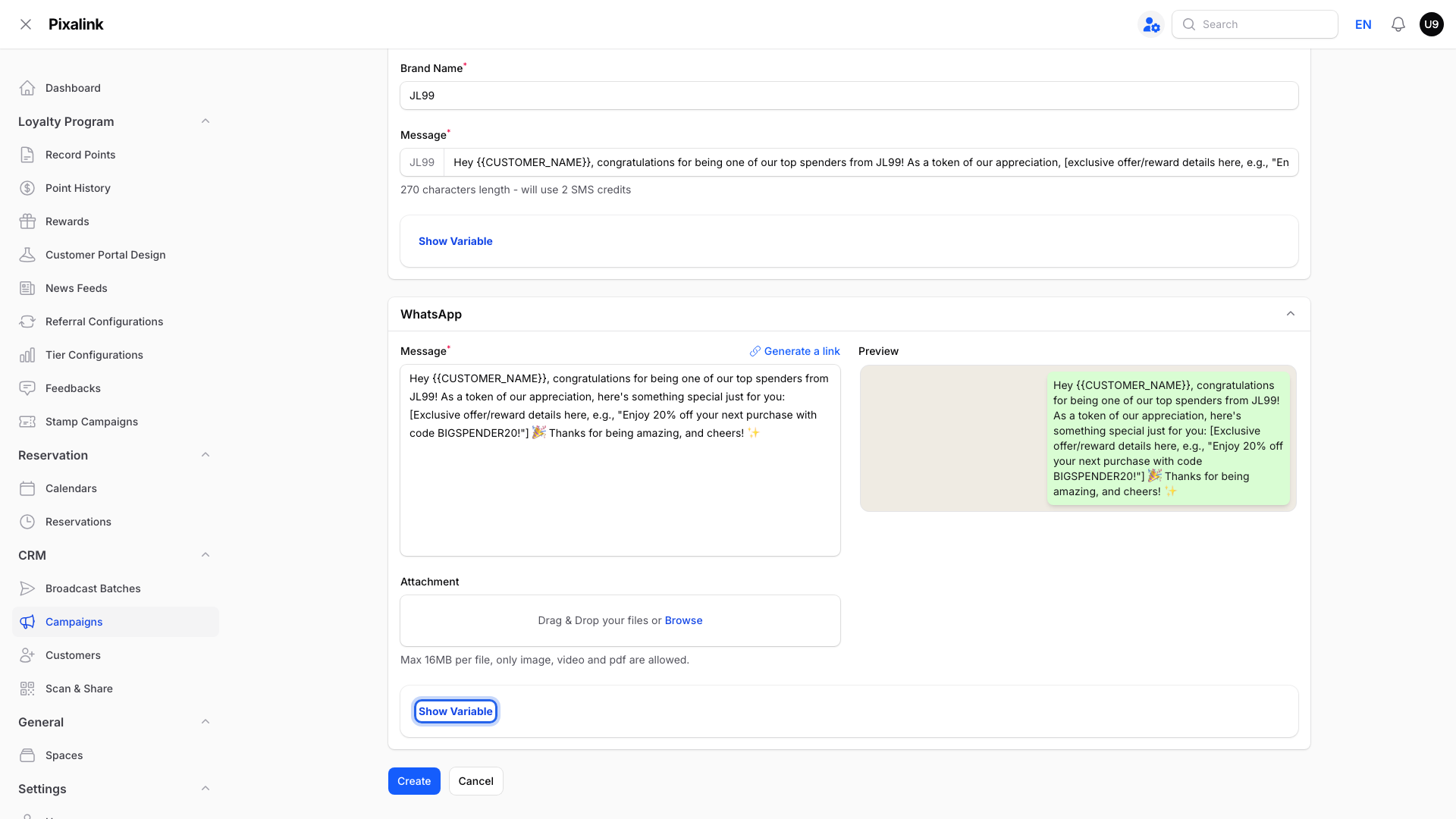
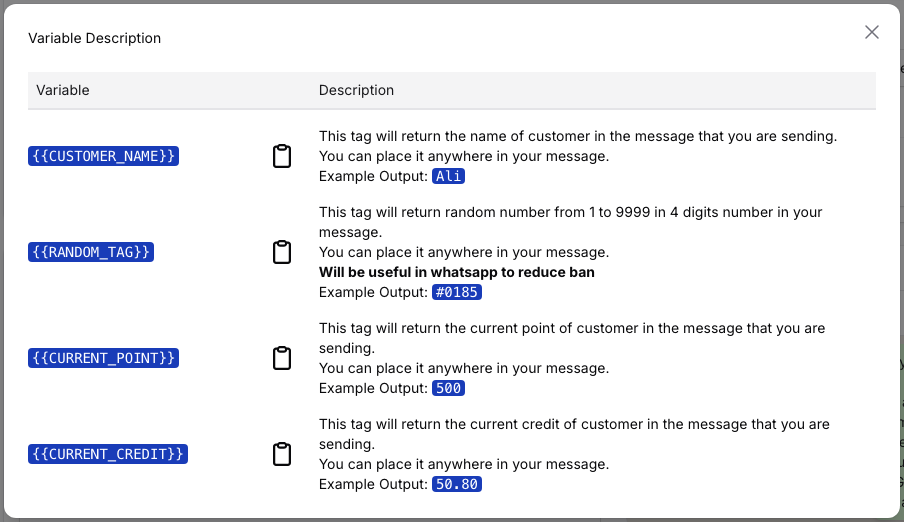
Campaigns can use these four:
| Variable | Notifications | Campaigns |
|---|---|---|
| {{CUSTOMER_NAME}} | Yes | Yes |
| {{CURRENT_POINT}} | Yes | Yes |
| {{CURRENT_CREDIT}} | Credit notifications | Yes |
| {{RANDOM_TAG}} | No | Yes |
| {{POINT_AMOUNT}}, {{REWARD_NAME}}, {{SPACE_NAME}}, {{USED_AT}} | Yes | No |
A variable that is not on the campaign list is not filled in. It goes out exactly as you typed it, curly brackets and all.
Real-Life Example
Farah runs a fashion boutique in Johor Bahru. Her points message says "Hi {{CUSTOMER_NAME}}, you earned {{POINT_AMOUNT}} points." She copies it into a campaign for her year-end sale.
Her test message reads "you earned {{POINT_AMOUNT}} points", with the brackets showing. She swaps it for {{CURRENT_POINT}} and writes "you now have {{CURRENT_POINT}} points". The campaign goes out with each member's real balance.
Good to Know
- Type variables exactly as shown: two curly brackets on each side, capital letters, no spaces.
- Each notification has its own list. A points message and a reward message offer different variables.
- {{RANDOM_TAG}} adds a random four-digit number, like #0185. It makes each WhatsApp message a little different.
- If your shop uses the official WhatsApp number from Meta, the points message also has an approved template with its own fixed placeholders. See how to edit the official WhatsApp points message.
Need Help?
Not sure which variable fits your message? Contact our support team.