
How to Get Your WhatsApp Notification Templates Approved
What Is This?
Meta lets your business reply freely for 24 hours after a customer messages you. Outside that window, every message must use wording Meta has already approved. That approved wording is called a template.
Pixalink writes the templates for you. Your job is to send them to Meta and watch them get approved. Until that happens, messages like "you earned 120 points" will not reach customers on your official WhatsApp number.
Real-Life Example
Aishah runs a bakery in Penang. A customer buys bread on Tuesday and earns 120 points. Aishah has not sent her templates to Meta yet, so the points message never arrives. She submits them once, Meta approves them, and the same message now lands seconds after every purchase.
How to Set It Up
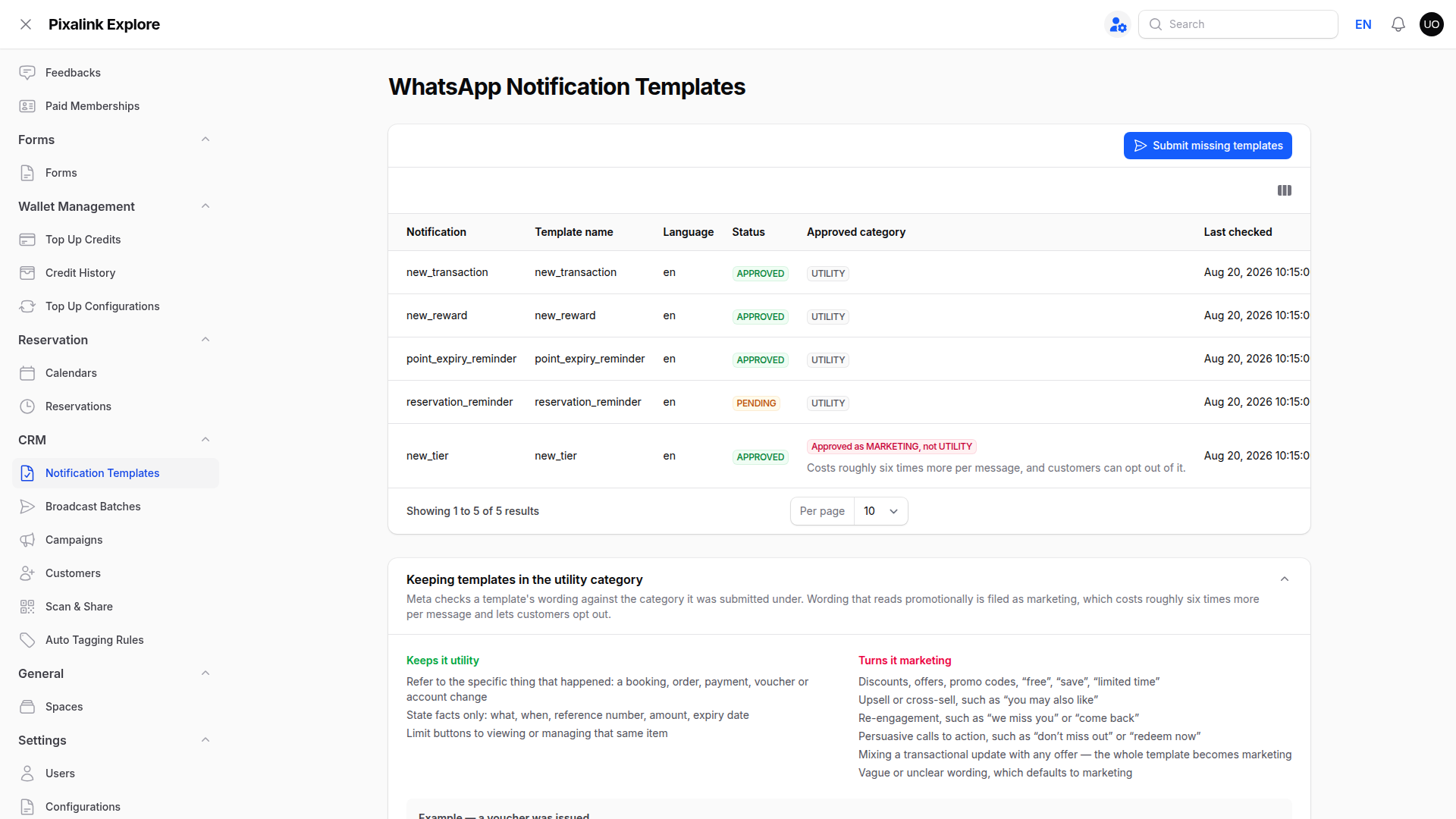
- Go to CRM > Notification Templates. This page only appears once your official WhatsApp number is connected.
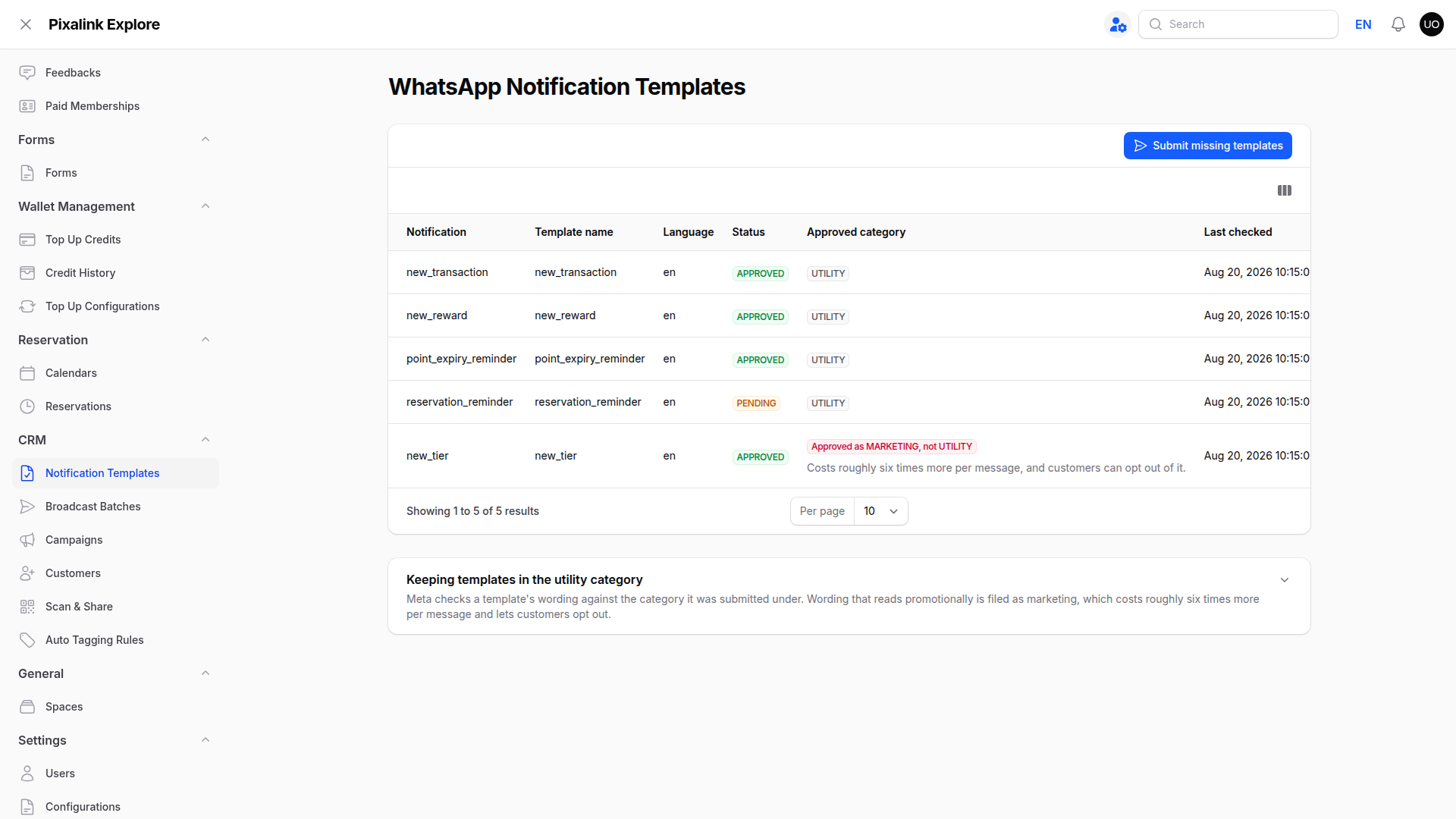
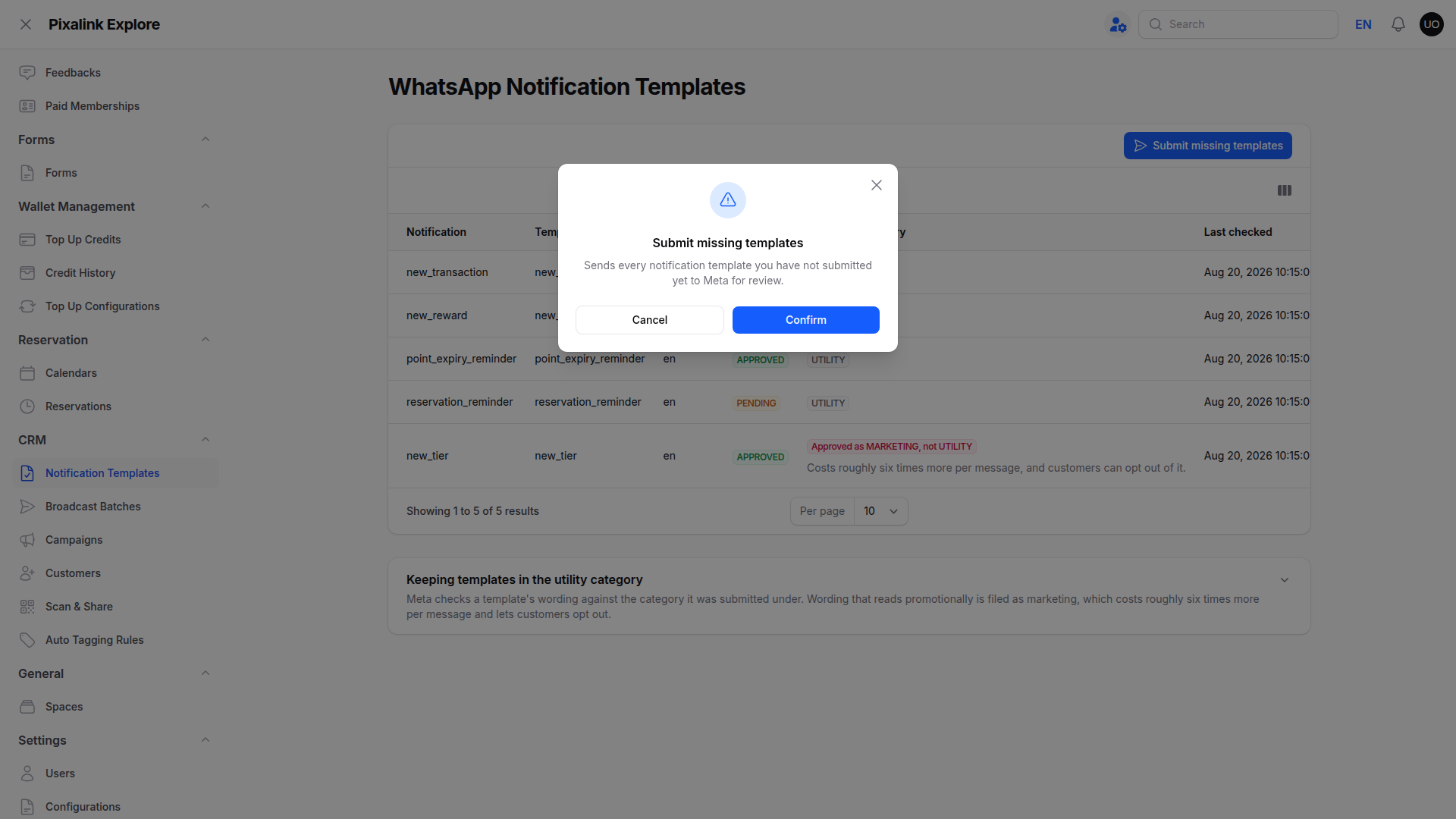
- Click Submit missing templates, then Confirm. This sends every template you have not submitted yet.
- Read the Status column. Approved means the message is live. Pending means Meta is still reviewing it. Pixalink rechecks each hour, so just come back later.
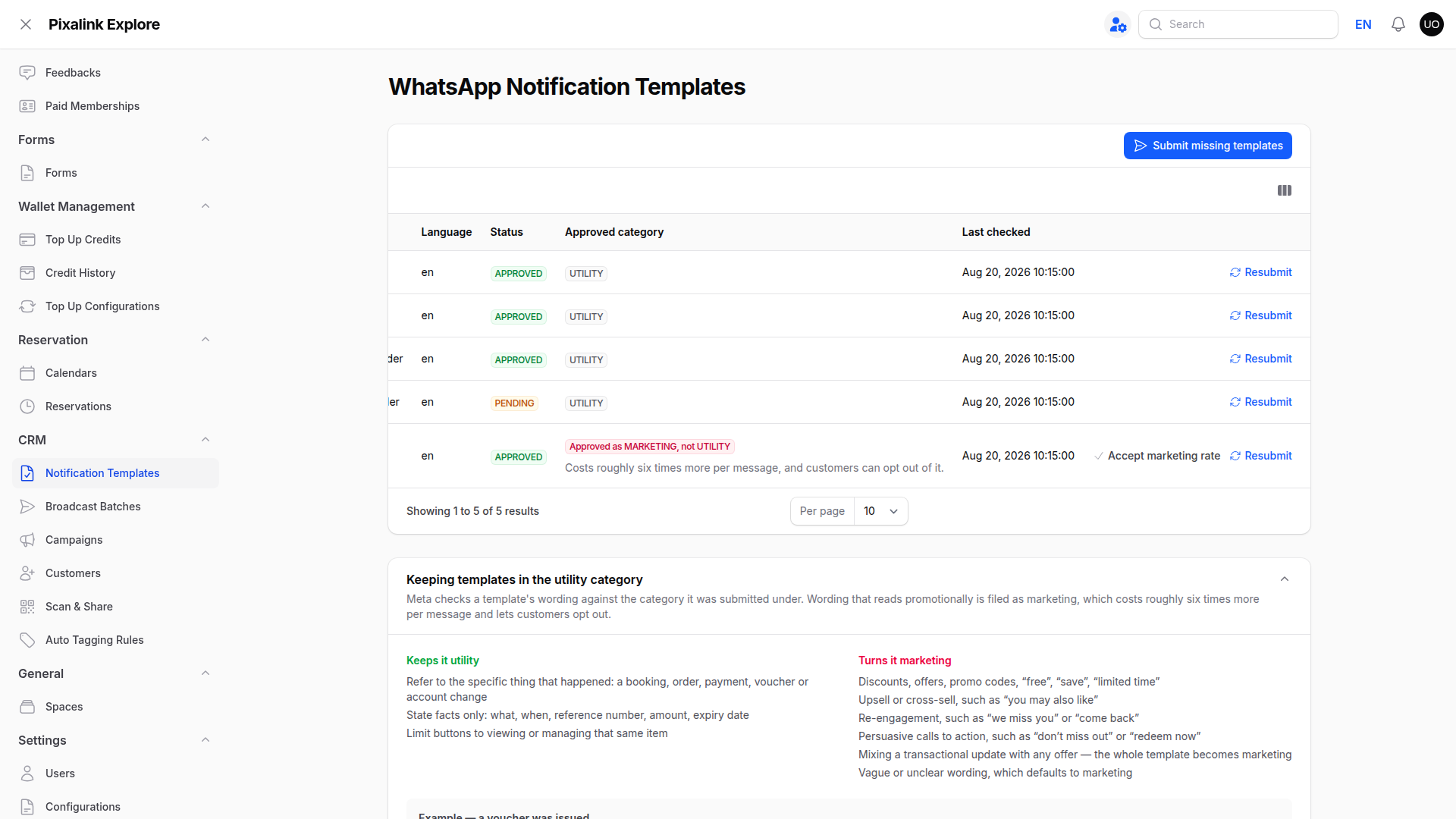
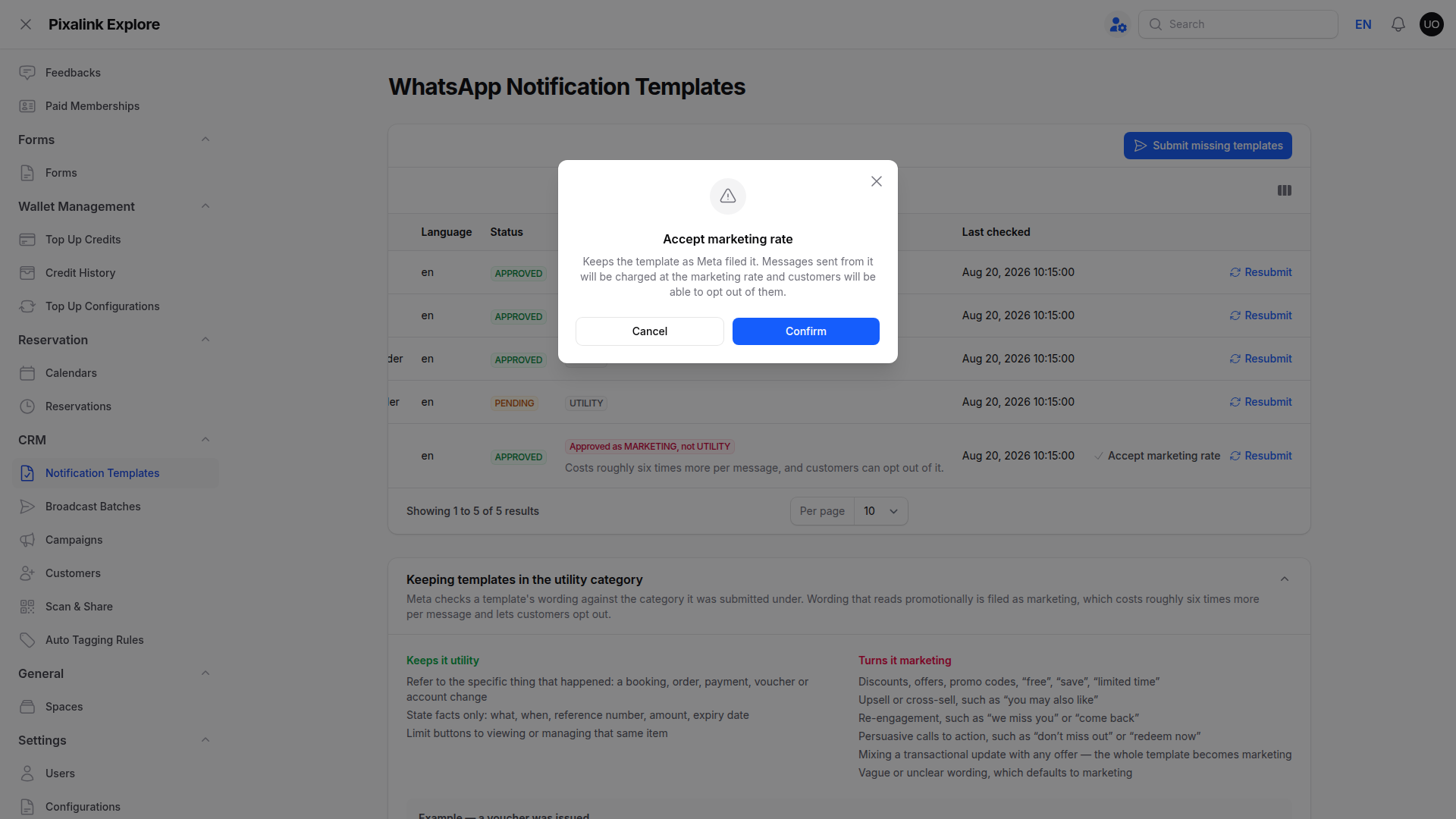
- Check the Approved category column for any red warning. Meta sometimes files a template as marketing instead of utility. That message stays off your official number until you decide. Click Accept marketing rate to start sending it, or Resubmit to try for utility again. Marketing messages cost about six times more, and customers can opt out.
- Open Keeping templates in the utility category to see which wording keeps your costs low.
What Your Customers Will See
Nothing changes in how the message looks. Customers keep getting the same points, voucher and booking updates. The difference is that the message now arrives at any hour, not only when they messaged you first.
Good to Know
Tip
Submit every template on day one. Meta reviews each one on its own, so an early start avoids gaps later.
Warning
A rejected template quietly stops that one message on your official number. Check the list after your first busy week.
You do not write the wording yourself. Pixalink keeps it factual so Meta files it as utility.
Each template is judged against your own business account. Approval for one business never carries over to another.
Need Help?
Contact the Pixalink support team if a template stays rejected after two tries.