
How to Edit the Official WhatsApp Points Message
What Is This?
If your shop uses the official WhatsApp number from Meta, your points message uses wording that Meta has approved. You can rewrite that wording in your own voice and make words bold.
This guide shows where to edit it and what Meta allows.
How It Works
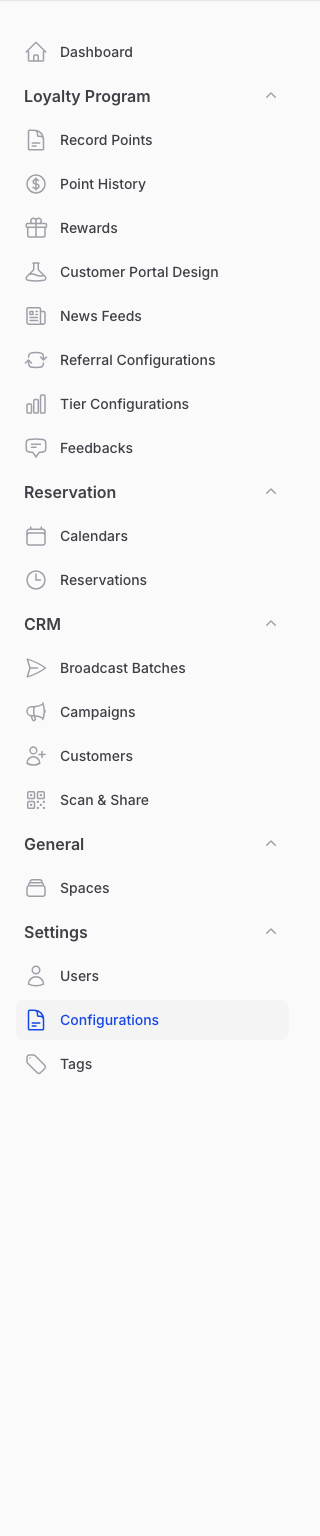
The editor lives in Settings → Configurations, under Notification Settings.
-
In the left menu, open Settings, then click Configurations.
-
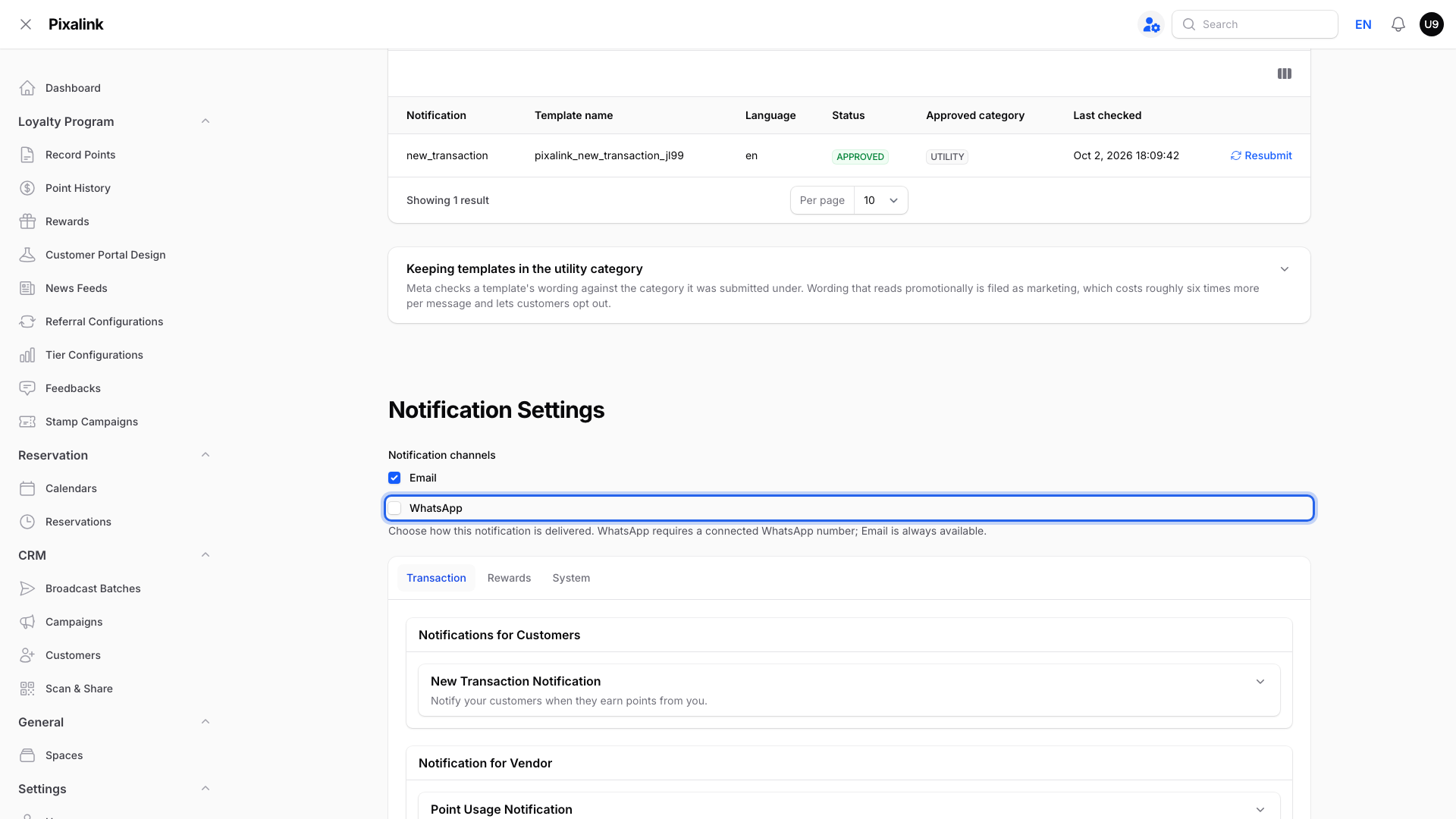
Scroll to Notification Settings. Make sure WhatsApp is ticked under Notification channels at the top, then save the page.
-
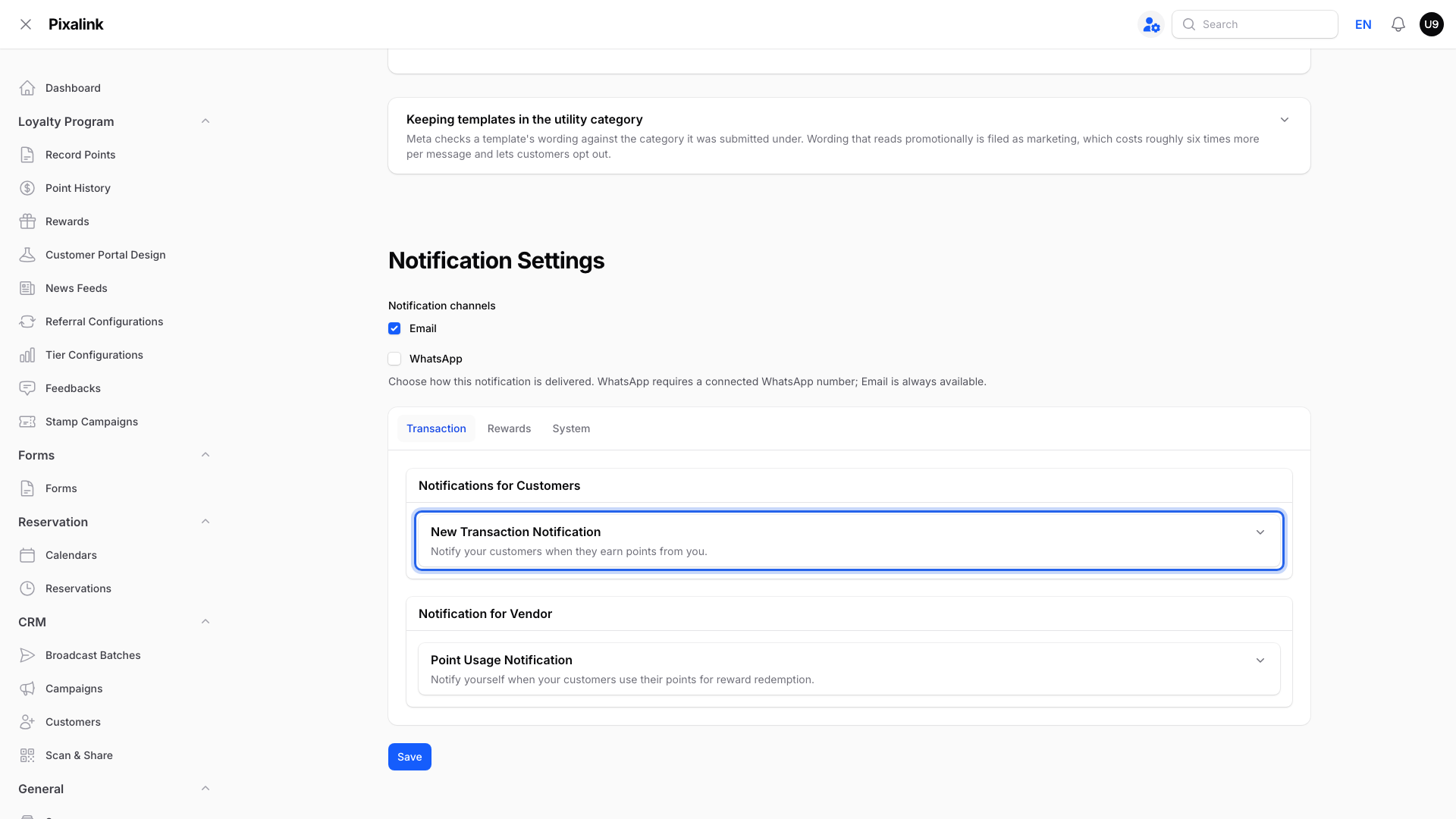
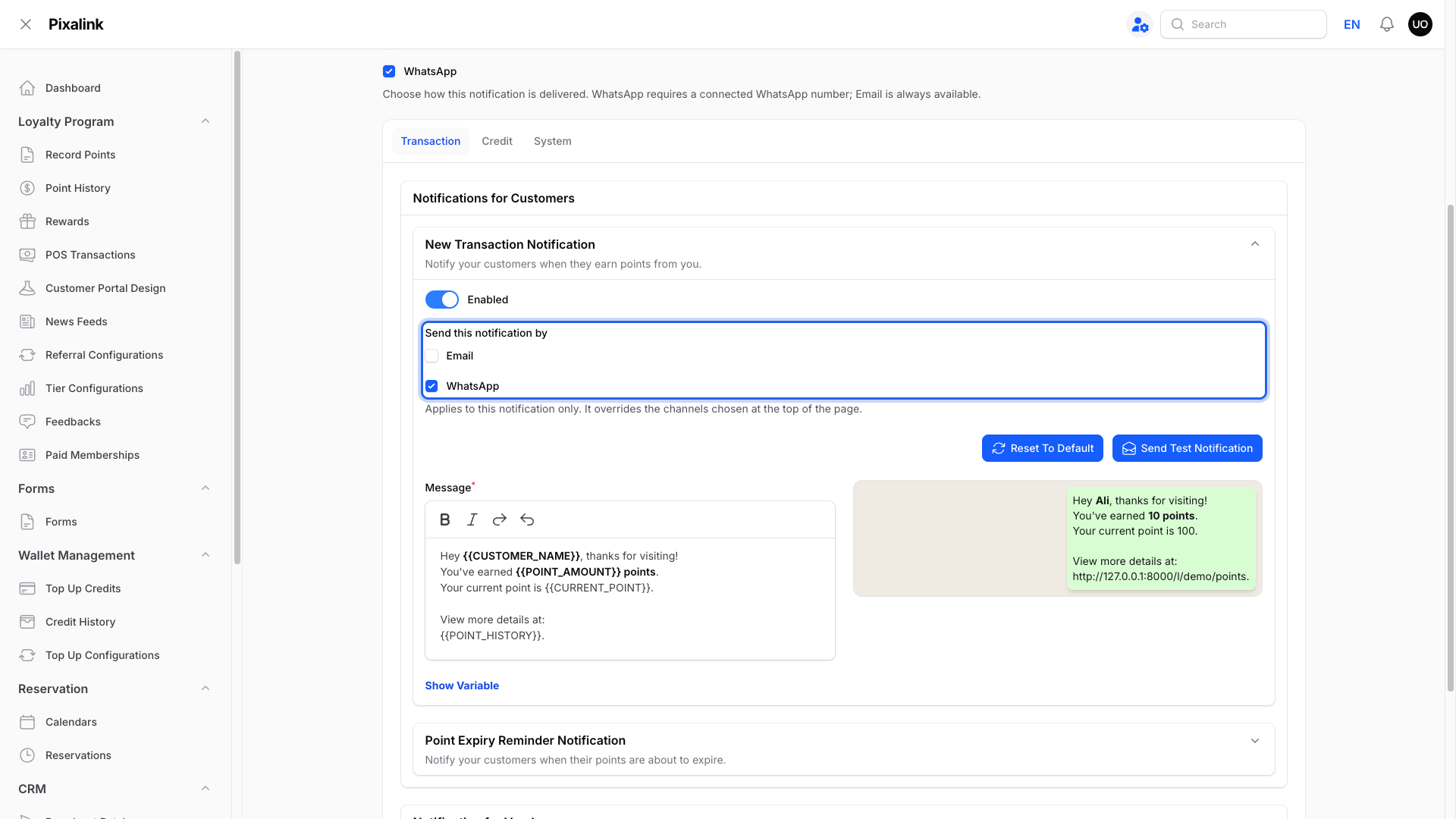
On the Transaction tab, open New Transaction Notification.
-
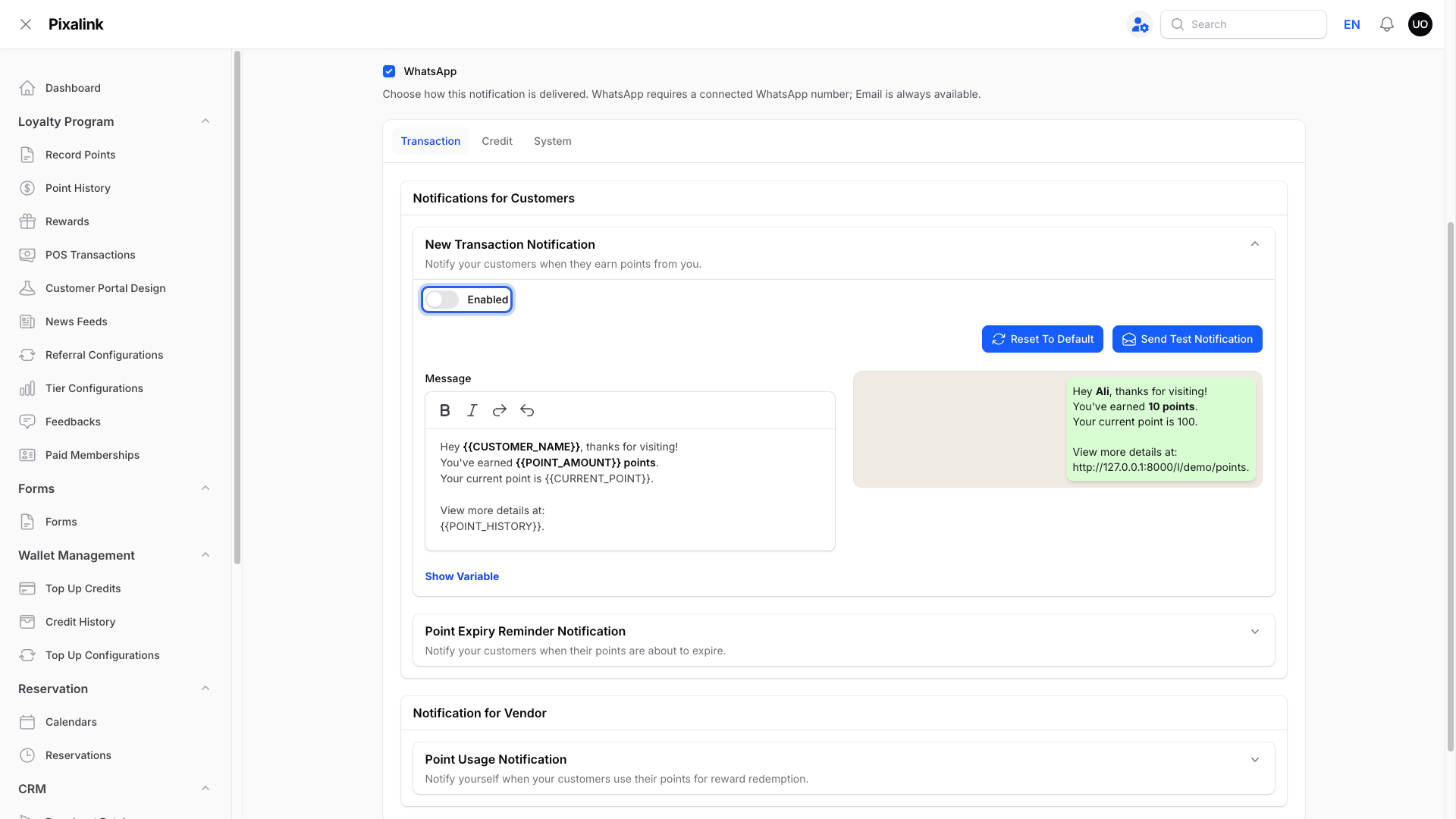
If Enabled is off, turn it on.
-
Check that WhatsApp is ticked under Send this notification by. Save the page if you changed anything.
-
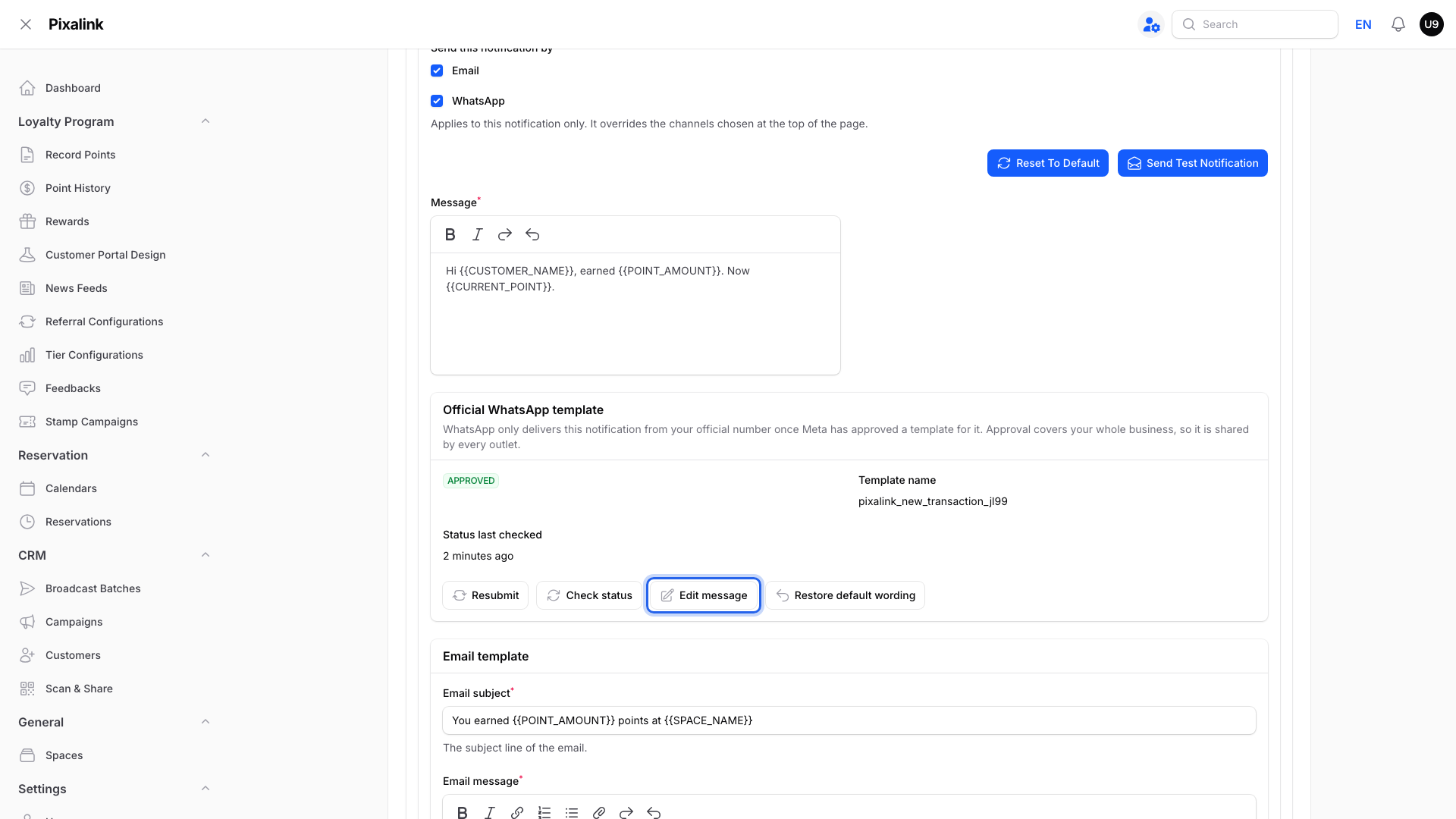
Find the Official WhatsApp template box further down. Click Edit message.
-
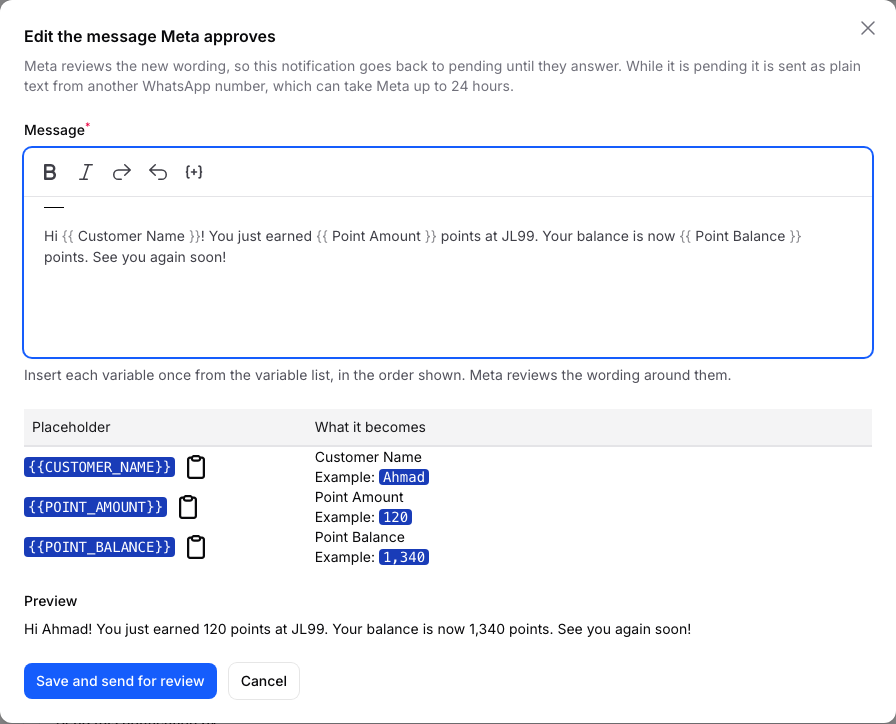
Rewrite the message in the Edit the message Meta approves window. Check the Preview, then click Save and send for review.
Note
The Official WhatsApp template box only appears when your official number is connected and WhatsApp is ticked under Notification channels at the top of the page.
What you can change
Bold and italic work. Select a word and click B for bold or I for italic. Your customers see the bold text in WhatsApp.
The placeholders are fixed. You may know them as placeholders 1, 2 and 3. The editor shows them by name instead:
| Placeholder | What it becomes | Example |
|---|---|---|
| {{CUSTOMER_NAME}} | Customer Name | Ahmad |
| {{POINT_AMOUNT}} | Point Amount | 120 |
| {{POINT_BALANCE}} | Point Balance | 1,340 |
Meta sets three rules for these, and the editor checks them for you:
- Keep all three. You can't remove one.
- Use each one only once.
- Keep them in this order: name, then points earned, then balance.
You can't add other placeholders, such as your outlet name or a link. You can still type fixed words around them, like your shop name or "See you again soon!".
Real-Life Example
Aishah runs a kopitiam in Kuantan. She wants her points message to sound friendlier.
She opens Edit message and writes: "Hi Customer Name! You just earned Point Amount points at Kopi Aishah. Your balance is now Point Balance points." She makes the points bold and saves. Meta approves it the same afternoon, and her regulars now get the friendlier message after every visit.
Good to Know
- After you save, Meta reviews the new wording. This can take up to 24 hours. Until then, the message goes out as plain text from another WhatsApp number.
- See Submit for approval instead of Edit message? Submit the template first. You can edit it after that.
- You can't edit while Meta is reviewing. The Edit message button comes back once Meta answers.
- The message can be up to 1,024 characters.
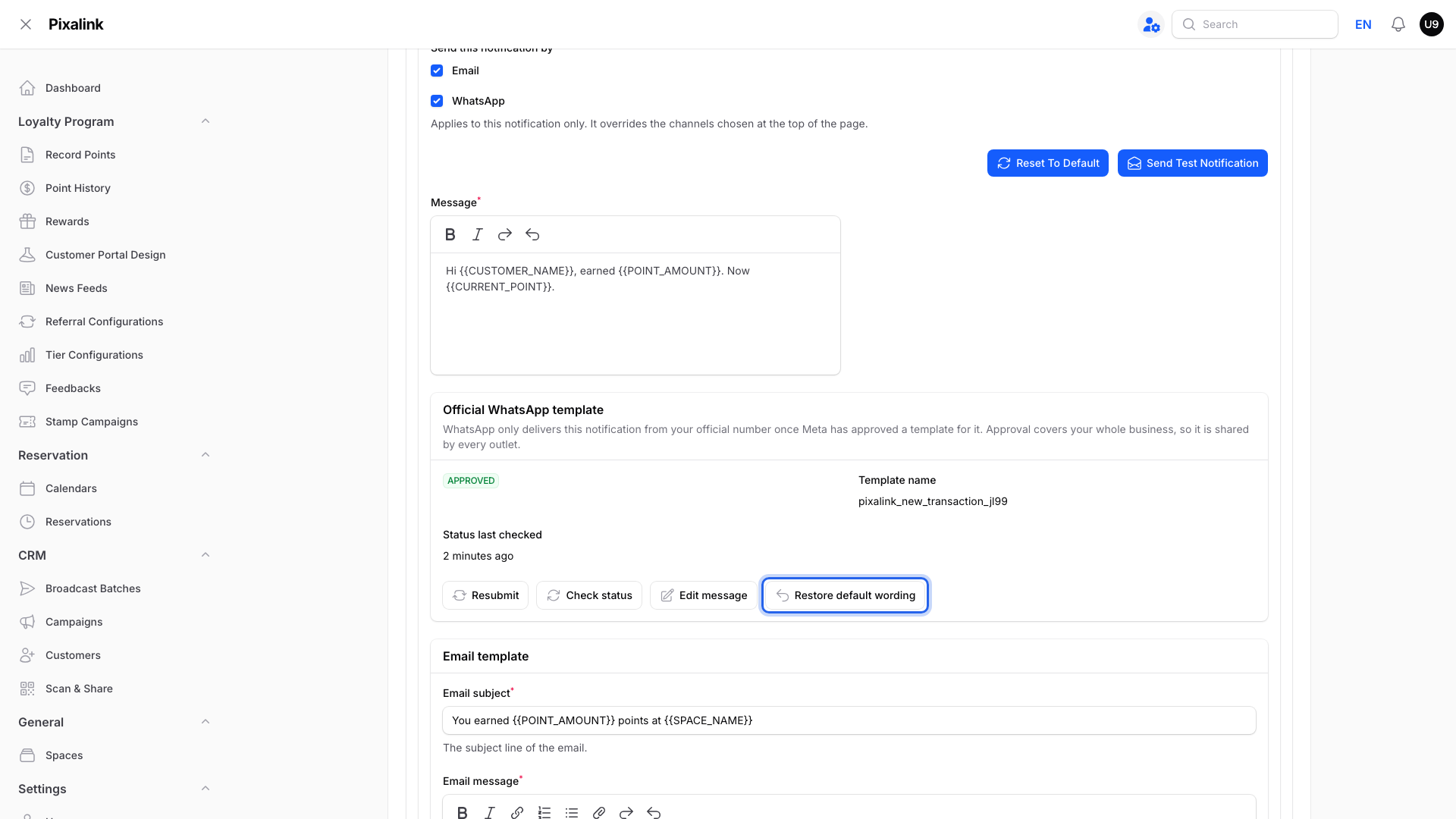
Changed your mind? Restore default wording puts Pixalink's wording back and sends it to Meta for review again.
Tip
Friendly, factual wording keeps the template in Meta's cheaper utility category. Sales words like "promo" or "discount" can push it into marketing.
Need Help?
If Meta keeps rejecting your wording, contact our support team.