
What Do WhatsApp Template Statuses Mean?
What Is This?
Stop guessing why a notification is not going out from your official WhatsApp number. Every message from that number needs wording Meta has approved, and Pixalink shows Meta's answer as a badge. This article explains each badge and notice, so you never rewrite a message Meta will not move. It only applies once your official WhatsApp number is connected.
How It Works
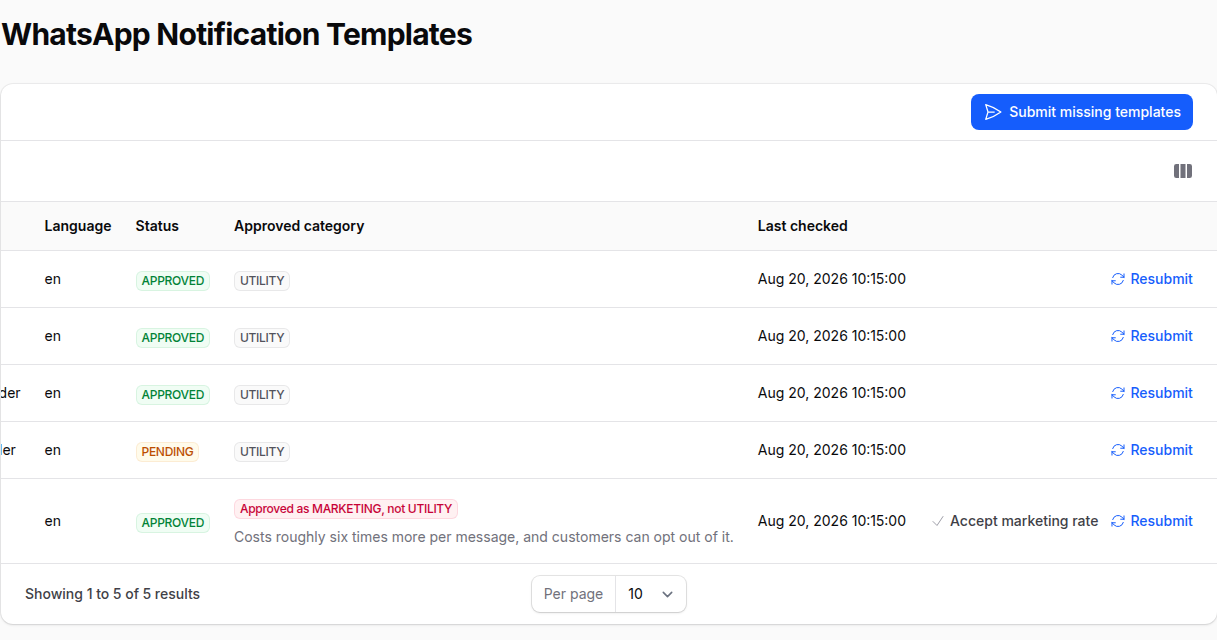
Settings → Configurations lists every template with Meta's raw status and an Approved category column. Each notification's own settings page shows an Official WhatsApp template section with a plainer badge and action buttons. The badges below are the ones on that section.
| Badge | What it means | What to do |
|---|---|---|
| Not submitted | You have not sent this template to Meta yet. The message goes out as plain text from another WhatsApp number. | Click Submit for approval. |
| PENDING or IN_REVIEW | Meta is still checking the wording. Editing is locked until Meta answers. | Wait. Pixalink checks every hour, or click Check status. |
| APPROVED (green) | The message is live on your official number. | Nothing. |
| Approved as marketing (amber) | Meta approved it, but filed it as marketing. Pixalink holds it back until you decide. The list page shows this as APPROVED with a red Approved category. | Accept the rate, or submit as a new template. See below. |
| REJECTED (red) | Meta turned the wording down. | Click Edit message, fix the wording, then send it for review again. |
| ERROR (red) | The template never reached Meta. | Read the reason under the badge, then click Resubmit. |
Any other badge, such as PAUSED or DISABLED, means Meta has stopped this template.
flowchart TD
    A[Submit for approval] --> B[PENDING]
    B --> C[APPROVED<br/>live]
    B --> D[REJECTED<br/>edit]
    B --> E[Approved as marketing<br/>held back]
    E --> F[Accept marketing rate<br/>live]
    E --> G[Submit as a new template<br/>back to PENDING]
    D --> B
"Meta did not accept the last attempt" repeats Meta's own reason. The common one reads "the category UTILITY doesn't match the one already associated with this template, MARKETING". Meta ties a category to a template name the first time it approves it. Rewriting the message cannot change that. Pixalink then shows Meta has fixed this template name to the marketing category and hides Resubmit.
Two ways out, both on the notification's settings page:
- Click Accept marketing rate. The notification goes live from your official number right away, at about six times the utility rate. Customers can opt out.
- Click Submit as a new template. Meta reviews the same wording under a fresh name. There is no way back to the old template.
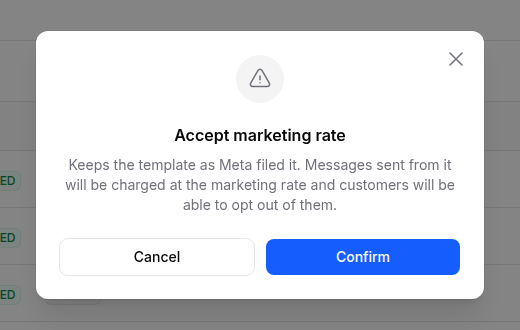
"Meta has not authorised this WhatsApp Business Account to create templates" is a limit on your Meta account, not on the wording. Contact Meta or your WhatsApp provider to lift it.
Real-Life Example
Ahmad runs Kopi Corner in Bangsar. He submitted his point expiry reminder as utility. Meta approved it, but filed it as marketing. He edited the wording and clicked Resubmit. The "category doesn't match" notice came straight back. Seeing the name was locked, he clicked Submit as a new template. Meta approved the new one as utility, and his reminders now go out at the lower rate.
Good to Know
- Meta usually answers within minutes, but a review can take up to 24 hours.
- Editing an approved template puts it back into review. Until Meta approves the new wording, the message goes out as plain text from another WhatsApp number.
- When Meta re-files a template as marketing, Pixalink emails your business so you can decide.
Need Help?
Contact the Pixalink support team if a notice does not match any of the above.