
Switching Pixalink to Another WhatsApp Number Explained
What Is This?
Pixalink sends your points, voucher and campaign messages from your own WhatsApp number. You link that number by scanning a QR code. You can switch Pixalink to a different phone number yourself, in a few minutes.
This guide explains what "your WhatsApp number" means in Pixalink, how to switch it, and what stays the same.
How It Works
One WhatsApp box holds one number. Go to Settings → Configurations. Each WhatsApp box there is one connection. Whichever phone scans its QR code becomes the number that box sends from. The box isn't tied to any one number.

Configurations sits under Settings in the sidebar.
To switch to another number: in the WhatsApp box, click Logout. A new QR code appears. On the phone with the new number, open WhatsApp, go to Linked devices, tap Link a device, and scan the code. The box then shows "You have Logged in with the account:" and the new number.
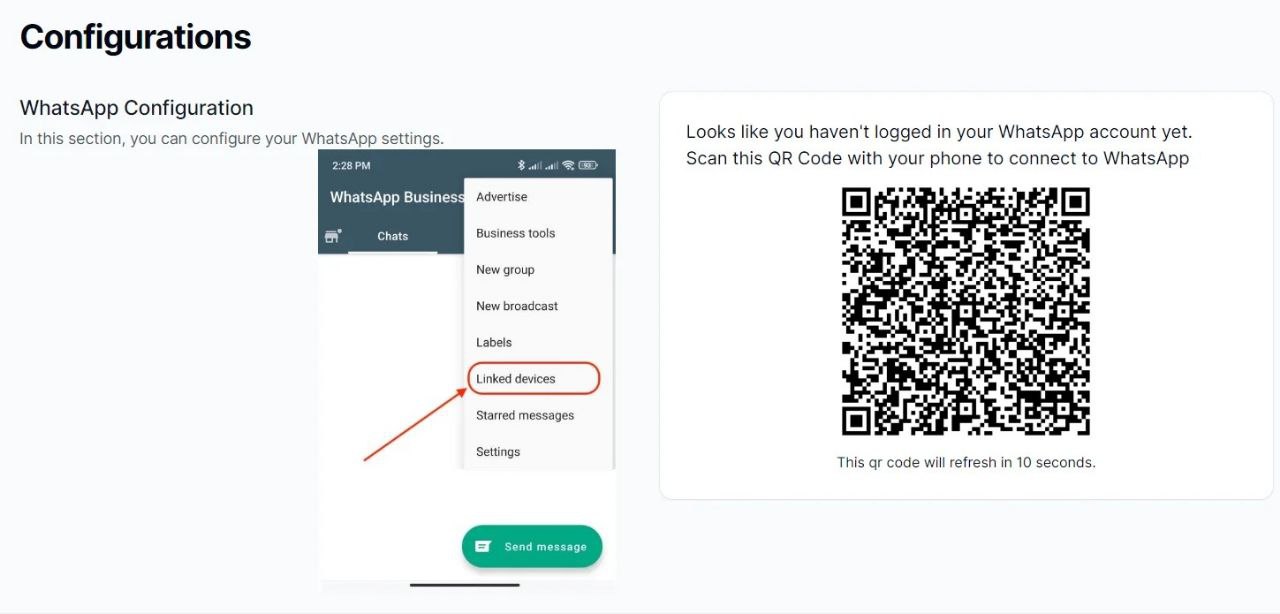
After Logout, the box shows a fresh QR code like this one.
Most accounts have one box. With one box, only one number sends at a time. Scanning with a second phone replaces the first number. It doesn't add a second one. If you want two numbers sending together, ask our team to add another box. With two or more boxes, points and reward messages take turns across your connected numbers.
What changes and what stays
| After you switch | |
|---|---|
| Customers, points and rewards | Nothing changes. They belong to your Pixalink account, not to a phone number. |
| New messages | They go out from the new number. Customers see them in a new chat, because it's a different number. |
| Messages already sent | They stay in the old number's chats. Pixalink doesn't move chats between numbers. |
| The old phone | It keeps working as normal WhatsApp. It just stops sending for Pixalink. |
Real-Life Example
Priya runs a dessert café in Johor Bahru. Her shop phone has been sending Pixalink messages for a year. She gets a new business line and wants Pixalink on it instead. She thought she needed a new Pixalink account for that. She opens Configurations, clicks Logout, and scans the new QR code with the new phone. A minute later the box shows her new number. Her 600 members keep their points, and their next voucher message comes from the new line.
Good to Know
- Pixalink doesn't check which phone scans the code. Scan with the phone that has the number you want.
- Link the new phone straight after you log out. While no number is linked, automatic messages can't go out. See When Do I Need to Re-Link WhatsApp to Pixalink?.
- A brand-new number should start slowly before big broadcasts. See How Long to Wait Before Sending From a New WhatsApp Number.
- Messages stopped sending? A new number may not fix it. Tell our team first, so we can check the connection.
- Official WhatsApp from Meta works differently. It has no QR code, so changing that number goes through our team. See Official WhatsApp from Meta Explained.
Need Help?
Not sure which number is linked, or want a second box? Message us in your WhatsApp support group.