
How to Create a Birthday Campaign
What is a Birthday Campaign?
A Birthday Campaign is a marketing strategy that celebrates your customer's special day with personalized messages, exclusive discounts, or special rewards. It is designed to make customers feel valued, strengthen brand loyalty, and encourage repeat purchases.
This guide walks you through setting up a complete Birthday Campaign, from creating the reward to activating the automated campaign.
Example: Ahmad runs a café in Petaling Jaya. He sets up a "Free Slice of Cake" birthday voucher that each customer receives at the start of their birthday month, and a Birthday Campaign that sends them a WhatsApp message on their birthday. The personalised message includes a direct link to redeem the reward — no manual work needed from Ahmad's team.
Video Walkthrough
Step 1: Create Rewards for the Campaign
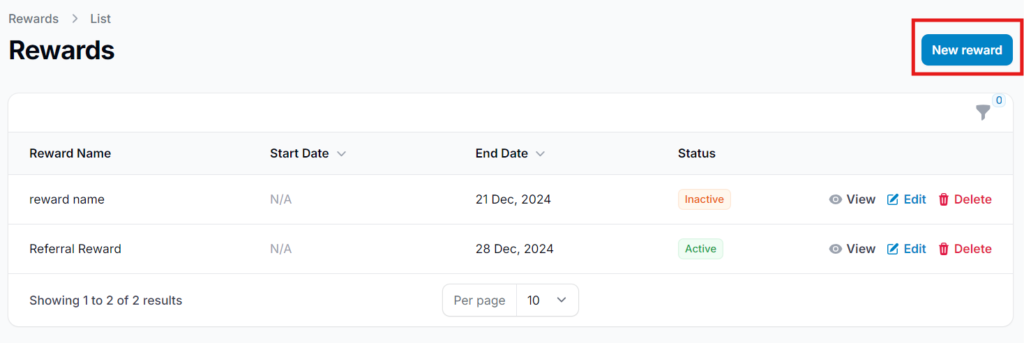
Start by setting up the birthday reward that customers will receive. Go to Admin Panel > Loyalty Program > Rewards and click New Reward. Fill in the reward details including the name, type, and value.
For a detailed guide on creating rewards, see How to Create Rewards.
Step 2: Edit Reward and Enable Auto-Assign
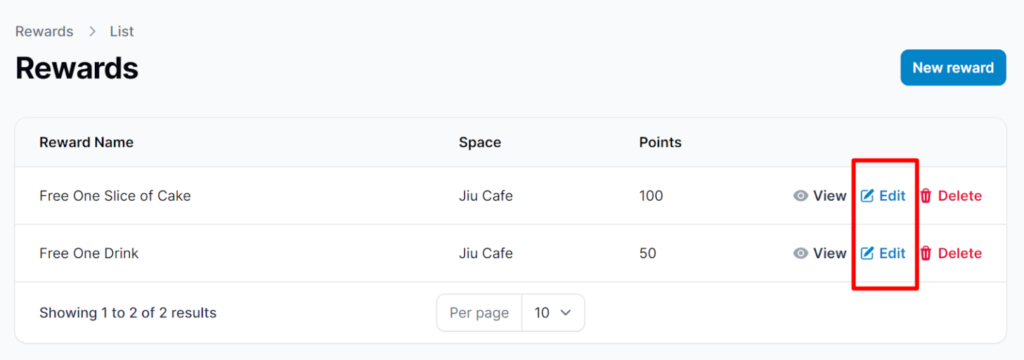
Once the reward is created, go to Admin Panel > Loyalty Program > Rewards, locate your reward, and click Edit.
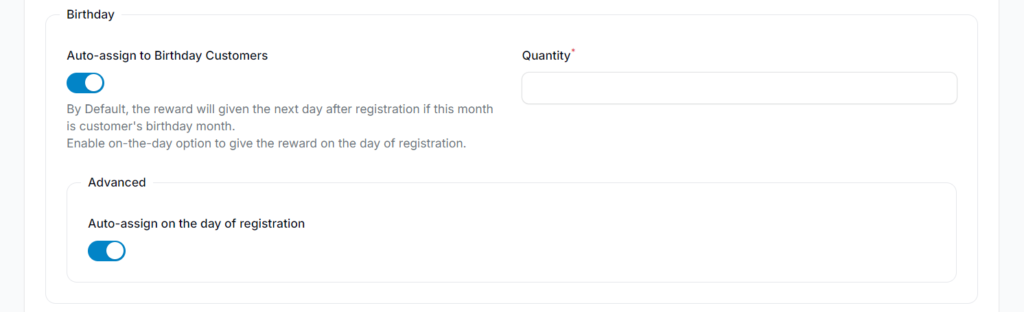
In the Automations tab, activate the following options:
- Auto-assign to Birthday Customers — Automatically assigns this reward to customers during their birthday month.
- Auto-assign on the day of registration — Gives the reward straight away to a new customer who registers during their birthday month, instead of the next day.
Then choose a Delivery Schedule:
- At the start of the birthday month (everyone at once) — the default. Everyone with a birthday that month gets the reward on the 1st.
- On each customer's birthday — each customer gets it on their own day, which spreads the sends out.
A reward that is auto-assigned on birthdays must be free, so Points to Redeem (on the Settings tab) has to be 0.
On the Settings tab, in the Distribution section, make sure Distributable is turned on. This allows the reward to be given out to customers.

Step 3: Get the Reward Link
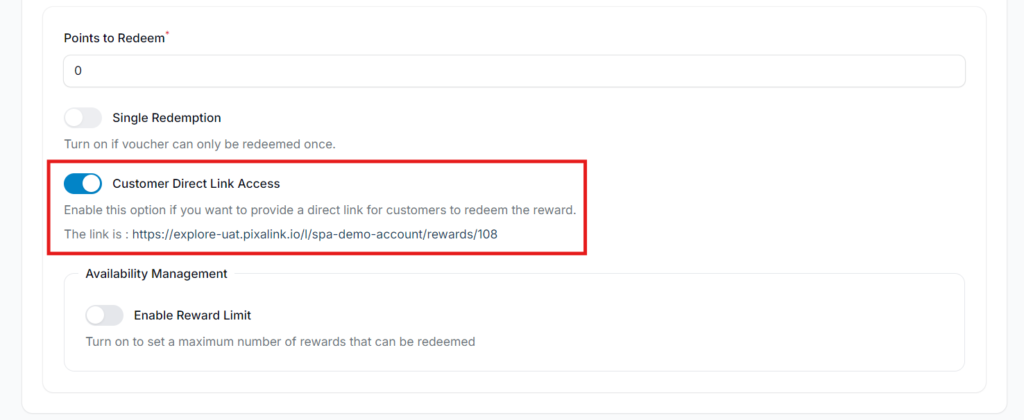
Customer Direct Link Access gives you a link that takes customers straight to the reward after they log in.
To set this up:
- Open the reward's Settings tab.
- Turn on Customer Direct Link Access.
- Copy the link that appears under it, then click Save changes. You will use this link later in the campaign message.
- To keep the birthday reward out of your rewards list, turn off Display in Customer Portal (Marketplace) in the Reward Visibility Settings section. Customers can still open it through the link you send them.

Step 4: Enable Notification Settings
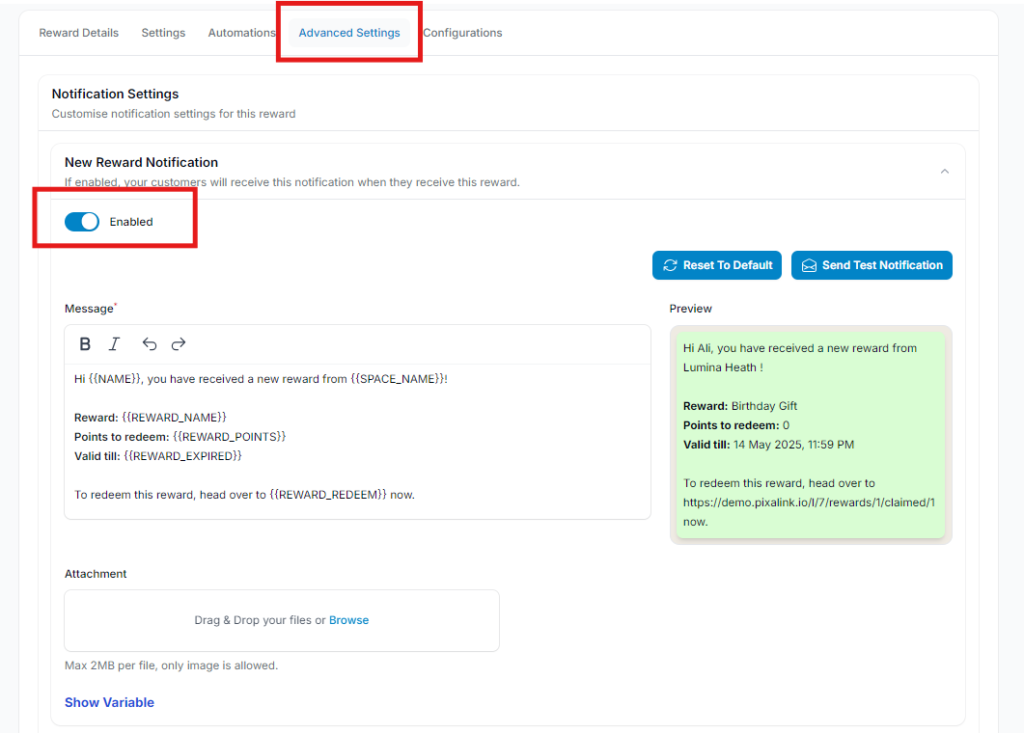
Go to the Notifications tab and enable the notification toggle. Customers are notified when the voucher is given: at the beginning of their birthday month by default, or on their birthday if you chose that Delivery Schedule.
For example, a customer with a birthday on 25 March will receive the notification on 1 March.
Step 5: Navigate to Campaigns
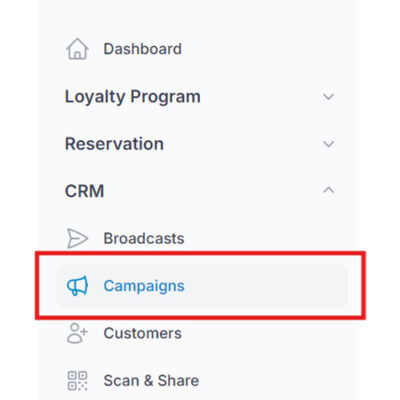
Go to Admin Panel > CRM > Campaigns.
Step 6: Create Templated Campaign
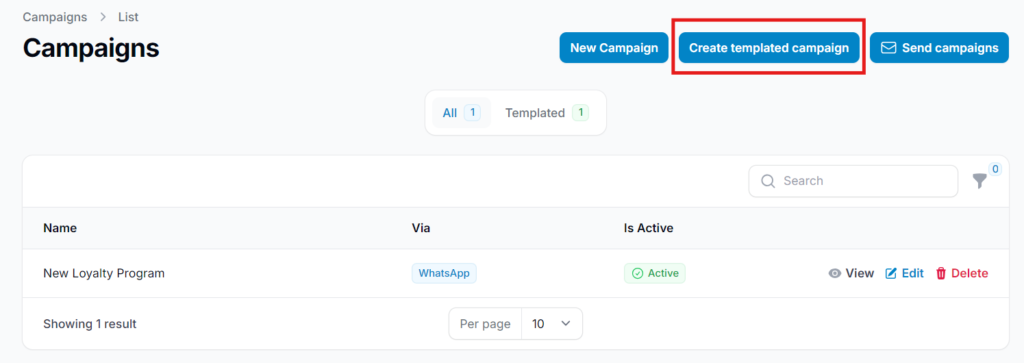
Select Create Templated Campaign to use a pre-built campaign structure. Templated campaigns provide a ready-made framework that simplifies the setup process.
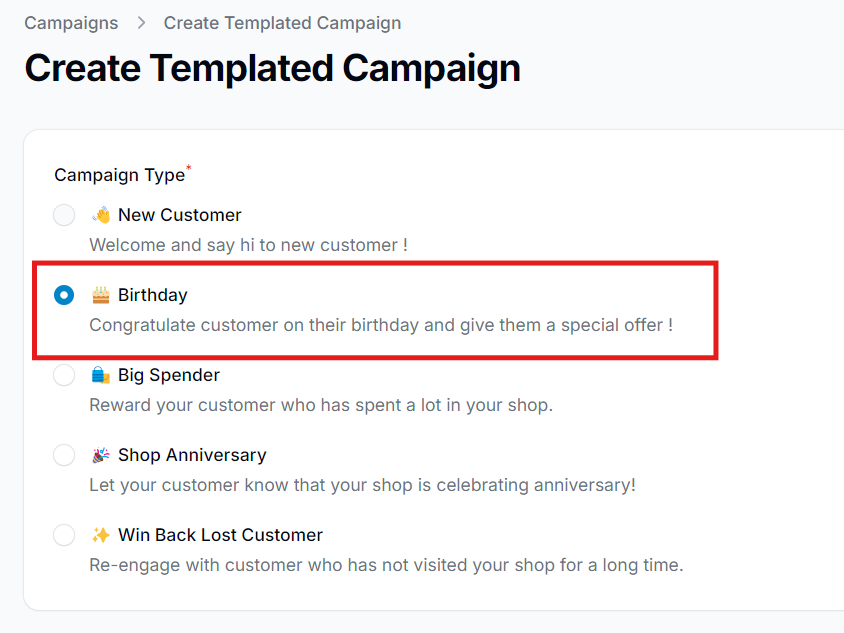
Step 7: Select Birthday Template
Choose Birthday from the list of available templates.
Step 8: Fill In Campaign Details
Enter the campaign details including:
- Campaign name
- Message content
- Broadcast channel (Email, SMS, or WhatsApp)
- Delivery time
- Attached rewards
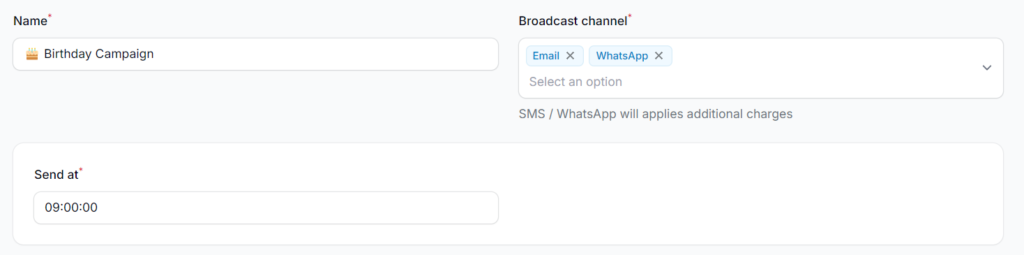
Campaign Field Descriptions
- Name - Enter a clear, descriptive name for your campaign (e.g., "Birthday Special Discount").
- Broadcast Channel - Select your preferred channel: Email, SMS, or WhatsApp. Click the X button to remove a channel if needed.
- Send At - Set the specific delivery time on the customer's birthday. Messages go out between 9:00 AM and 5:00 PM: a send time after 5:00 PM starts at 9:00 AM the next day, and weekends are skipped unless Include Weekends is turned on.
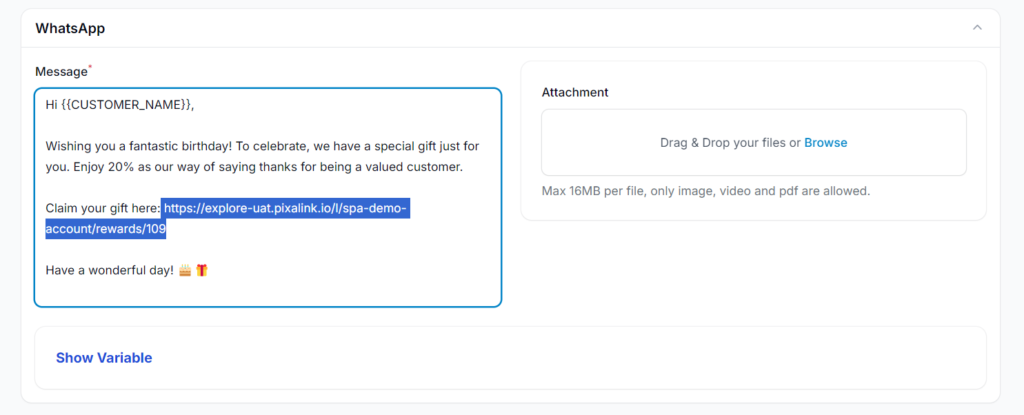
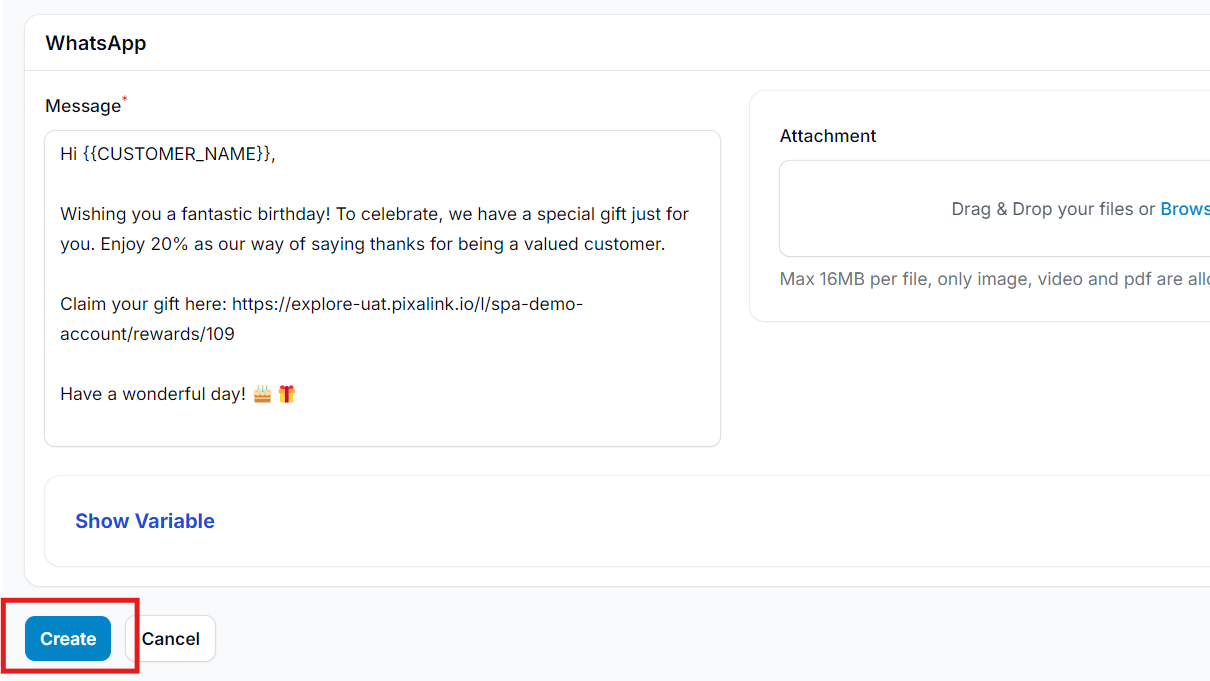
- Message - Use or customize the Pixalink template. Paste the reward link (from Step 3) into the message content so customers can access their birthday reward directly.
- Attachment - Optionally add an image, PDF, or short GIF to make the message more engaging.
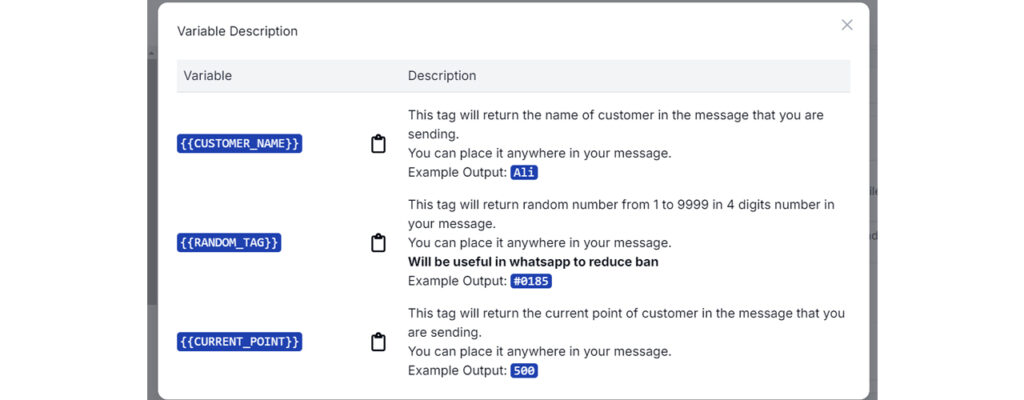
Message Variables
You can use the following variables in your message to personalize it:
| Variable | Description |
|---|---|
{{CUSTOMER_NAME}} |
The customer's name |
{{RANDOM_TAG}} |
A random 4-digit number (helps avoid WhatsApp message filtering) |
{{CURRENT_POINT}} |
The customer's current loyalty points balance |
Step 9: Click Create
Once you have filled in all the details, click Create to save and activate the Birthday Campaign.
Step 10: Setup Complete
Your Birthday Campaign is now active and will automatically send messages on each customer's birthday. No manual broadcasting is required as long as the templated campaign remains enabled.
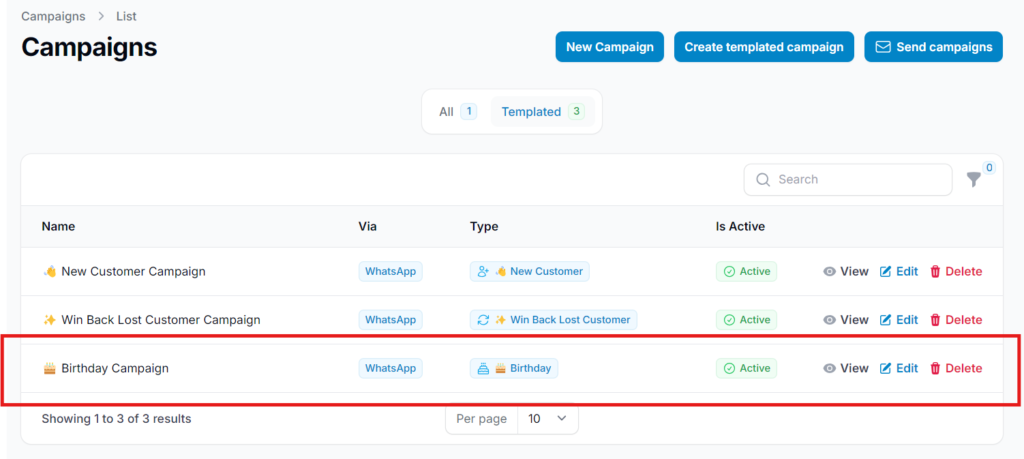
Note: Templated campaigns automatically generate and send broadcasts. Custom campaigns require manual broadcast creation.
What Your Customers Will See
Customers will receive a personalised birthday message through their chosen channel (WhatsApp, SMS, or Email) on their birthday, or the number of days before it that you choose. The message includes a direct link to redeem their birthday reward from the Customer Portal.
Good to Know
- Birthday Campaigns are templated — once set up, they run automatically with no manual broadcasting required
- The birthday voucher (and its notification) arrives at the start of the birthday month by default; the campaign message goes out on the customer's birthday
- Each customer gets the birthday message once per birthday. Customers marked Do Not Contact or Blocked are skipped
- Use
{{CUSTOMER_NAME}}in your message to personalise it with the customer's name - Use
{{RANDOM_TAG}}to vary message content and reduce the risk of WhatsApp message filtering - If you send by WhatsApp from your own number, many birthday messages going out at once can get the number restricted. Spread them out (for example, choose On each customer's birthday for the reward), or send by Email or Official WhatsApp instead
- The reward link in the message takes customers directly to the reward after login