
How to See Which Customers Have a Birthday Coming Up
How to See Which Customers Have a Birthday Coming Up
What Is This?
Pixalink doesn't send you, the business owner, a reminder before a customer's birthday. Instead, you can pull up next month's birthdays in under a minute from your customer list. Do it once a month and your team can plan cakes, calls or a personal greeting ahead of time.
Real-Life Example
Siti runs a pet grooming salon in Shah Alam. She wanted to call her regulars before their birthdays, so she asked if Pixalink could remind her. There's no reminder, so on the last week of each month she opens Customers and filters by next month's Birthday Month. She adds the Date of Birth column and exports the list for her front-desk staff. Now every customer with a November birthday gets a call and a free nail trim offer. Her staff no longer miss a birthday, and repeat bookings in birthday months went up.
How to Set It Up
-
Go to Admin Panel → CRM → Customers.
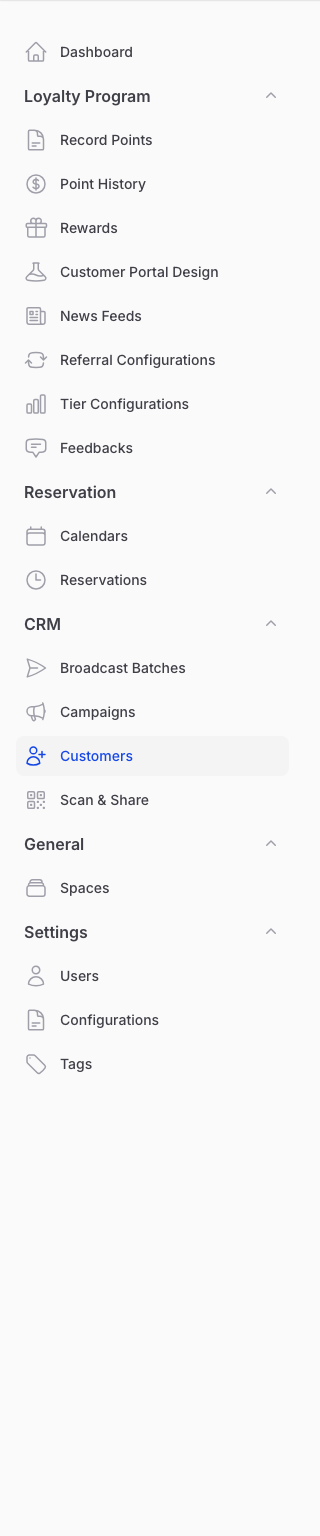
Customers sits under the CRM group in the sidebar.
-
Click the filter icon, choose next month in Birthday Month, then click Apply filters.
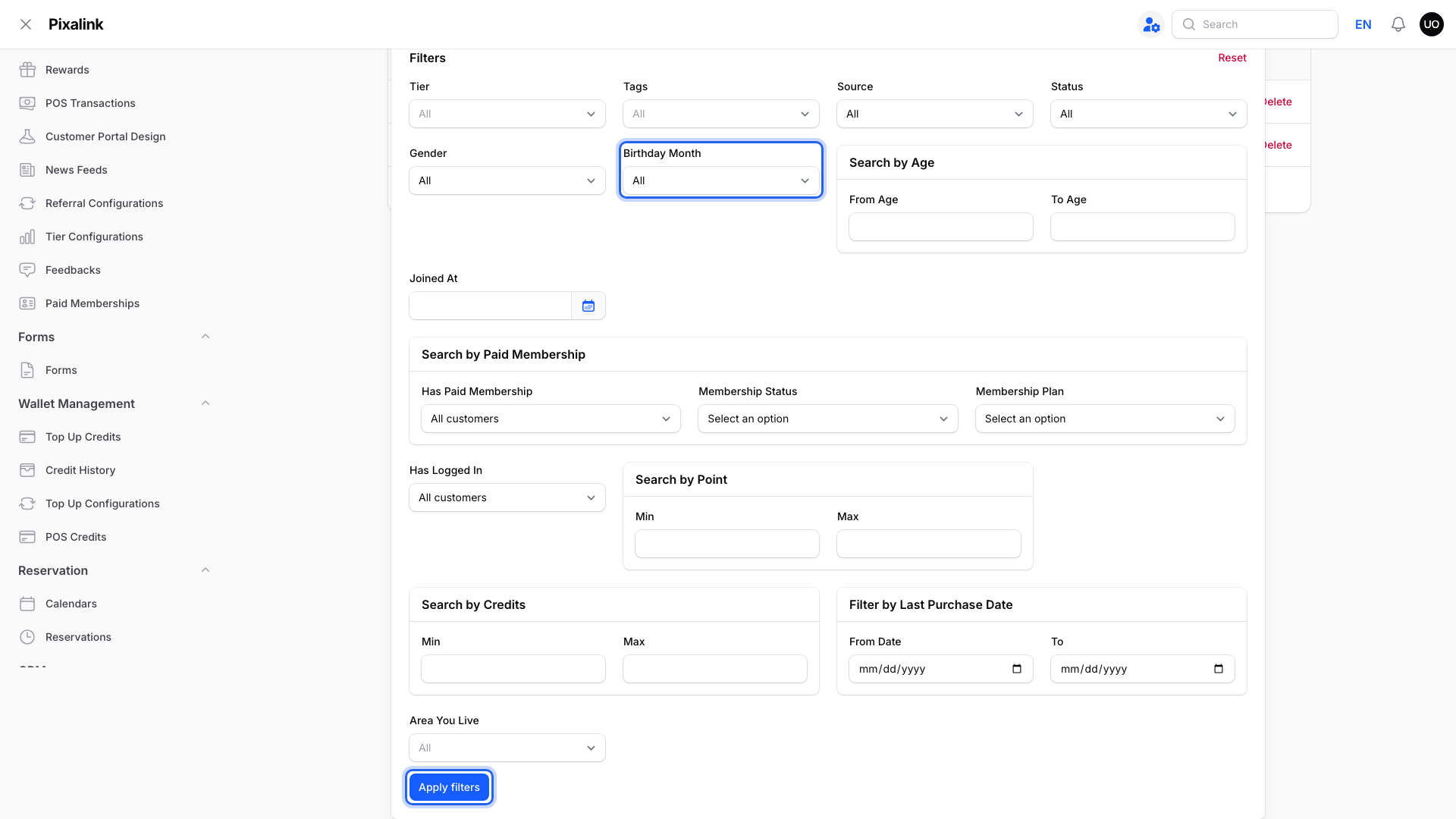
Birthday Month starts on All. Pick a single month, for example November.
-
Click the columns icon, tick Date of Birth, then click Apply columns.
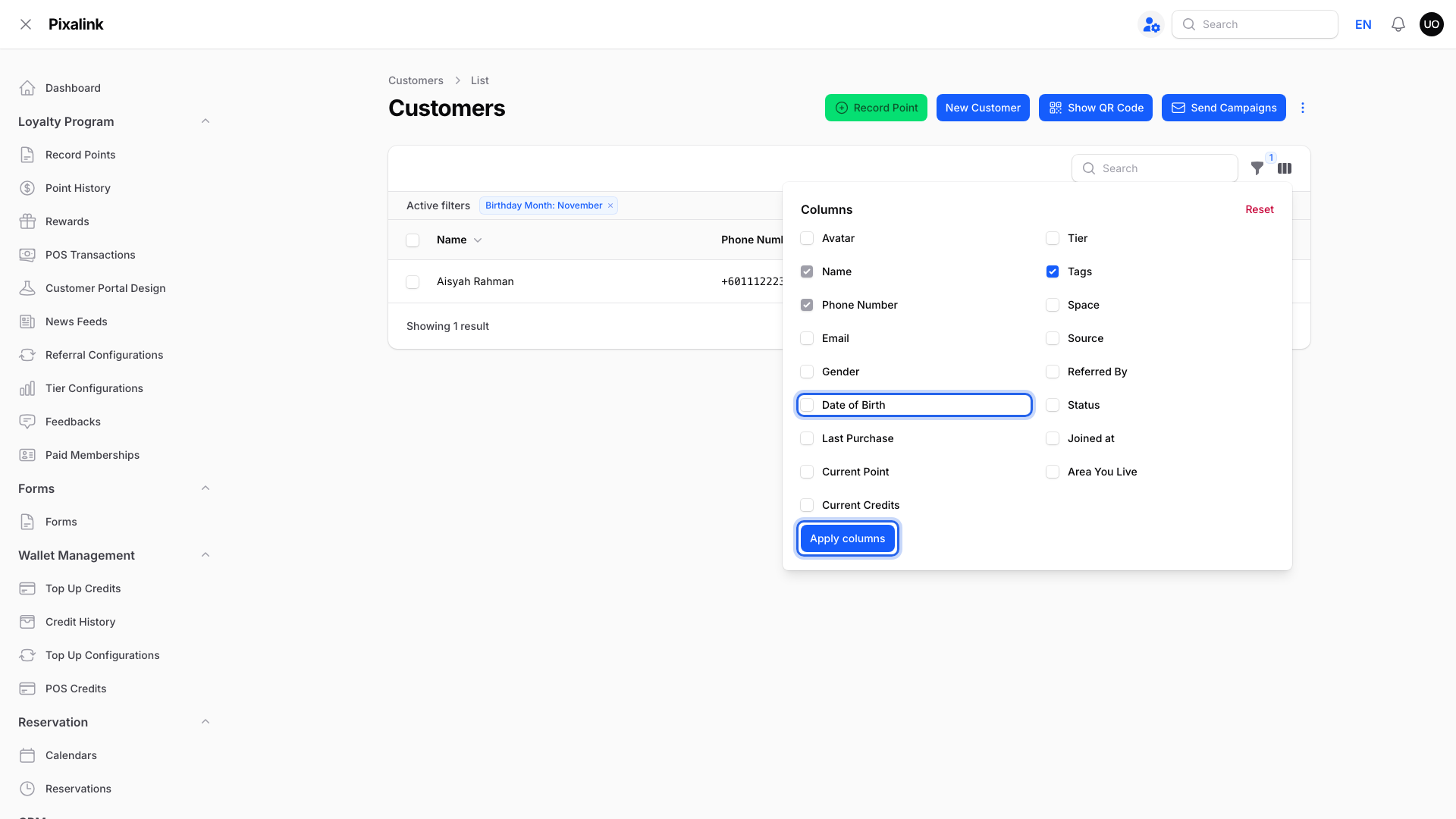
Date of Birth is hidden by default. Pixalink remembers your choice until you log out.
-
Check the list to see each customer's exact birthday.
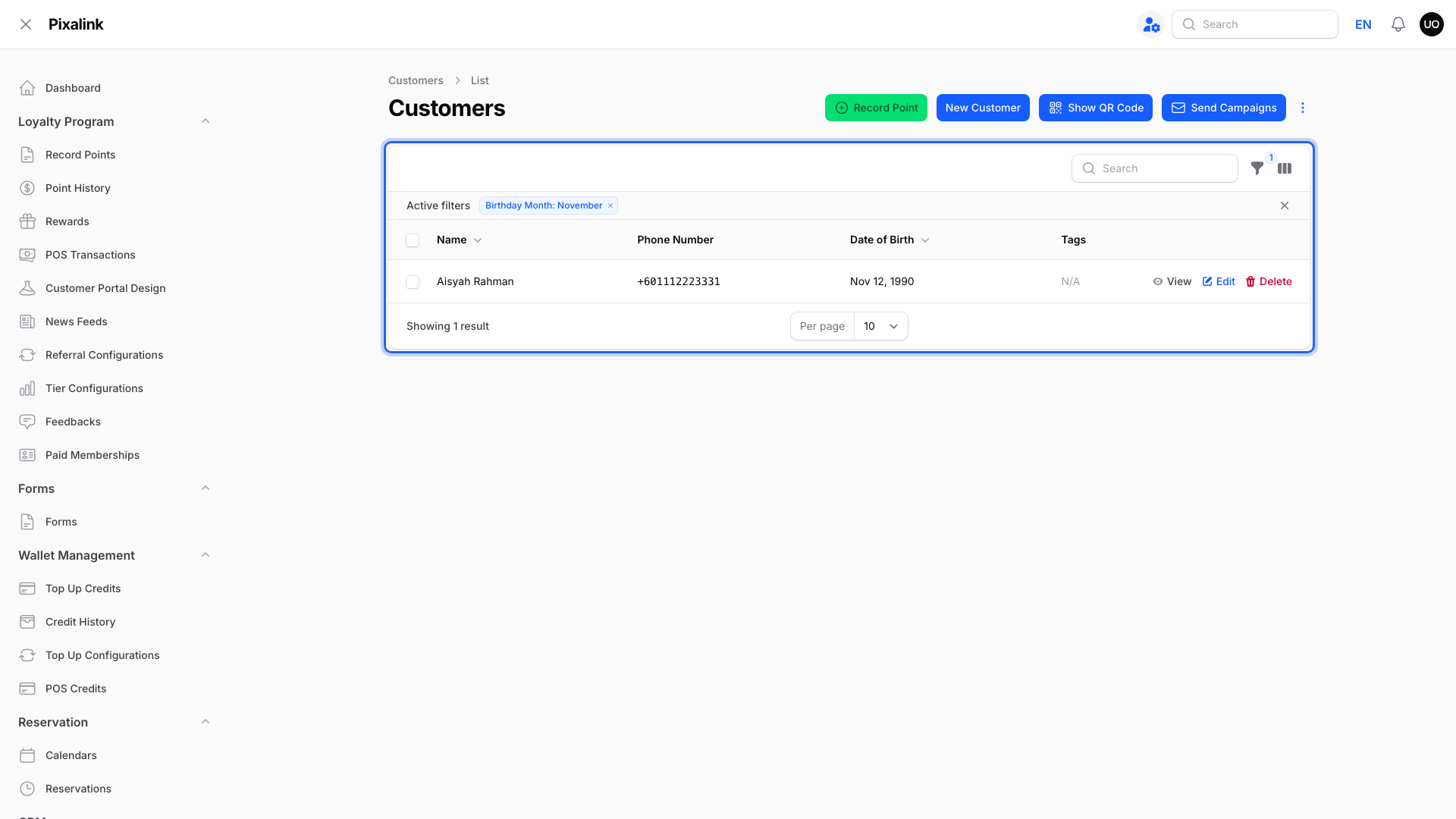
The Active filters bar shows Birthday Month: November. Hover a date to see the customer's age.
-
Click the three-dot menu at the top right and choose Export Customers.
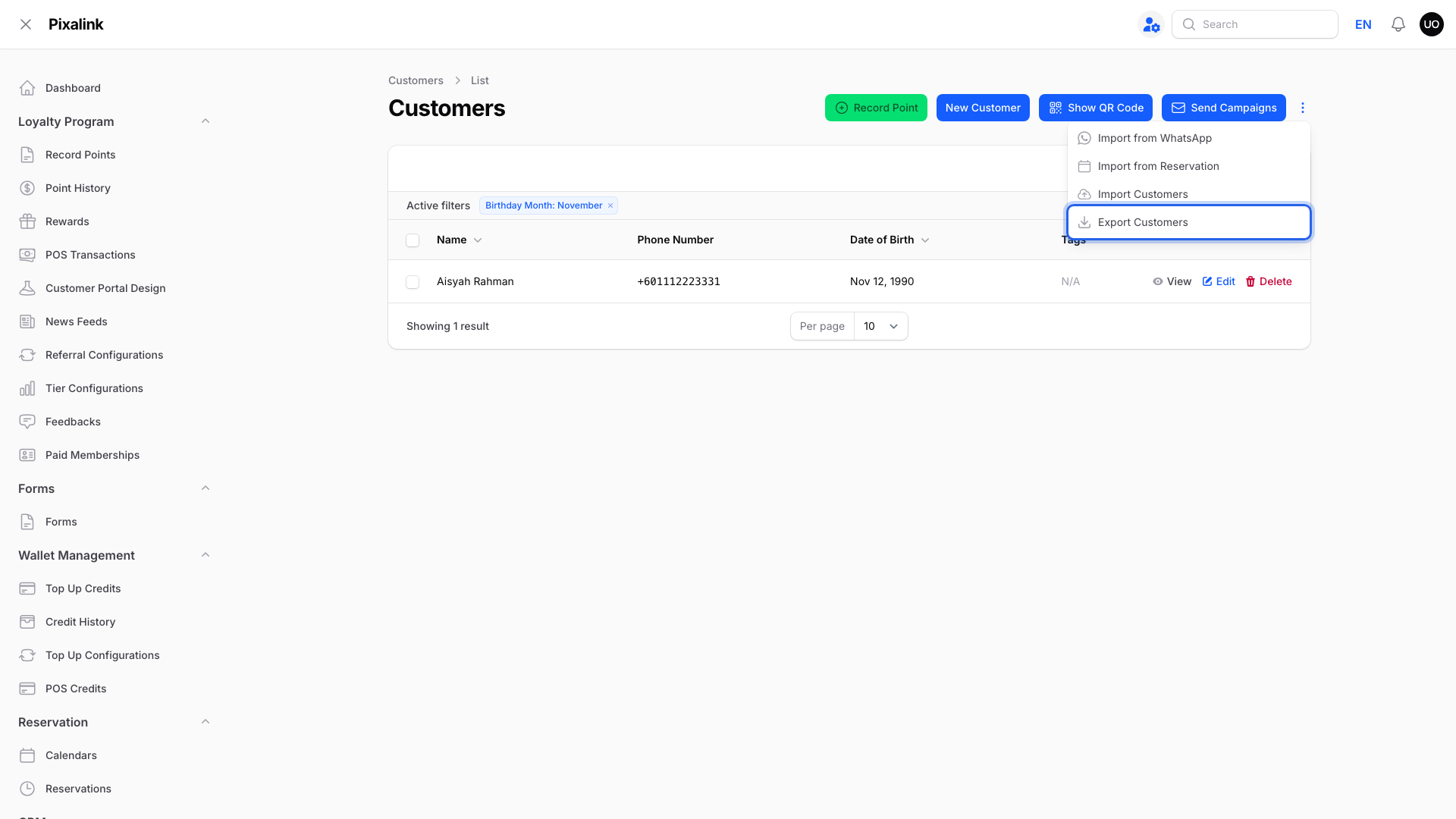
Export Customers is the last item in the menu.
-
Click Export to prepare the file in the background.
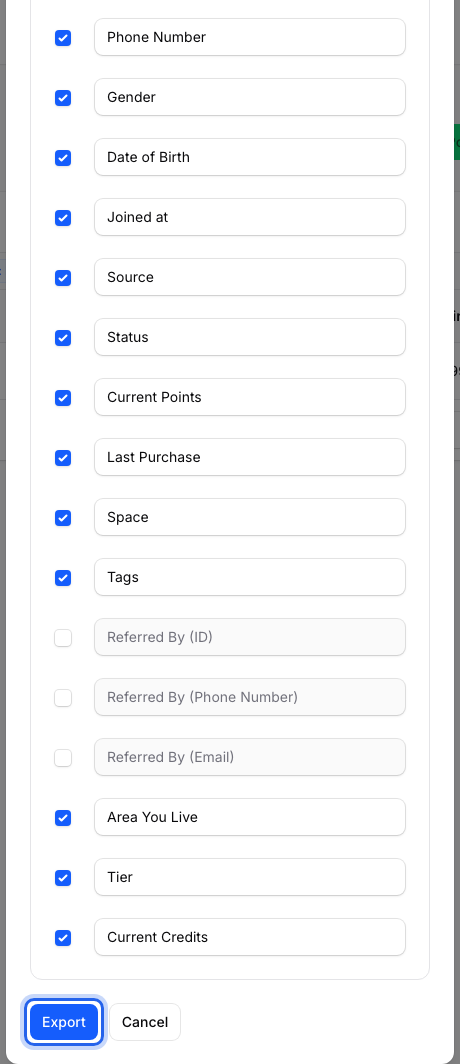
Only customers matching your filter and search are exported. A download link appears under the bell icon when the file is ready.
What Your Customers Will See
Nothing. This list is only for you and team members who can view Customers. To greet customers automatically, set up a birthday campaign or a birthday voucher. A birthday campaign messages the customer. A birthday voucher can also alert your team on the day it's given, if you turn that on in the reward's notification settings. Neither one warns you ahead of time.
Good to Know
- Customers without a date of birth never appear under any month.
- The filter shows the whole month, not "the next 7 days". Check the Date of Birth column for exact days.
- The export includes Date of Birth by default, even if the column is hidden on screen.
Need Help?
Reach out to our support team. We're happy to help you get started.