
How to Export Customer Data
What Is This?
Exporting lets you download your customer data as a CSV file. This is useful for reporting, data analysis, backup, or migrating information to other tools. You can choose exactly which columns to include in the export.
Real-Life Example
Faizal, the marketing manager at SportZone MY, needs to send a printed mailer to his top 500 customers. He exports the customer list with names, emails, and tier levels, then hands the CSV to his design team to prepare the mailer.
How to Export Customers
Step 1: Open the Customers Page
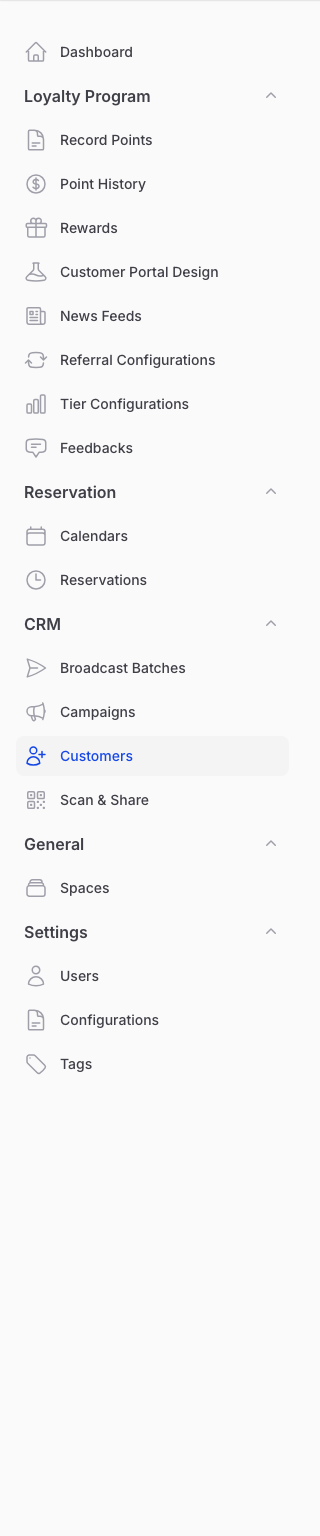
From the Admin Panel sidebar, go to CRM → Customers.
Step 2: Start the Export
Click the dropdown button in the top-right header area of the Customers page and select Export.

Step 3: Choose Your Columns
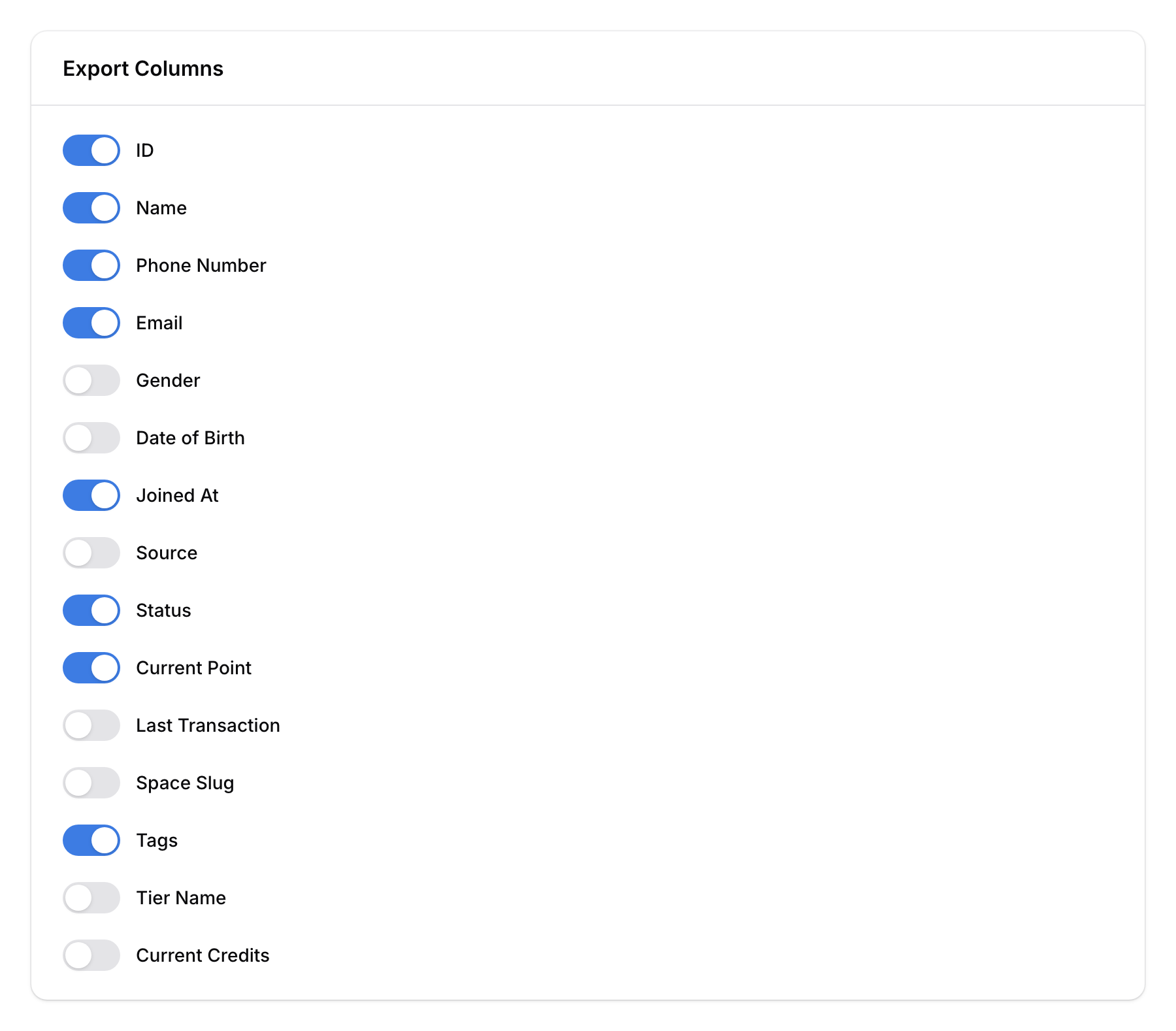
A dialog appears letting you select which columns to include in the export:
| Column | Description |
|---|---|
| ID | Customer ID |
| Name | Customer's full name |
| Phone Number | Phone number |
| Email address | |
| Gender | Male/Female |
| Date of Birth | Birthday |
| Joined At | When they signed up |
| Source | How they joined (portal, staff, import, etc.) |
| Status | Customer status (e.g., Open, Blocked, Do Not Contact) |
| Current Point | Points balance |
| Last Transaction | Date of last purchase |
| Space Slug | Which outlet they belong to |
| Tags | Comma-separated tag names |
| Tier Name | Loyalty tier (if tiering is enabled) |
| Current Credits | Credit balance (if credit wallet is enabled) |
| Custom Fields | Any custom fields your organisation uses |
Select the columns you need and click Export.
Step 4: Download the File
The system generates a CSV file. Once ready, you'll receive a notification with a download link. Click it to download your file.

Good to Know
- CSV format — The export file is in CSV format, which opens in Excel, Google Sheets, and most spreadsheet tools.
- All customers or filtered — The export includes all customers matching your current filter. Apply filters before exporting to get a specific subset.
- Large exports — For large customer bases, the export runs in the background. You'll be notified when it's ready.
- Custom fields included — Any custom fields you've set up for your organisation are automatically available as export columns.
- Referral data — Optional columns for referral information (referred by ID, phone, email) are available but hidden by default.