
How to Show a Barcode or QR Code on Profiles and Vouchers
What Is This?
A barcode lets your cashier scan a customer or a voucher instead of typing. It is faster at the counter and stops typing mistakes.
Real-Life Example
Ahmad runs Kopi Corner cafe in Bangsar. In the morning rush, his cashier typed each phone number by hand, and the queue grew. Ahmad turned on Show Barcode In Profile and chose QR Code for profiles and vouchers. Now regulars hold up their phone and the cashier scans once. The queue moves faster.
How to Set It Up
-
Go to Admin Panel → Loyalty Program → Customer Portal Design.

Customer Portal Design is in the Loyalty Program group.
-
Click Edit on your theme.

Most businesses have one theme, called Default.
-
Click the Style tab.

The barcode settings are in the Custom section, below Color.
-
Turn on Show Barcode In Profile to put a barcode on the member card.
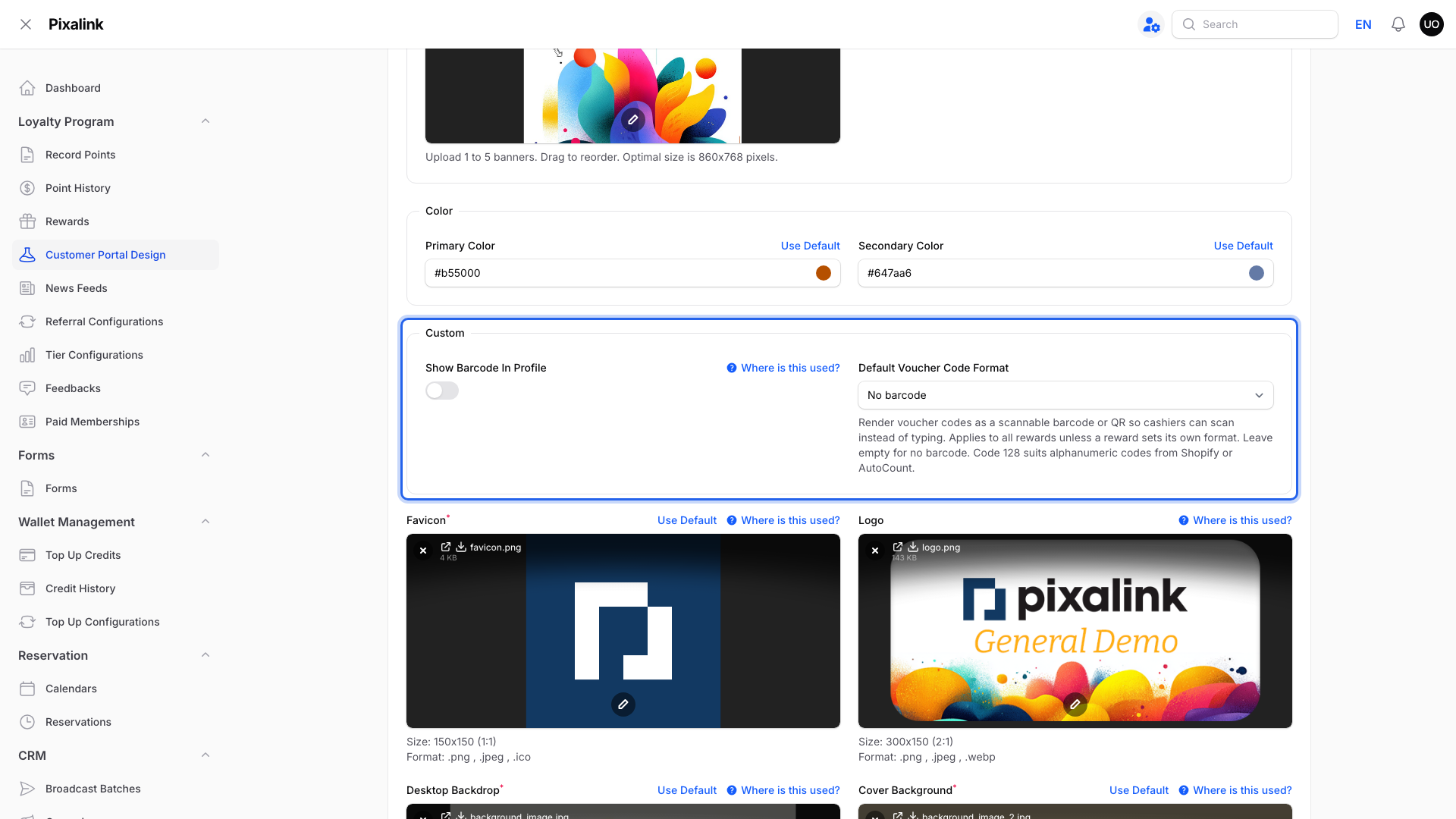
More fields appear when you turn it on.
-
Choose the Barcode Identifier Type and the Barcode Phone Format.
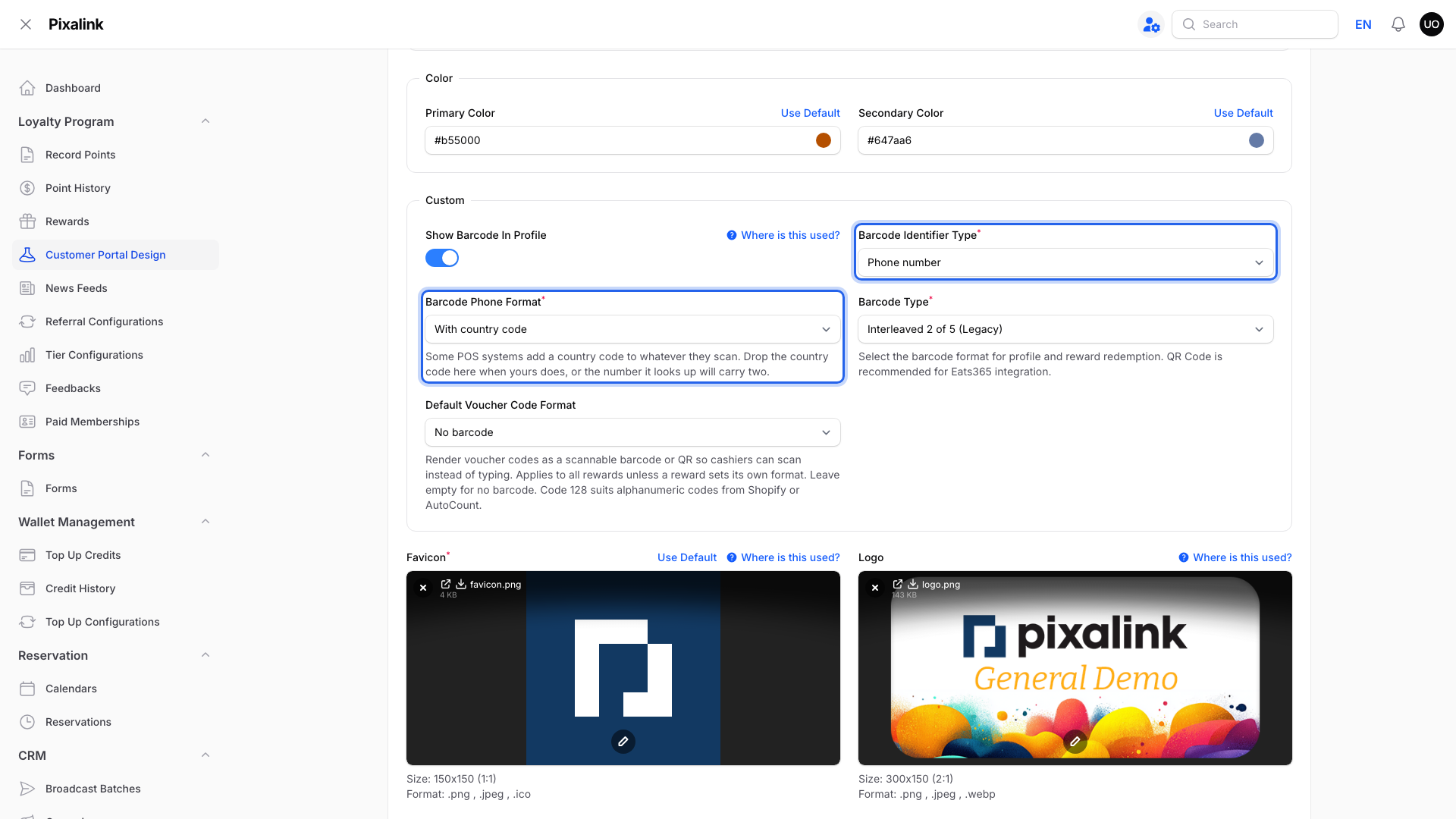
Barcode Phone Format only shows when the identifier is Phone number.
- Phone number or Customer ID: what the barcode holds. Pick the one your POS searches by.
- With country code: the usual choice.
- Without country code: pick it if your POS adds the country code itself, or the number gets it twice.
-
Choose a Barcode Type.
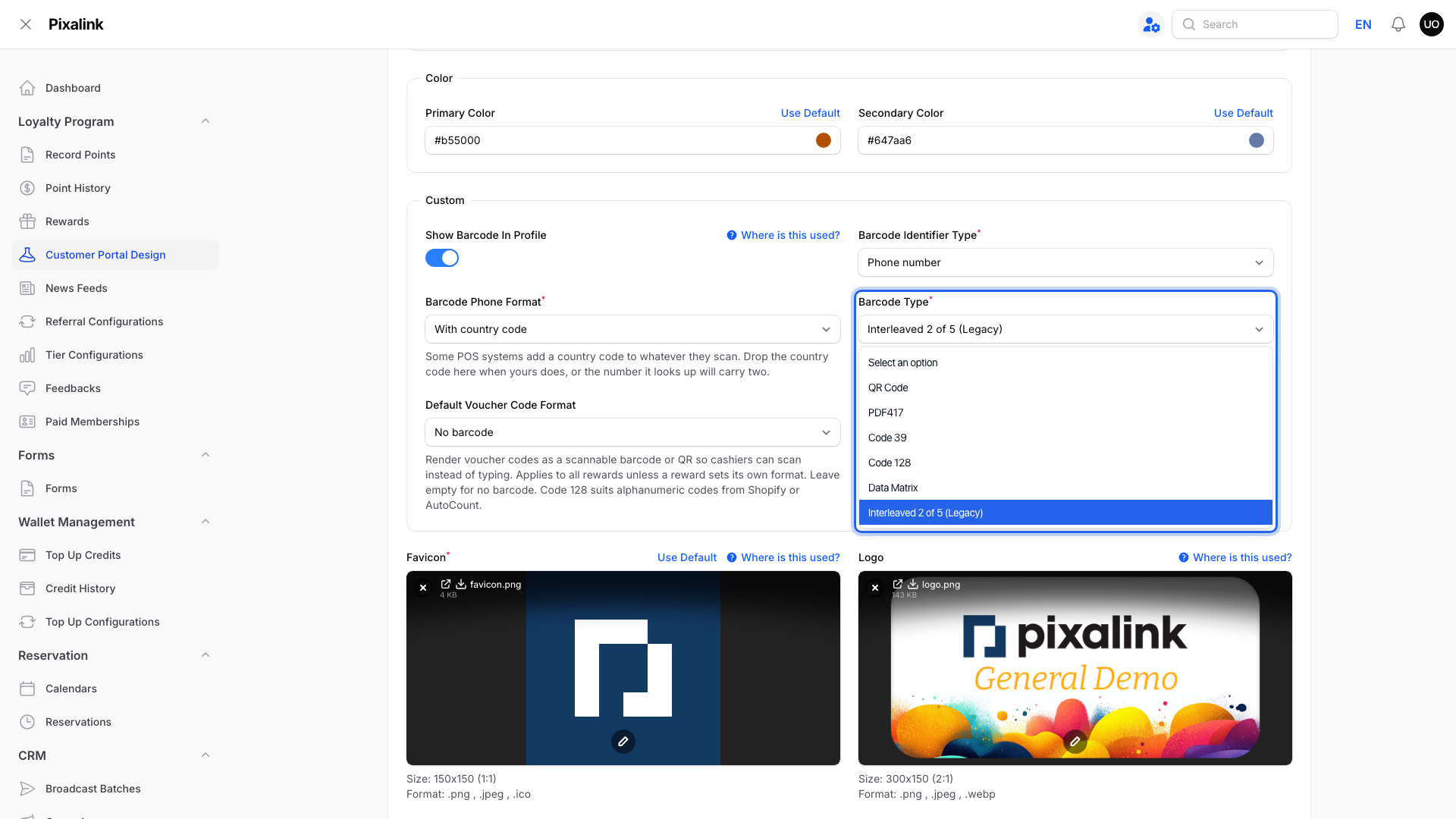
This shape is used on the member card.
- QR Code: works with most scanners and phone cameras. Pick it if you're not sure, or if you use Eats365.
- PDF417: a wide 2D code. Pick it only if your scanner asks for it.
- Code 39: a long 1D barcode that holds letters and numbers. For older scanners.
- Code 128: a short 1D barcode that holds letters and numbers. Good for line scanners.
- Data Matrix: a small square 2D code. Pick it only if your scanner asks for it.
- Interleaved 2 of 5 (Legacy): the old default. It holds numbers only.
-
Choose a Default Voucher Code Format to show voucher codes as a barcode.
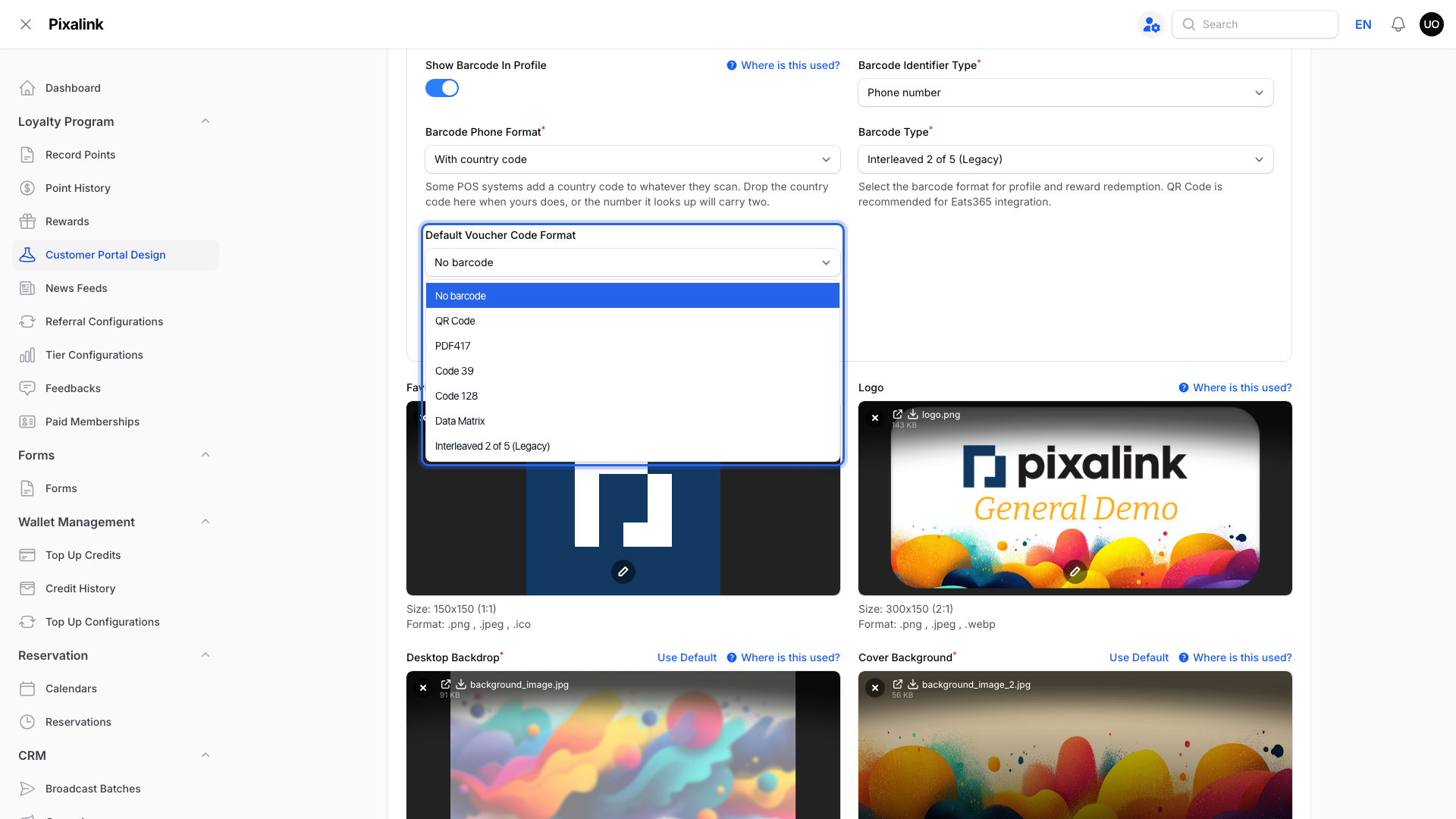
It sets the format for every reward left on Inherit (portal default).
- No barcode: the voucher code shows as text. If Show Barcode In Profile is on, some codes still use your Barcode Type.
- QR Code: the best pick for most scanners.
- Code 128: pick it if your voucher codes have letters, such as codes from AutoCount or Shopify.
- The other options match the shapes in step 6.
-
Click Save changes.
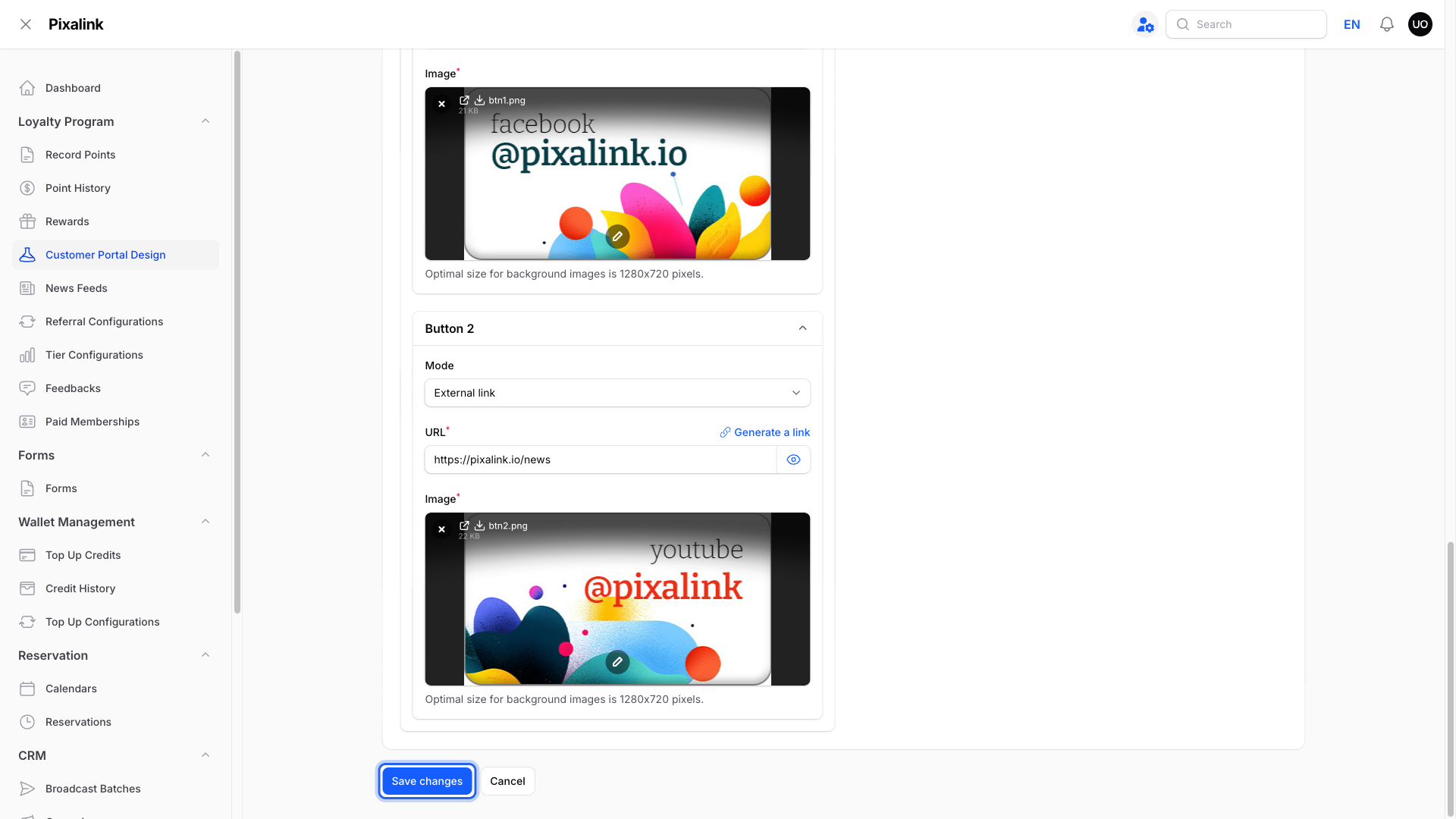
Then click View on Front Page at the top to check the result.
What Your Customers Will See
The member card in the portal shows a barcode under the customer's name.
When a customer opens a claimed voucher and taps Use Now, the code shows as a barcode or QR code that your cashier can scan. If Send customers to ordering is on and you have ordering set up, Use Now opens ordering instead.
Good to Know
- One reward can use its own format. Edit the reward, open the Misc tab and set Voucher Code Format. That overrides your Default Voucher Code Format.
- Vouchers synced to Shopify, with a shop domain set, always show a QR code, whatever format you pick.
- Eats365 businesses start with a Customer ID QR code on the member card.
Need Help?
If your scanner can't read the code, try QR Code first. Then see How to Scan Customer Barcodes with Your Device Camera.