
How to Set Up Point Expiry Rules
How to Set Up Point Expiry Rules
What Is This?
Point expiry sets a time limit on earned points. After a set number of days, unused points are automatically removed from a customer's balance. Each batch of points earned has its own expiry countdown — points don't expire all at once. If you use loyalty tiers, expired points no longer count toward tier qualification.
To enable point expiry, contact the Pixalink support team and specify how many days before points should expire (e.g., 90, 180, or 365 days). Only newly earned points are affected — points earned before expiry was switched on never expire. If you use tiers, those older points stop counting toward a customer's tier once expiry is on, so check your tier levels with our team before switching it on.
Video Walkthrough
Set Up Expiry Reminder Notifications
You can send customers a reminder by email, WhatsApp or both before their points expire. The settings page only appears once WhatsApp is connected to your account.
The Configurations page and Notification Settings section only appear when WhatsApp is connected. If you don't see these options, contact support to set up WhatsApp first.
- Go to Admin Panel → Settings → Configurations
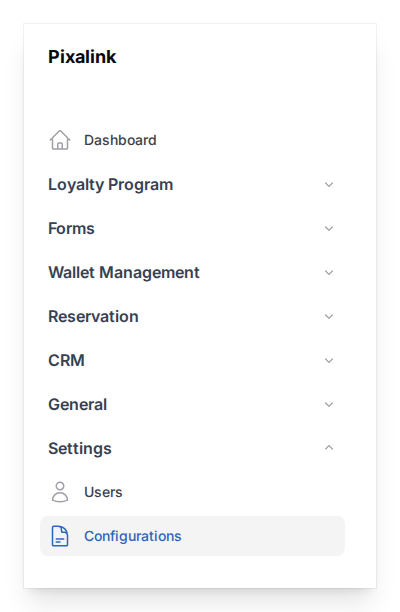
- Scroll down to the Notification Settings section at the bottom of the page
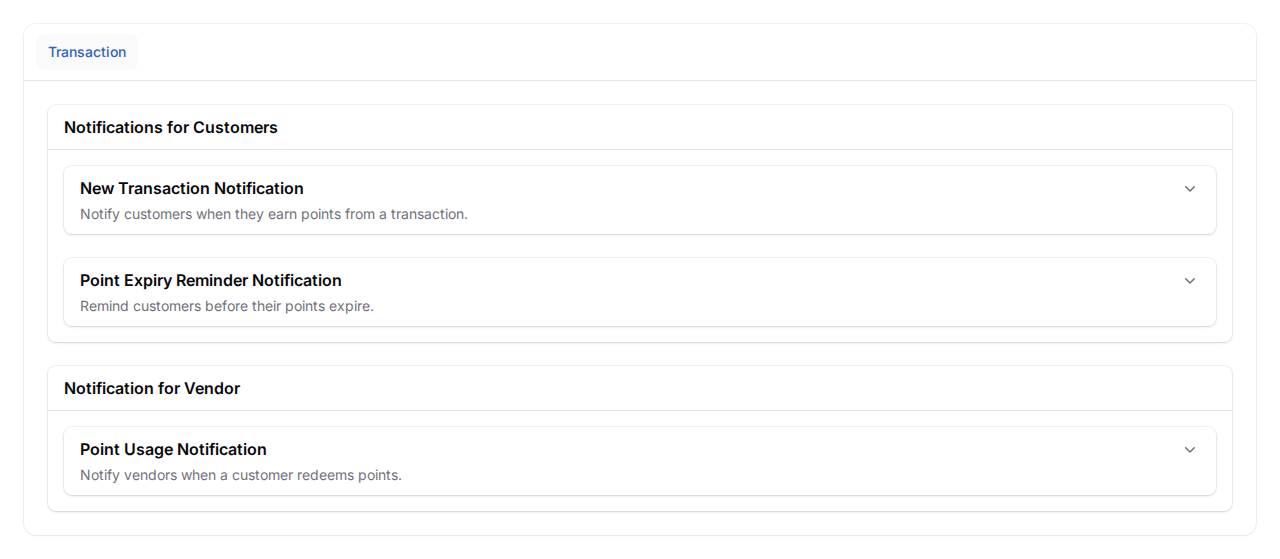
- Expand Point Expiry Reminder Notification under the customer notifications area
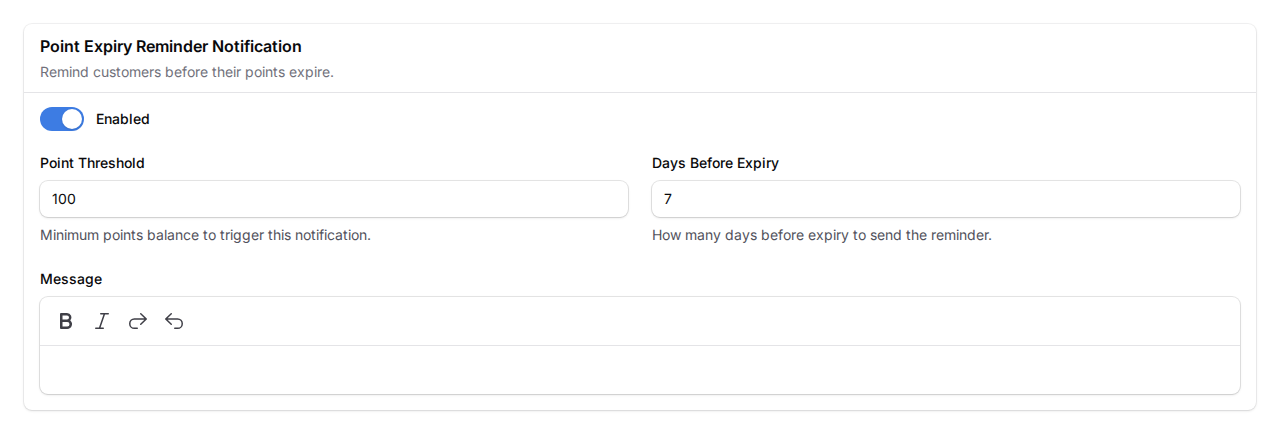
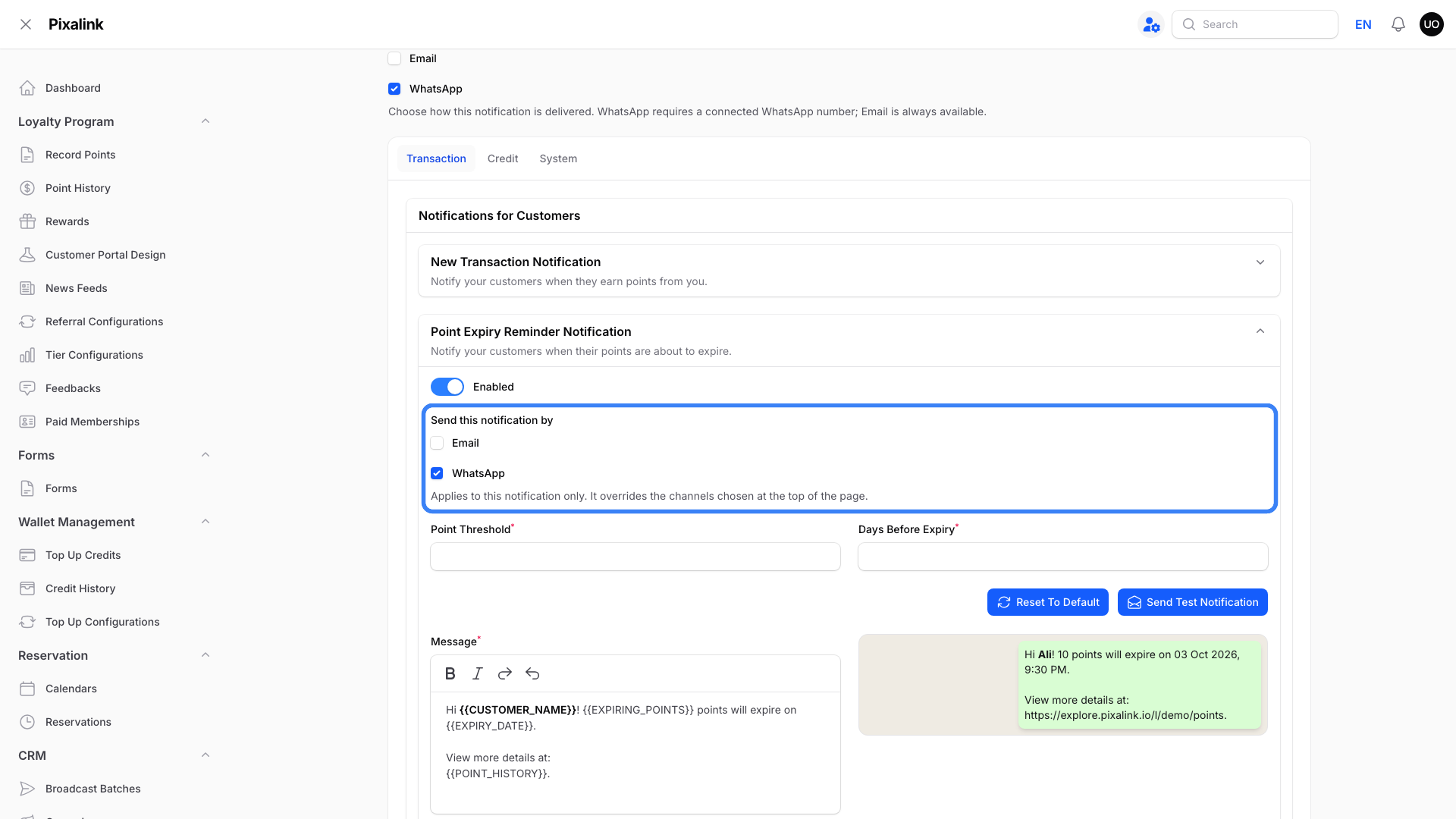
- Turn on the Enabled toggle
- In Send this notification by, choose Email, WhatsApp or both. Email goes to the email address on the customer's profile.
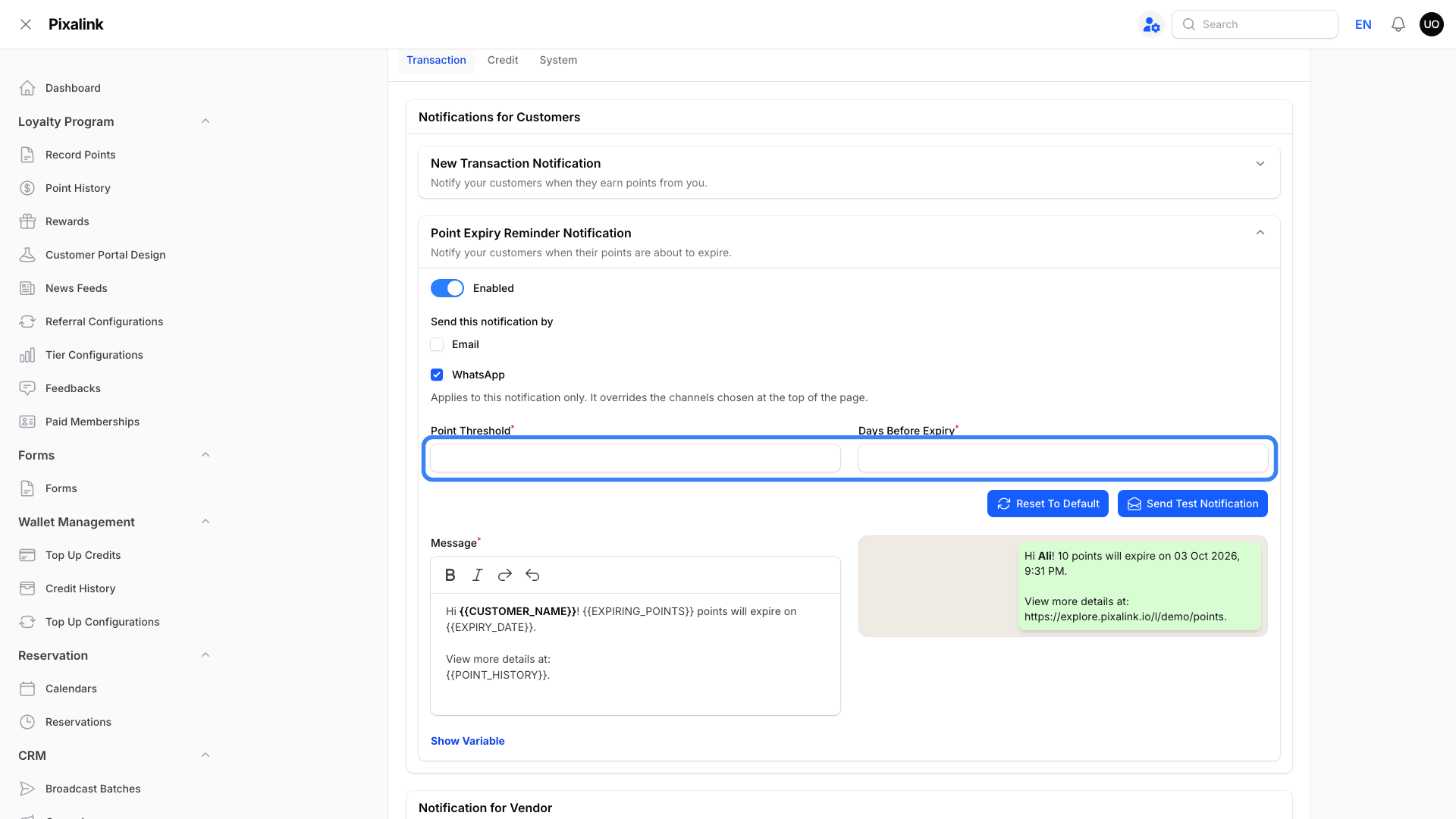
- Set the Point Threshold — the minimum number of expiring points needed to trigger a reminder (minimum 1). For example, set it to 100 so customers aren't notified about small amounts
- Set Days Before Expiry — how many days before expiry the reminder is sent (default: 7)
- Edit the Message template. You can use these placeholders:
{{CUSTOMER_NAME}}— the customer's name{{EXPIRING_POINTS}}— the number of points about to expire{{EXPIRY_DATE}}— the date the points will expire{{DAYS_REMAINING}}— number of days left{{CUSTOMER_PHONE}}— the customer's phone number{{SPACE_NAME}}— the name of the space or outlet{{CURRENT_POINT}}— the customer's current total point balance{{POINT_HISTORY}}— a link to the customer's point history
- Click Save
Show Expiry Info on the Customer Portal
You can show upcoming point expiry on the customer loyalty portal.
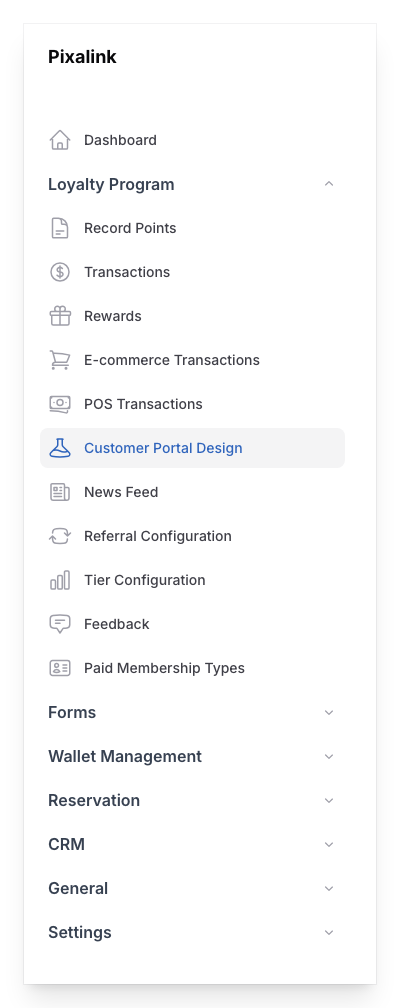
- Go to Admin Panel → Loyalty Program → Customer Portal Design
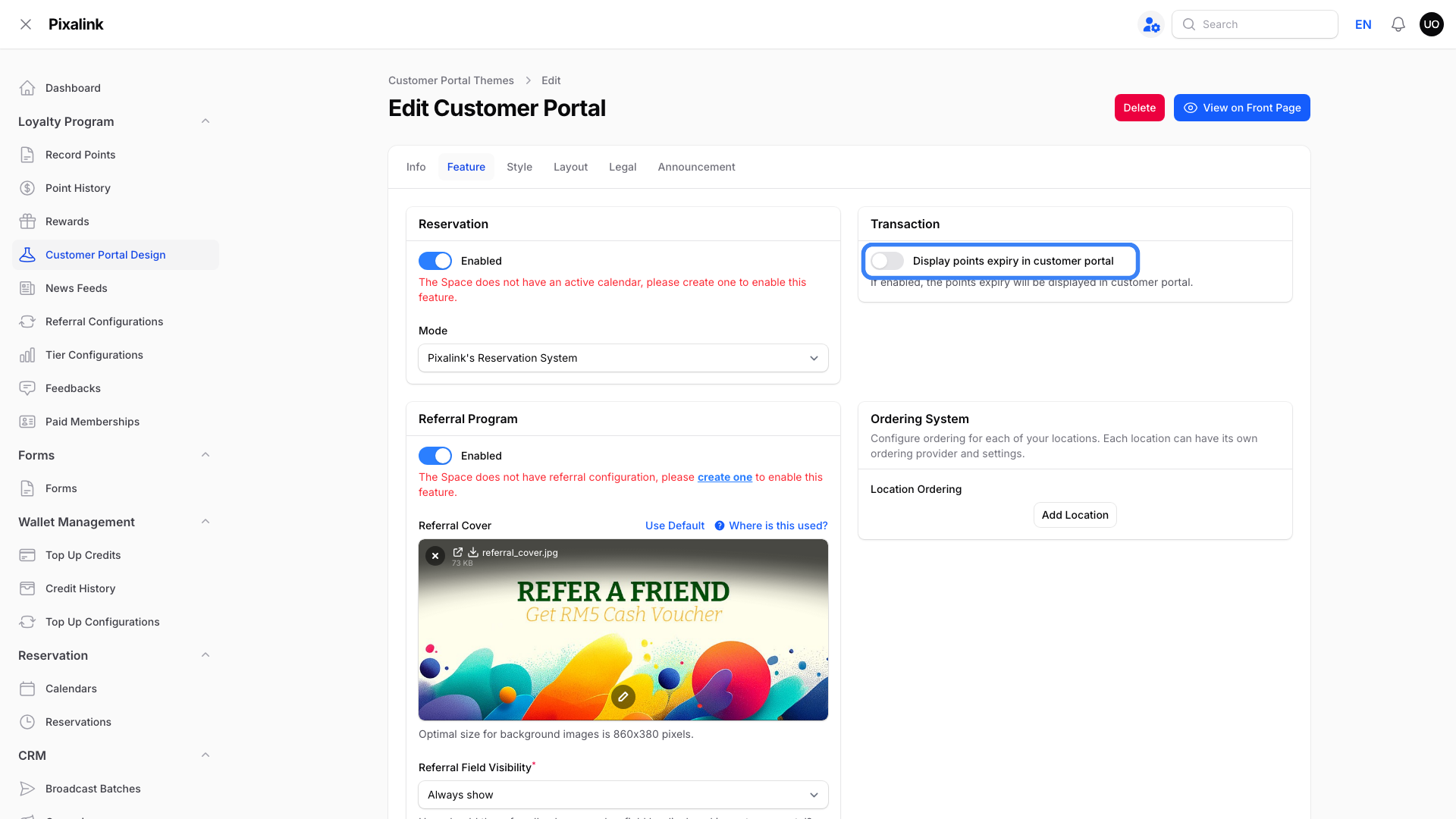
- Click Edit on your portal, then open the Feature tab and find the Transaction section
The Transaction section only appears when point expiry is enabled. If you don't see it, contact support to enable point expiry first.
- Turn on Display points expiry in customer portal
- Click Save changes
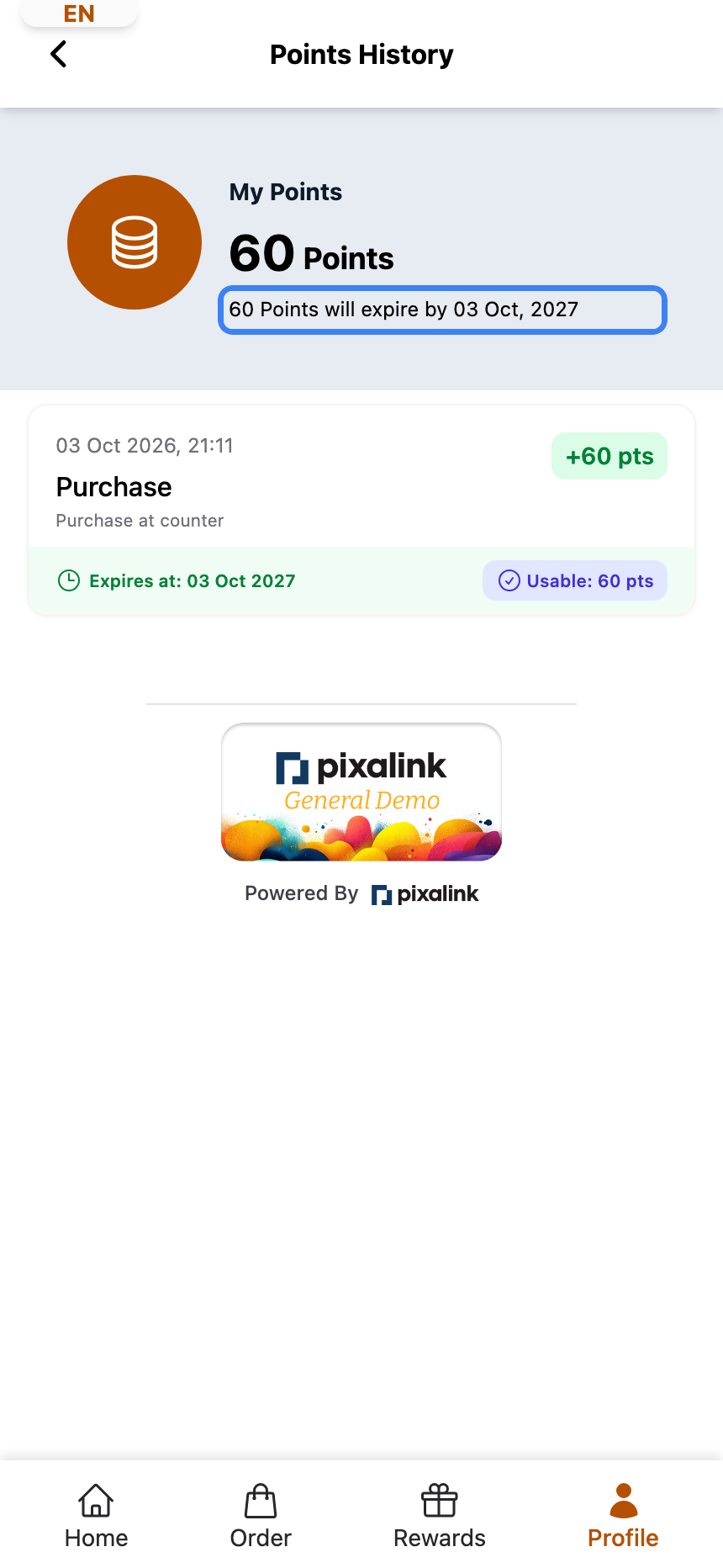
When enabled, customers see a line like "60 Points will expire by 03 Oct, 2027" under their balance on the Points page and the Rewards page.
Real-Life Example
Ahmad owns a small cafe with a loyalty programme. He set point expiry to 180 days, with a reminder threshold of 100 points and notifications sent 7 days before expiry. One of his regulars, who had 150 points saved up, received a WhatsApp message warning that her points would expire in 7 days. She came in the next day, redeemed her points for a free meal combo, and topped up with a new purchase. Without the reminder, those 150 points would have quietly disappeared — and Ahmad might have lost a loyal customer.
What Your Customers Will See
When a customer has points about to expire and meets your point threshold, they'll receive a WhatsApp message or email (whichever you chose) with:
- Their name
- The number of points expiring
- The exact expiry date
- A link to view their point history
This gives them a chance to visit your shop and use their points before they're gone.
Good to Know
- The expiry reminder only sends if the customer has at least the number of expiring points you set in the point threshold.
- Reminders go by email, WhatsApp or both, as set in Send this notification by. WhatsApp needs a connected WhatsApp number, and email needs the customer to have an email address on their profile.
- You can set the days before expiry to any value between 1 and your total expiry period.