
How to Export Your Points Expiry Report
What Is This?
The Points Report shows how many loyalty points your customers still hold. The Export Ledger Summary tool turns that report into a spreadsheet you can keep. Each row lists one customer with their points earned, redeemed, and expired. It gives you a clear record of points that ran out before customers spent them. Expired points are a missed chance to bring someone back to your shop. With this report you can spot those customers and win them back. It also helps you understand how much your points programme is really worth.
Video Walkthrough

Real-Life Example
Aishah runs a busy sports shop with a loyalty programme. She wants to know how many points expired last quarter. She opens the Points Report and picks the date range she cares about. A few minutes later she has a spreadsheet of every affected customer. She sorts it by points expired to find her biggest losses. Now she can message those customers with a fresh offer.
How to Set It Up
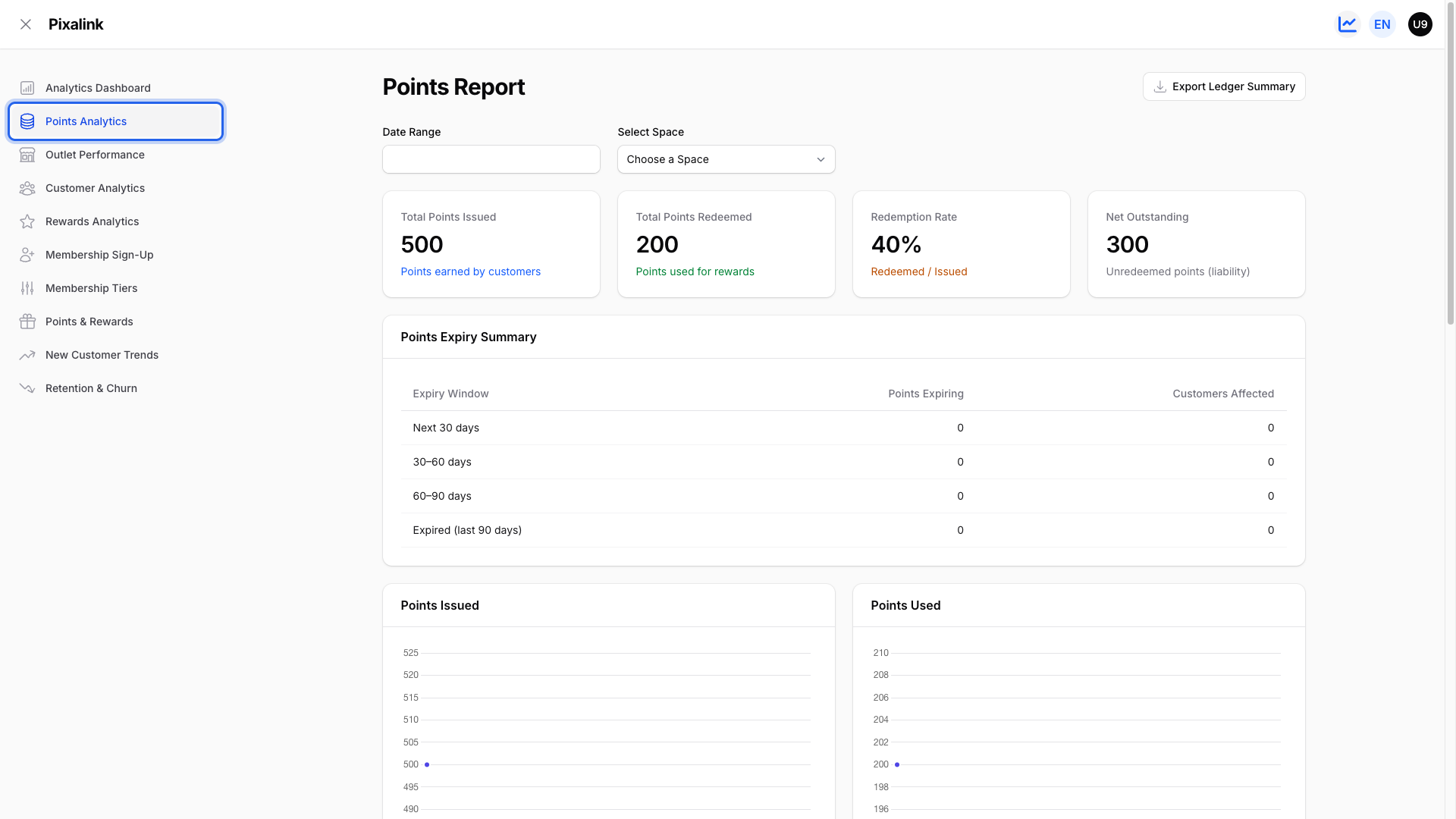
- Open the Points Report. Go to Points Analytics in the Analytics menu.
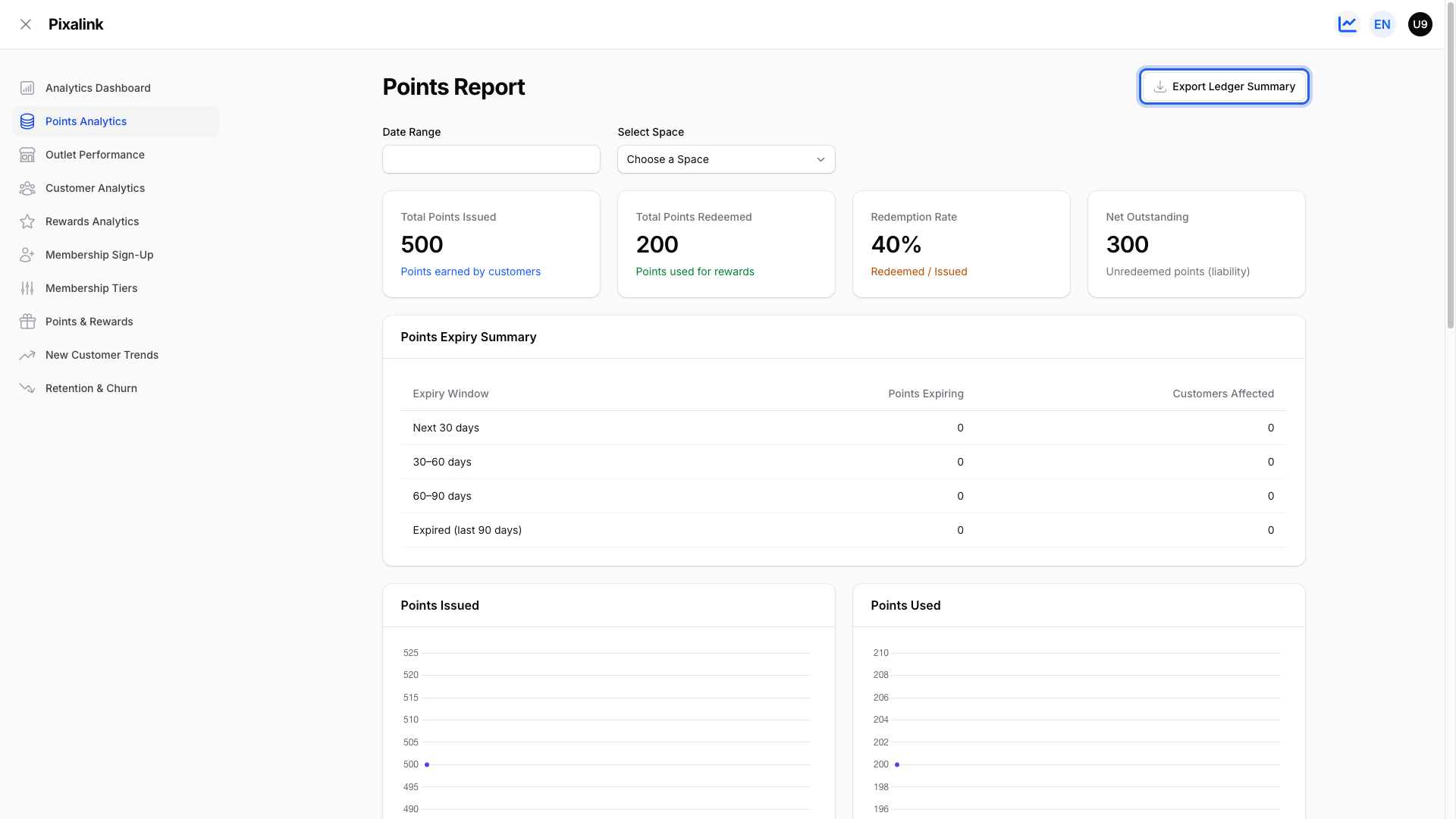
- Open the export tool. Click Export Ledger Summary at the top right of the page.
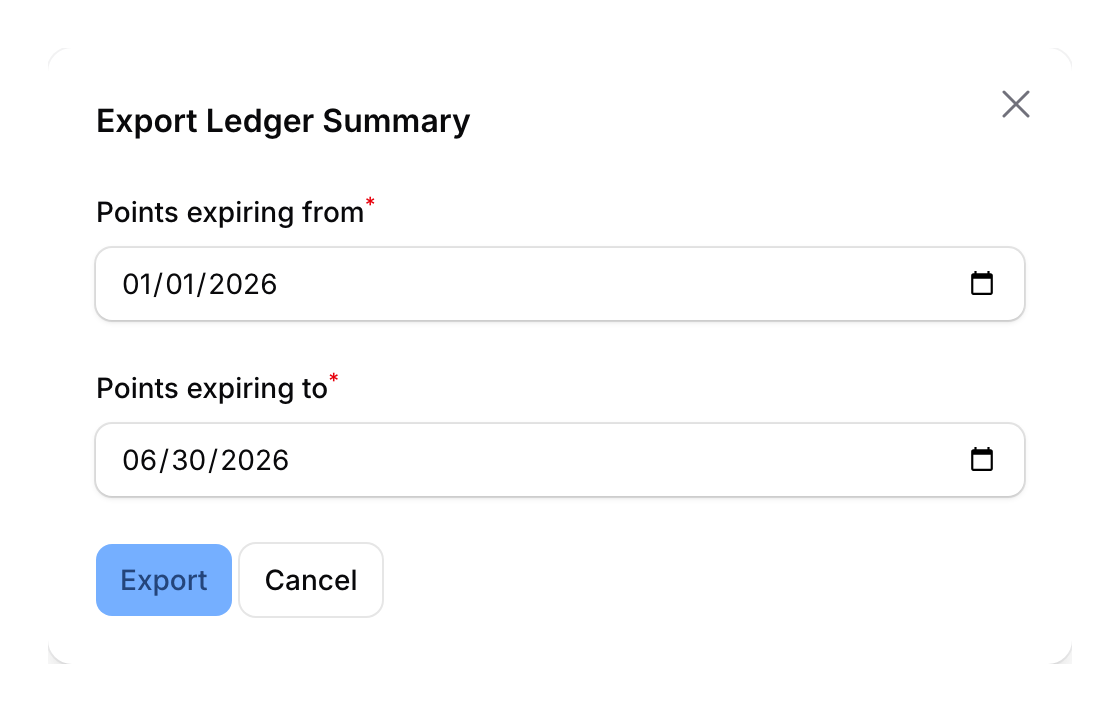
- Choose your date range. Set the Points expiring from and Points expiring to dates, then click Export.
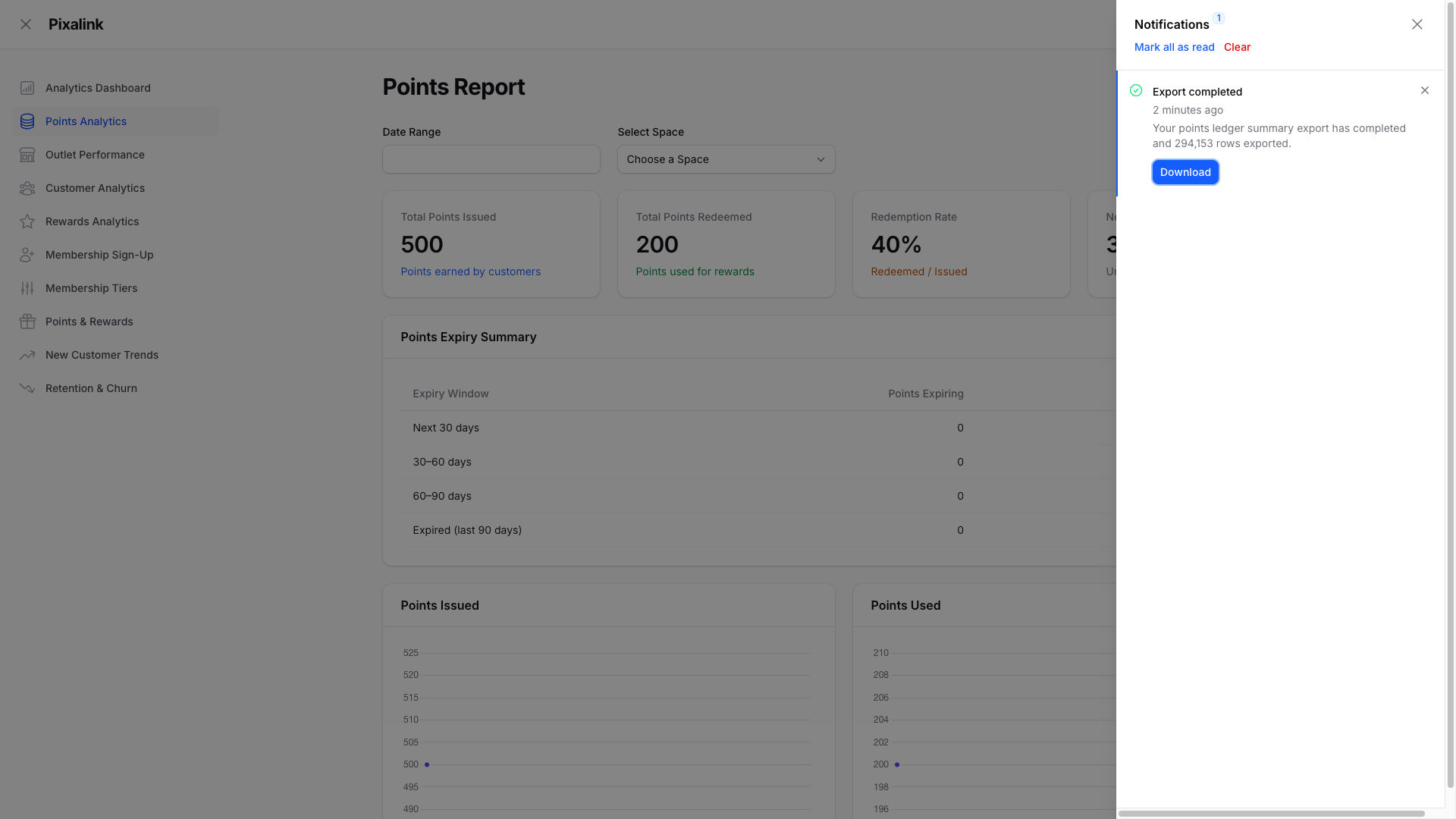
- Download your report. Open the notification bell at the top, then click Download on the completed export.
What Your Customers Will See
Nothing changes for your customers when you run this report. It is only for your own records. Their points, rewards, and balances all stay the same.
Good to Know
- The report lists only customers whose points expired in your chosen dates.
- Each row shows points earned, redeemed, adjusted, and the balance at the end.
- The file opens in Excel or Google Sheets like any spreadsheet.
- A wider date range covers more customers and takes a little longer to finish.
- Leave the dates empty to export every customer with expired points.
- Your report opens from the notification bell, so you can grab it later too.
- You can run this report as often as you need, at no extra cost.
Common Questions
If I set the date range to June, does the report show customers whose points expire in June?
Yes. The Points expiring from and Points expiring to dates filter by when points expire, not by when they were earned. If you set Points expiring from to 1 June and Points expiring to 30 June, the export lists every customer who has points with an expiry date during June. This covers both points that have already expired and points that are still counting down. Leave both dates empty to include every customer who has an expiry date on record.
Need Help?
If your export does not finish, check your date range and start it again. Reach out to the Pixalink team if you still need a hand with your report.