
How to Export a Member Sales Report
What Is This?
Point History keeps a record of every member purchase across your outlets and online store. You can turn it into a spreadsheet in a few clicks. Filter by date and spend, then download a file with each member's name, phone, email, and purchase amount. It is the fastest way to find your biggest spenders and reach out to them.
Video Walkthrough

Music: "Carefree" by Kevin MacLeod, licensed under Creative Commons Attribution 4.0.
Real-Life Example
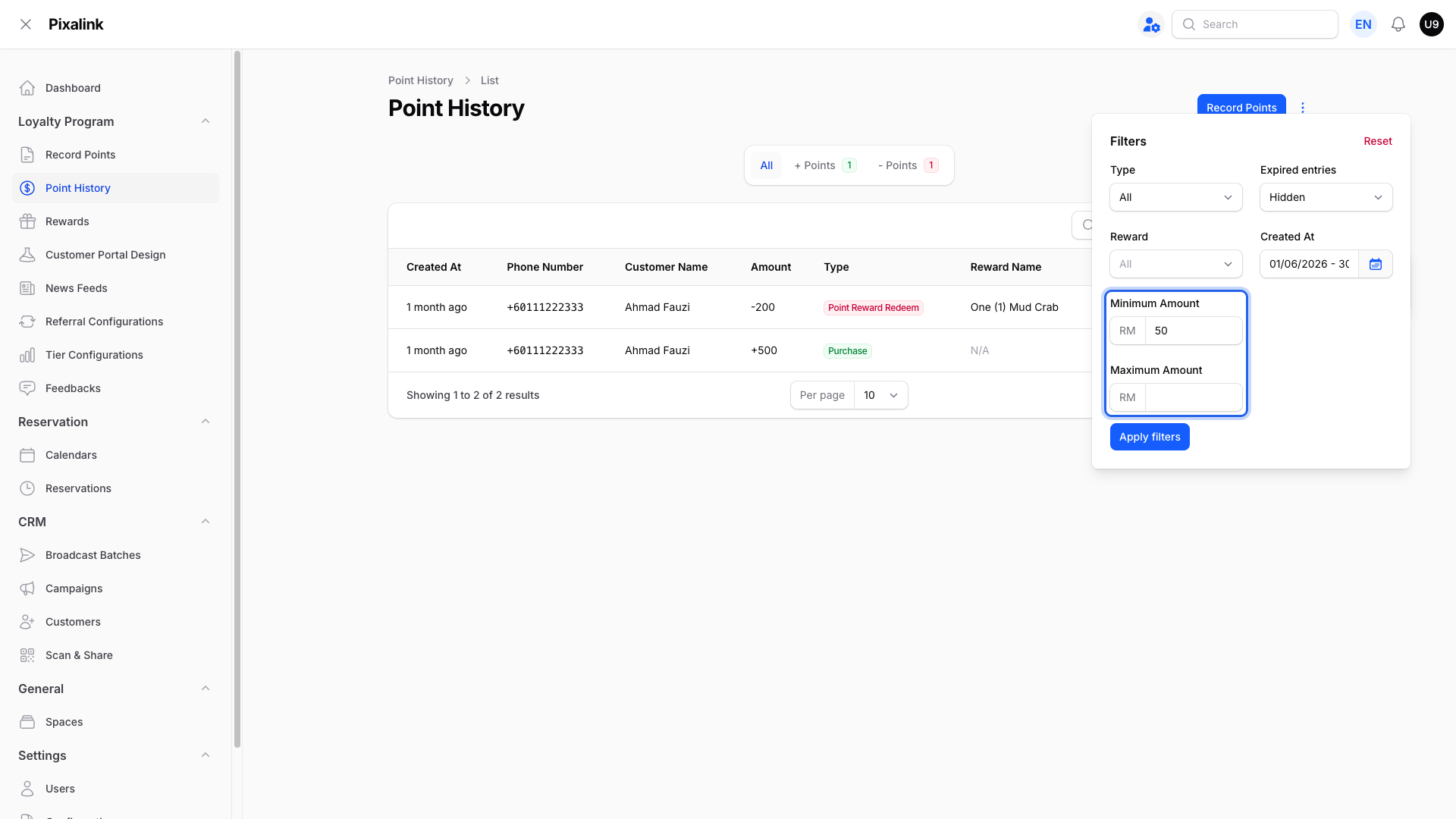
Ahmad runs Kopi Corner, a busy cafe in Bangsar. He wants to thank members who spent RM50 or more last month. He opens Point History and sets the date range to June. Then he sets the Minimum Amount to 50 and starts the export. A minute later he downloads a neat spreadsheet. It lists every qualifying member with their phone and email. Ahmad sends them a WhatsApp offer for a free coffee, and many come back that week.
How to Set It Up
-
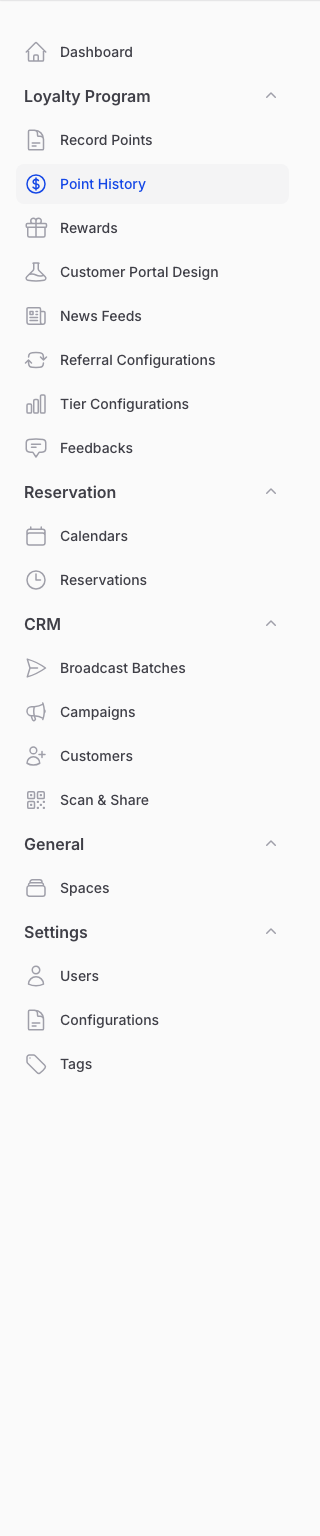
Go to Admin Panel → Loyalty Program → Point History.
-
Set your date range and spend. Click Filter, pick your dates under Created At, then set Minimum Amount to 50. Click Apply filters.
-
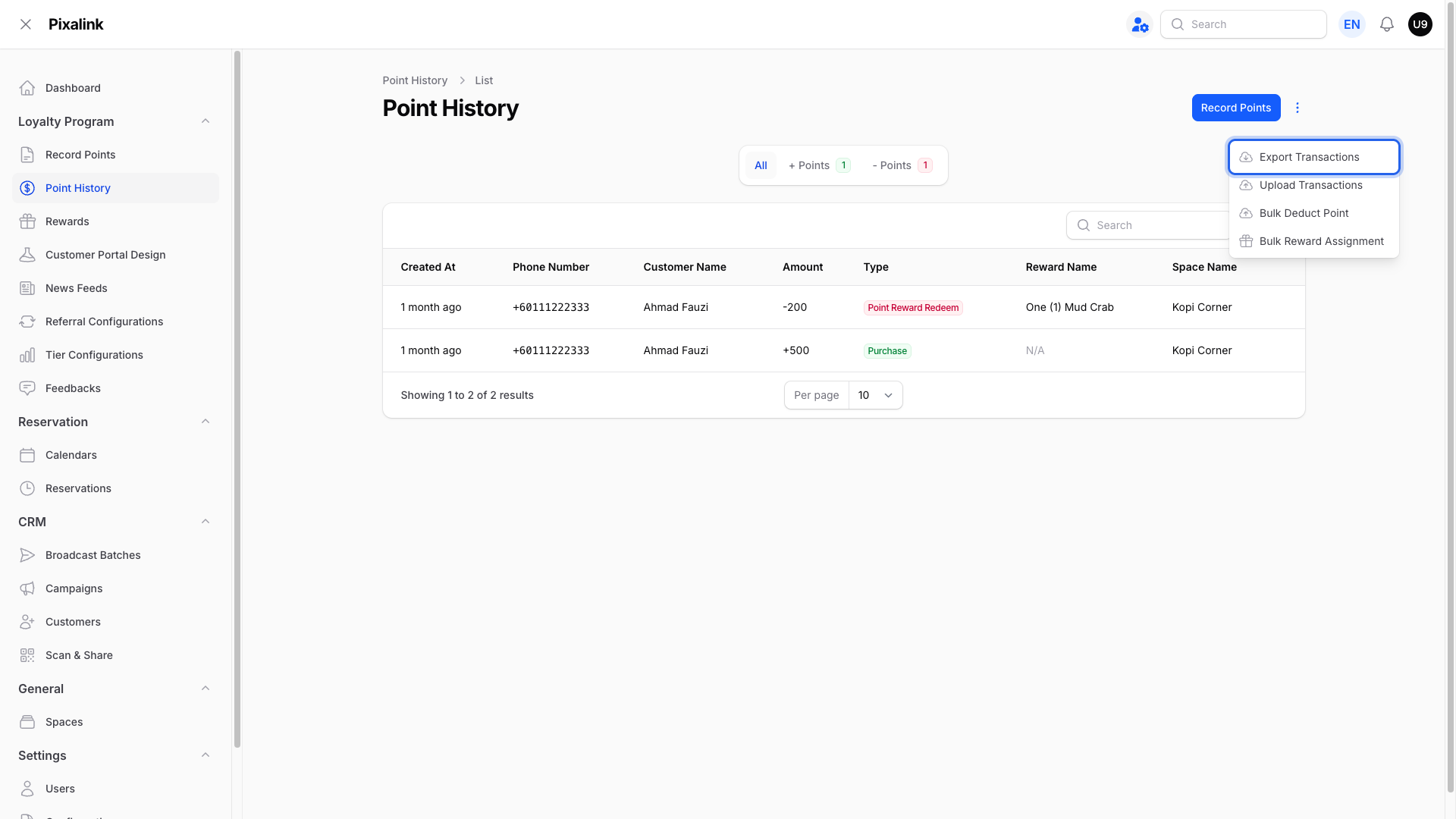
Export your report. Click Actions at the top right, then choose Export Transactions.
-
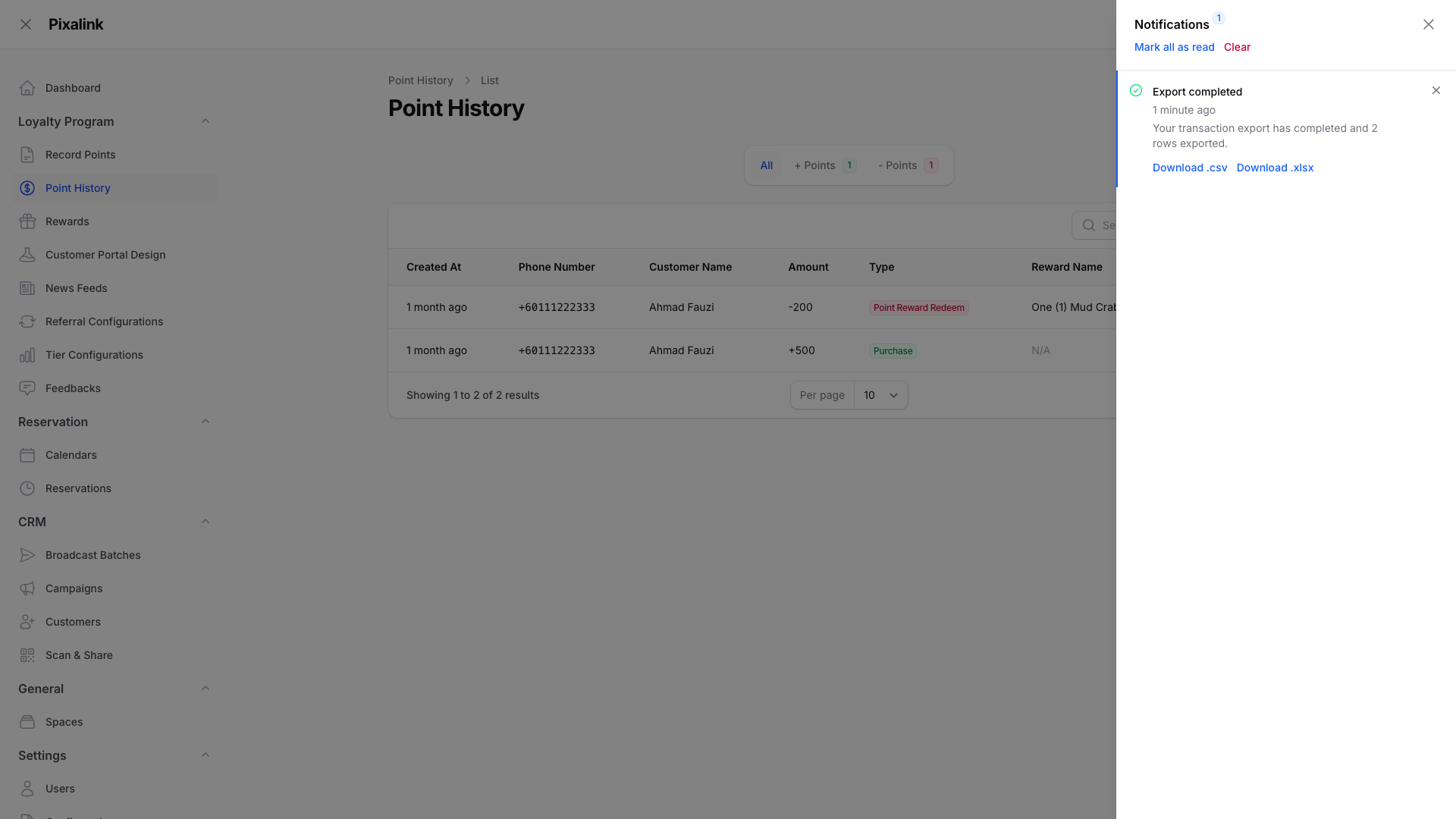
Download your file. Open the notifications bell at the top, then click Download on the finished export.
What Your Customers Will See
Nothing changes for your members when you run this report. Their points, rewards, and balances stay exactly the same. The file is only for your own records.
Good to Know
- The report covers member purchases from every outlet and your online store.
- Minimum Amount includes that value, so 50 means RM50 and above.
- Each row shows the member's name, phone, email, paid membership status, outlet, purchase amount, and date.
- Leave the amount fields empty to include every purchase.
- A wider date range covers more members and takes a little longer to finish.
- The file opens in Excel or Google Sheets like any spreadsheet.
- If the Export option is missing from your Actions menu, ask the Pixalink team to switch it on.
Need Help?
If your export does not finish, check your dates and start it again. Reach out to the Pixalink team if you still need a hand.