
See How Many Members Signed Up This Month
See How Many Members Signed Up This Month
What Is This?
You do not have to scroll through your member list and count sign-ups by hand. Pixalink has a ready-made Paid Membership Analytics report that shows how many new members joined in any period you pick, plus how many are still active, what you earned, and how many memberships lapsed. Choose a month and the whole report updates.
Real-Life Example
Priya runs FitZone, a members-only gym in Cheras. At the end of every month she wants one number: how many new memberships she sold. Instead of filtering her member list by date, she opens the report, sets the date range to that month, and reads the New Sign-ups card straight away.
How to Set It Up
-
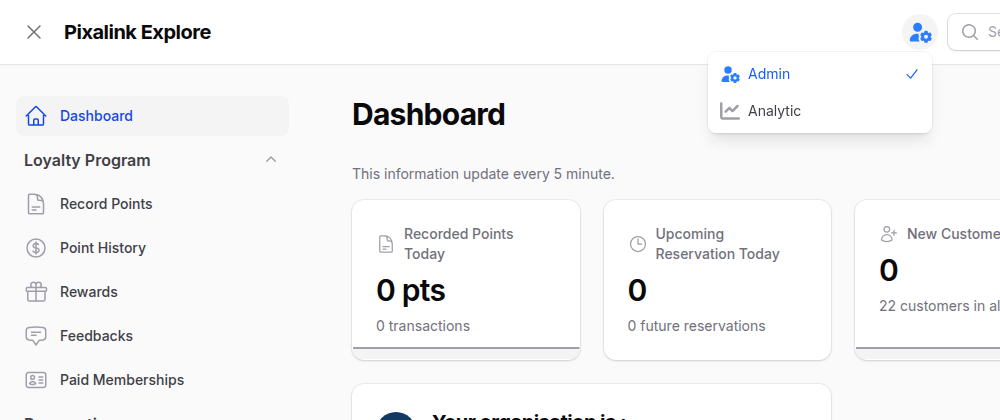
Open the panel switcher near your account name at the top, and choose Analytic.
-
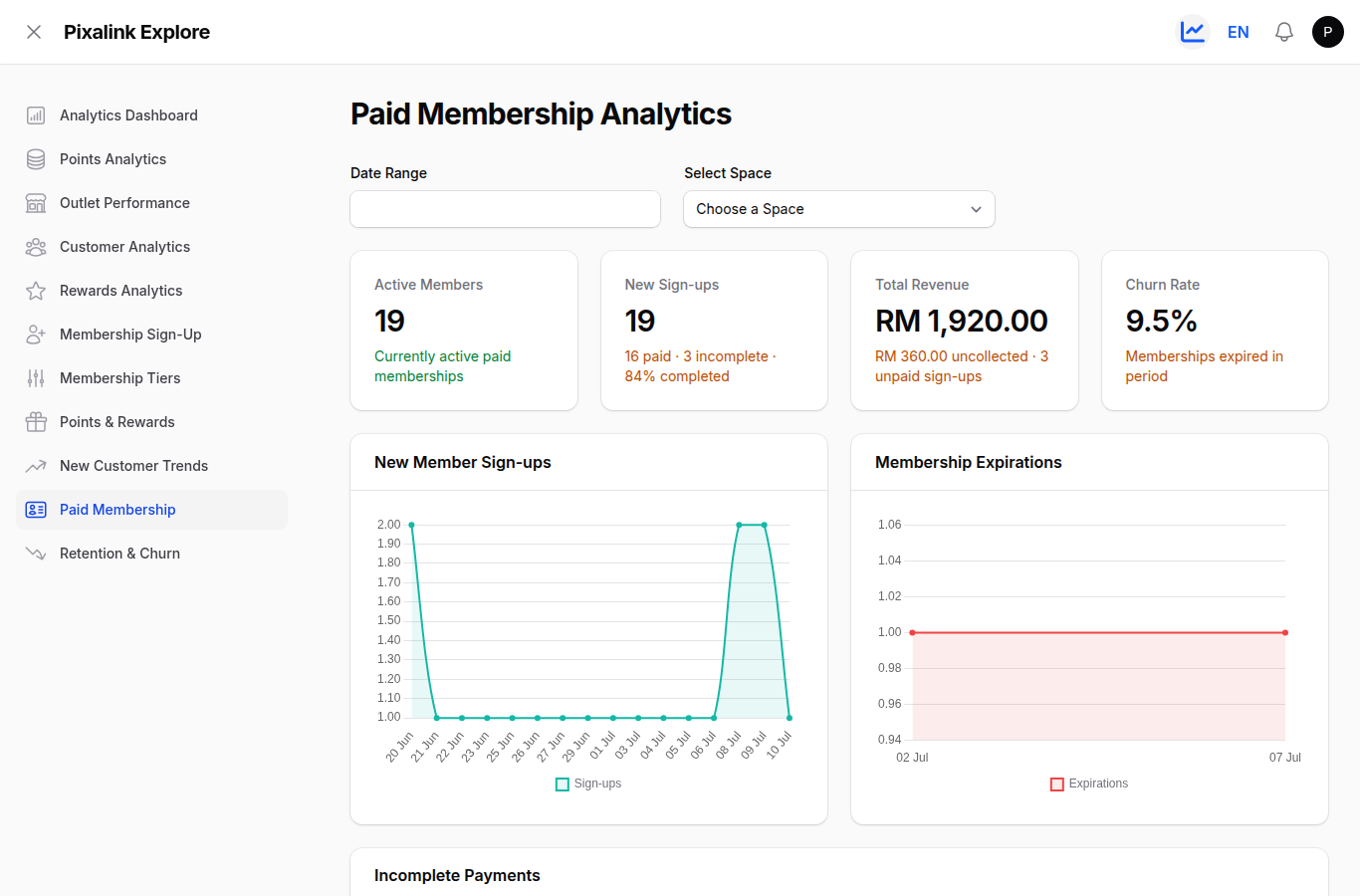
In the left sidebar, open Paid Membership to load the Paid Membership Analytics report.
-
At the top, set Date Range to the month you want, such as the first to the last day. The whole report updates to that period.
-
To look at one outlet only, pick it under Select Space. Leave it empty to include every outlet.
-
Read the New Sign-ups card. That is how many members joined in the period, with a breakdown of how many finished paying and how many are still incomplete.
-
Below the cards, check the New Member Sign-ups chart for the day-by-day trend, and read Active Members, Total Revenue, and Churn Rate for the fuller picture.
What Your Customers Will See
Nothing. The Paid Membership Analytics report is an internal dashboard for you and your team. Your members never see these numbers, so you are free to check them any time.
Good to Know
- The four cards at the top summarise the whole period you picked: Active Members, New Sign-ups, Total Revenue, and Churn Rate.
- New Sign-ups counts everyone who started in the period, and the breakdown shows how many completed payment versus how many left it unfinished.
- The numbers refresh once a day, so a brand-new sign-up may only appear the following day.
Need Help?
If you cannot see Analytic in the panel switcher, or the Paid Membership report is missing, your account may not have it switched on yet. Reach out to the Pixalink support team and we will turn it on for you.
What's Next?
- Paid Memberships — set up the membership plans customers can buy
- How Customer Membership Statuses Work — active, expired, and everything in between
- Restrict Point Earning to Active Paid Members — reward only your paying members