
How to Earn Points from Credit Payments
How to Earn Points from Credit Payments
What Is This?
When a customer pays using their credit wallet, they automatically earn loyalty points on top of the transaction. You control whether this is active and how many points they earn per credit spent.
Real-Life Example
Siti runs a cafe. She sets the conversion rate to 100% so that customers earn 1 point for every credit they spend. When Amirah pays 30 credits for lunch, she walks away with 30 bonus points — a small perk that keeps her coming back.
How to Set It Up
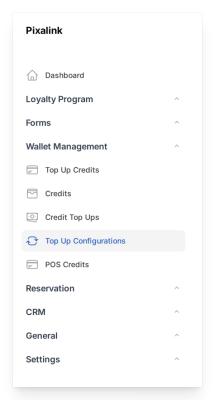
1. In the admin panel, go to Wallet Management in the sidebar and click Top Up Configurations.
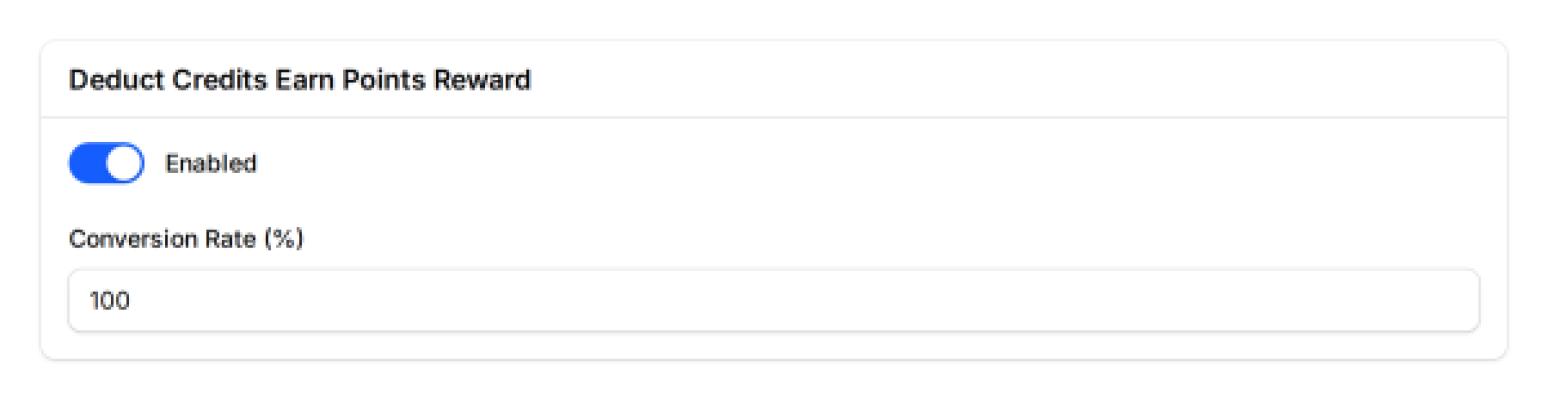
2. Find the Deduct Credits Earn Points Reward section. Toggle Enabled on to activate it, then set your Conversion Rate (%).
3. Click Save at the top of the page.
That's it — points will be awarded automatically on every credit payment going forward.
What the Conversion Rate Means
The conversion rate controls how many points a customer earns per credit spent.
| Rate | What happens |
|---|---|
| 50% | Spend 100 credits → earn 50 points |
| 100% | Spend 100 credits → earn 100 points (1:1) |
| 150% | Spend 100 credits → earn 150 points (bonus) |
You can change this rate at any time. It applies to future transactions immediately — it does not affect past ones.
Turning It Off
Toggle Enabled off and save. Customers can still spend their credits normally; they just won't earn points from credit payments while it's disabled.

What Your Customers Will See
Customers won't see any visual change when this feature is active. After paying with credits, their points balance simply increases — the earned points show up in their loyalty profile like any other points transaction. There's nothing extra for them to do.
Good to Know
- Points are only earned when a customer pays with credits — not cash or card
- The Conversion Rate field only appears when the feature is enabled
- This setting lives under Wallet Management, not the Rewards section
- The credit wallet feature must be enabled for your organisation for this section to appear
What's Next?
- Explore other wallet settings under Admin Panel → Wallet Management → Top Up Configurations
- Learn how credits work for your customers in the Credits section of this knowledge base