
What Are Credits and How the Credit Wallet Works
What Are Credits and How the Credit Wallet Works
What Is This?
Credits are a digital wallet balance that your customers can use to pay at your business. Think of it like a stored-value card -- customers load money into their wallet, and spend it when they visit. It's a great way to lock in future visits and build customer loyalty.
How It Works
Every customer has a credit balance stored in their profile. Credits go up when money is added (top-ups, bonuses, refunds) and go down when money is spent (payments, reward purchases).
Here are the different types of credit transactions you'll see:
- Top Up -- credits added to a customer's wallet, either by your staff or through online payment
- Bonus -- extra credits automatically given when a customer tops up above a certain amount (you set this up in Top Up Configurations)
- Deduct -- credits used to pay for goods or services
- Purchase Reward -- credits spent to buy a reward from your loyalty programme
- Refund -- credits returned to a customer
- Referral -- credits earned through your referral programme
- Referral Commission -- credits a customer earns as a share of what the friends they referred spend
- Revert -- a top-up that was reversed, removing the original credits and any associated bonus
- Expired -- credits that passed their expiry date and can no longer be spent. This entry is a record only, so it doesn't reduce the balance a second time
When credits are deducted, the system uses them in a specific order: Bonus first, then Refund, then Referral, then Referral Commission, then Top Up. This means promotional credits are always spent before the customer's own money.
Where to Find Everything
All credit wallet features live under Admin Panel → Wallet Management.
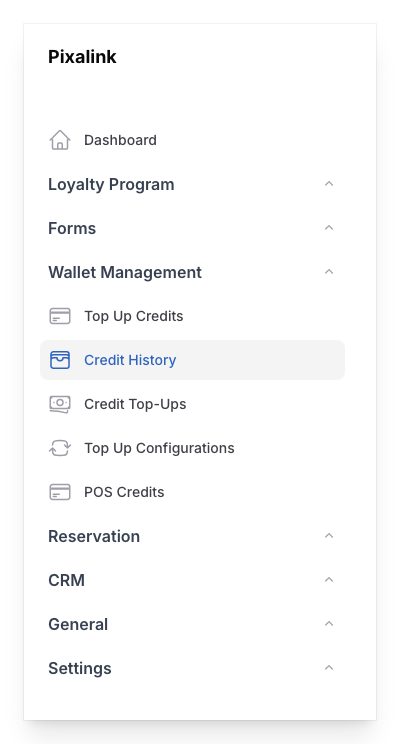
- Top Up Credits -- add credits to a customer's wallet
- Credit History -- view all credit transactions across your business
- Credit Top-Ups -- see a summary of top-up activity
- Top Up Configurations -- set up bonus promos, quick buttons, and payment gateway top-ups
- POS Credits -- manage credits coming from your POS system
How to Top Up a Customer
When a customer wants to add credits, go to Wallet Management → Top Up Credits. The process has two steps:
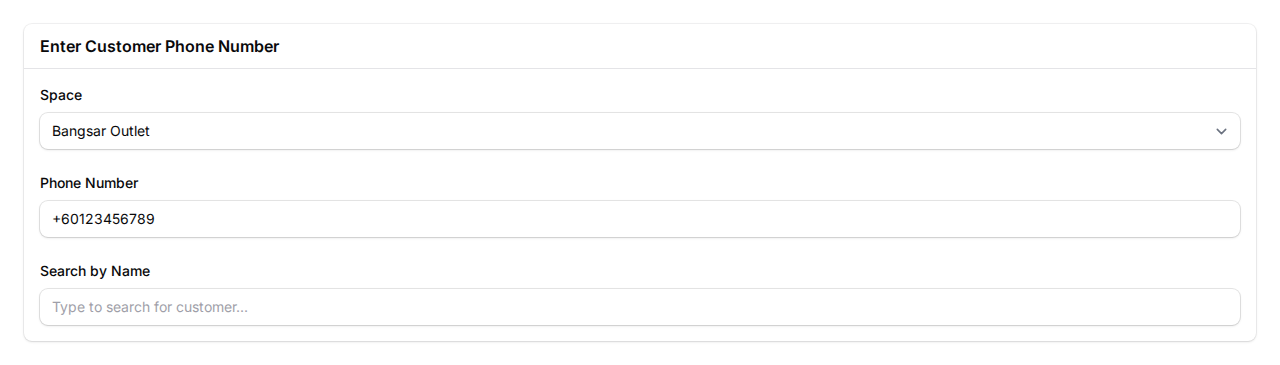
Step 1: Find the customer — Enter the customer's phone number or search by name. Select the Space (outlet) where the top-up is happening.
Step 2: Enter the amount — Type in the top-up amount, or use the quick credit buttons for common amounts. The Customer Information panel on the right shows the customer's name, phone number, and current credit balance so you can confirm you have the right person.
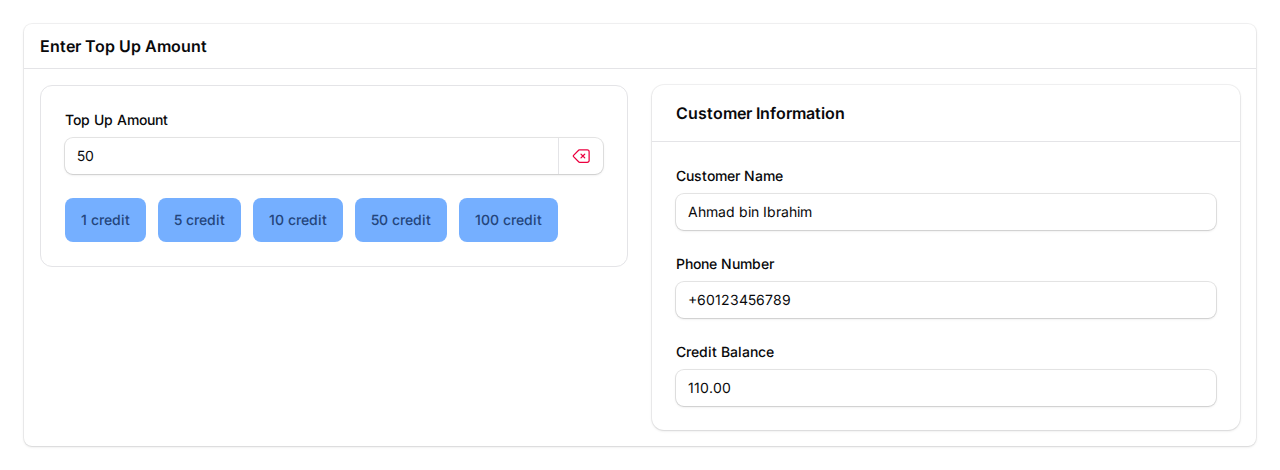
Click Create to complete the top-up. If the customer qualifies for a bonus promo, the bonus credits are added automatically.
Credit Transaction History
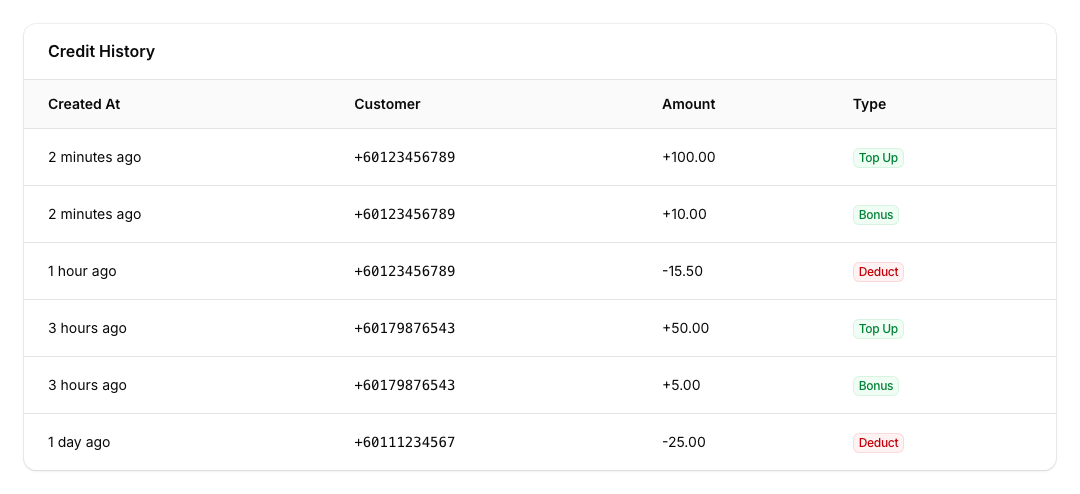
The Credit History page shows every credit transaction for all your customers.
You can filter by:
- Type -- show only top-ups, deductions, bonuses, or any other transaction type
- Space -- filter by outlet (if you have more than one)
- Date range -- find transactions from a specific time period
Each row shows when the transaction happened, the customer's phone number, the amount (with + or - to show the direction), and the transaction type as a colour-coded badge. Green badges mean credits were added. Red badges mean credits were spent.
Setting Up Bonus Promos and Quick Buttons
Go to Wallet Management → Top Up Configurations to set up promotions and streamline the top-up process.
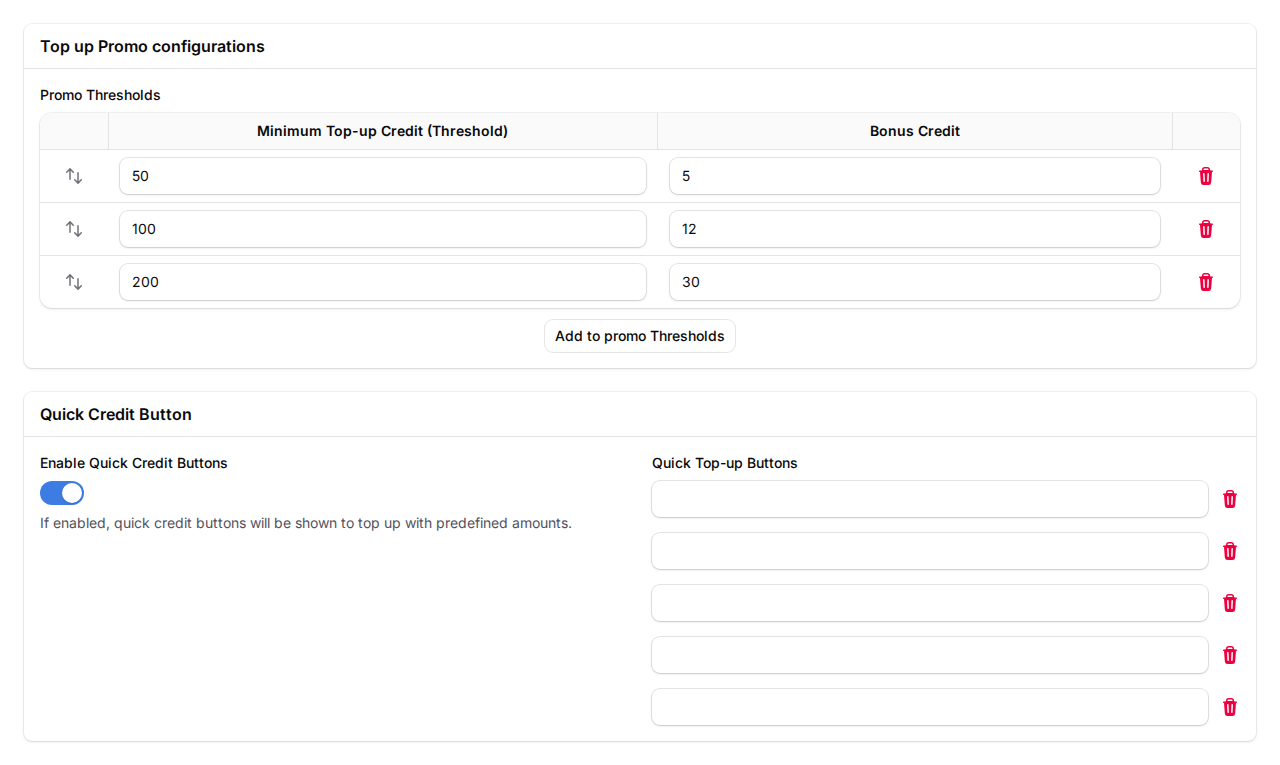
Promo Thresholds — Set up bonus tiers to encourage bigger top-ups. For example: top up RM50 and get RM5 bonus, top up RM100 and get RM12 bonus, top up RM200 and get RM30 bonus. The system automatically applies the highest matching tier.
Quick Credit Buttons — Enable preset amount buttons (like 1, 5, 10, 50, 100) that appear on the Top Up Credits page. This speeds up the process at the counter — your staff can tap a button instead of typing an amount.
Earning Points from Credit Payments
You can also reward customers with loyalty points when they pay using credits. This is configured in the same Top Up Configurations page.
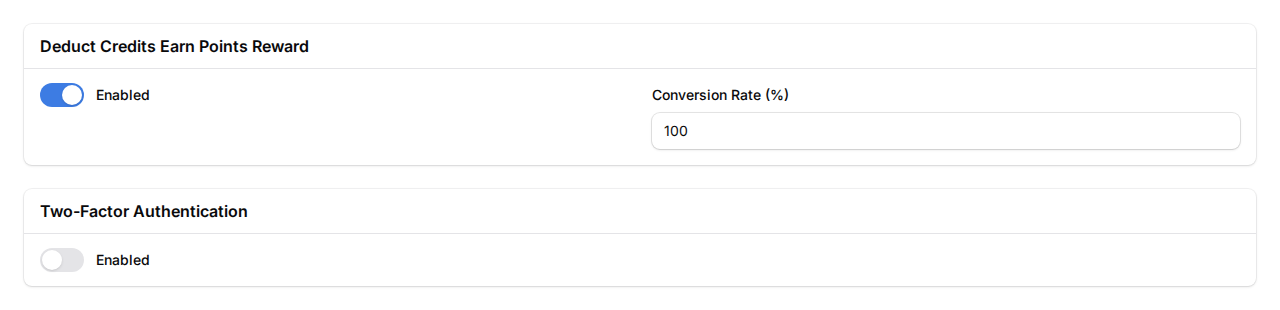
- Deduct Credits Earn Points Reward -- when enabled, customers earn loyalty points every time they pay with credits. The Conversion Rate controls how many points they earn per ringgit spent (100% means RM1 spent = 1 point).
- Two-Factor Authentication -- adds an extra security step when processing credit transactions. Enable this if you want staff to verify their identity before awarding credits.
Real-Life Example
Siti runs a bubble tea chain with three outlets. She turns on the credit wallet and sets up a bonus promo: customers who top up RM50 or more get an extra RM5 bonus. Her regular, Ahmad, tops up RM100 at the counter. He instantly gets RM100 in his wallet plus a RM10 bonus -- RM110 total. Over the next few weeks, Ahmad uses his credits to pay for drinks. Because bonus credits are spent first, his RM10 bonus gets used up before touching the RM100 he put in. Siti checks the Credit History page to see all transactions across her outlets and filters by "Bonus" to track how much she's giving away in promos each month.
What Your Customers Will See
On the customer portal, your customers can:
- Check their credit balance -- the current balance is shown on their profile page, so they always know how much they have left.
- View transaction history -- every top-up, bonus, deduction, and refund is listed with the date and amount, so there are no surprises.
- Top up online -- if you've enabled payment gateway top-ups, customers can add credits themselves through the portal using online payment. No need to visit your outlet.
Good to Know
- Ask the Pixalink team to enable credits for your business before the Wallet Management section appears. Talk to the Pixalink team if you don't see it.
- Customers can view their credit balance on the customer portal.
- You can set up quick top-up buttons (like RM1, RM5, RM10, RM50, RM100) to speed up the process at the counter.
- If you have enabled payment gateway top-up, customers can add credits themselves through the customer portal using online payment.
- When you deduct credits, your customer can also earn loyalty points at the same time (if you've turned on "Deduct Credits Earn Points" in Top Up Configurations).
- Turn on two-factor authentication for extra security during credit transactions.
What's Next?
- How to Earn Points from Credit Payments -- set up point earning when customers pay with credits
- How Credit Wallet Payments Work at Eats365 POS -- accept credit payments at your POS
- Eats365 Automatic Credit Top-Ups -- auto-top-up credits when customers buy specific products