
How to Set Up a Stamp Card Campaign
What Is This?
A stamp card is the digital version of the paper card you punch at the counter. Buy nine coffees, get the tenth free. Customers collect stamps on their phone, and when the card is full they get the reward you choose, automatically.
Real-Life Example
Aishah runs a cafe and wants regulars coming back. She creates a card that needs six stamps, gives one stamp per visit, and sets a free drink voucher as the prize. Ahmad collects his sixth stamp on a Friday, gets a message that his card is complete, and his free drink lands in his rewards list.
Video Walkthrough
How to Set It Up
-
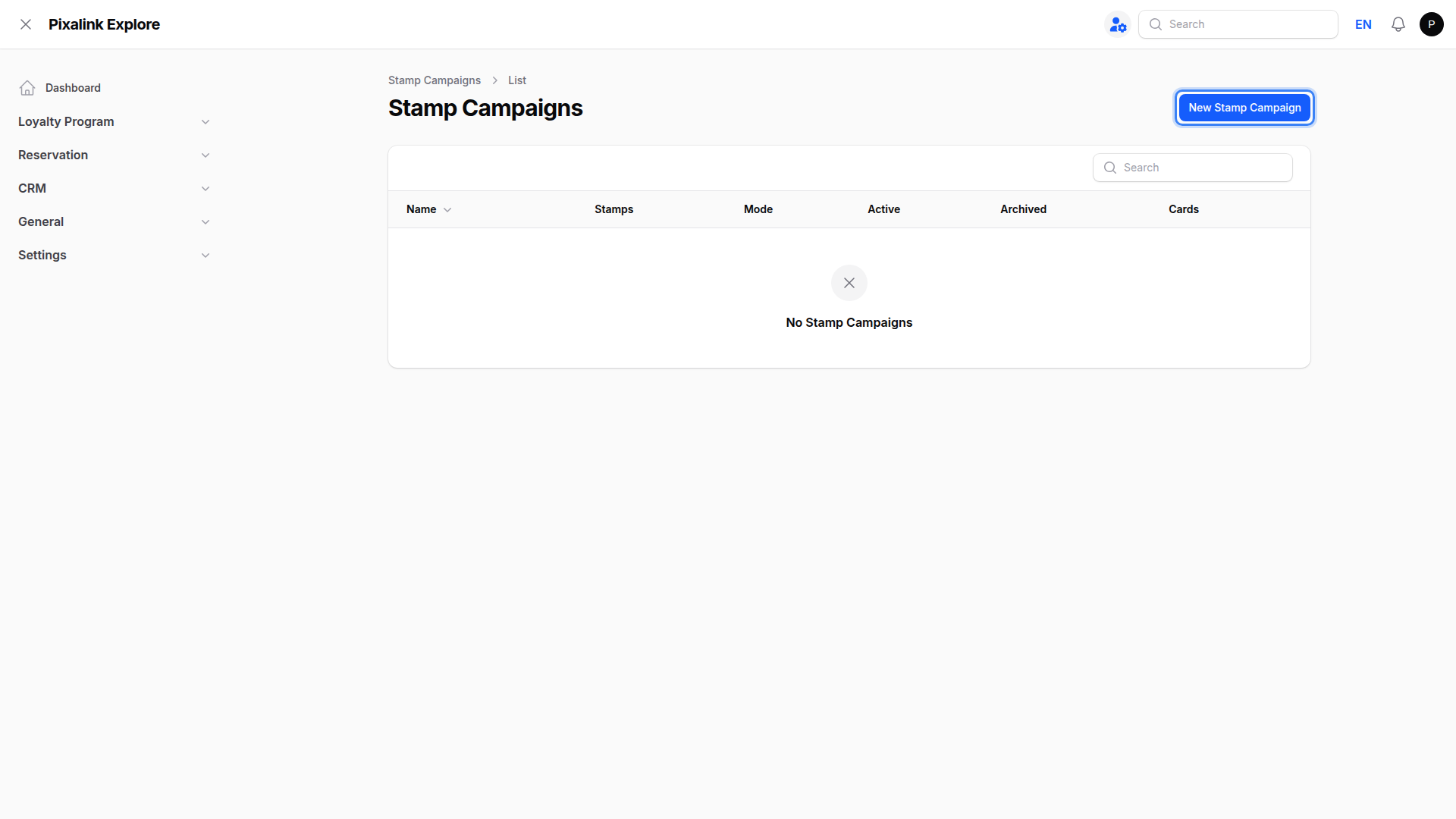
Go to Loyalty Program and then Stamp Campaigns in the Admin Panel sidebar, then click New Stamp Campaign.
-
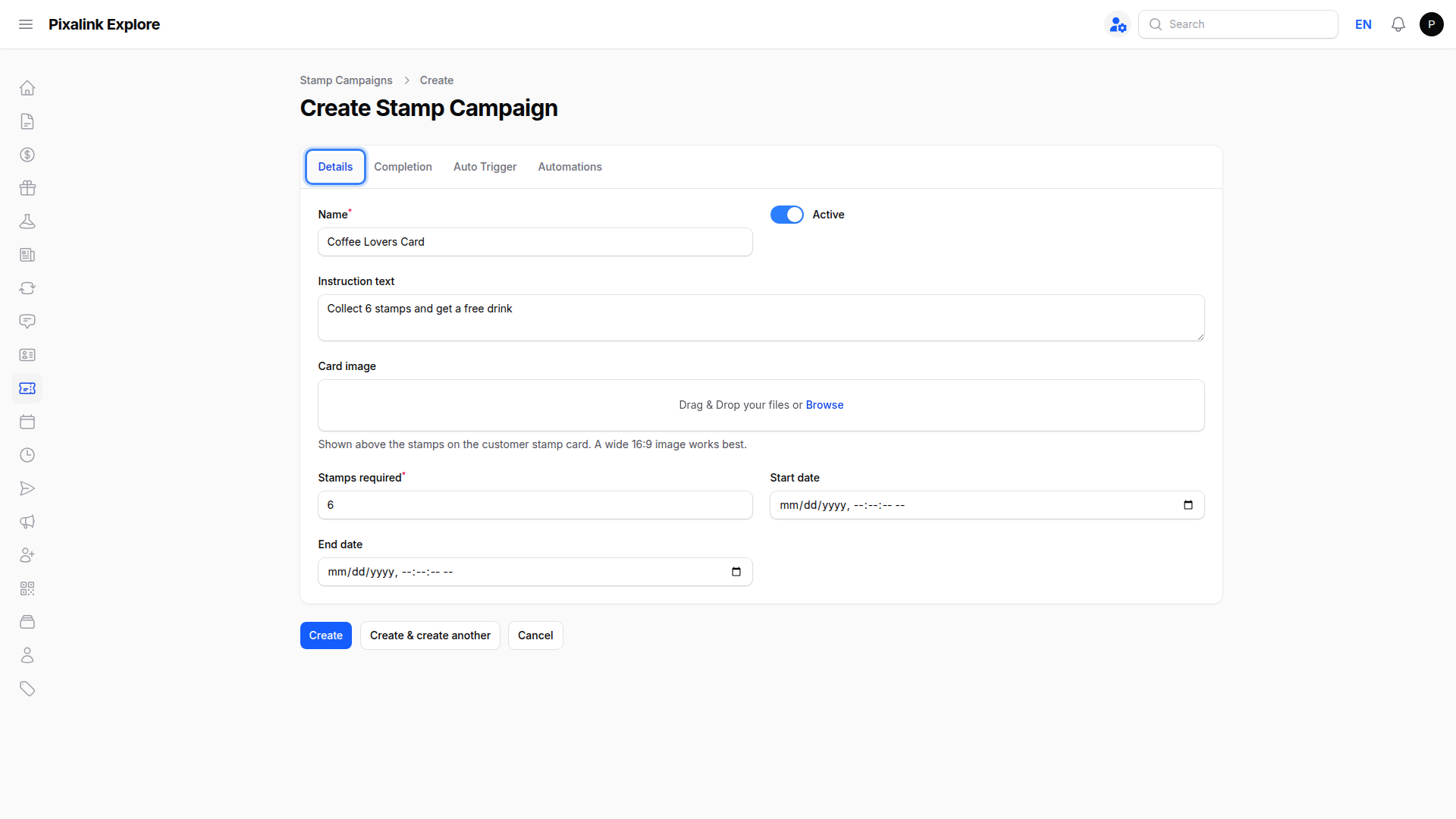
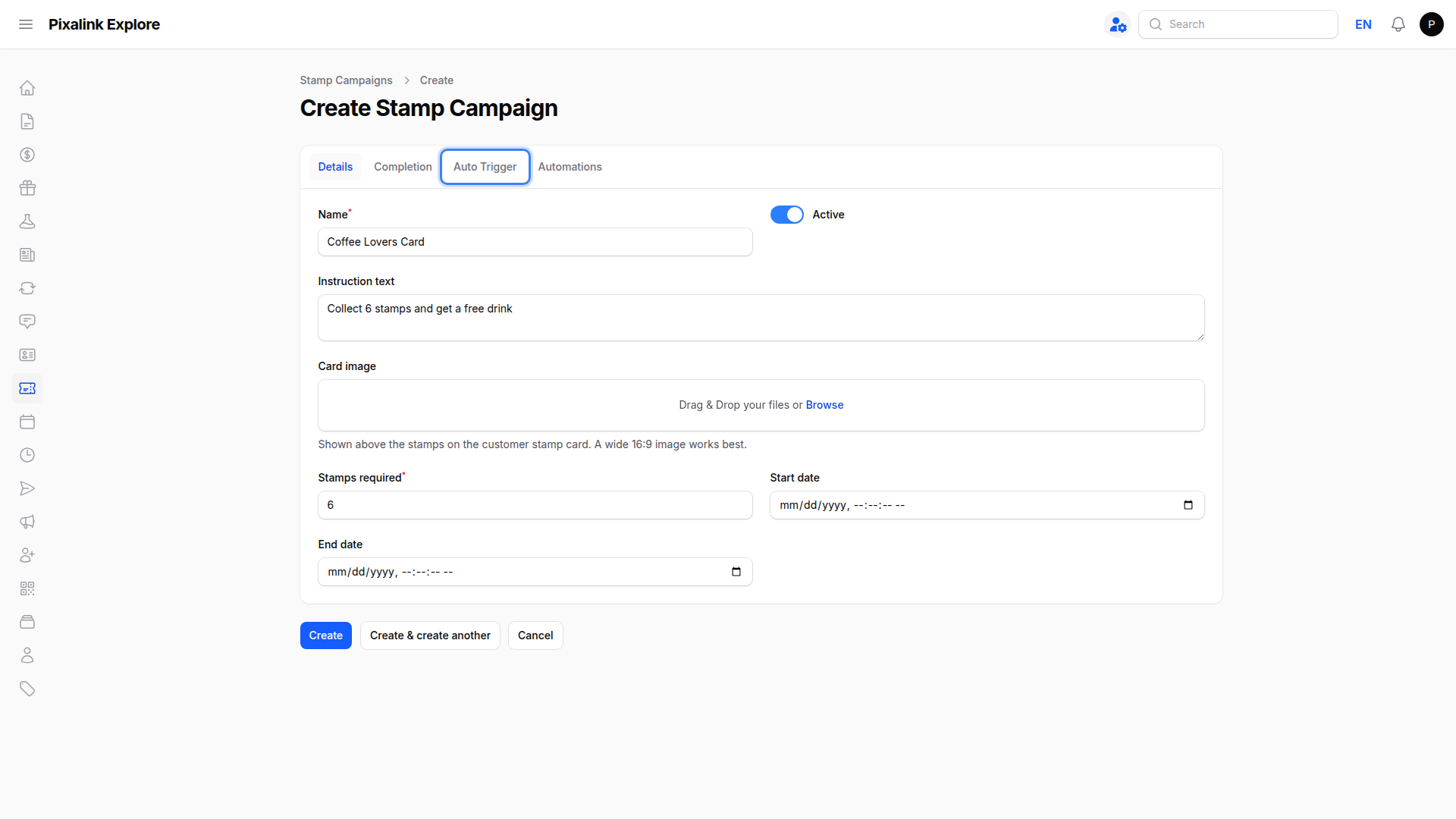
On the Details tab, enter a Name, set Stamps required, and turn on Active. Add Instruction text and a Card image so the card looks right in the customer portal, and set a Start date and End date if the campaign runs for a limited period.
-
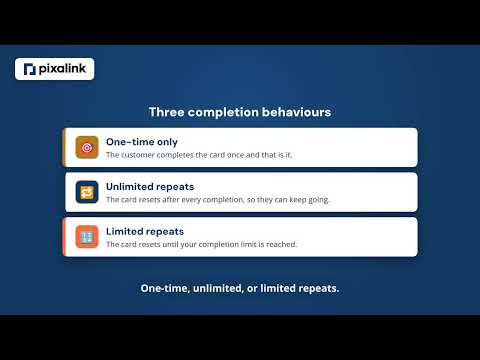
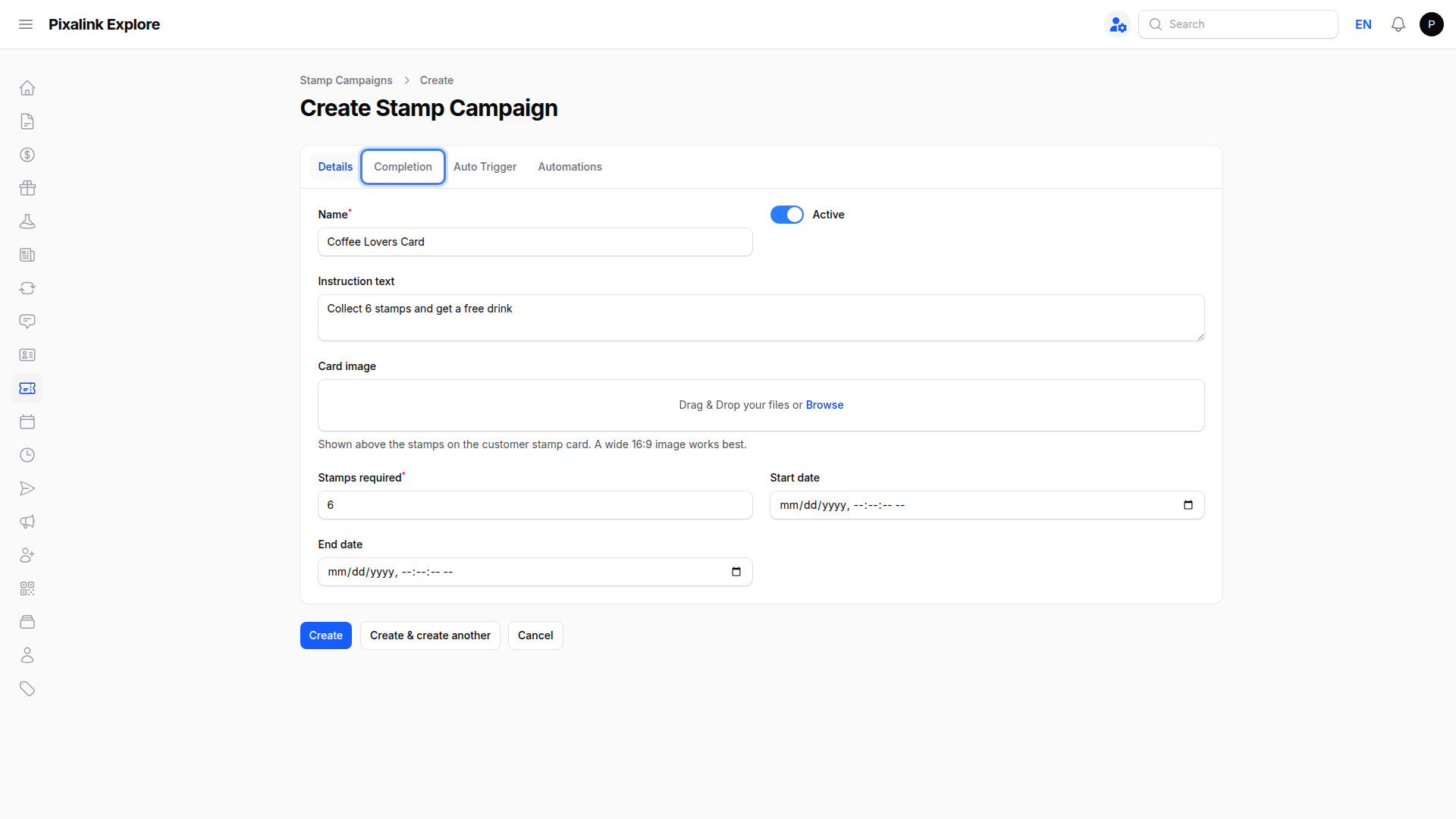
Open the Completion tab and choose a Completion behaviour. Pick One-time only for a single card per customer, Unlimited repeats so the card resets after every completion, or Limited repeats with a Maximum completions number.
-
Open the Auto Trigger tab if you want stamps given automatically. Choose Spend threshold to give a stamp once a customer spends a set amount, or Spend ratio to give a stamp for every set amount spent, then enter the Amount.
-
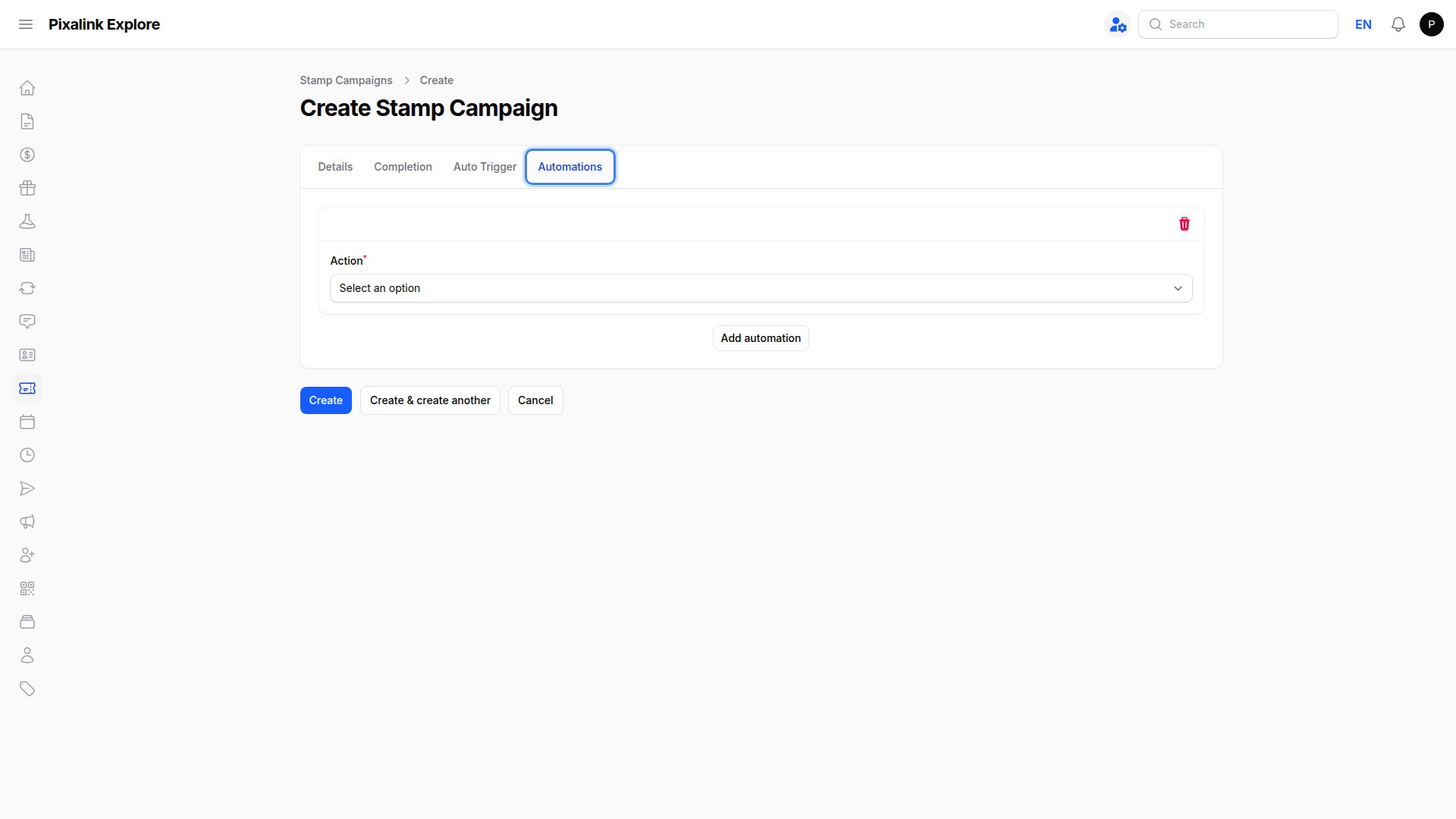
Open the Automations tab, click Add automation, and choose what happens when the card is completed. You can Issue a reward, Award bonus points, or Send a notification. Then click Create to save the campaign.
What Your Customers Will See
Customers see the stamp card in their portal, with your card image and the stamps filled in as they collect them. When the last stamp lands, they get a message telling them the card is complete, and whatever you set in Automations is given to them straight away.
Good to Know
- Give a stamp by hand from the Record Points page using the Issue Stamp action, by entering the customer's phone number and picking the campaign.
- Stamps stop when the card is full. A stamp is not given if the card is already complete or the campaign is not active.
- Archive rather than delete a campaign you have finished with, so past cards stay in your records.
- Not seeing Stamp Campaigns? The feature is switched on per account, so contact support and we will enable it for you.
Need Help?
If you are not sure which completion behaviour suits your promotion, reach out to our support team and we will help you set it up.
What's Next?
- What Are Rewards and How to Create Them — create the reward your card gives out
- What Is the Customer Portal and How to Set It Up — where customers see their card
- What Are Campaigns and How to Create One — tell customers about your new stamp card