
How to Show or Hide Point Expiry on Your Customer Portal
What Is This?
When point expiry is on, your customer portal can show a line such as "60 Points will expire by 03 Oct, 2027" under the points balance. Customers see what to use first without asking your staff. You can show the line or hide it.
This guide was split out of Point Expiry Explained.
Real-Life Example
Wei Lin runs a skincare shop in Penang with points that last one year. Her staff kept getting asked "when do my points expire?" at the counter. She finds the expiry line was switched off in her portal design, and turns it on. Customers can now check the date on their phone. The questions at the counter stop, and more customers redeem before the date.
How to Set It Up
-
Go to Admin Panel → Loyalty Program → Customer Portal Design.

Customer Portal Design is under Loyalty Program.
-
Click Edit on your portal theme.

Your first theme is called Default unless you renamed it.
-
Click the Feature tab.
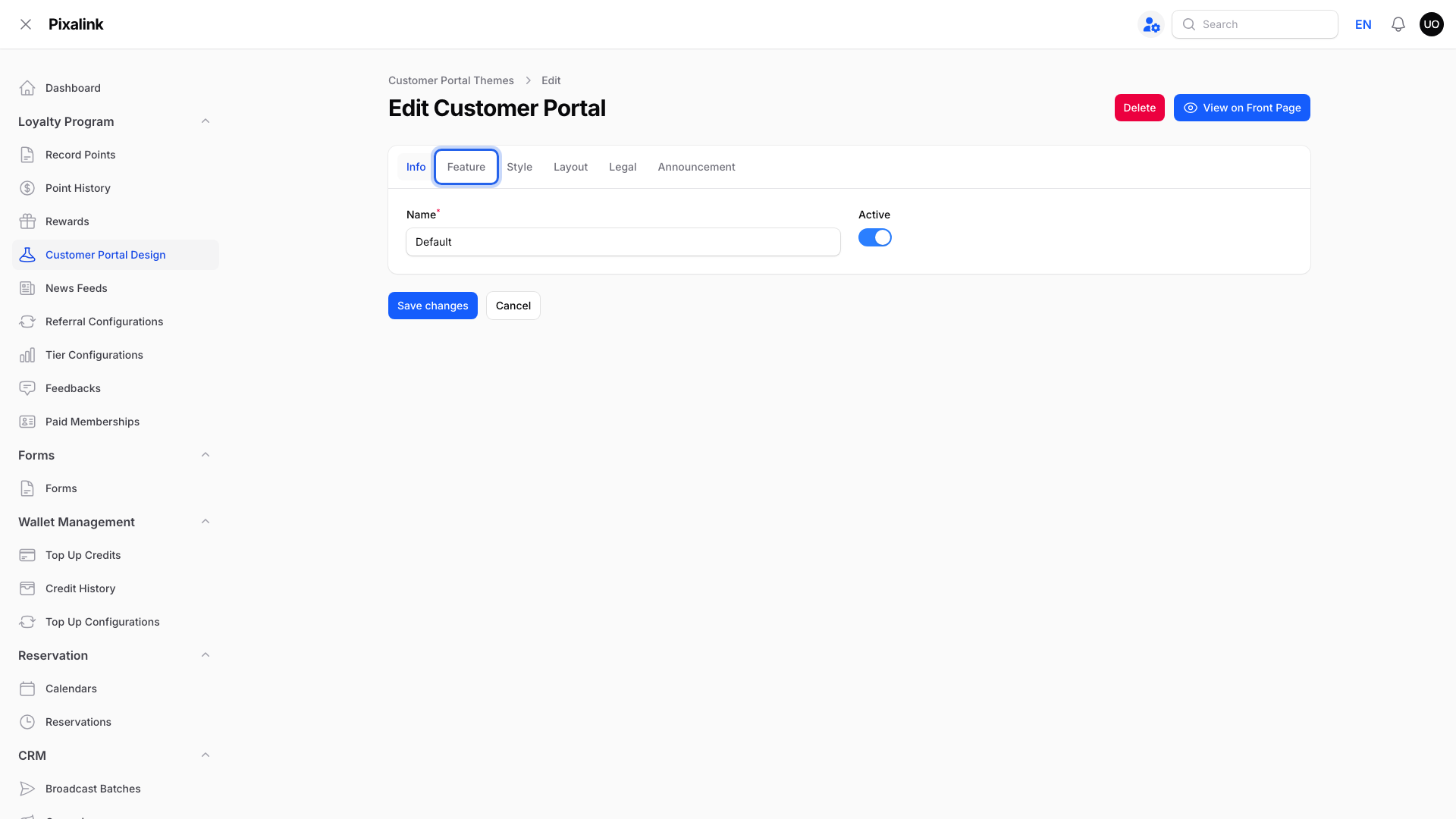
Feature is the second tab, after Info.
-
Turn Display points expiry in customer portal on to show the line, or off to hide it.

It sits in the Transaction section at the top right. Here it is off, so the line is hidden.
-
Click Save changes.
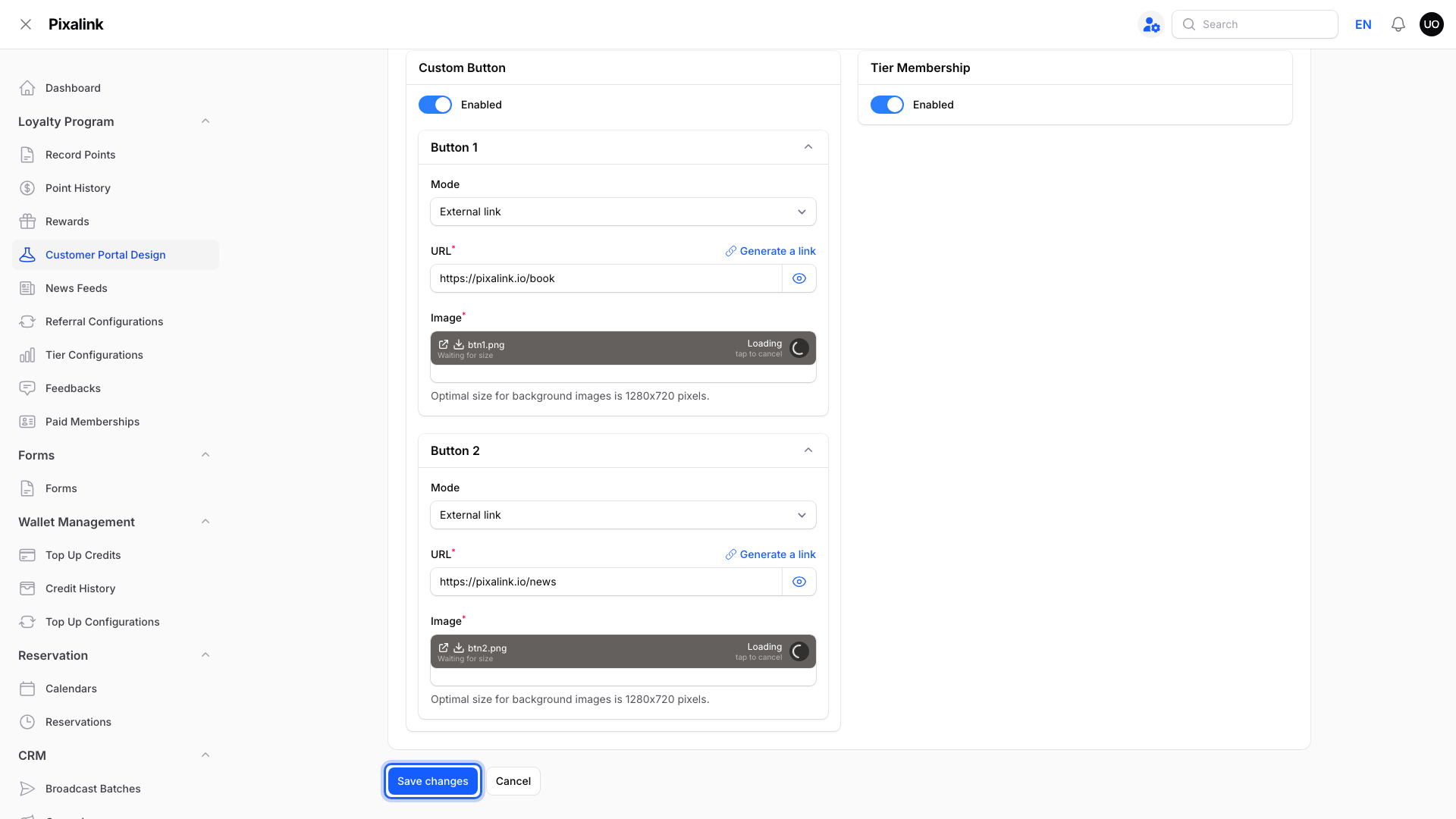
Customers see the change the next time they open the portal.
What Your Customers Will See
The line shows under the points balance on the points history page and the Rewards page. It names the date of the next batch to expire and how many points are in it.

The date is the earliest one among the customer's points.
Good to Know
- A new theme shows the line by default once point expiry is on. Check the switch if your customers don't see it.
- If a customer has no points due to expire, the line may still show 0 points with a date about two months away.
- Each portal theme has its own switch. If you use more than one theme, set it on each.
Need Help?
If you don't see the Transaction section on the Feature tab, point expiry is off for your business. Ask the Pixalink team to turn on point expiry first.