
Two Companies, One Loyalty Programme Explained
Two Companies, One Loyalty Programme Explained
What Is This?
Some owners run two companies under one brand, each with its own Bukku account. You may want members to collect one points balance at both, and use vouchers at either one.
This guide explains what Pixalink can combine, and what records you can use to settle money between the two companies.
How It Works
One account means one points balance
Each member has one points balance per Pixalink account. Points earned at any of your outlets go into that balance. Staff can mark a voucher as used at any outlet in the account they have access to.
To share one programme, both companies must sit in the same Pixalink account, each as its own outlet. Two separate Pixalink accounts never share members or points.
Only one Bukku company per account
A Pixalink account links to one Bukku company only. You can't link a second Bukku company to the same account, or link each outlet to its own Bukku company.
Points from the automatic Bukku sync usually have no outlet. They just go to the member's balance.
So the second company needs another way to add points. For example, its staff can add points at the counter in Loyalty Program → Record Points, choosing their outlet in the Space field. Staff with access to only one outlet get it picked for them. Talk to our team about the best fit for your setup.
Where a voucher is used is saved
When a voucher is marked as used, Pixalink saves the Outlet where it was used. If you have more than one outlet, staff pick the outlet when they click Mark as used in the Customer Rewards tab. Staff with access to only one outlet get it picked for them.
To see it, go to Loyalty Program → Rewards and open a reward. In the Customer Rewards tab, change the Status filter from Pending to Used, then use the Outlet filter. Click Export customer rewards to download a file with an Outlet column.
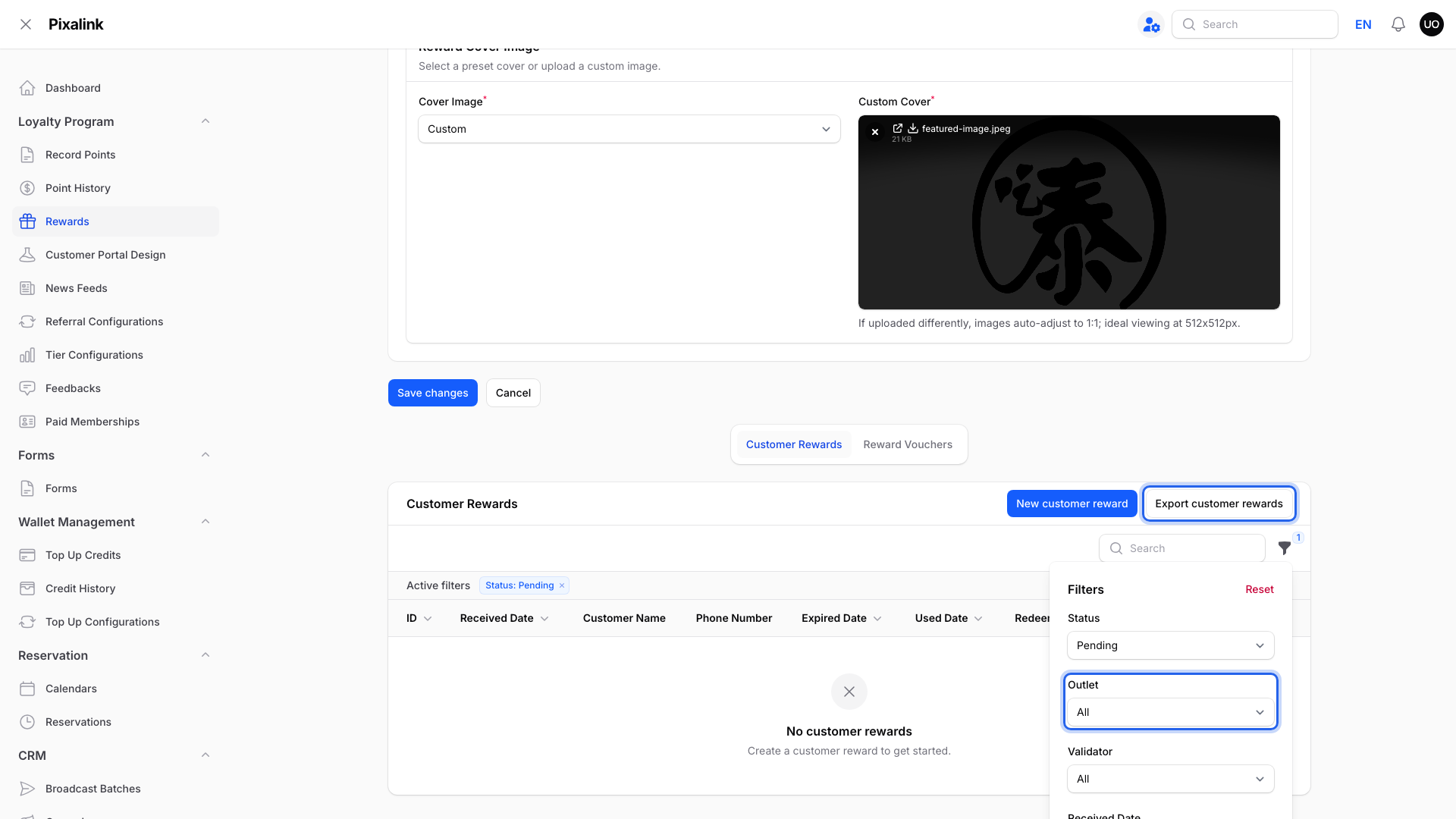
The Outlet filter shows vouchers used at one outlet. The export adds an Outlet column for every voucher.
For points, click Export Transactions on Loyalty Program → Point History. If you don't see it, ask our team to turn it on. The export's Space column shows the outlet for points recorded there.
Pixalink doesn't settle money between companies
Pixalink has no feature that bills one company for vouchers used at the other. It gives you the records. You agree the rules between your companies, then settle using the exports.
Real-Life Example
Wei Lin owns a café and a bakery. They are two companies with two Bukku accounts. She wants members to earn points at both shops and redeem RM10 vouchers at either.
She sets up one Pixalink account with two outlets. The café's Bukku invoices add points. Bakery staff add points with Record Points at the bakery outlet.
At month end, she opens each voucher, filters Customer Rewards to Used for that month, and exports them. Twenty RM10 vouchers were used at the bakery. The café pays the bakery RM200, as both companies agreed.
Good to Know
- Bukku sales count once paid. Pixalink reads paid Bukku invoices from the last 30 days.
- "Not Tracked" means no outlet shows. This can happen when a voucher was used without an outlet being picked, or the outlet was later deleted. Count these separately when you settle.
- Agree the rules first. Decide who pays for vouchers before launch, so the monthly export is easy to settle.
Need Help?
Contact our support team to plan a shared programme across your companies.