Updated Sep 2, 2026
Zu Wei
2 min read
16 views

How to Sell a Paid Membership with a Payment Link

How to Sell a Paid Membership with a Payment Link

What Is This?

Sell a paid membership without taking cash. Pixalink creates a secure payment link you can show as a QR code, copy, or hand over on WhatsApp. The membership switches on once the customer pays.

Real-Life Example

Farah runs Petal & Stem in Subang. A regular, Aishah, wants the RM12 monthly VIP Membership but has no cash. Farah opens Aishah's profile and picks Online Payment (Generate Link). Aishah scans the QR code, signs in to the loyalty portal, and pays by online banking. Farah refreshes the page and sees the membership active.

Video Walkthrough
How to Set It Up

Before you start, check that paid memberships are on and your CommercePay gateway is set up. Save the customer's phone number for the WhatsApp button.

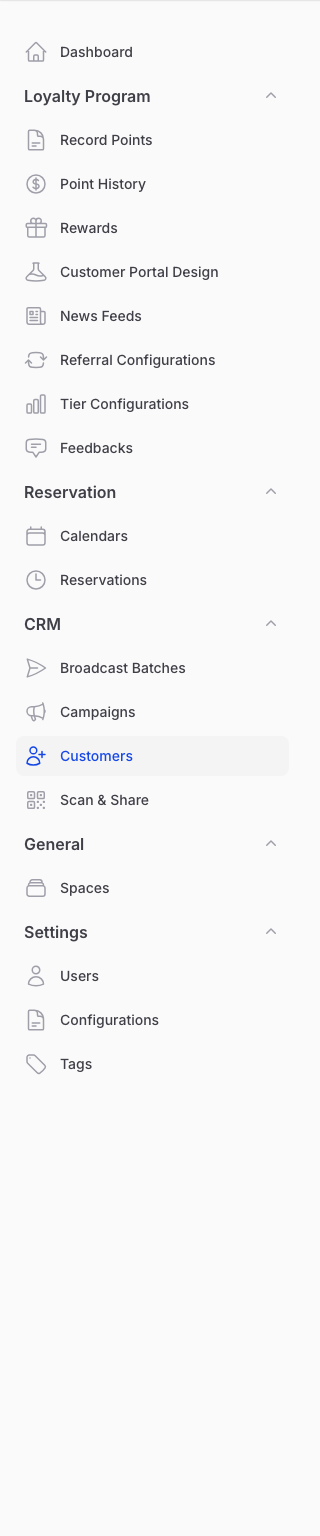
  1. Go to Admin Panel → CRM → Customers.

    Step 1: The CRM group expanded with Customers highlighted in the sidebar

  2. Search for the customer and click View.
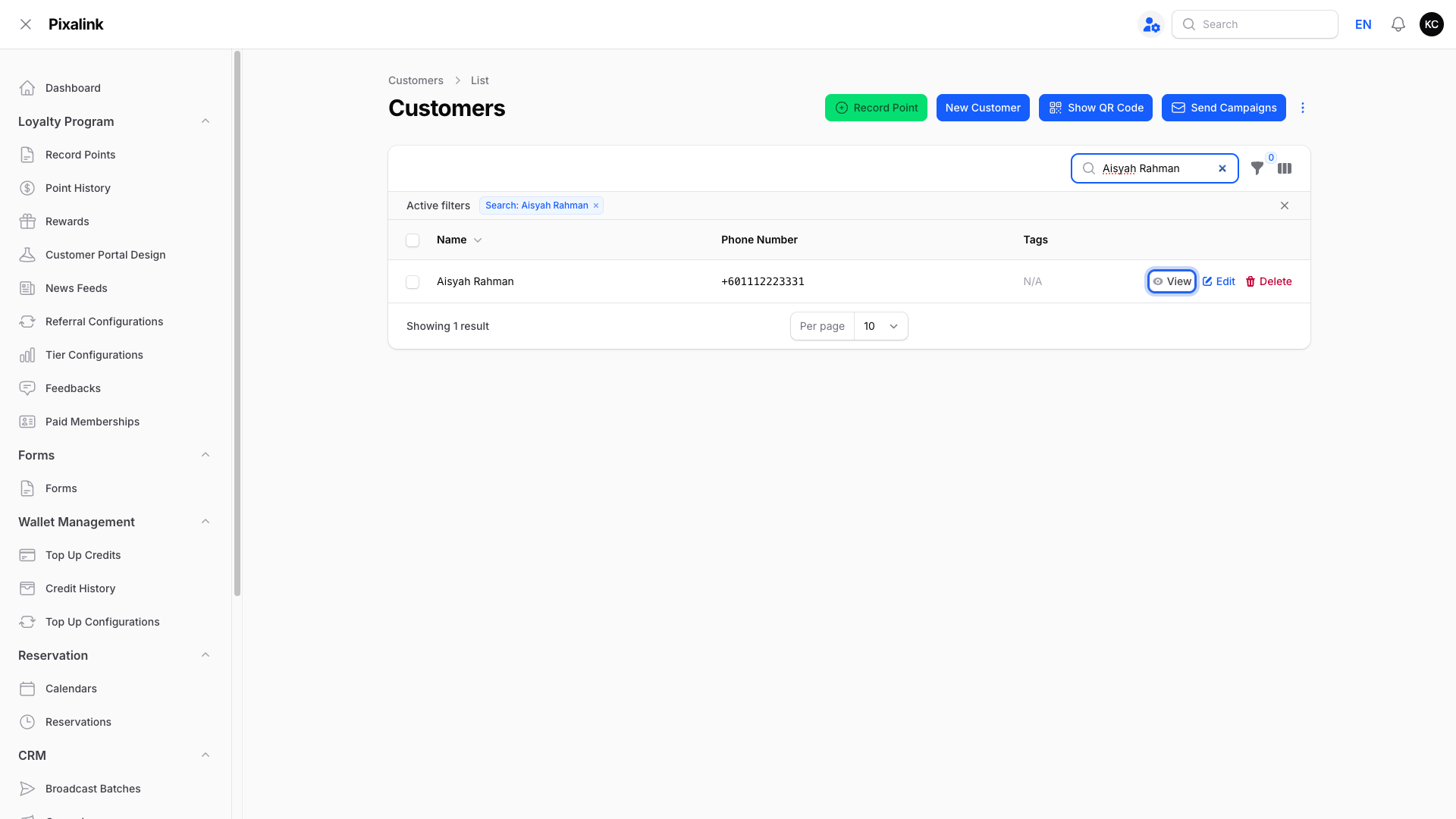
    Step 2: The Customers list filtered to one customer, with the View action highlighted at the end of the row

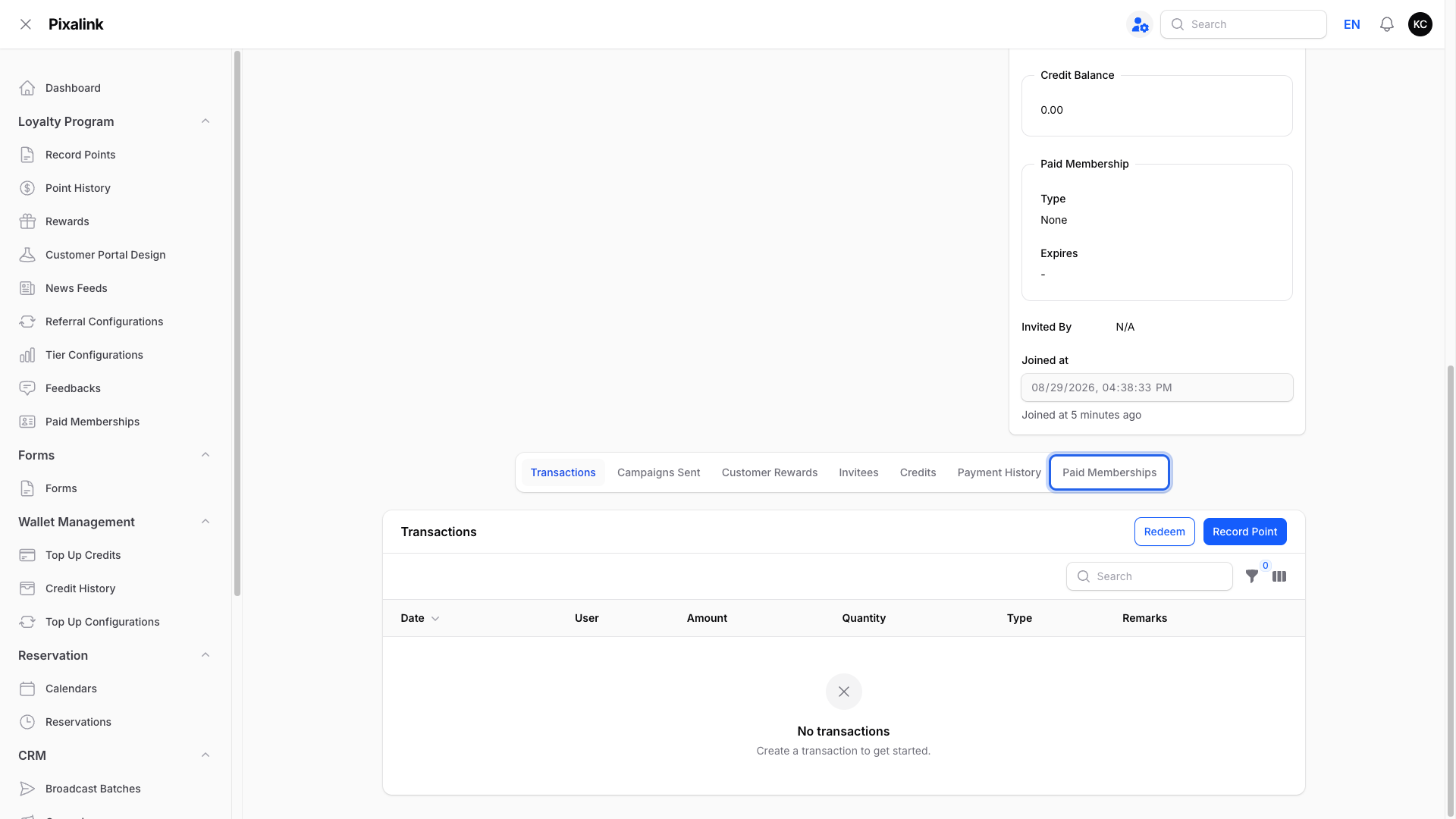
  3. Click the Paid Memberships tab.

    Step 3: The customer profile with the Paid Memberships tab highlighted in the tab strip

  4. Click Assign Membership. If the customer already has an active membership, the button is hidden. Use Renew on their row instead.
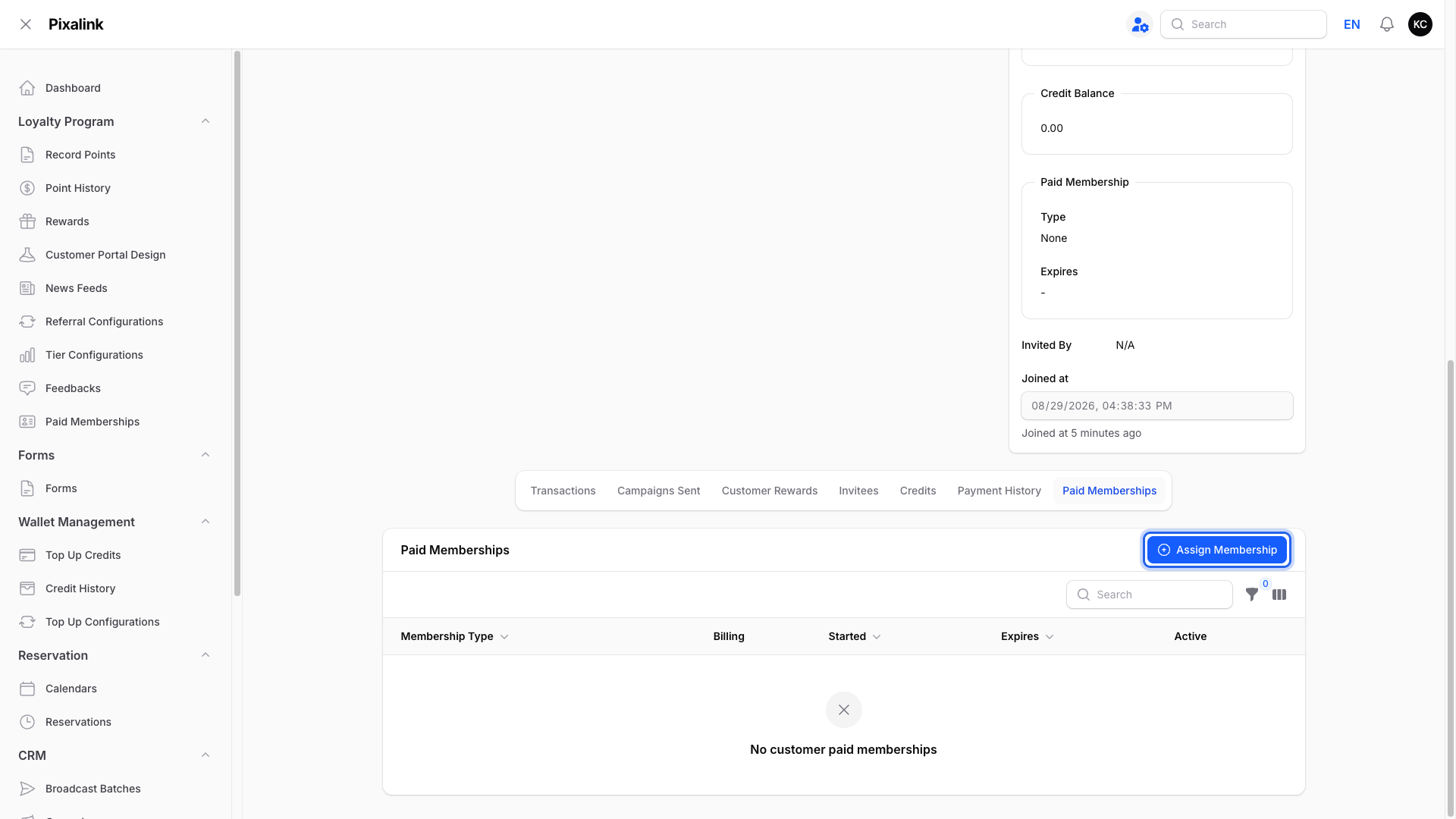
    Step 4: The Paid Memberships tab open with the blue Assign Membership button highlighted at the top right

  5. Pick the Membership Type and Billing Cycle, set Payment Method to Online Payment (Generate Link), then click Submit.
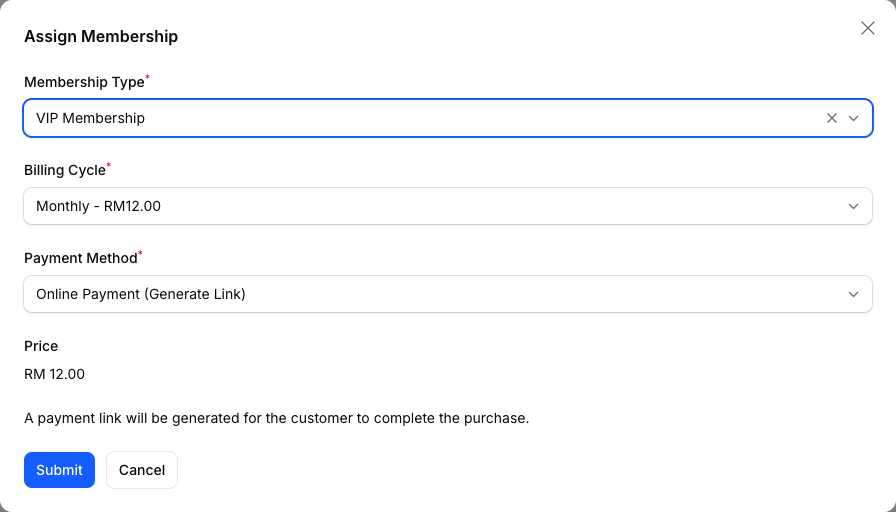
    Step 5: The Assign Membership form with VIP Membership, Monthly billing and Payment Method set to Online Payment (Generate Link)

  6. Share the link from the pop-up. Let the customer scan the QR code, or click the copy icon to paste it anywhere. Share via WhatsApp opens WhatsApp with the message written; press send yourself. Download QR saves the code as an image.
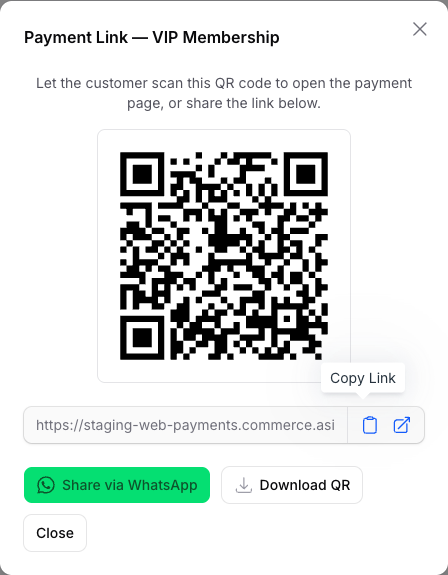
    Step 6: The Payment Link modal showing a QR code, the copyable link, and the Share via WhatsApp and Download QR buttons

  7. Click Share Payment Link on the membership row if you closed the pop-up too early. It opens the same pop-up.
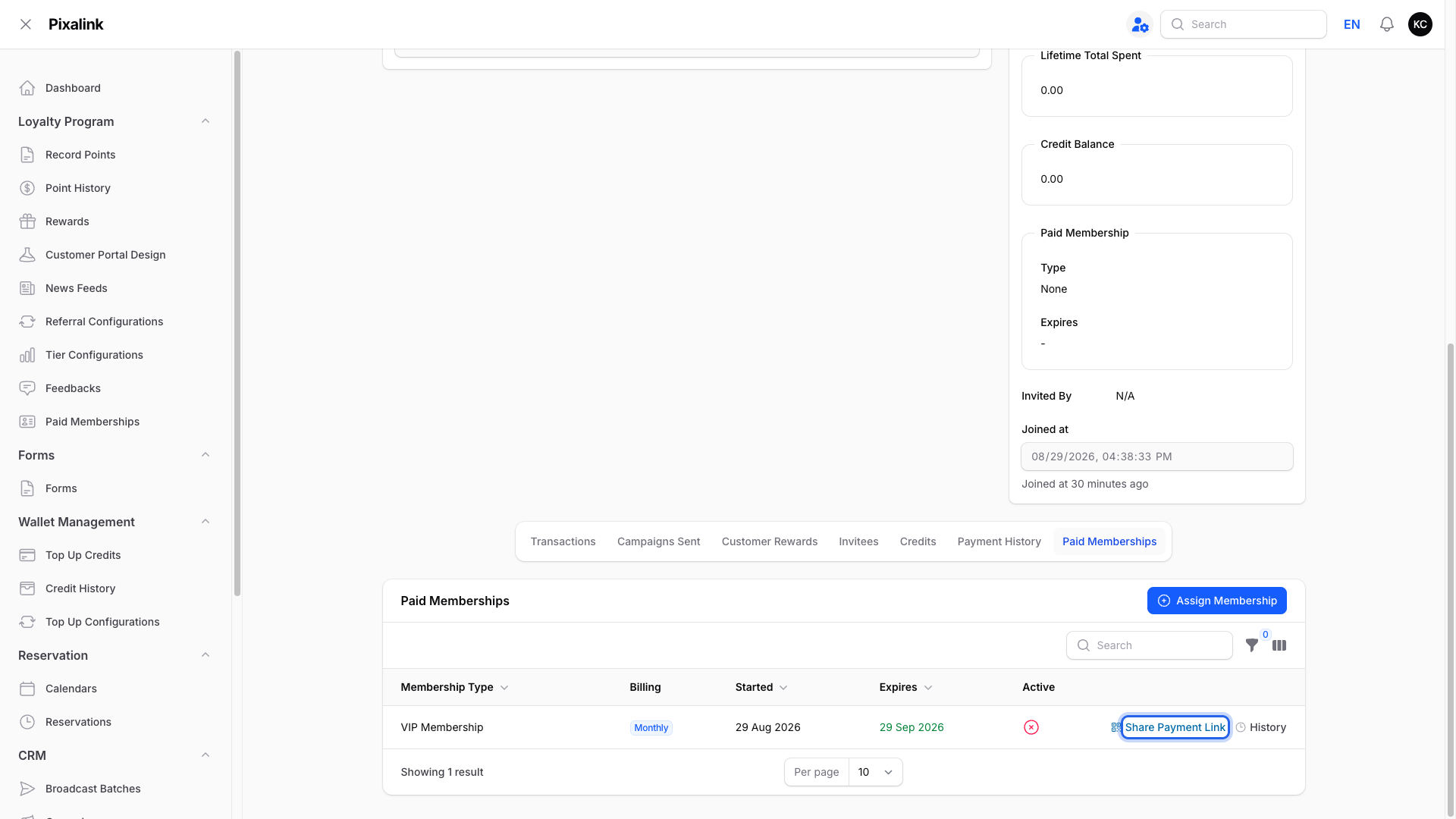
    Step 7: The pending membership row with the Share Payment Link action highlighted

What Your Customers Will See

The link opens a secure payment page with the membership name and price. If the customer isn't signed in to your loyalty portal, they sign in first. After they pay, the membership activates and its benefits appear in the portal.
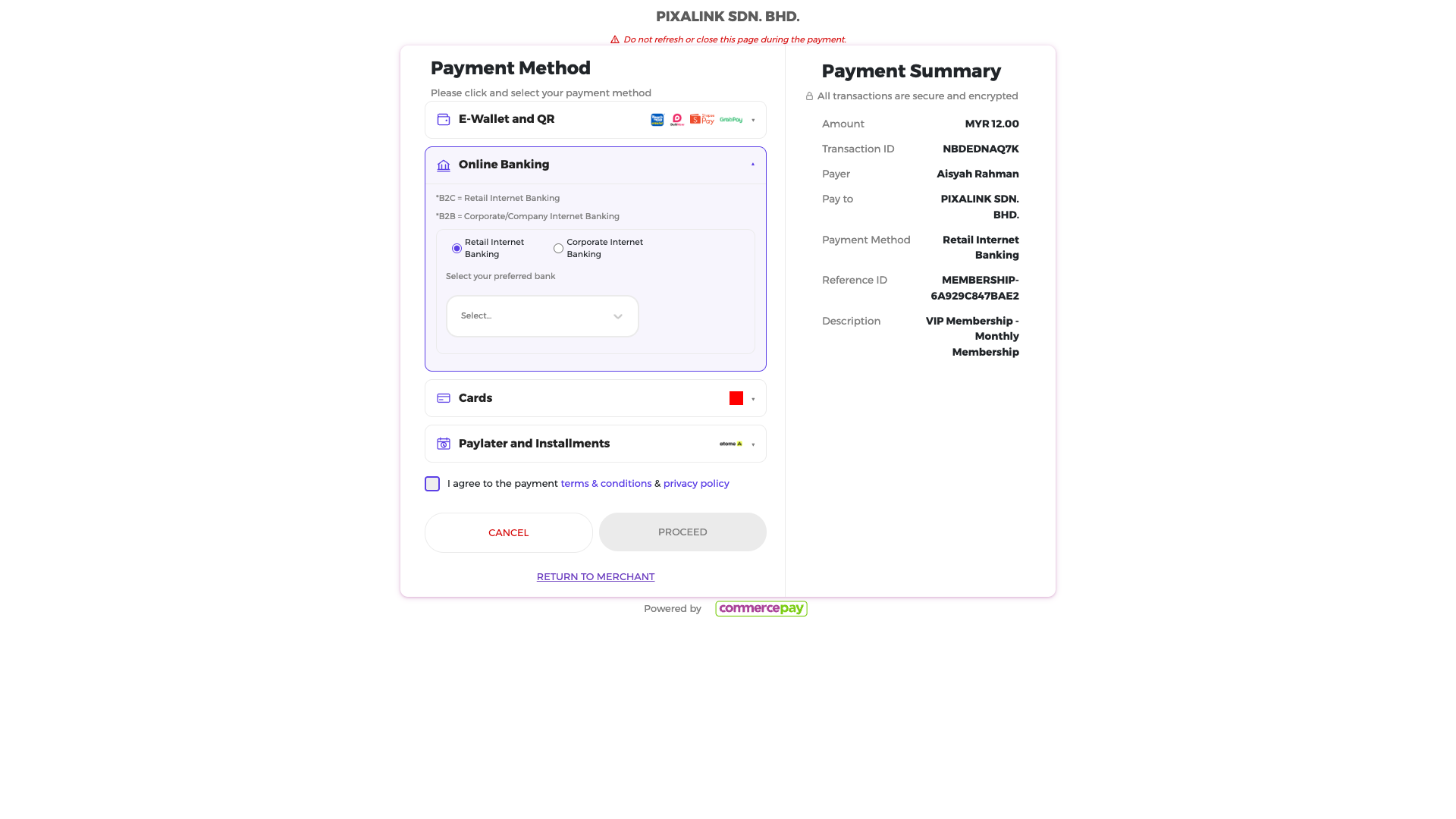
The secure payment page the customer opens from the link, showing the membership amount and payment methods

Good to Know

  • Share via WhatsApp only appears when the customer has a phone number saved.
  • Until the customer pays, the Active column shows a red cross. Refresh the page after payment.
  • Each link belongs to one customer and one membership, so never reuse it.
  • A link lasts about a day, then you create a new one.
  • Customers can also buy a membership themselves on the loyalty portal's Membership page. A payment link is for handing one to a specific customer.

Need Help?

Reach out to our support team.

What's Next?

Video transcript: How to Sell a Paid Membership with a Payment Link
Sometimes a customer wants a paid membership but has no cash on them. With a payment link, they pay from their own phone, and the membership switches on by itself once the payment goes through. This guide shows you how to create the link, share it by QR code, copy, or WhatsApp, and find it again later. In the Admin Panel, open the CRM group in the left menu, then select Customers. Search for the customer by name or phone number, then click View at the end of their row to open their profile. Scroll down to the tabs under the profile and open Paid Memberships. Click the blue Assign Membership button at the top right of the table. Pick the Membership Type and Billing Cycle. Then set Payment Method to Online Payment (Generate Link). The price shows underneath. Click Submit to create the link. The Payment Link pop up opens. Let the customer scan the QR code with their phone, or click the copy icon to paste the link anywhere. Click Share via WhatsApp to open WhatsApp with the message already written, check it, then press send yourself. Or click Download QR to save the code as an image for a counter card. If you close the pop up before the customer pays, no problem. The membership row shows Share Payment Link until the payment comes in. Click it to open the same pop up again. One more thing. Customers do not have to wait for you. On the loyalty portal's Membership page they can pick a plan and pay for it themselves. Use a payment link when you want to hand a membership to a specific customer at the counter or over WhatsApp. Here is the whole journey. You create the link. The customer opens it, signs in to your loyalty portal if they are not already, and pays. Once the payment goes through, the membership activates by itself. Refresh the page and the row shows as active, and their benefits appear in the portal. Two things to know. The Share via WhatsApp button only appears when the customer has a phone number saved on their profile. And a payment link lasts about a day, so if they have not paid by then, create a new one with Assign Membership.

Was this article helpful?

Thank you for your feedback!

0 found this helpful 0 did not

Search