
How to Sell a Paid Membership Through Your Shopify Store
What Is This?
Selling a paid membership normally means sending customers to your portal to pay. If you have a Shopify store, you can sell it there instead. List the membership as a product, and when a customer buys it, Pixalink enrols them for you. The membership lands on their profile with no extra work from your team.
Video Walkthrough

Real-Life Example
Daniel runs a coffee roastery that sells beans on Shopify. He also offers a RM30 monthly members club. He adds the membership as a Shopify product and maps it in Pixalink. Regular customer Priya buys it with her usual bean order. By the time her payment clears, she is already a member.
How to Set It Up
Step 1 happens in Shopify. Steps 2 to 4 happen in Pixalink.
-
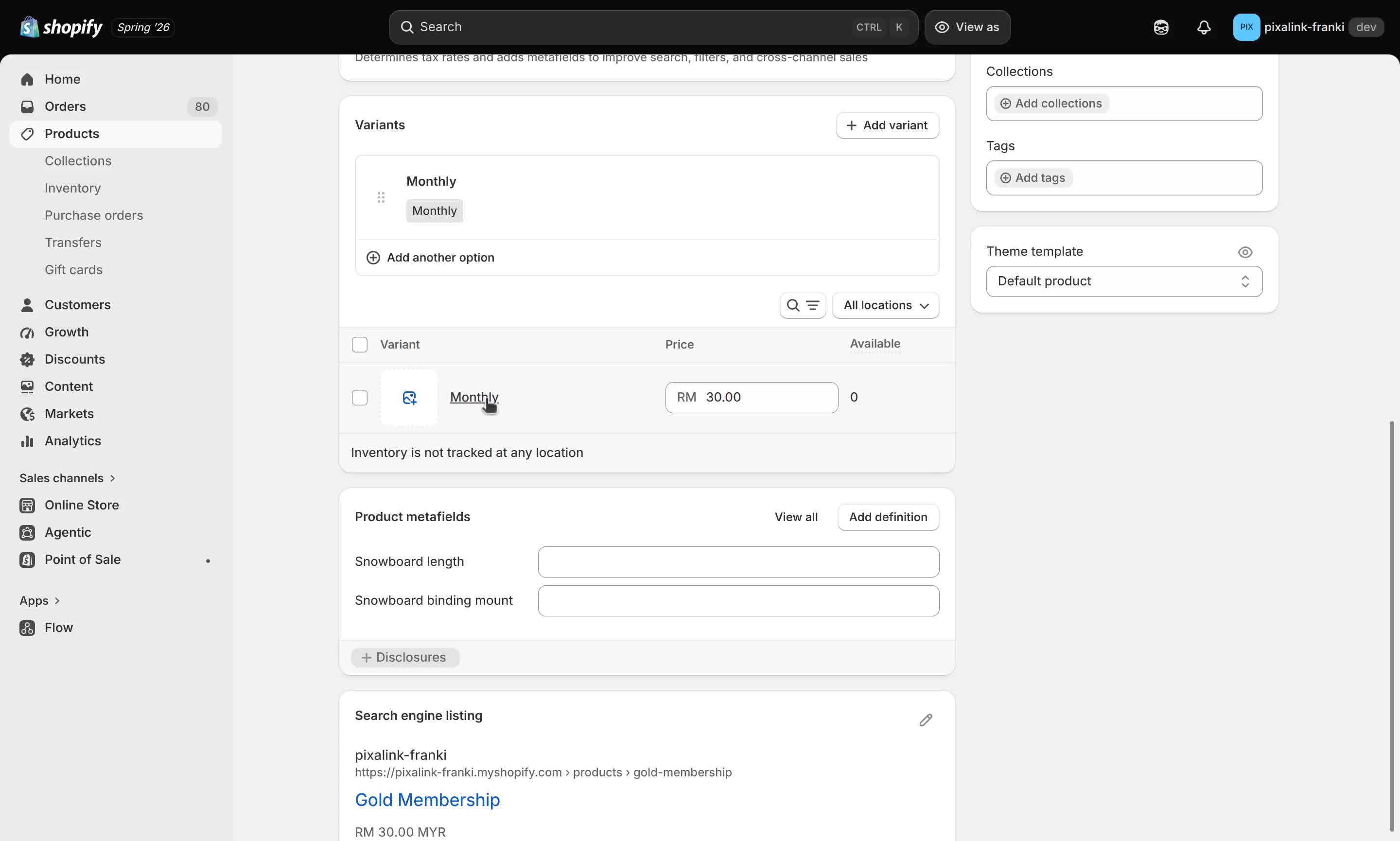
Create a product in Shopify for your membership and set the price on its variant. Use one variant per billing option, such as a Monthly variant at RM30.
-
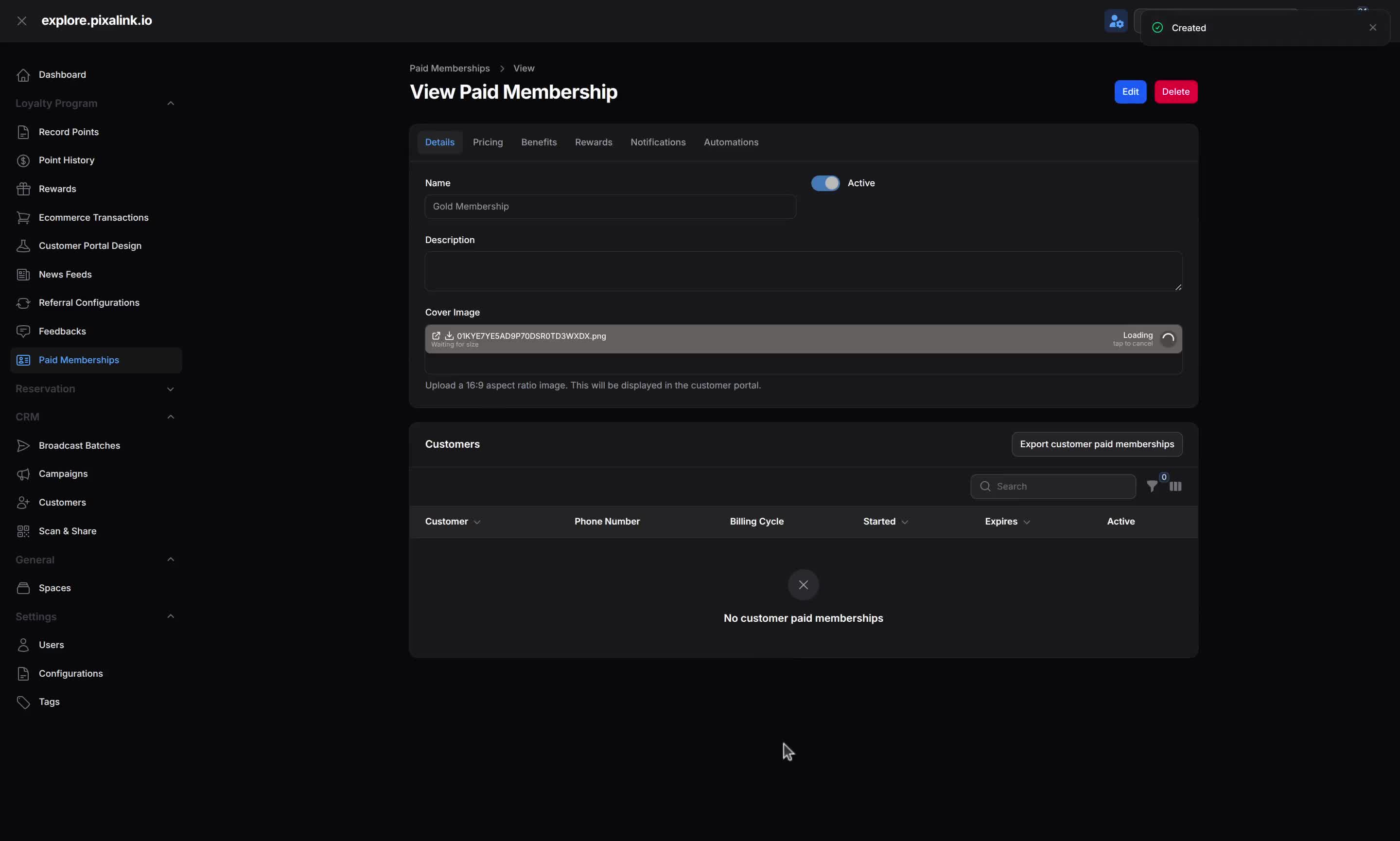
Open Loyalty Program > Paid Memberships and confirm your membership is active. On its Pricing tab, set a price for each billing cycle you plan to sell, because only priced cycles can be mapped.
-
Go to General > Spaces, edit your outlet, and open the Shopify Integration section. Under Feature Settings, choose how points and phone matching work for Shopify orders.

-
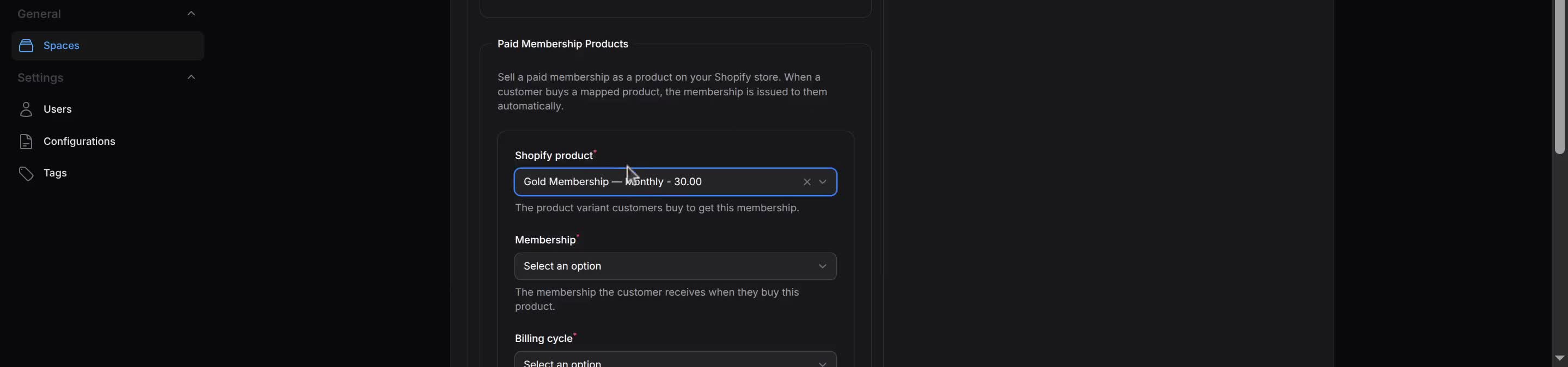
Scroll to Paid Membership Products, click Map a product, then pick the Shopify product, the Membership, and the Billing cycle, and save.
What Your Customers Will See
Your customer buys the membership at your normal Shopify checkout, alongside anything else in their cart. There is nothing new for them to learn.

How to Check It Worked
The membership is granted once the order is paid, not at checkout, so allow a few minutes. To confirm, open the membership and check its Customers list. The new member appears with their billing cycle, dates, and an active tick.

Good to Know
- The membership item earns no points. Do Not Award Points stops points for the whole Shopify order.
- Members are matched by phone number. If an order has none, turn on Use Billing Address Phone. Without any phone, the membership cannot be linked and your team is alerted to add it by hand.
- A duplicate purchase follows your chosen rule. If a customer already holds this membership, your If they already have this membership setting decides: leave it, extend it by a cycle, or refund the item.
- A lifetime membership is protected. Buying the same one again does nothing.
- A refund reverses points, not the membership. It returns the order's points but leaves the membership active. Remove it by hand if needed.
- Set this up for each outlet that sells through Shopify.
Need Help?
If a new member does not appear, check that the buyer used a phone number, that the product is mapped in step 4, and that the membership is active with a price for that cycle. Still stuck? Contact your Pixalink support team.