
How to Set Up Eats365 QR Ordering in the Customer Portal
How to Set Up Eats365 QR Ordering in the Customer Portal
What Is This?
The Eats365 QR ordering feature lets customers scan table QR codes from the customer portal to place dine-in orders. It can also show a delivery/pickup button for online ordering without scanning.
Real-Life Example
Wei Lin runs two nasi lemak outlets in KL. Each table has an Eats365 QR code. She wants loyalty members to scan those codes from the portal and order directly with their details passed through. After setting up both spaces, her customers can scan any table QR to dine in or tap delivery to order pickup — all from the same portal.
How to Set It Up
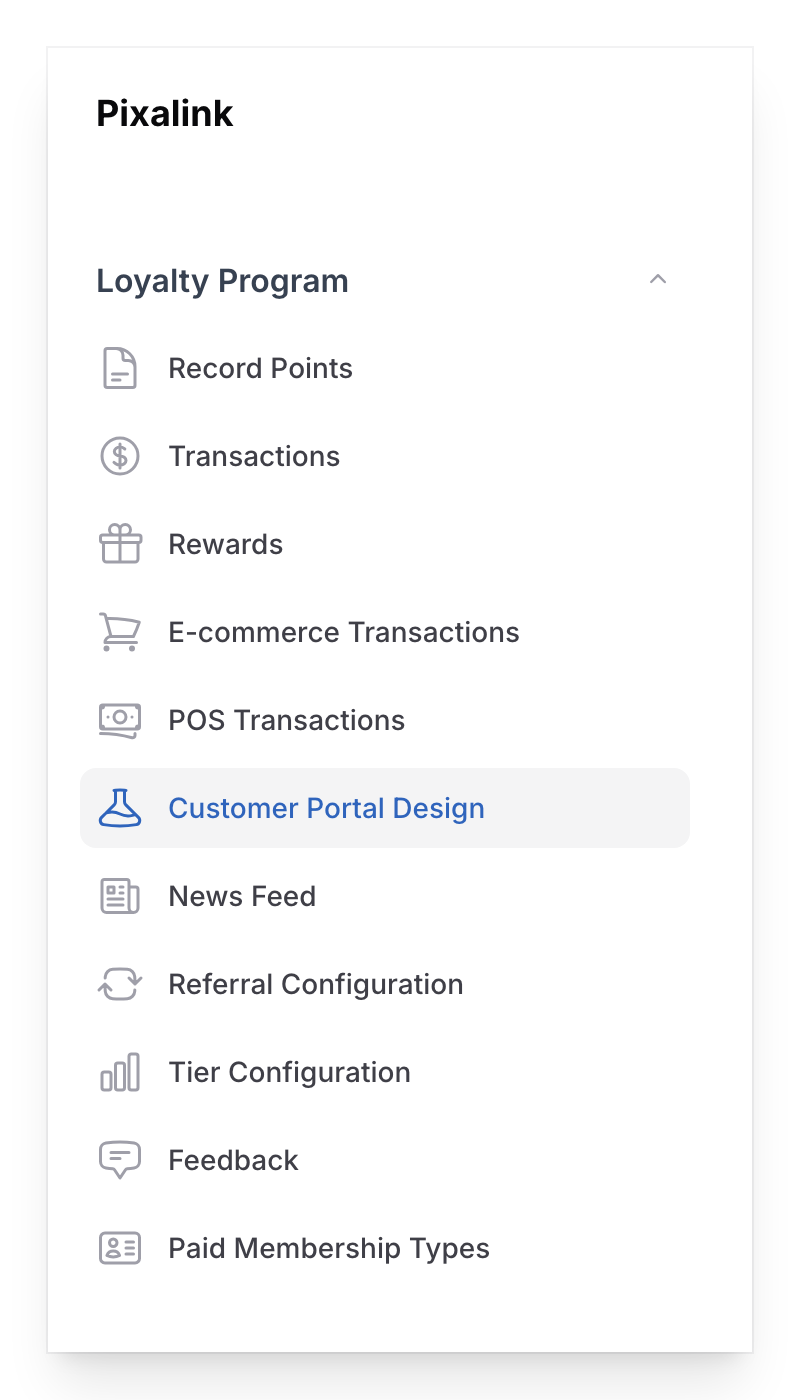
- Go to Admin Panel → Loyalty Program → Customer Portal Design and open the theme you want to edit.
-
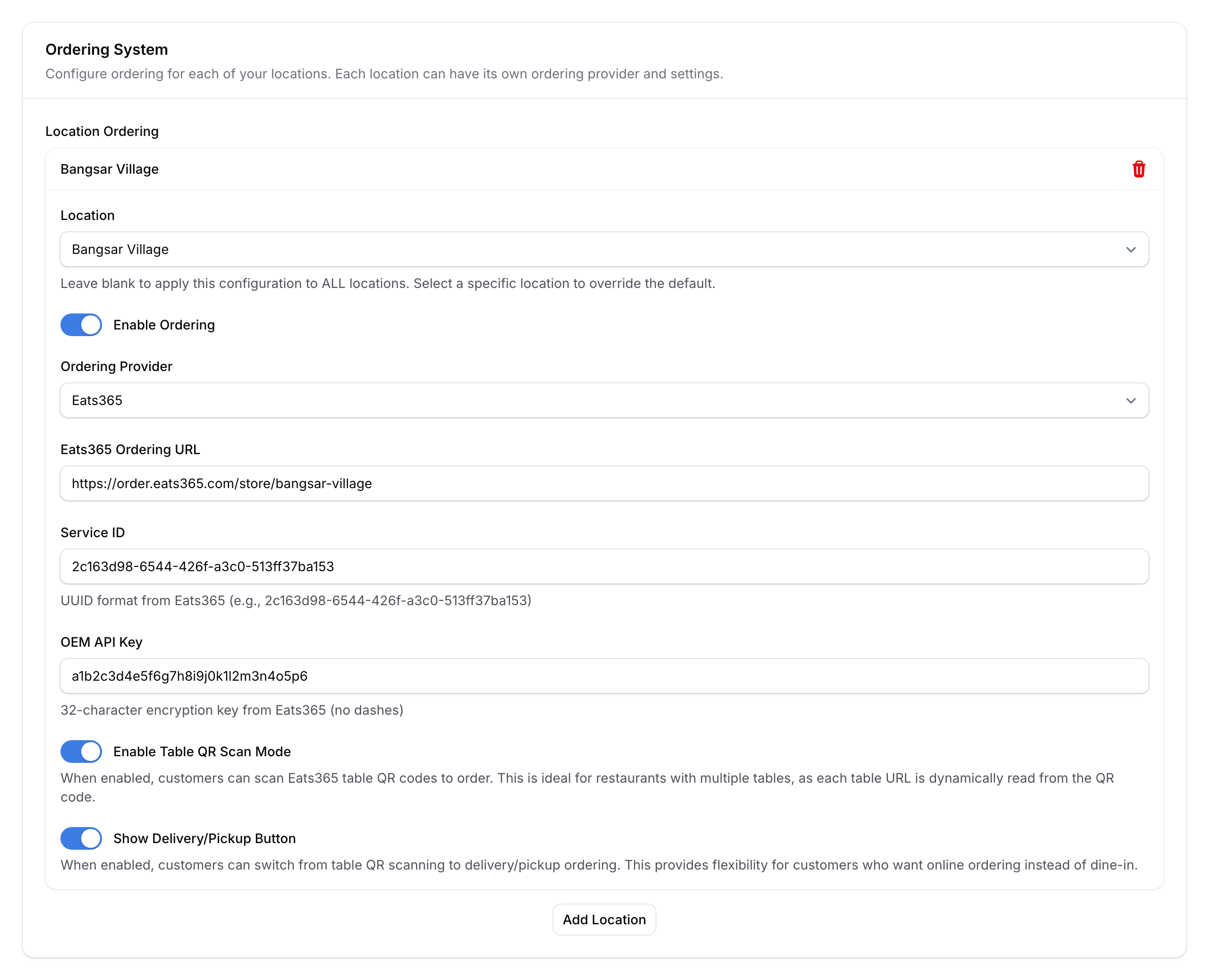
Select the Feature tab, scroll to Ordering System, and tap Add Location.
-
Choose the Location (space) from the dropdown, then turn on Enable Ordering and set the Ordering Provider to Eats365.
-
Fill in the Eats365 credentials:
- Eats365 Ordering URL — the base ordering URL from Eats365
- Service ID — the UUID from Eats365
- OEM API Key — the 32-character key from Eats365
-
Set the toggles:
- Enable Ordering — turn this on to make ordering live for this location. When off, the entire ordering section is hidden from the portal for this space.
- Enable Table QR Scan Mode — when on, a Scan Table QR button appears on the portal order page. When off, the QR scanner is hidden and customers can only use the Delivery/Pickup button (if enabled).
- Show Delivery/Pickup Button — when on, an Order Delivery/Pickup button appears below the QR scanner (or alone if QR Scan Mode is off). For multi-outlet businesses, tapping this shows a location picker. This works independently of QR Scan Mode — you can enable one or both.
- Save the theme. Repeat steps 2–5 for each space that needs its own setup.
Good to Know
- Service ID must be UUID format, OEM API Key must be exactly 32 alphanumeric characters.
- Leaving Location blank makes it the default for all spaces. A space-specific entry overrides the default.
- The QR scanner only accepts Eats365 codes — other QR codes show an error.
- Customers must be logged in to the portal for ordering to work.
- Multi-outlet businesses show a space selector when customers tap delivery/pickup.
What's Next?
- Set up space QR codes for customer check-in