
How to Reward Customers for Buying Specific Eats365 Items
How to Reward Customers for Buying Specific Eats365 Items
What Is This?
Automations turn a single menu item into a reason to come back. When your Eats365 till closes a receipt, Pixalink checks what the customer bought. Buy enough of the items you picked, and the voucher arrives on its own.
Real-Life Example
Ahmad runs Kopi Corner, a small cafe in Bangsar. His latte sells well, but buyers vanish for weeks afterwards. He builds an automation on his latte product code and sets the quantity to five. Every fifth latte now earns a free coffee voucher. He never printed a stamp card, and his regulars visit twice as often.
How to Set It Up
Steps 1 and 2 happen in Eats365, the rest in Pixalink.
-
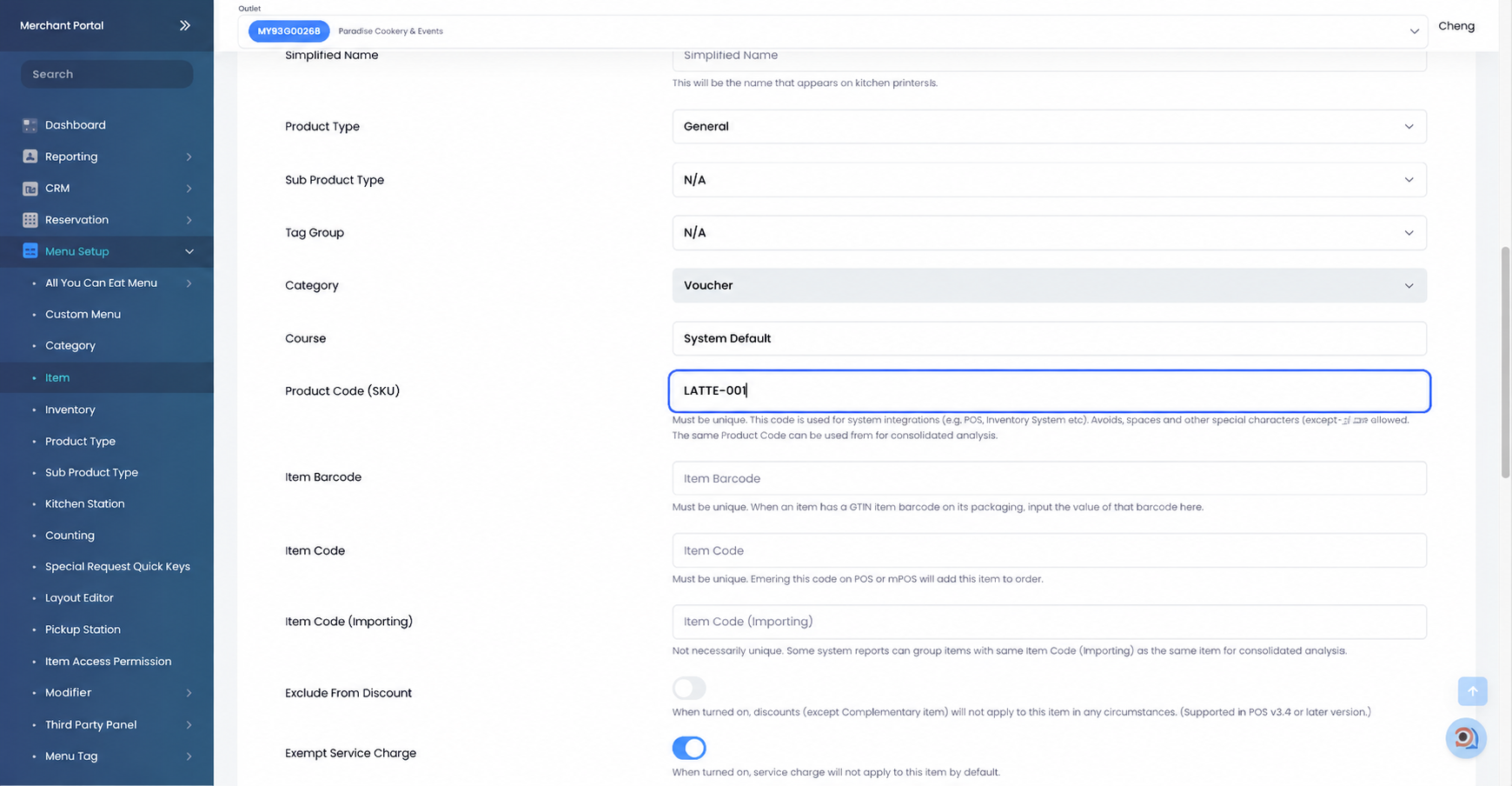
Open Menu Setup > Item and give your item a unique Product Code (SKU). Pixalink matches on this code, so do not change it later.
-
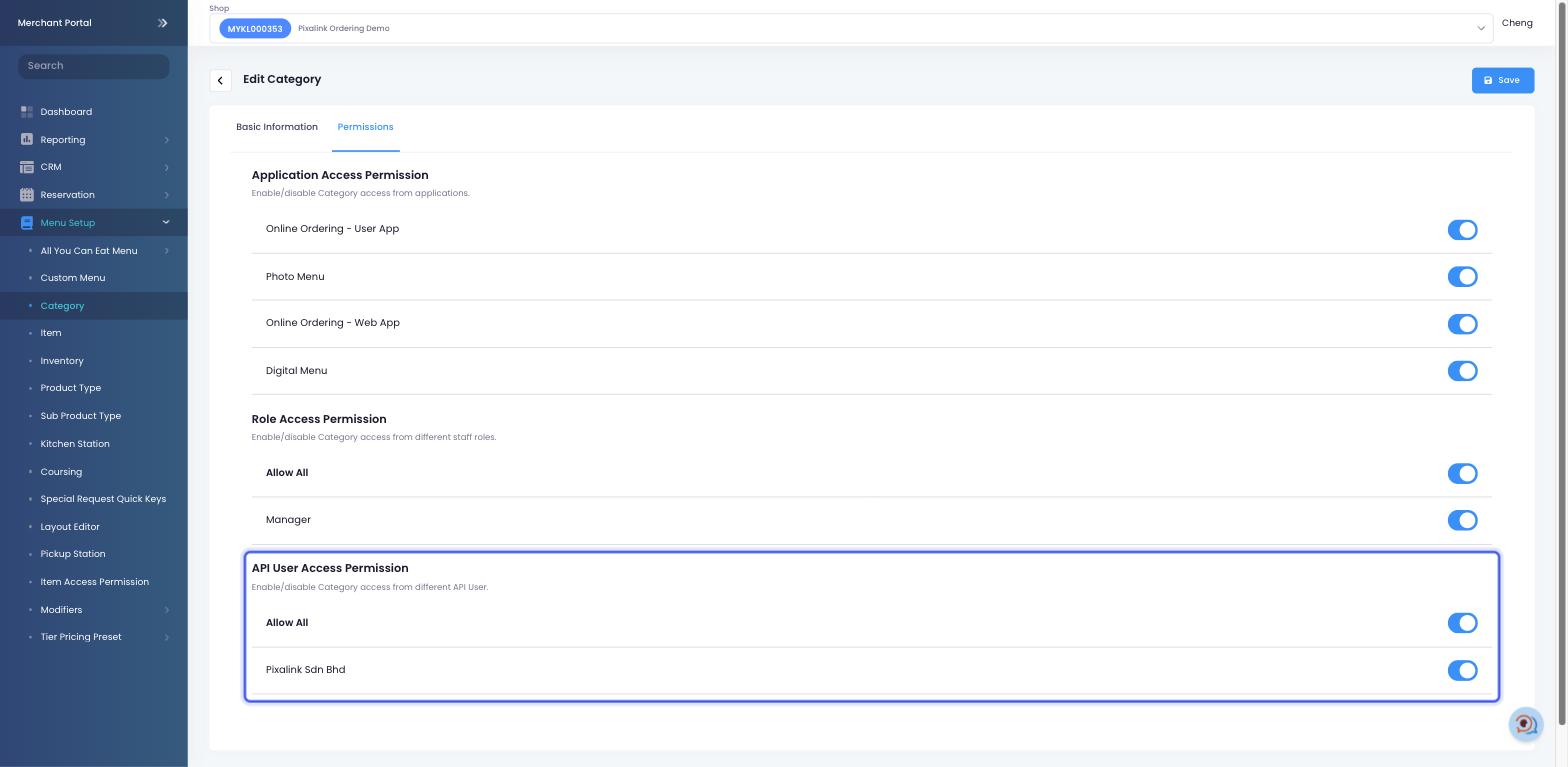
Switch on Pixalink Sdn Bhd under the item's Additional Details, then again on its category under Menu Setup > Category > Permissions. Close and reopen your POS app afterwards.
-
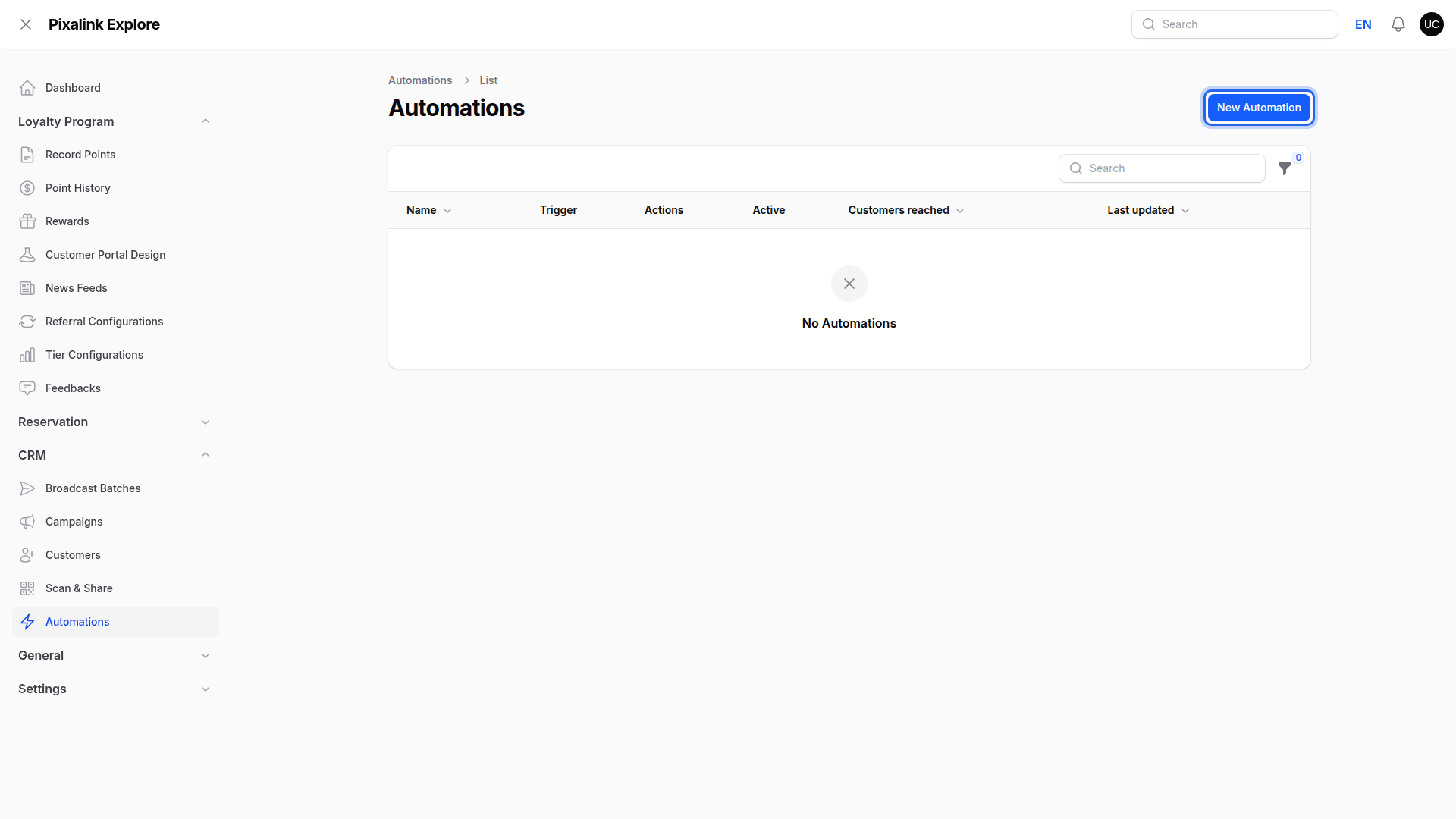
Go to Admin Panel → CRM → Automations and click New Automation.
-
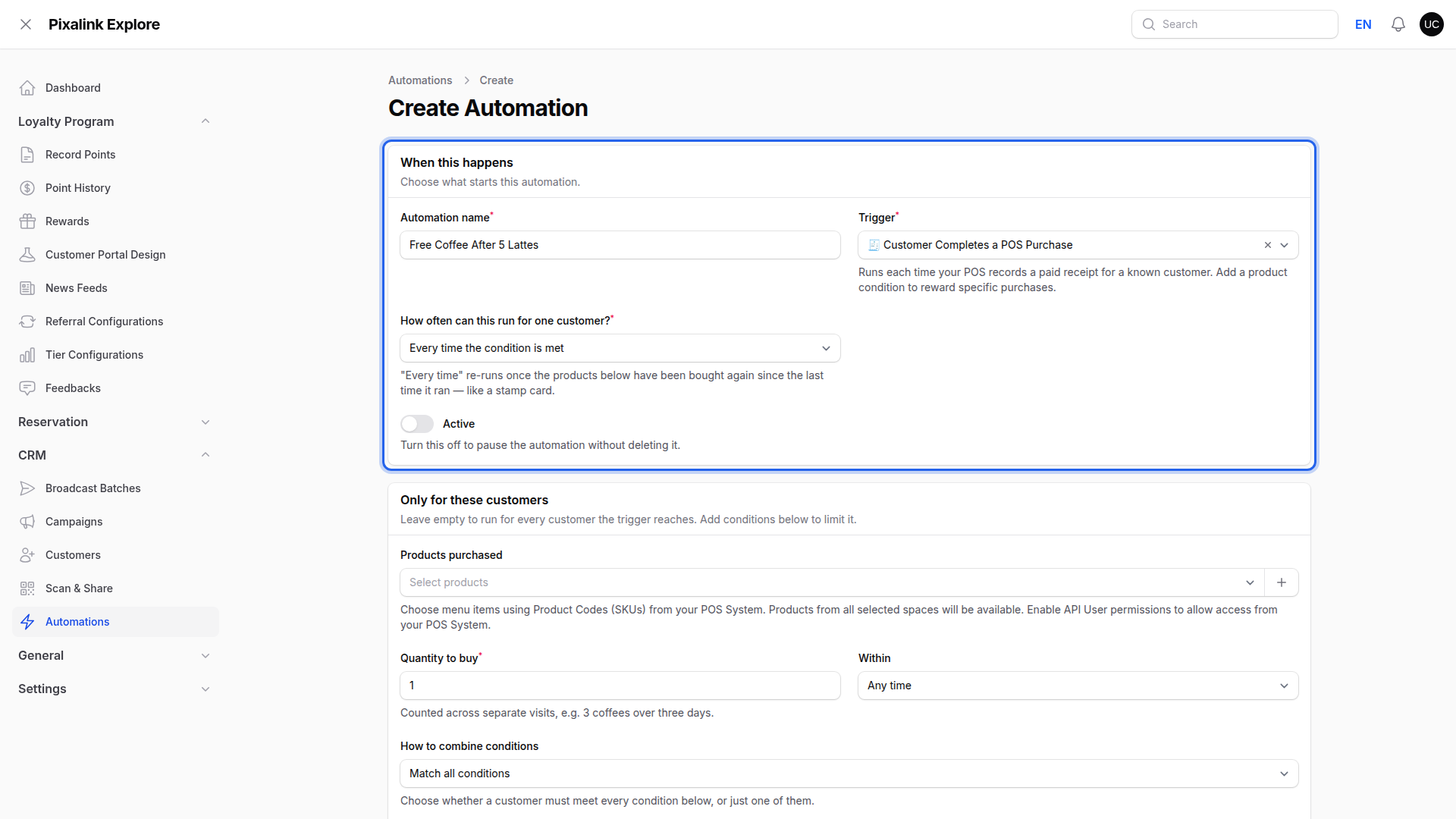
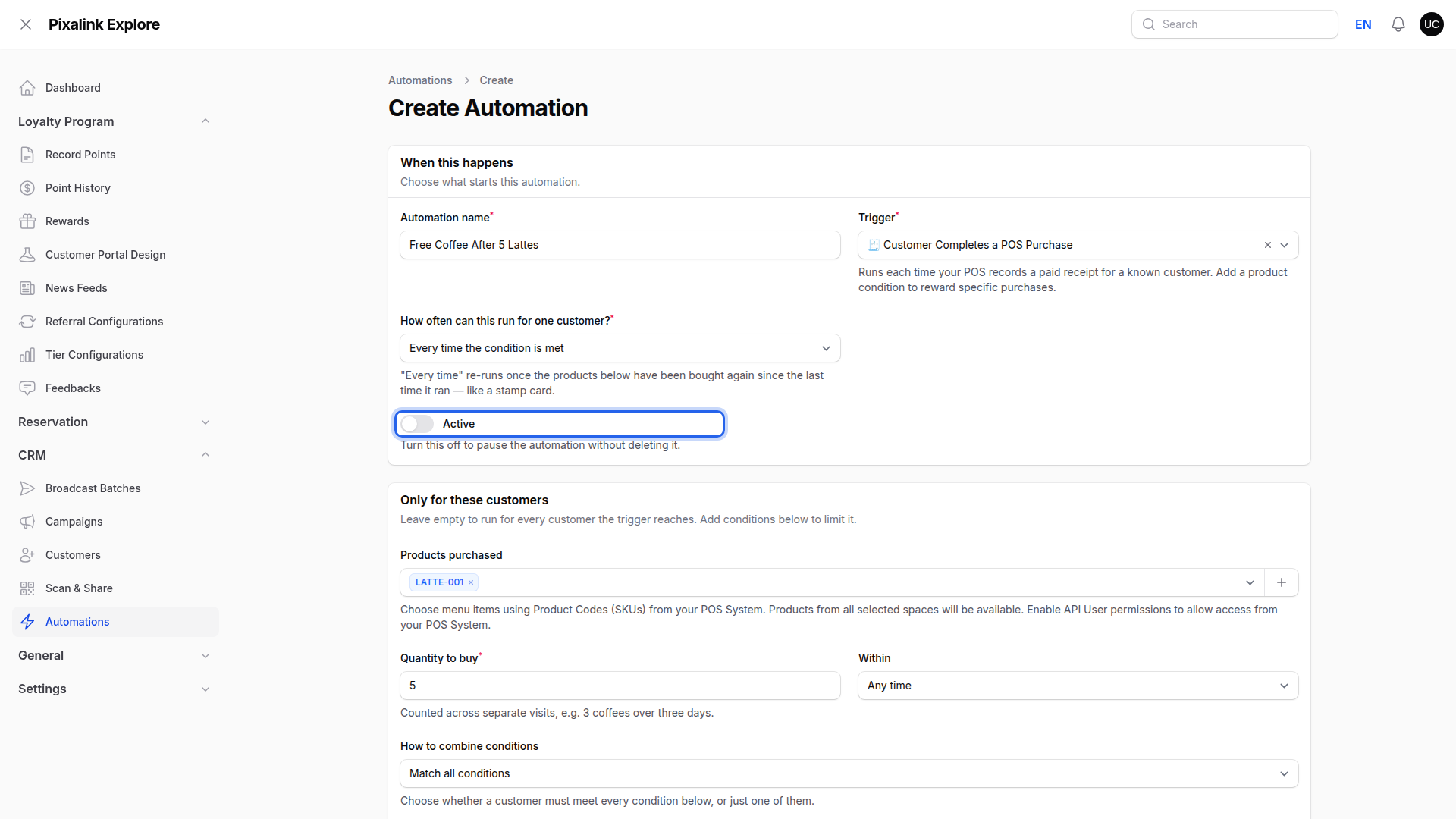
Name your rule, then set Trigger to Customer Completes a POS Purchase. "Every time the condition is met" behaves like a stamp card.
-
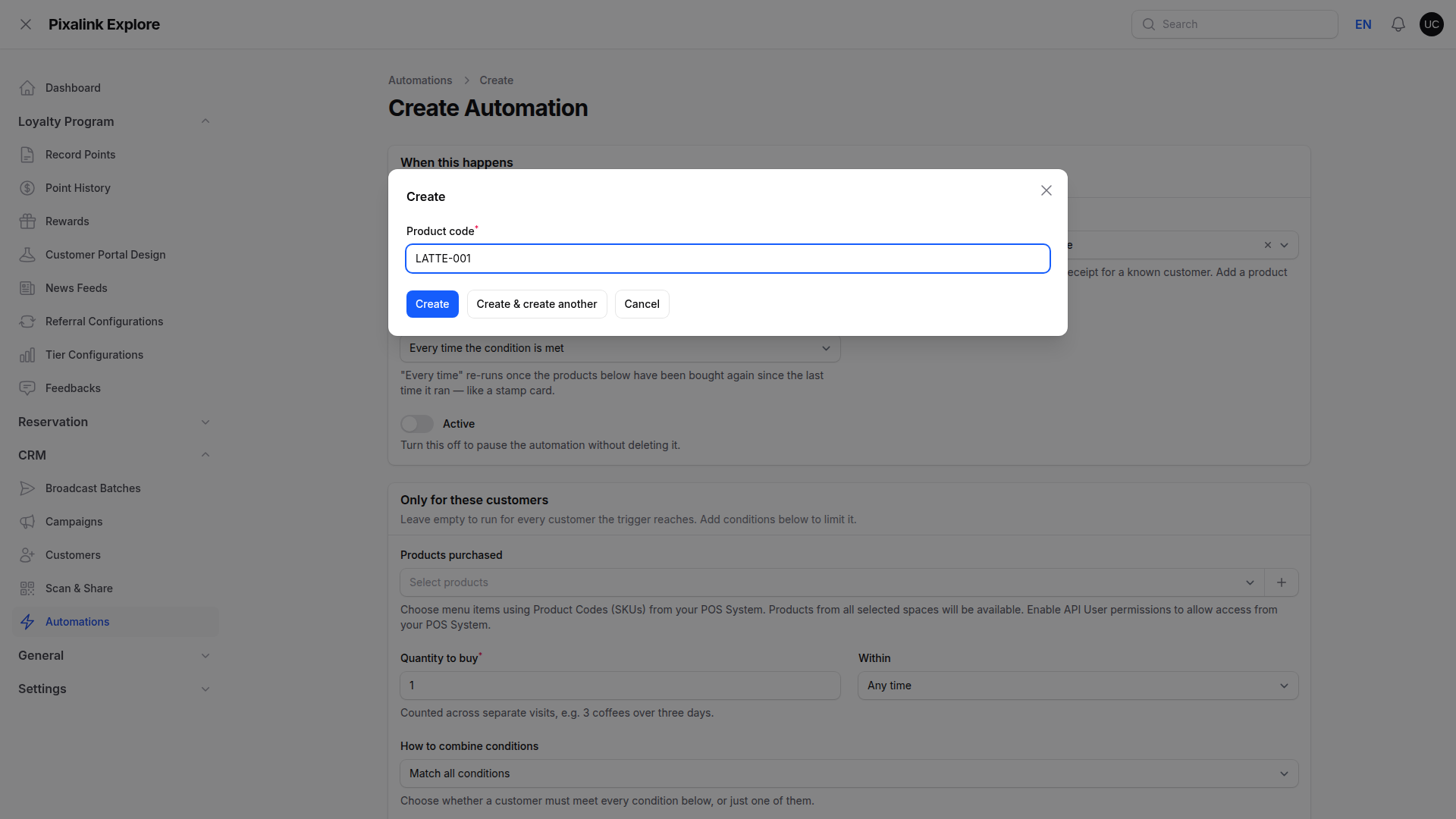
Add your items under Products purchased. Choose them from the list, or click Add a product code and type the code yourself. Only items with a Product Code (step 1) appear in the list — if it is empty, your items have no codes yet. Typing a code by hand does not help an uncoded item, because its receipts arrive without a code too. The list refreshes within 10 minutes of a change in Eats365.
-
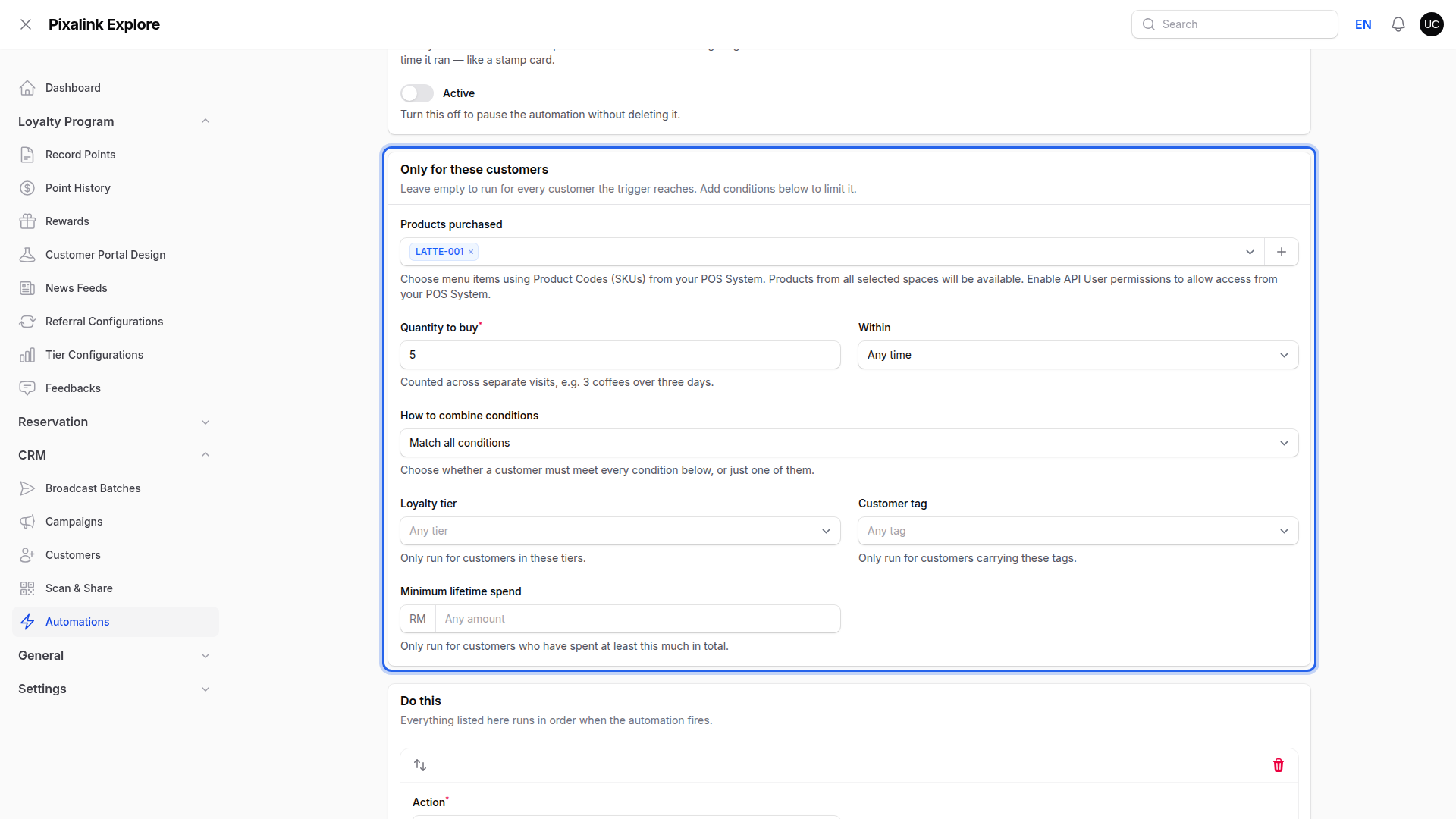
Set Quantity to buy to the number they must buy, then choose a period under Within.
-
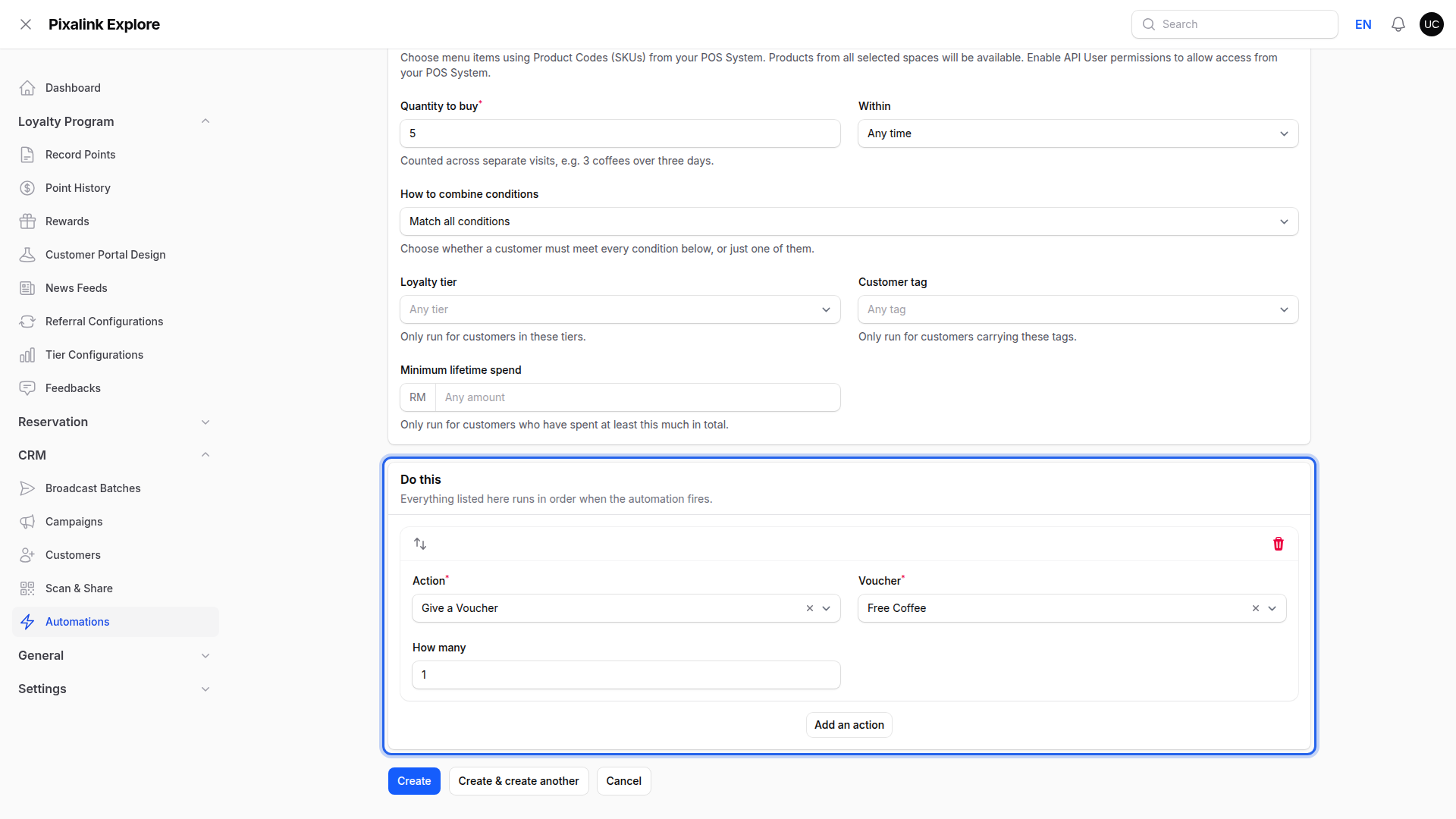
Pick Give a Voucher under Do this, then choose the voucher they earn.
-
Switch Active on, then click Create.
What Your Customers Will See
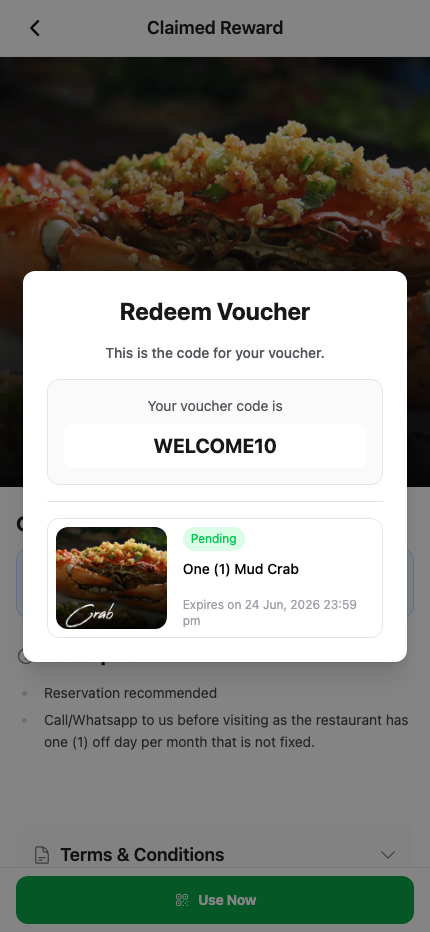
The voucher appears in the customer's portal by itself, with nothing for them to claim. At the counter they open it and show the code to your staff.
Good to Know
- Set the voucher up for Eats365 redemption first, or it will not work at the till.
- Only free vouchers appear in the list. One that costs points, or carries its own automatic rule, is hidden.
- A voucher set to show for paid members only reaches paid members.
- Quantity builds up across visits. Three coffees over three days count as three.
- Leave Products purchased empty and the rule runs on every receipt instead.
- A voided receipt stops counting, and a refunded item drops off the total.
Need Help?
Contact the Pixalink support team and we will walk you through it.