
How to Rename Your Business, Outlets, and Customer Portal
How to Rename Your Business, Outlets, and Customer Portal
What Is This?
Your business name lives in three places, and each one is changed on its own. This guide shows where to change your official business name, your outlet names, and the name customers see on your loyalty portal. A few minutes is all it takes to match your new brand everywhere.
Real-Life Example
Ahmad runs Kopi Corner, a cafe in Bangsar. He rebrands the shop as "Kopi Corner Roasters" and wants the new name everywhere. He updates the outlet name under Spaces, so new booking confirmations show the fresh name. He also updates the Friendly Name, so the portal greets members with "Kopi Corner Roasters". His printed QR codes still work because the portal link never changes. Within the hour, customers see the new name on every screen.
How to Set It Up
-
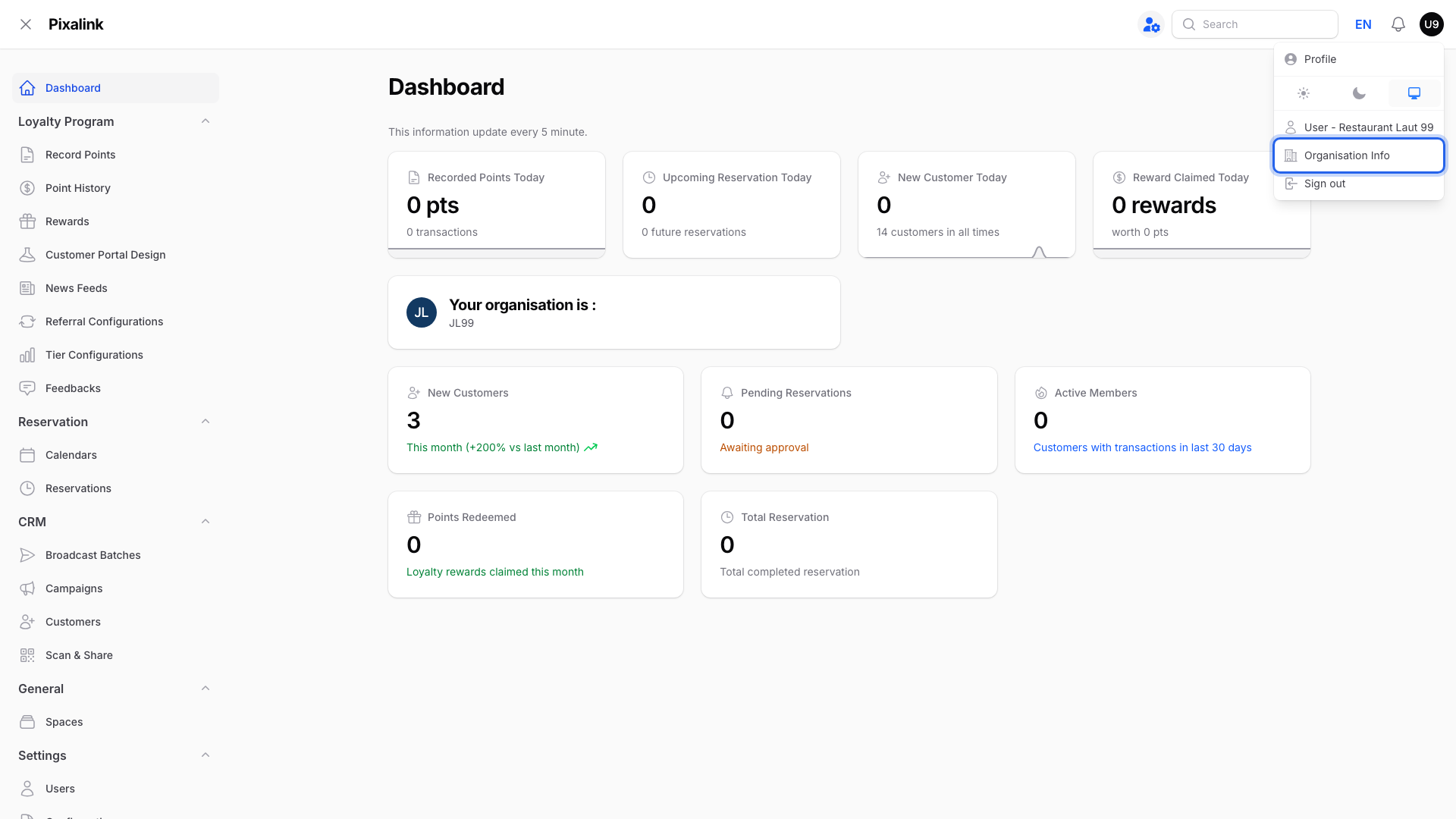
Click your profile icon in the top-right corner, then click Organisation Info.
-
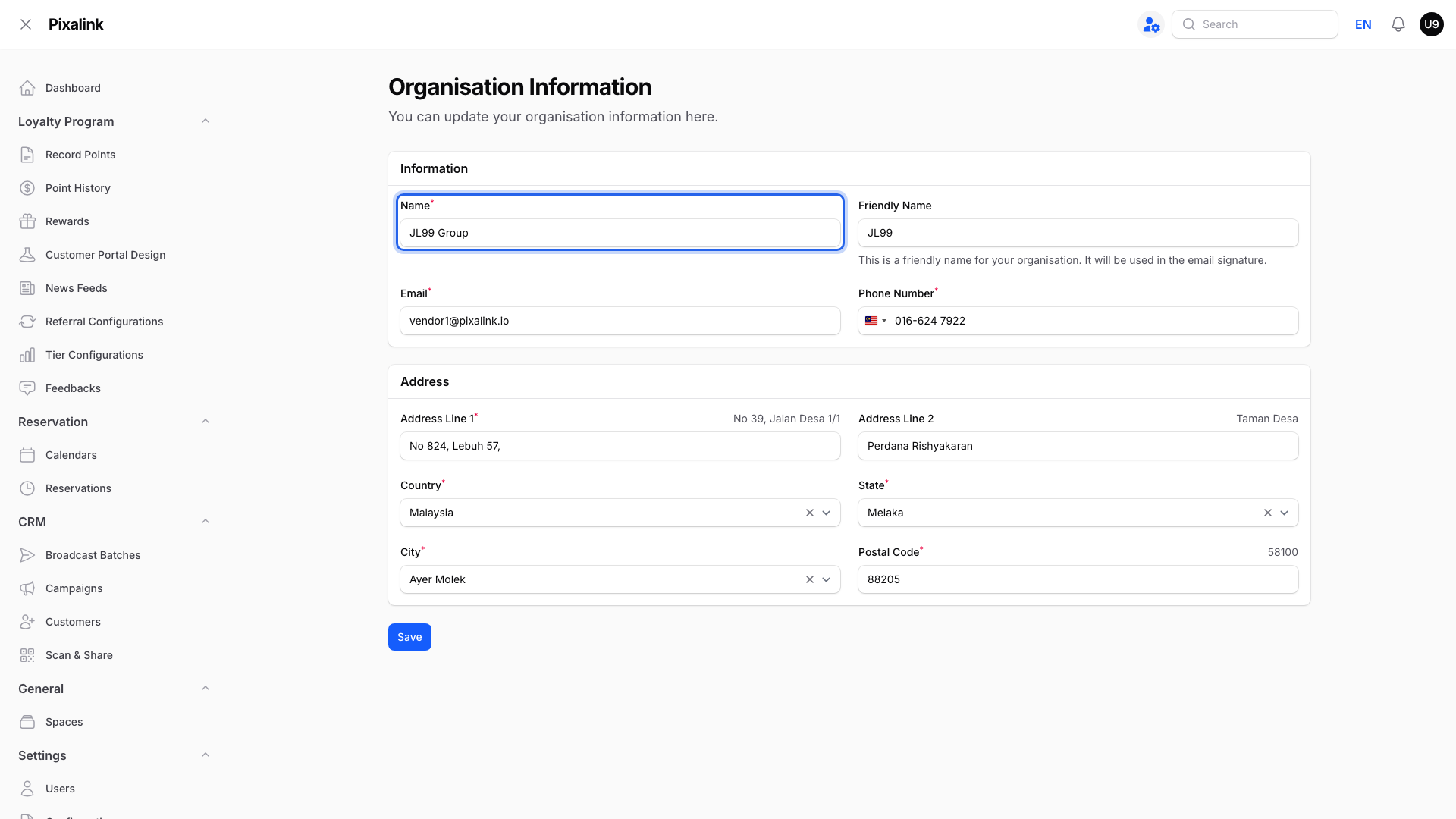
Type your official business name in the Name box. This name appears on invoices and receipts.
-
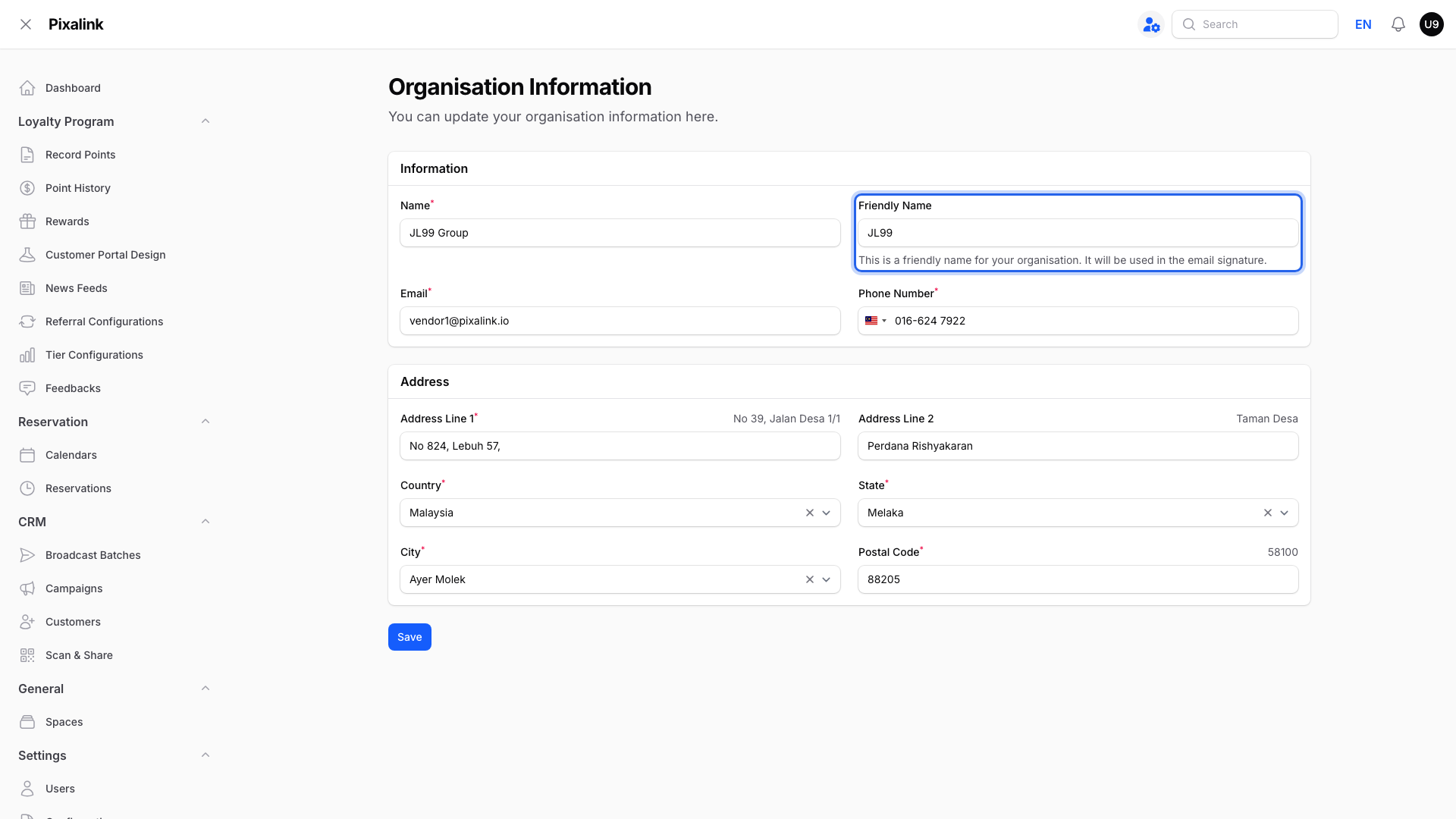
Type the short name customers should see in Friendly Name, then click Save. This name shows on your portal and in marketing emails.
-
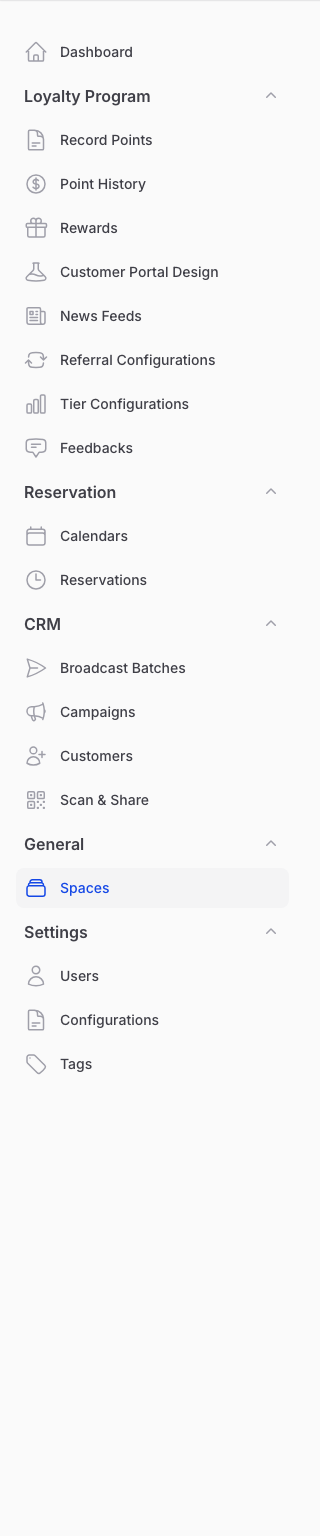
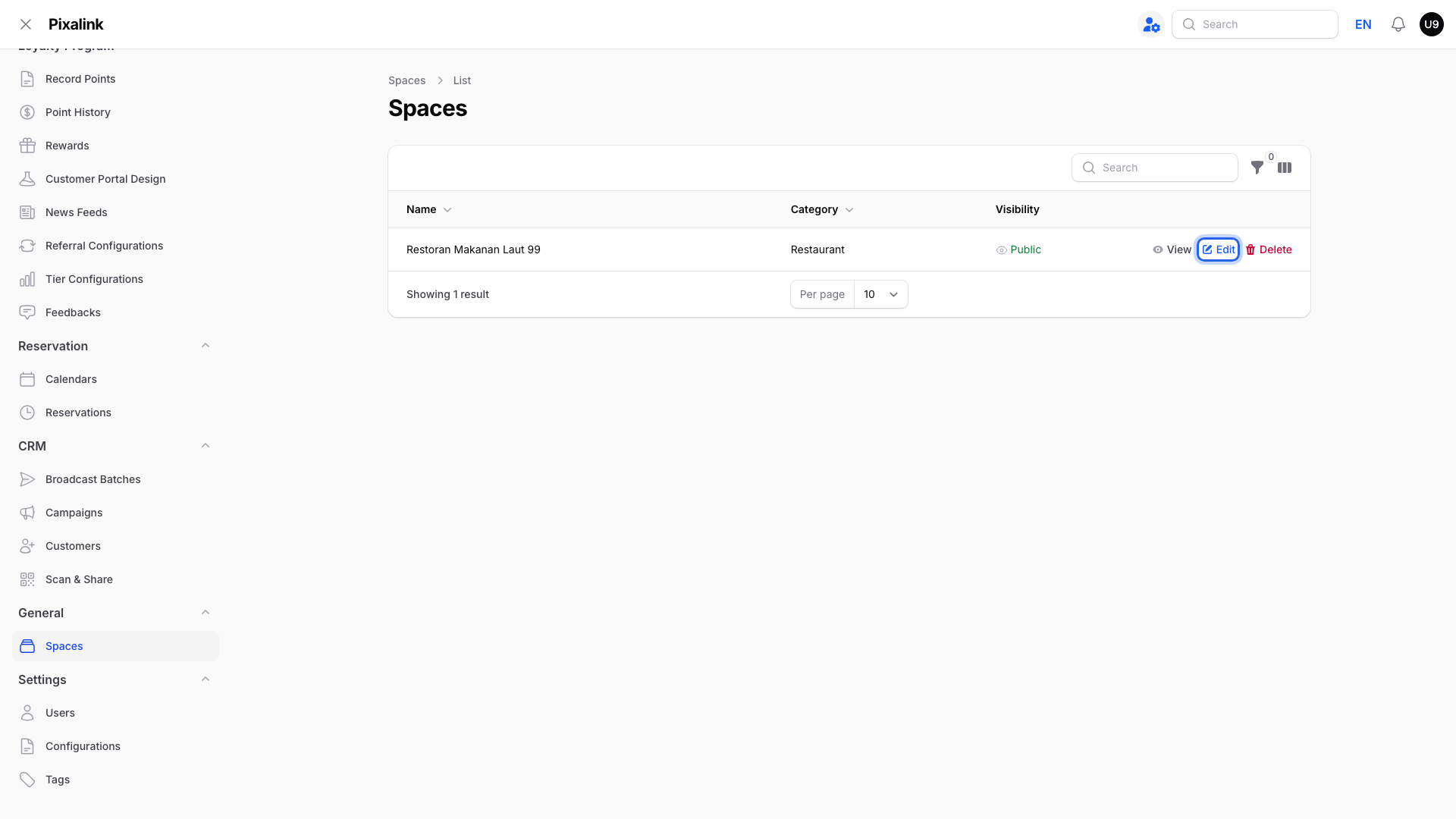
Go to Admin Panel → General → Spaces to rename an outlet.
-
Click Edit next to the outlet you want to rename.
-
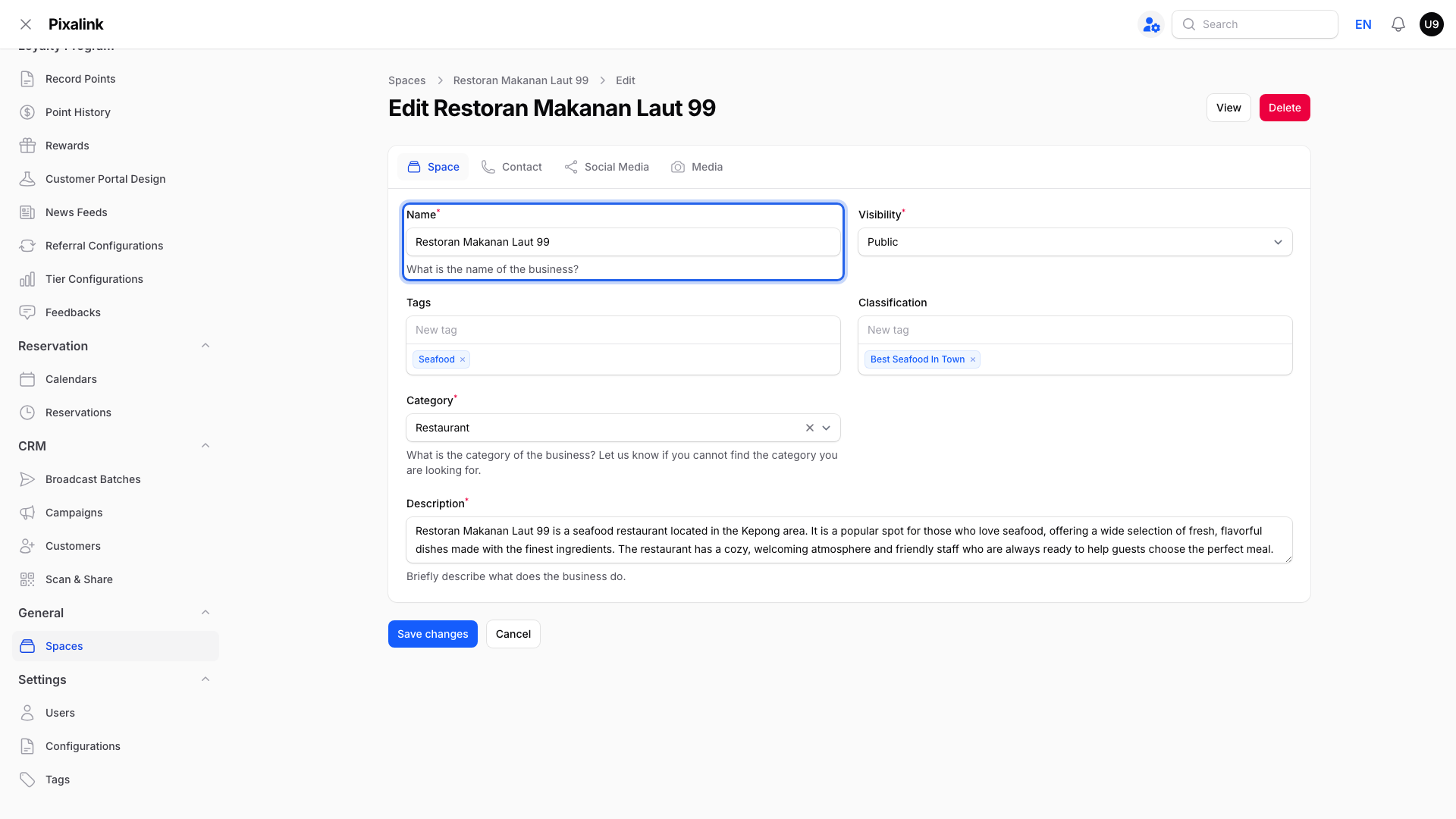
Type the new outlet name in Name, then click Save changes.
What Your Customers Will See
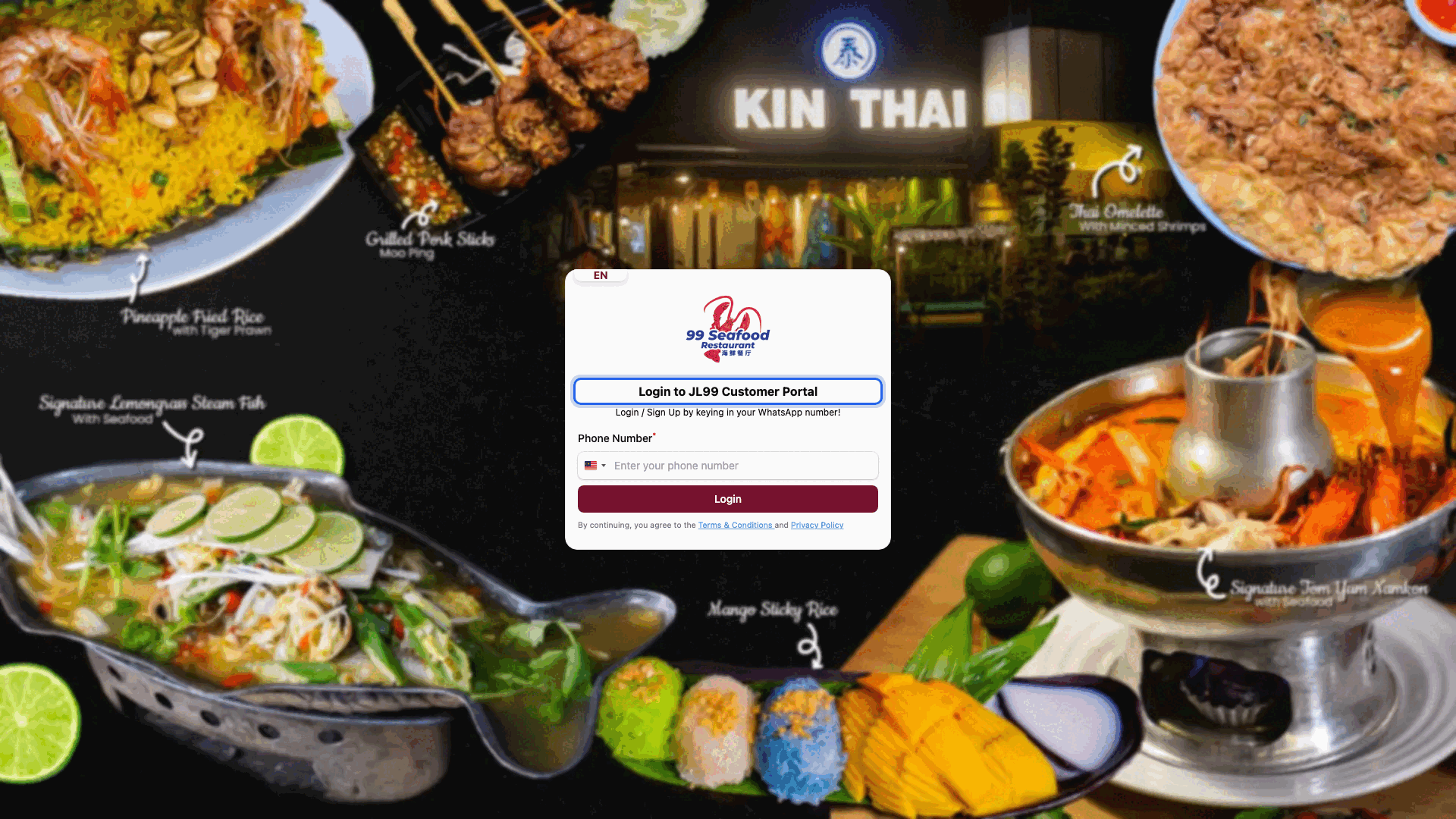
The portal login screen and member pages greet customers with your Friendly Name. If Friendly Name is empty, the portal shows the outlet name instead. Booking confirmations show the outlet name as the location.
Good to Know
- Your portal link and printed QR codes stay the same after any rename.
- The portal can keep showing the old name for up to an hour. To refresh it right away, open Customer Portal Design, edit your design, and click Save.
- Booking confirmations sent after the rename use the new outlet name. Messages already sent keep the old one.
- Renaming changes labels only. Your customers, points, and rewards are not touched.
- The outlet name also appears next to each customer, showing where they signed up.
Need Help?
Contact our support team if a name still looks wrong after an hour.