
How to Change the Icons on Your Portal Buttons and Quick Links
What Is This?
Icons are the small pictures on your customer portal buttons: the round Quick Links near the top of the home page and the Navigation bar at the bottom. A clear icon helps customers spot a button at a glance, so a "Book" button with a calendar icon guides them faster. This guide shows how to change both.
Real-Life Example
Wei Lin runs a bubble tea shop called Sip and Chill. Her "Order" button showed a shopping-cart icon, but she does not sell online, so it kept sending people to an empty page. She switched it to a menu icon and renamed the button "Menu". Counter questions dropped almost overnight, and the fix took two minutes.
Before You Start
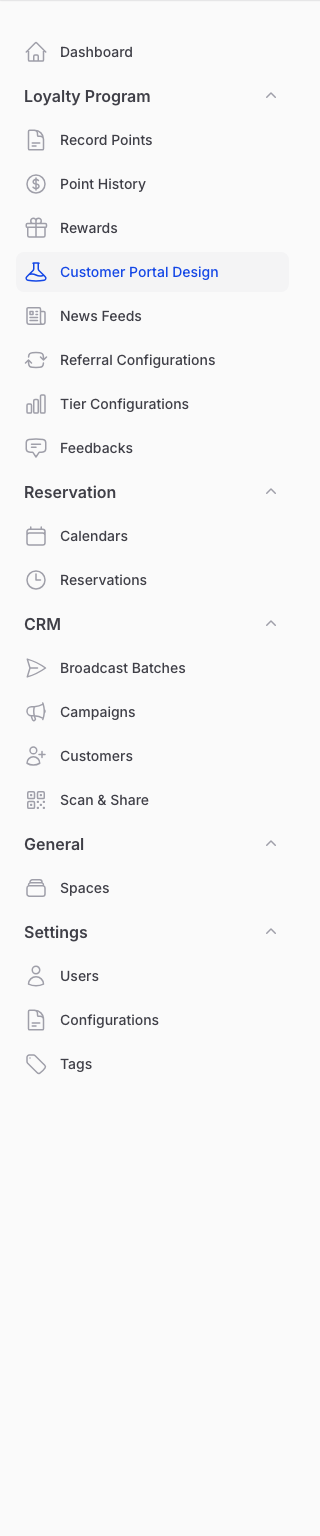
- Customer Portal Design sits under the Loyalty Program menu once your Loyalty Program is active.
- Icons are edited on the Layout tab, available when the Custom Layout feature is on. If you do not see a Layout tab in Step 2, contact Pixalink support.
How to Set It Up
-
Go to Admin Panel → Loyalty Program → Customer Portal Design and open the design you want to edit.
-
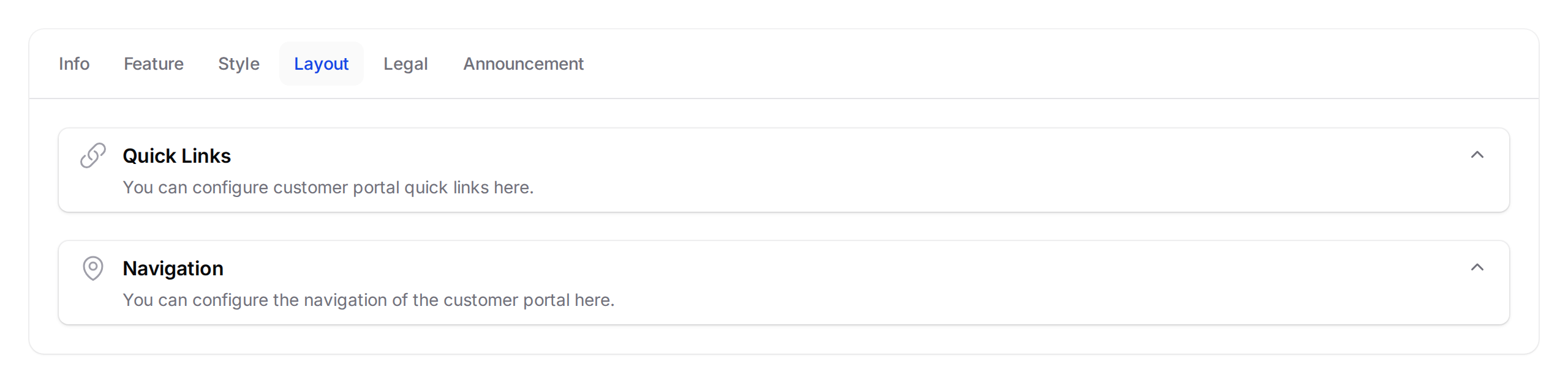
Click the Layout tab. You will see two sections: Quick Links (the round buttons up top) and Navigation (the bottom bar). Icons work the same in both.
-
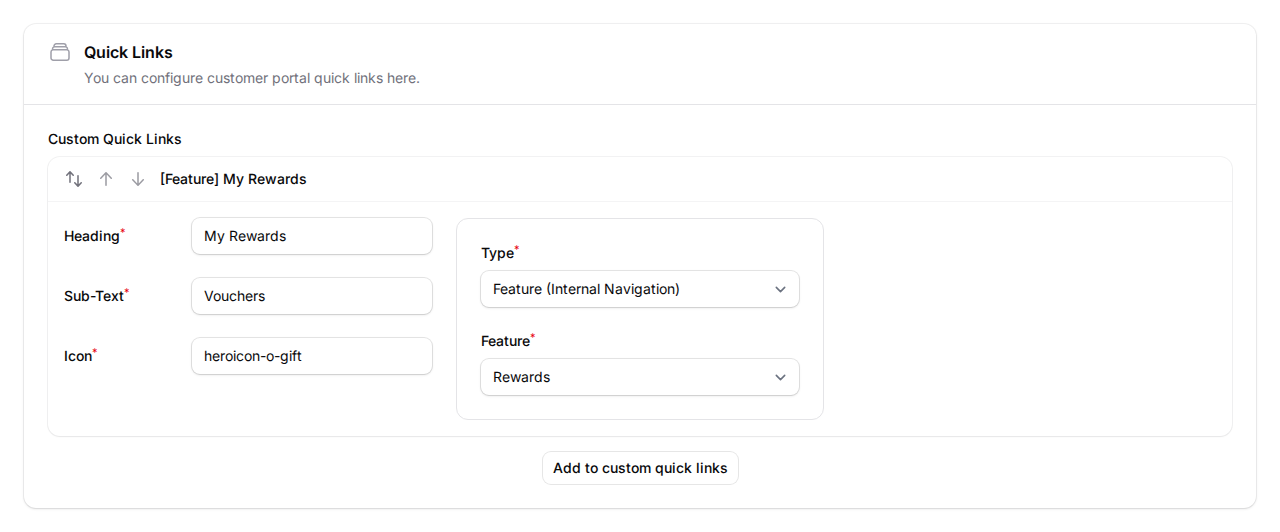
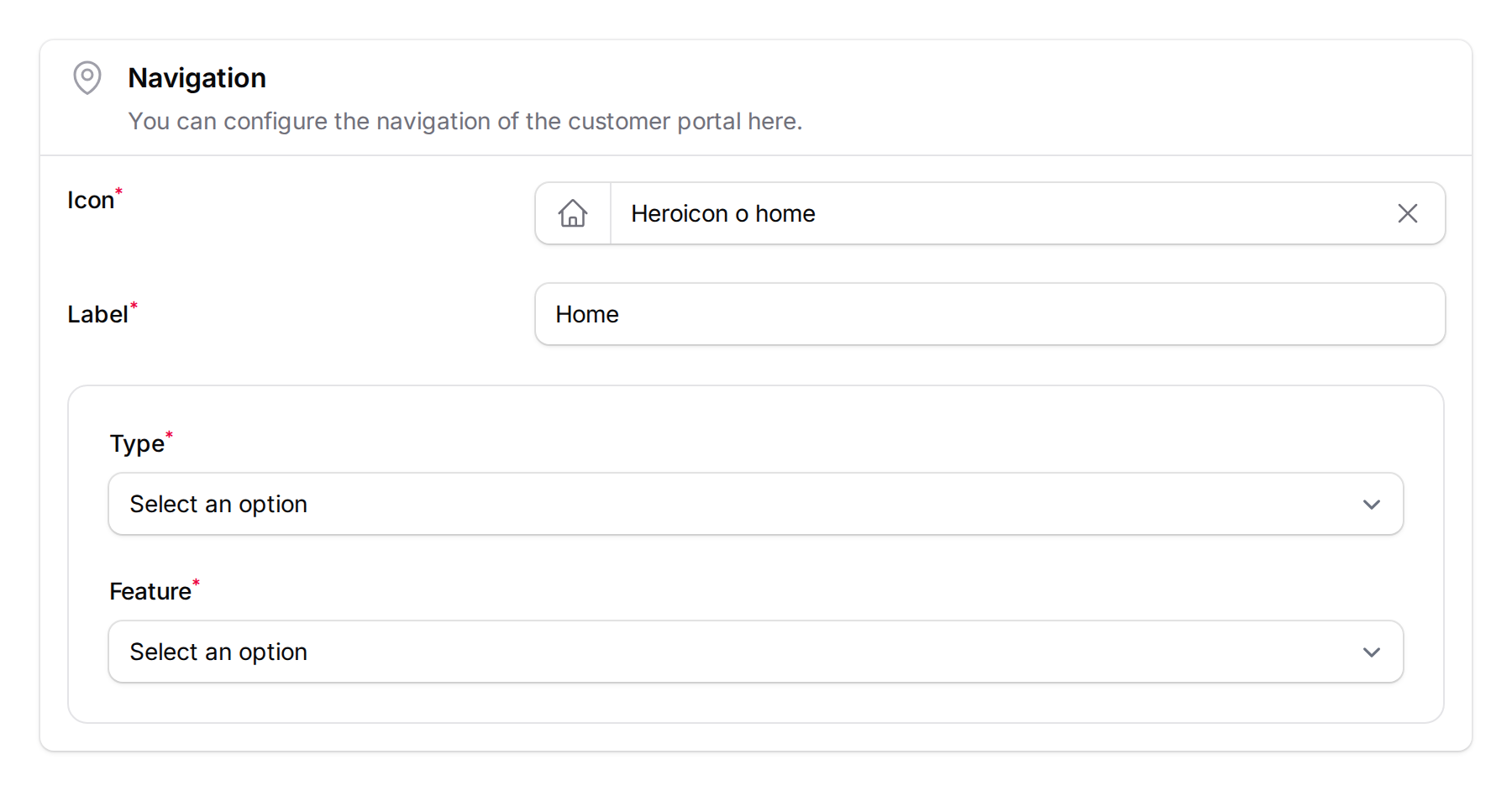
Open a section, then click a card to expand it. Find the Icon field on the left, beside the button's live preview.
-
Click the Icon field, type a keyword such as "gift" or "menu", and select an icon. The preview updates straight away.
-
Click Save at the bottom of the page. Your new icons go live right away.

What Your Customers Will See
Quick Link icons appear in the round buttons at the top of the home page, and Navigation icons appear in the bottom bar. Each takes on your brand's primary colour and highlights when a customer is on that page.
Good to Know
- An icon is required on every button, so you can change it but not leave it blank.
- Search by what the icon shows, using words like "star", "heart", "cart", or "map".
- Use Default resets the icons too, restoring the standard buttons and their original icons.
- The icon does not set the destination, which is controlled by the separate Type field.
Need Help?
If an icon is not showing the way you expect, contact Pixalink support and we will help.