
How to Import Customers from Your POS, WhatsApp or Bookings
What Is This?
If you already know your customers from your POS, your WhatsApp contacts or past bookings, you don't have to type them in again. Pixalink can bring them across in a few clicks. Imports for other systems appear once that system is connected.
Real-Life Example
Wei Lin runs a cafe in Subang Jaya. Her POS holds 800 customers, but her Pixalink list is empty. She opens her Customers list and imports from her POS.
A few minutes later her list is full. Her regulars are ready for campaigns and rewards. She didn't type a single name.
How to Set It Up
-
Go to Admin Panel → CRM → Customers

The CRM group in the left menu, with Customers.
-
Click the three-dot menu at the top right of the page

The three dots sit next to Send Campaigns.
-
Click the import for your system. Here, click Import from Storehub
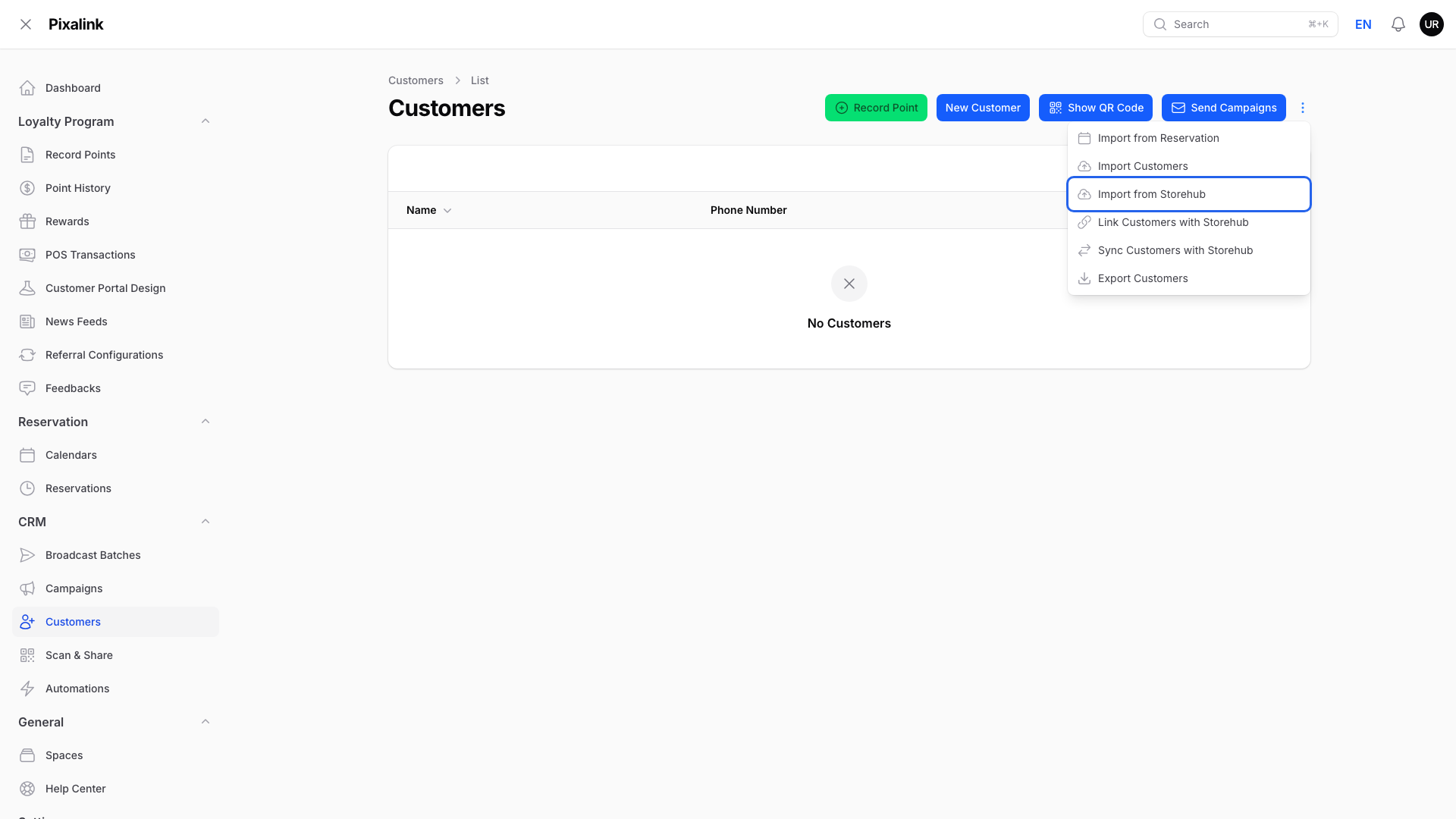
You only see the imports for systems you've connected, plus a few that are always there.
-
Click Confirm

Pixalink asks you to confirm before it starts.
Wait a moment while Pixalink brings the customers across. A notification then tells you how many were imported. Softinn, QnE, AutoCount and Shopify run in the background instead, and notify you when they start.
What Each Import Brings In
| Menu item | You see it when | What you get |
|---|---|---|
| Import from WhatsApp | A WhatsApp number you linked by QR code is connected | Every WhatsApp contact. Groups, your own number and people already on your list are skipped. |
| Import from Reservation | Always | People who booked on the calendars you pick. People already on your list are skipped. |
| Import Customers | Always | Customers from a CSV file. See the CSV guide. |
| Import from Storehub | StoreHub is connected | Customers with a phone number. Phone numbers already on your list are skipped. |
| Import from Loyverse | Loyverse is connected | Customers with a phone number. Phone numbers already on your list are skipped. |
| Import from Bukku | Bukku is connected | Bukku customers with a phone number or email. |
| Import from Softinn, Import from QnE | That system is connected | Customers with a valid phone number. |
| Import from AutoCount | AutoCount is connected | Members with a member number and a phone number. Existing customers are updated, and customers you deleted are restored. |
| Import from AutoCount (Debtor) | AutoCount is connected | All your AutoCount debtors as customers. Existing customers that match by Debtor Account No. or phone number are updated. |
| Import from Shopify | Shopify is on for an outlet | Customers with a phone number, up to 5,000. Existing customers are updated. You pick the outlet first. |
| Import from iVendPOS (CSV) | iVendPOS is connected | Customers from an iVendPOS CSV file. |
Import from Reservation asks which calendar to use.

Only calendars that have bookings appear in the list.
What Your Customers Will See
For most imports, nothing. WhatsApp, Reservation, StoreHub, Loyverse, Bukku, Softinn, QnE and AutoCount imports don't send your customers anything, and they don't trigger welcome messages or welcome rewards.
Imports from iVendPOS (CSV) do trigger your Welcome automation. A CSV file with a Tags column can also hand out tag-based rewards.
Good to Know
- Imported customers show where they came from, such as WhatsApp, Reservation or StoreHub. CSV imports show Direct unless your file sets a source.
- Customers from past bookings are marked Converted. Customers from WhatsApp, StoreHub, Loyverse, Bukku, Softinn and QnE are marked Open.
- The WhatsApp, StoreHub, Loyverse and Bukku imports don't bring back customers you deleted earlier.
- Link Customers with Storehub and Sync Customers with Storehub are separate items. They match or sync customers you already have.
Need Help?
Reach out to our support team. We're happy to help you get started.