
Why a Customer Shows as "Guest Customer" and How to Fix the Name
What Is This?
"Guest Customer" is not a status. It is a stand-in name Pixalink gives a customer from your online store when no name comes through. The stand-in name does not stop an eligible order from earning points under your store's point settings.
When the customer logs in to your loyalty portal, Pixalink asks for their real name. You can also type it in yourself any time.
Real-Life Example
Priya sells handmade soap from her Shopify store in Penang. A buyer checks out with a phone number but leaves the name boxes empty. Pixalink creates the customer as "Guest Customer". A week later the buyer logs in to Priya's loyalty portal. The portal asks for her name, she types "Mei Ling", and Priya's next broadcast greets Mei Ling by name.
How to Set It Up
-
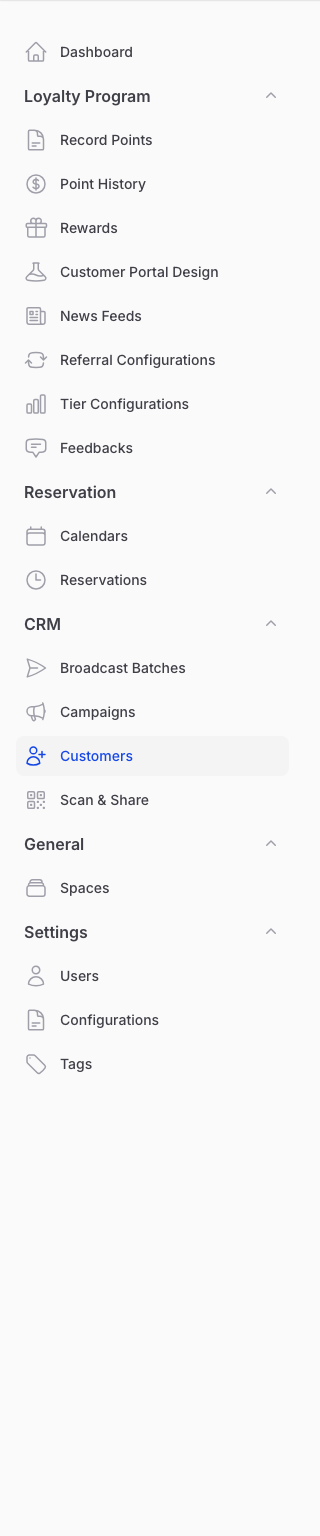
Go to CRM → Customers in the sidebar.
-
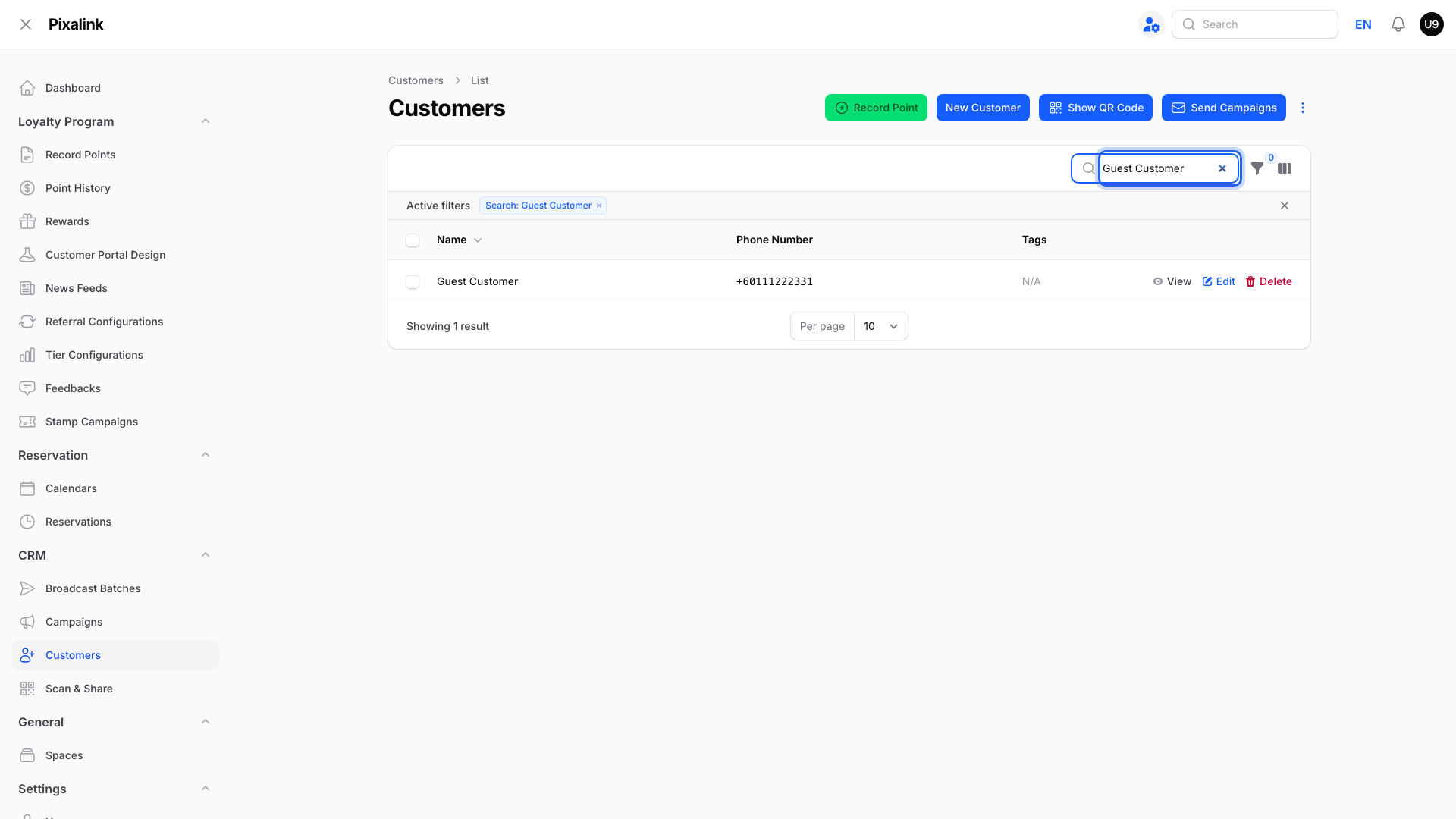
Type "Guest Customer" or the customer's phone number in the search box.
-
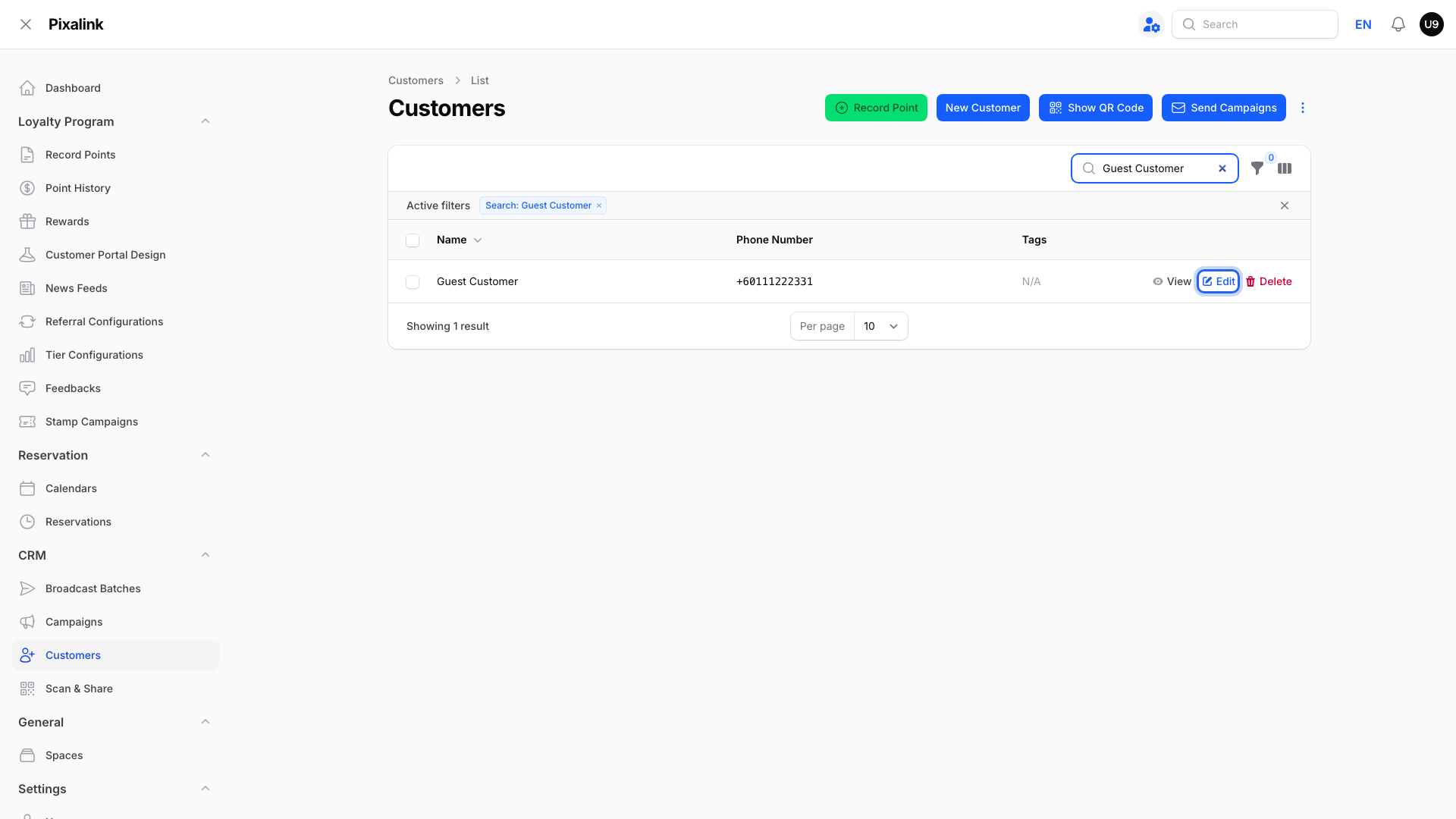
Click Edit on the customer's row.
-
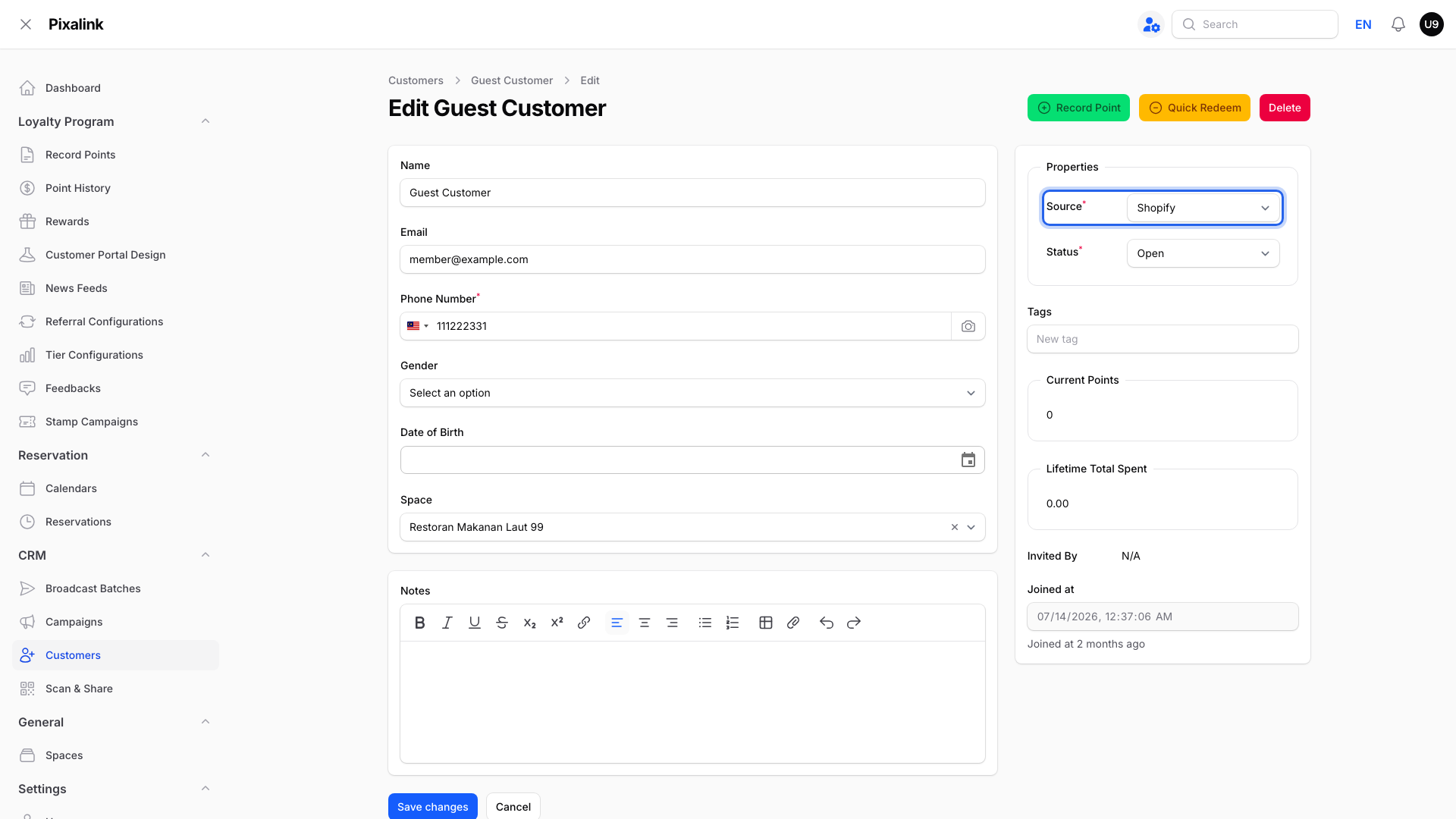
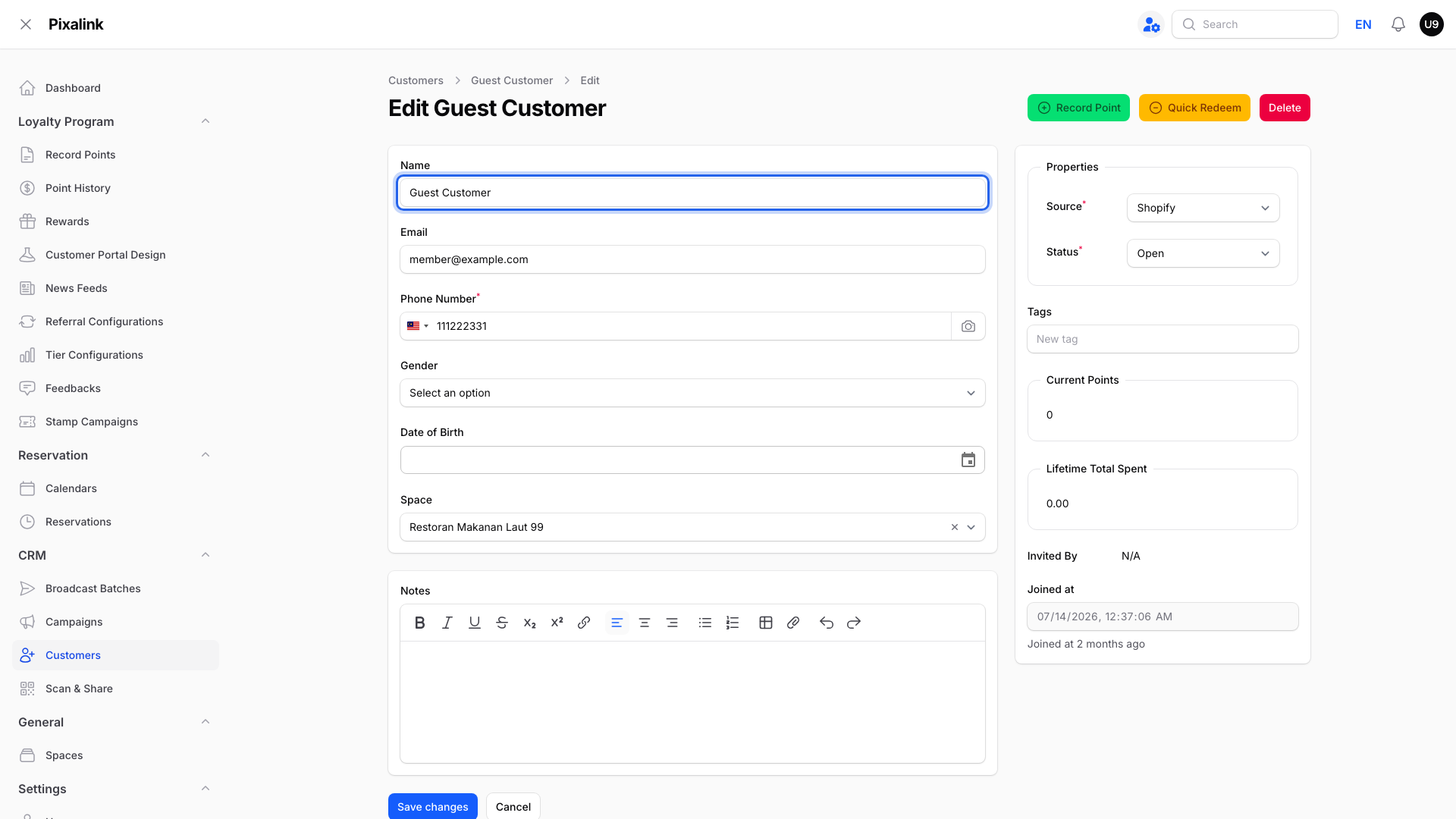
Check Source under Properties to see which store the customer came from.
-
Replace "Guest Customer" in the Name box with the customer's real name.
-
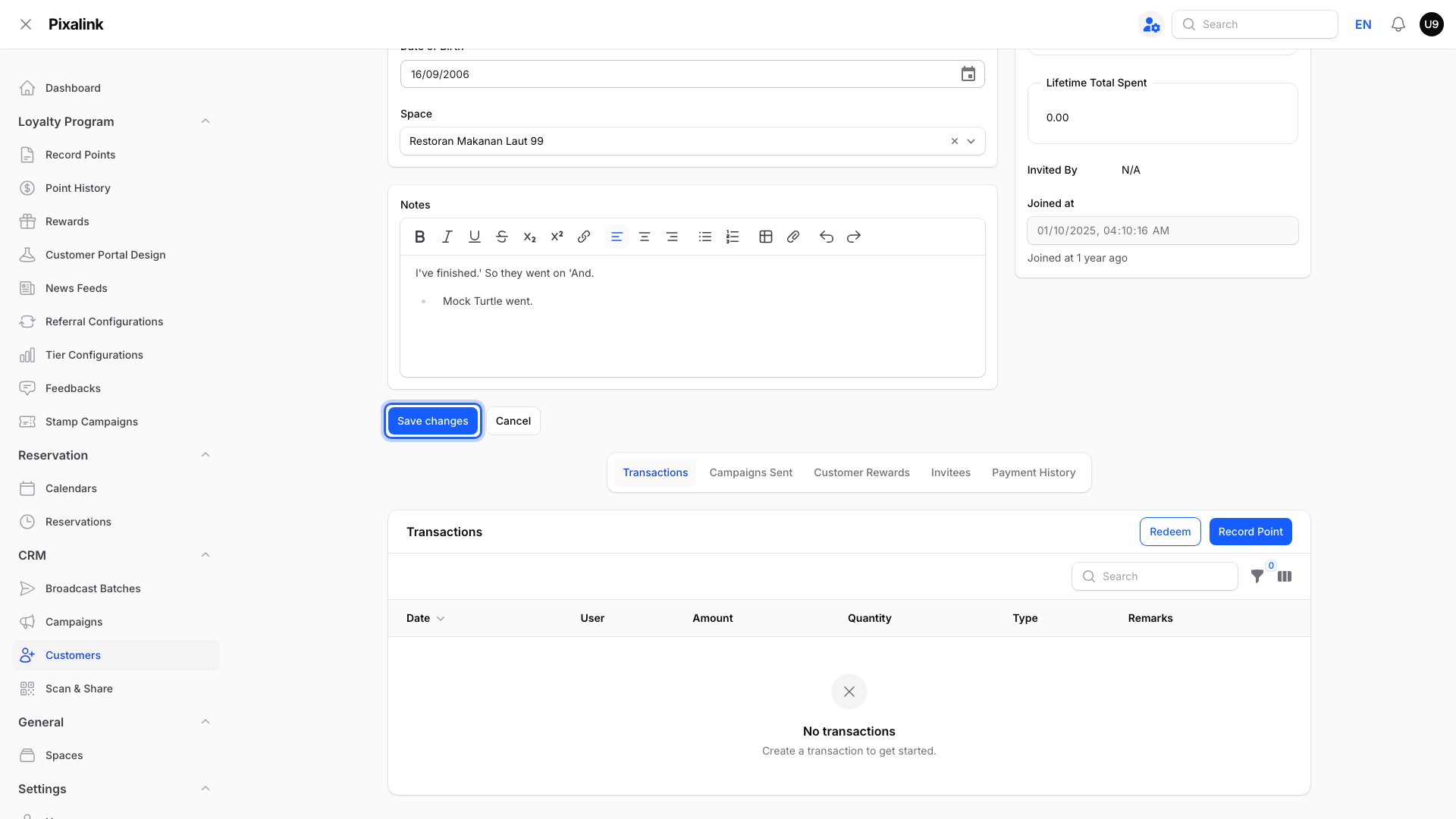
Click Save changes.
Why It Happens
| Store | When the name becomes "Guest Customer" |
|---|---|
| Shopify | The order had no customer name and no billing name, or a Shopify customer profile has no first or last name |
| WooCommerce | A guest checkout had no billing name and no email. With an email, Pixalink uses the email as the name |
A Shopify or WooCommerce source shows which connected store the customer came from. It does not prove they placed an order.
What Your Customers Will See
Their points and vouchers work as normal. At their next login to your loyalty portal, they see the Your Details form with an empty Your Name box. They must type their name to continue. The real name then replaces "Guest Customer" in your list.
Good to Know
- Status is separate. A customer's Status, like Open or Do Not Contact, is not changed by "Guest Customer".
- Real names are kept. If a Shopify profile with no name is updated later, Pixalink keeps the name you or your customer already entered. It does not switch back to "Guest Customer".
- Some names stay. Customers who never log in keep "Guest Customer" until you change it.
Need Help?
If a customer's name keeps changing back after you fix it, contact our support team.