
How to Give New Members Points When They Join
What Is This?
Giving new members points the moment they join is the cheapest way to make your loyalty programme feel worth joining. A balance of zero looks like a long road. A balance of 500 looks like a head start, and people come back to spend a head start. You set this up once, and it runs on its own for every new member.
Real-Life Example
Aishah runs a bubble tea shop in Petaling Jaya. Sign-ups were slow because a new card felt empty. She set new members to receive 500 points on joining, worth about RM5 off their next drink. Her staff now say "join and you already have RM5 waiting", and sign-ups at the counter went up. Nobody has to key anything in.
How to Set It Up
-
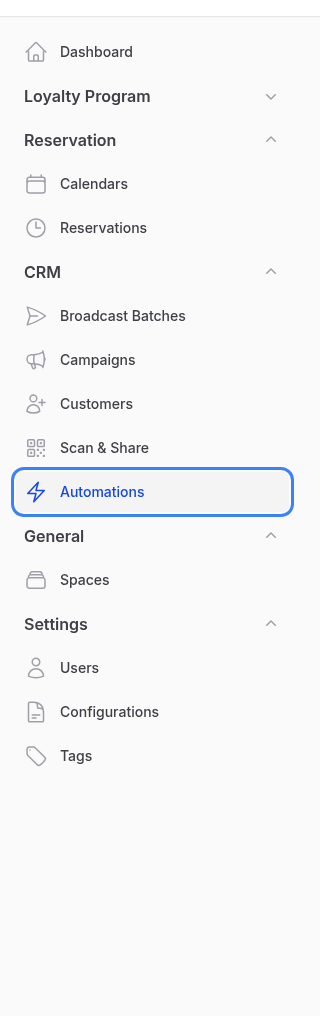
Go to Admin Panel → CRM → Automations
-
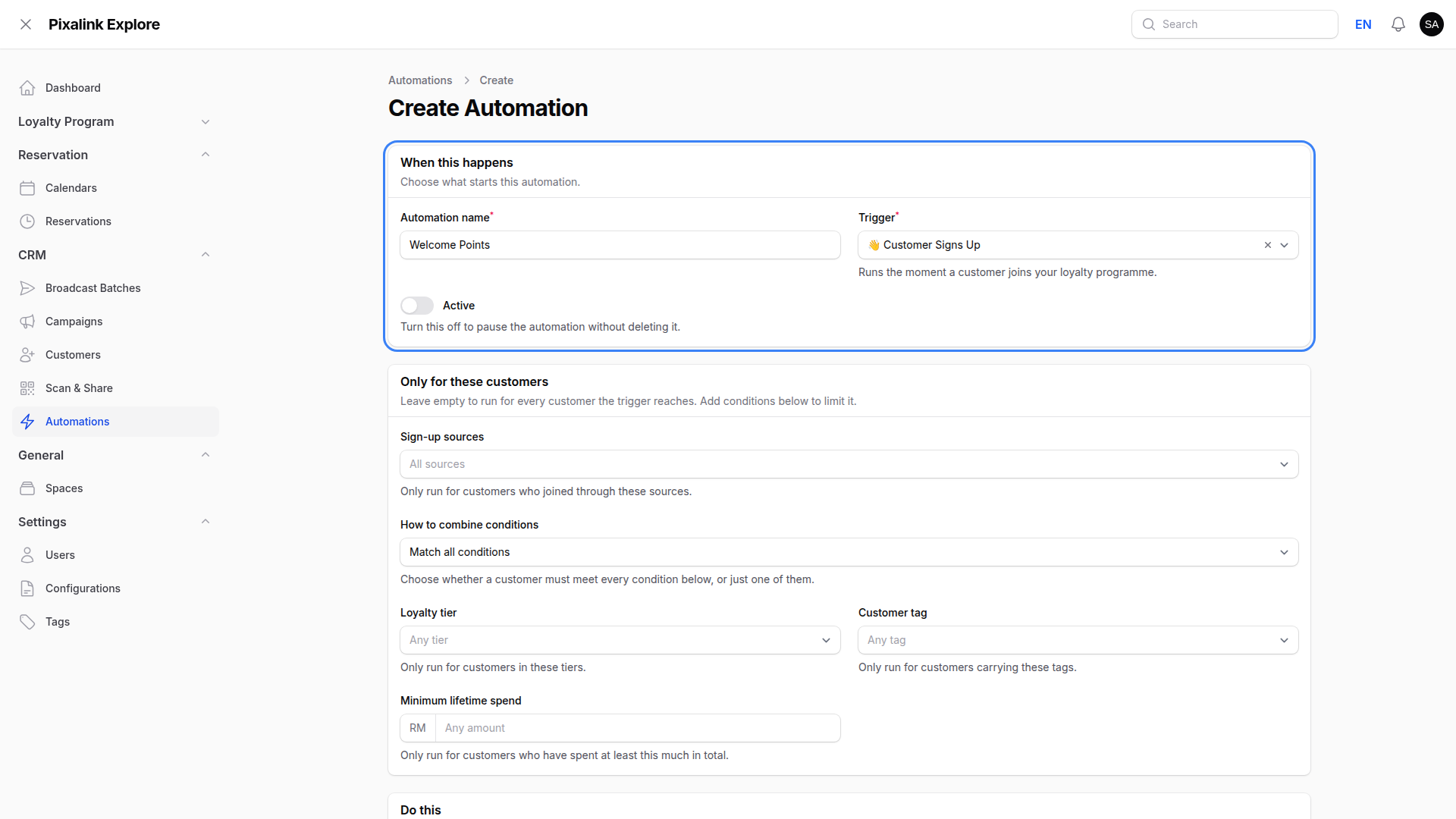
Click New Automation, give it a name such as Welcome Points, choose the trigger 👋 Customer Signs Up, and switch Active on.
-
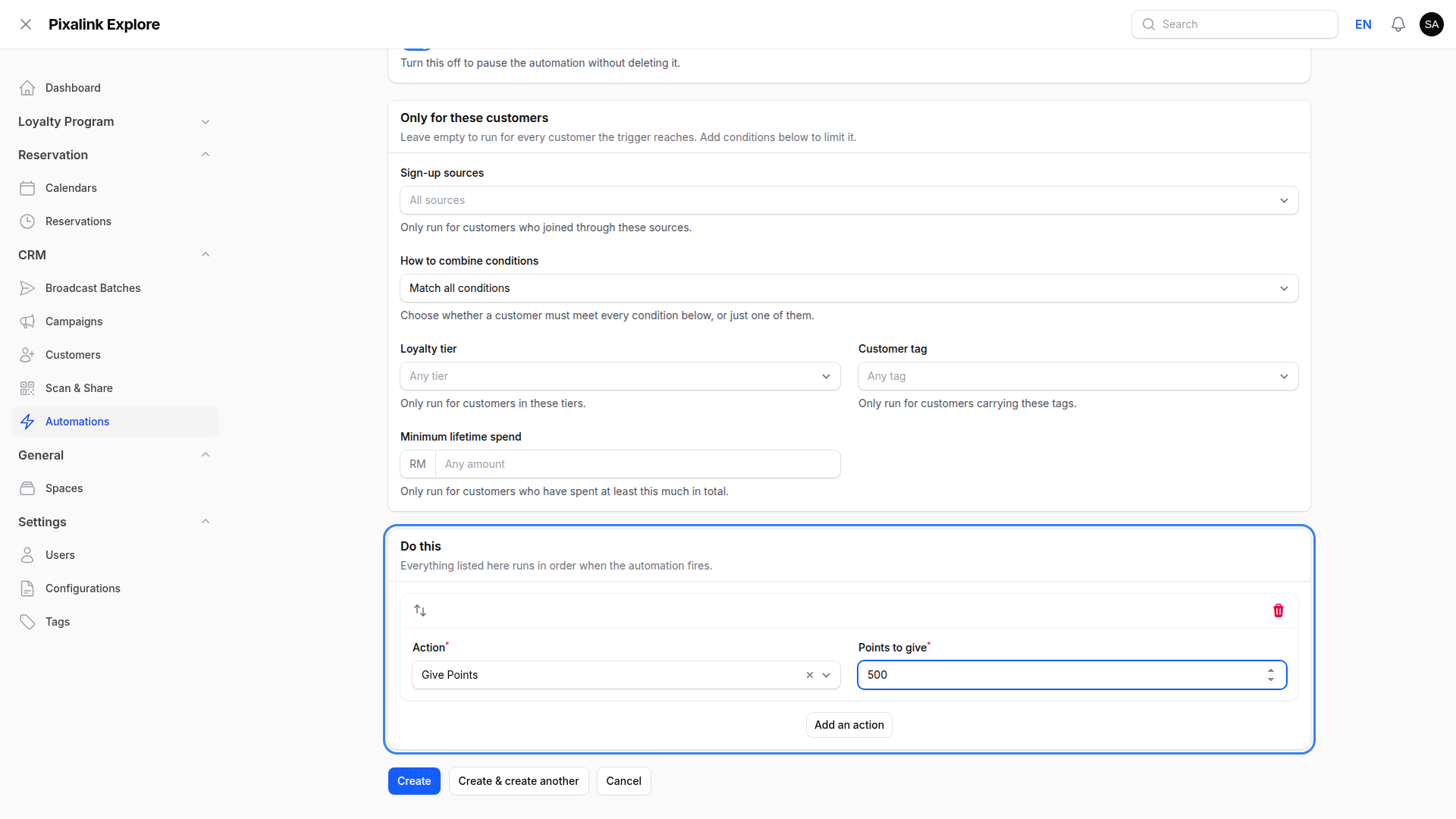
Scroll to Do this, pick the action Give Points, and enter 500 in Points to give.
-
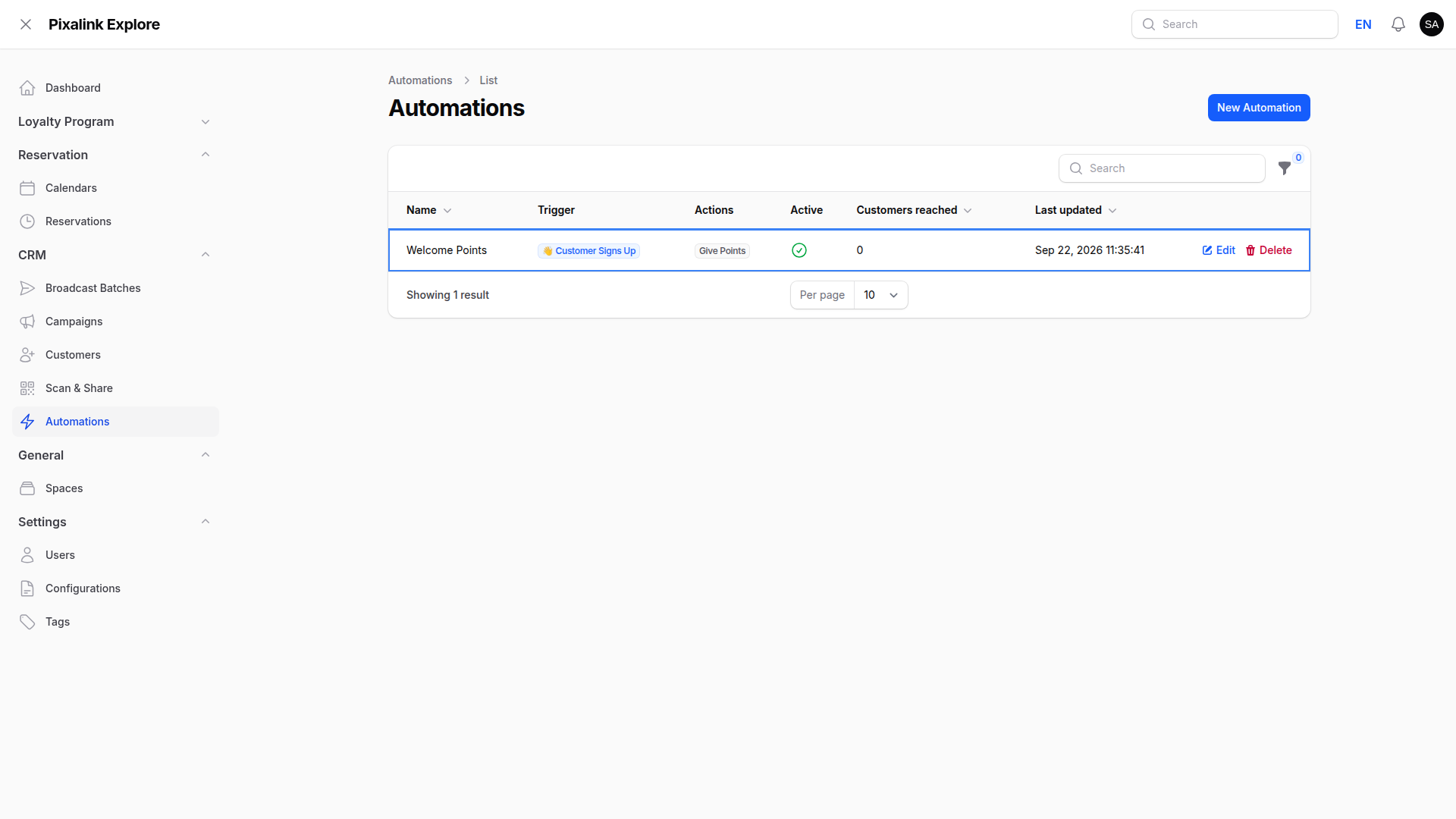
Click Create. Your automation appears in the list with a green tick, and the Customers reached column counts every member it has given points to.
What Your Customers Will See
A new member opens your loyalty page straight after signing up and already has 500 points sitting there, with the joining bonus listed in their point history. If the amount is enough for one of your rewards, they can claim it on the spot.
Good to Know
- Only members who join after you switch it on receive the points. Your existing members are not topped up.
- Leave Only for these customers empty to reach everyone. Add a condition there to narrow it, such as members who joined through one sign-up source.
- These are normal spendable points, so they count towards rewards straight away.
- Switch Active off at any time to pause the automation. Your existing members keep the points they were already given.
- You can add more than one action. A welcome voucher alongside the points is a common pairing.
- The list also shows automations set up on other screens: your New Customer, Birthday and Win Back campaigns, the new-customer and birthday options on your rewards, tier and paid membership birthday vouchers, and Auto Tagging rules. Each one says where it comes from, for example Managed from campaign “Birthday Wishes” — edit it there. Change or remove these on that screen; they cannot be edited or deleted from Automations.
Need Help?
Not sure how many points to give? Tell our support team what your cheapest reward costs and we will suggest a starting number.