
How to Find Which Customer Used an Order Number (e.g. OS0001)
What Is This?
When your receipt form checks order numbers, Pixalink remembers which customer used each one. Search an order number such as OS0001 to see who sent it and when. Use the result to follow up a sale or check a receipt claim.
Real-Life Example
Farah owns a furniture shop in Ipoh. Her sales assistant creates order OS0001 for a walk-in buyer. Two weeks later, Farah wants to follow up on that sale. She searches OS0001 on her receipt form and sees the buyer's name under Used By. She calls the buyer the same afternoon.
How to Set It Up
This lookup works on a Receipt Upload Form with Enable Order ID Validation turned on.
-
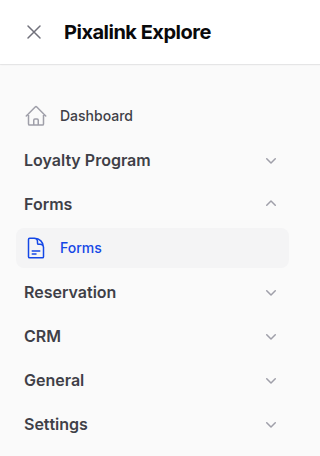
Go to Forms → Forms in the sidebar. This menu only appears when forms are turned on for your account.
-
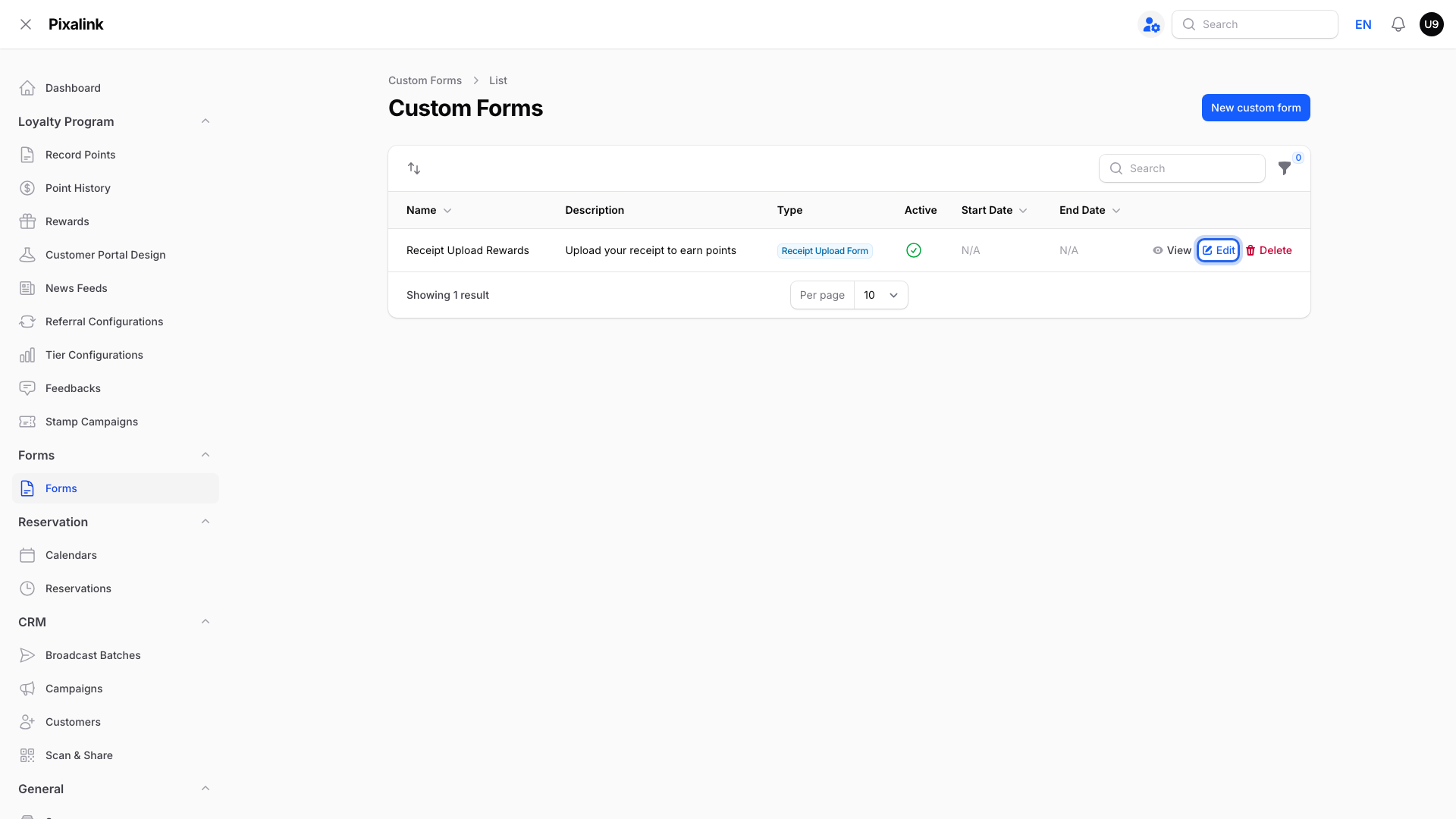
Click Edit on the receipt form the customer used.
-
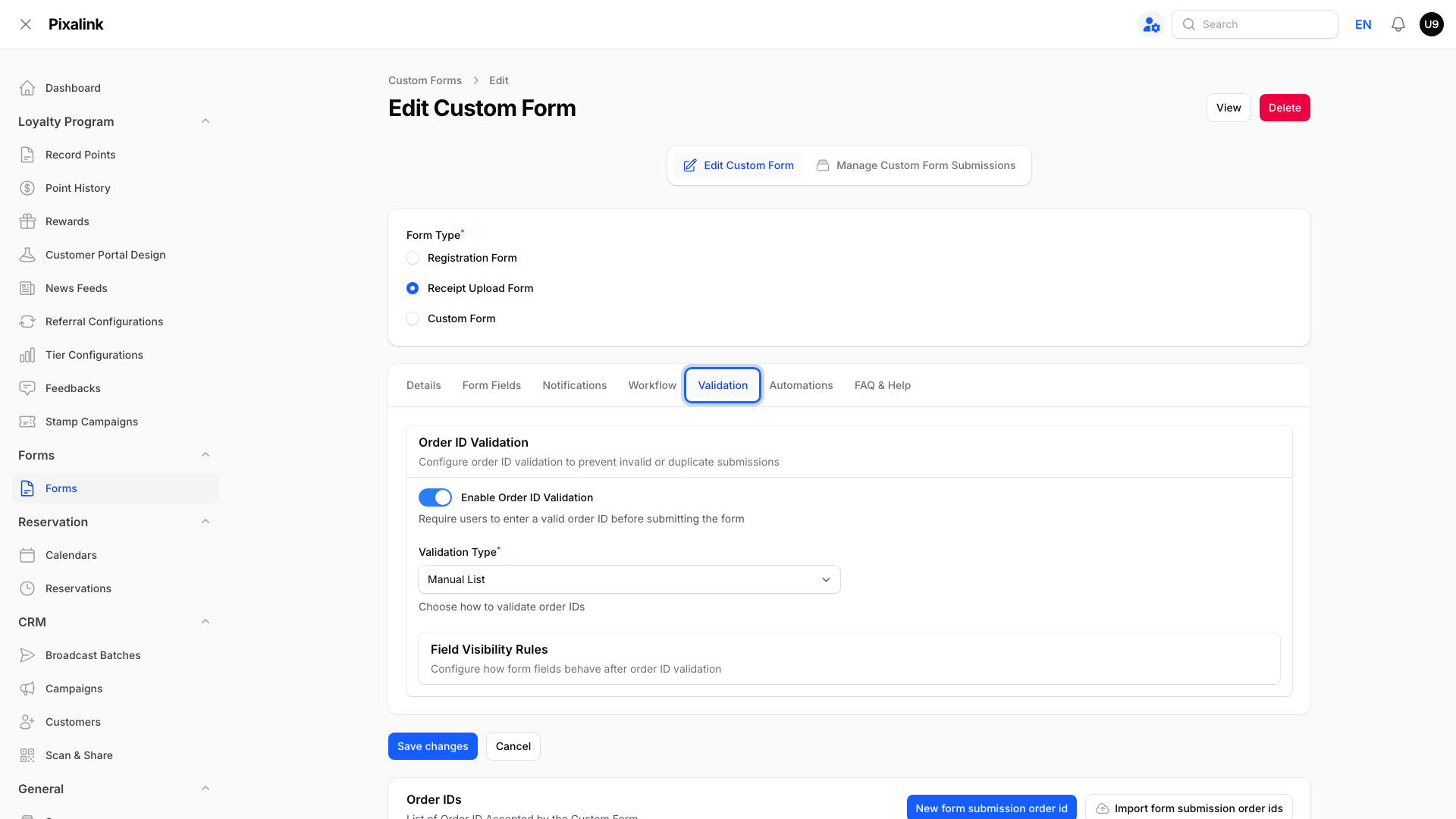
Open the Validation tab and check that Enable Order ID Validation is on.
-
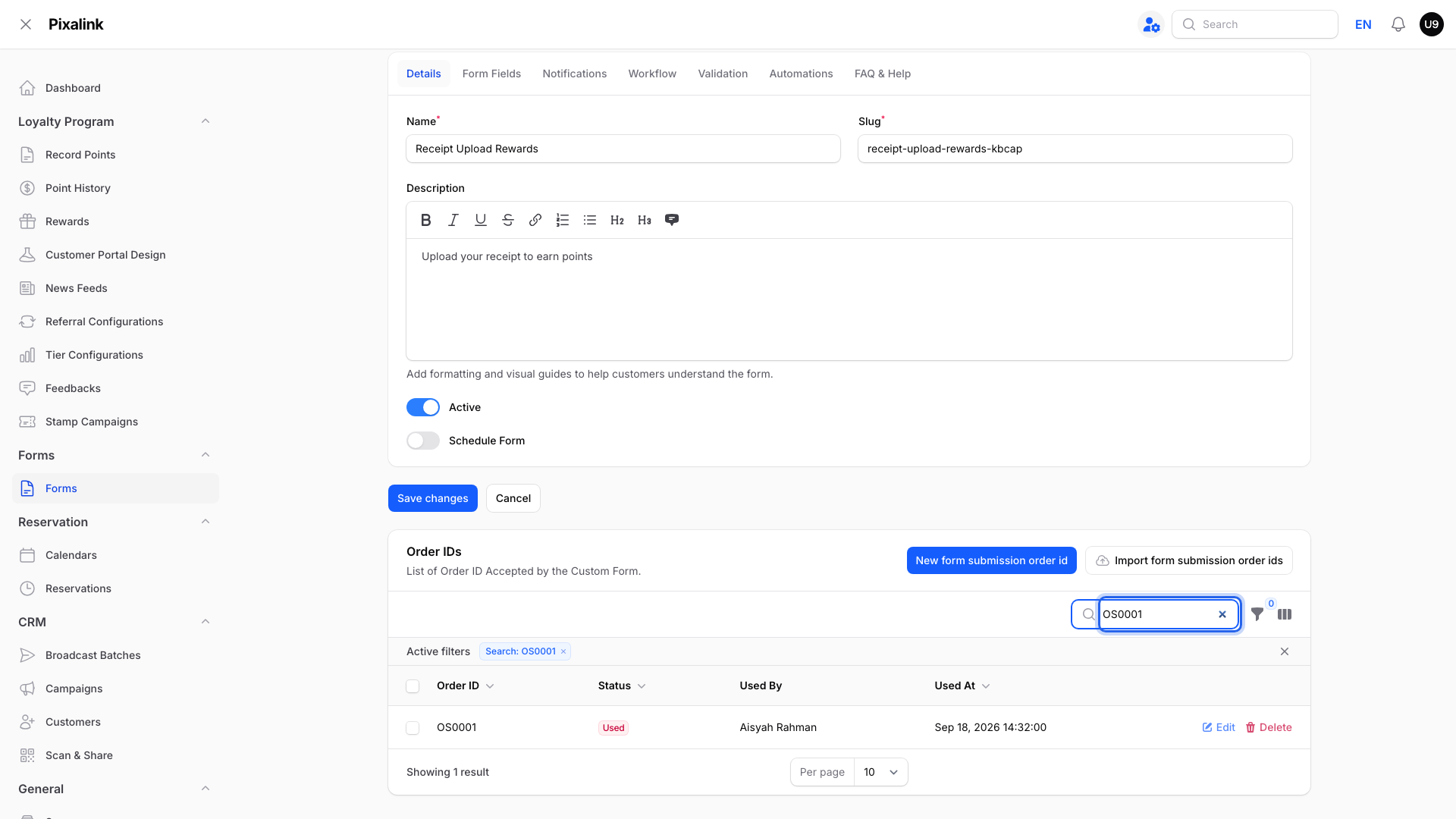
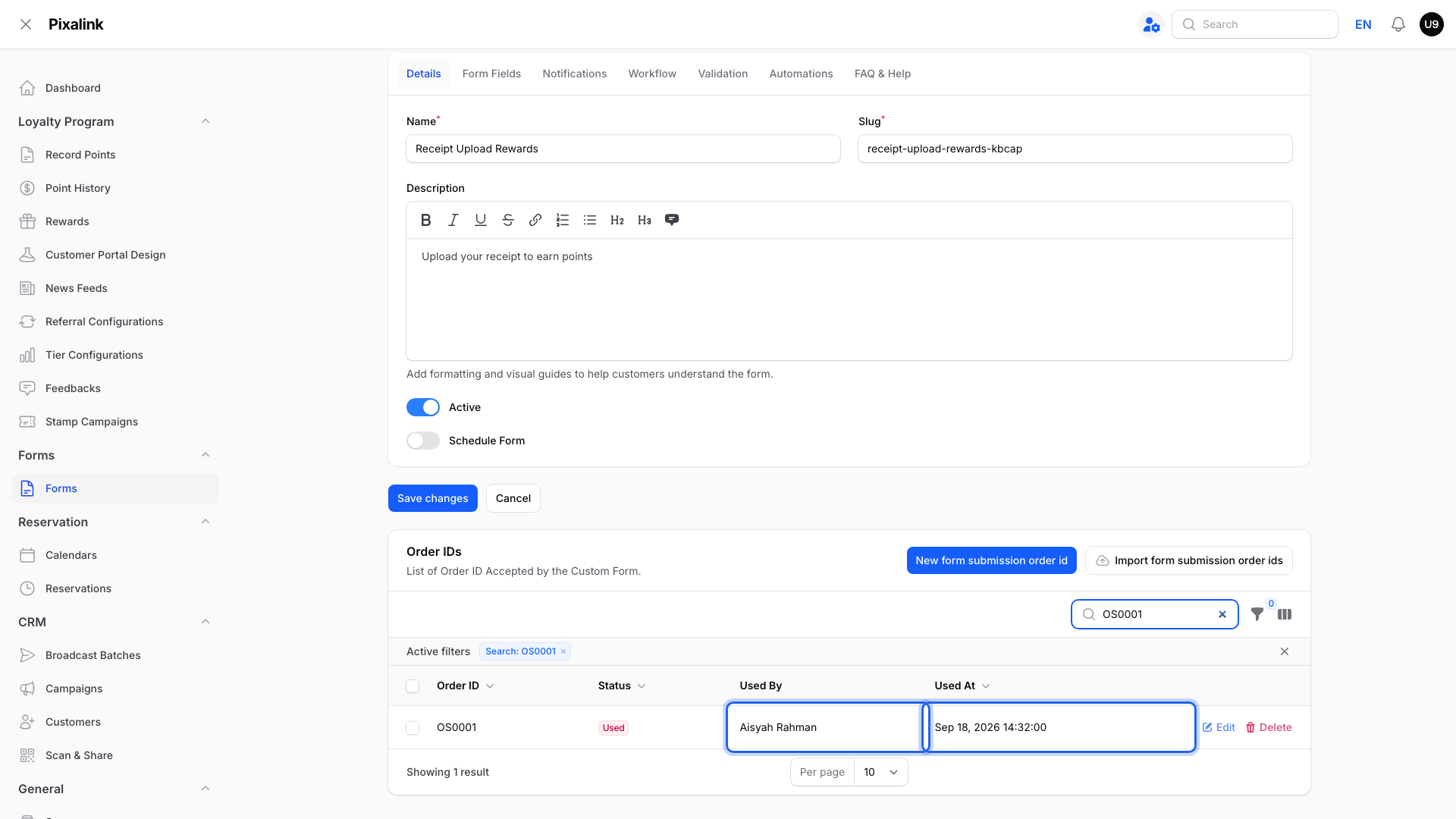
Scroll down to Order IDs and type the order number in the search box.
-
Read Used By for the customer's name and Used At for when they sent the form.
-
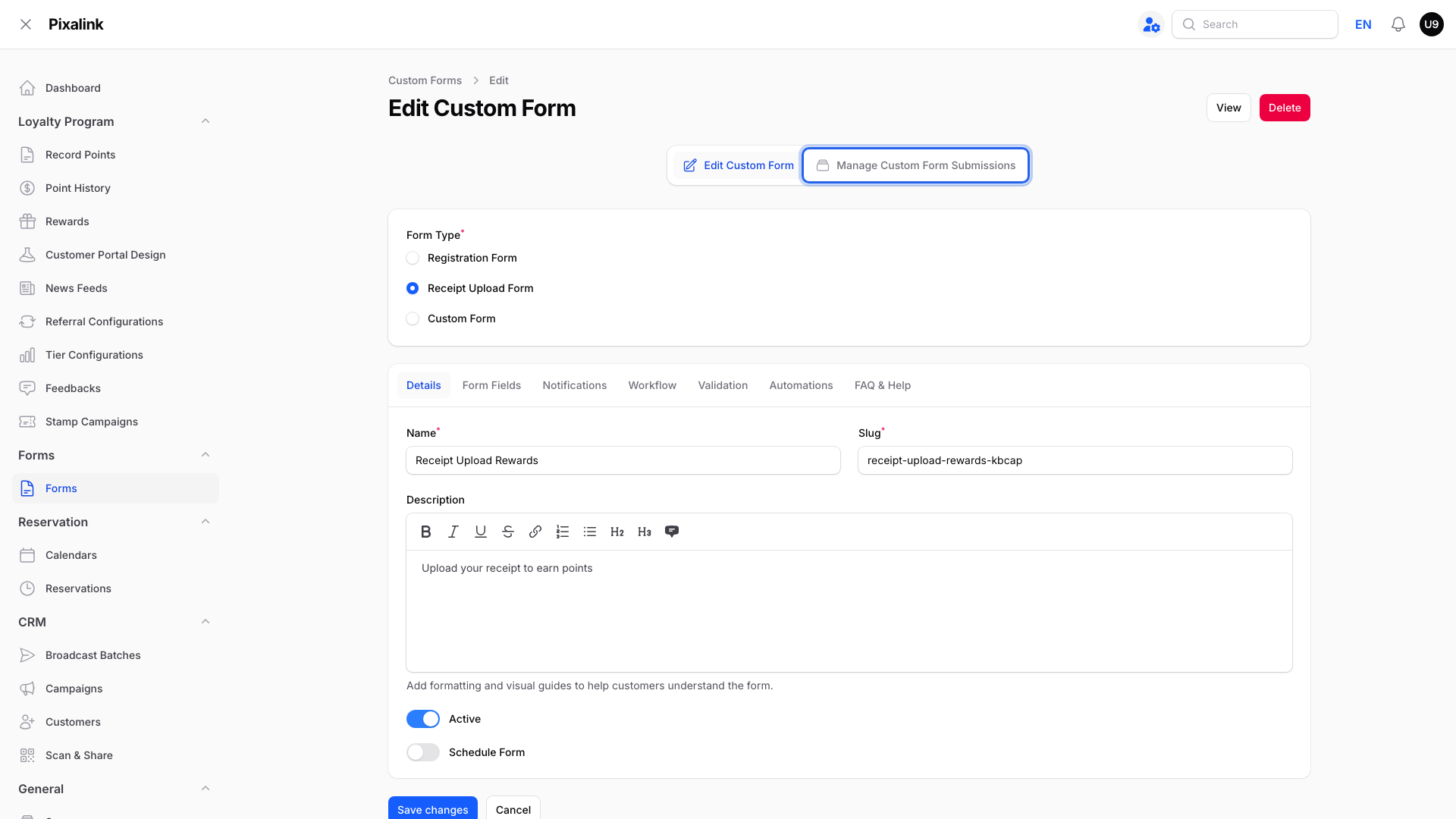
To see the full submission, click Manage Custom Form Submissions at the top of the page.
-
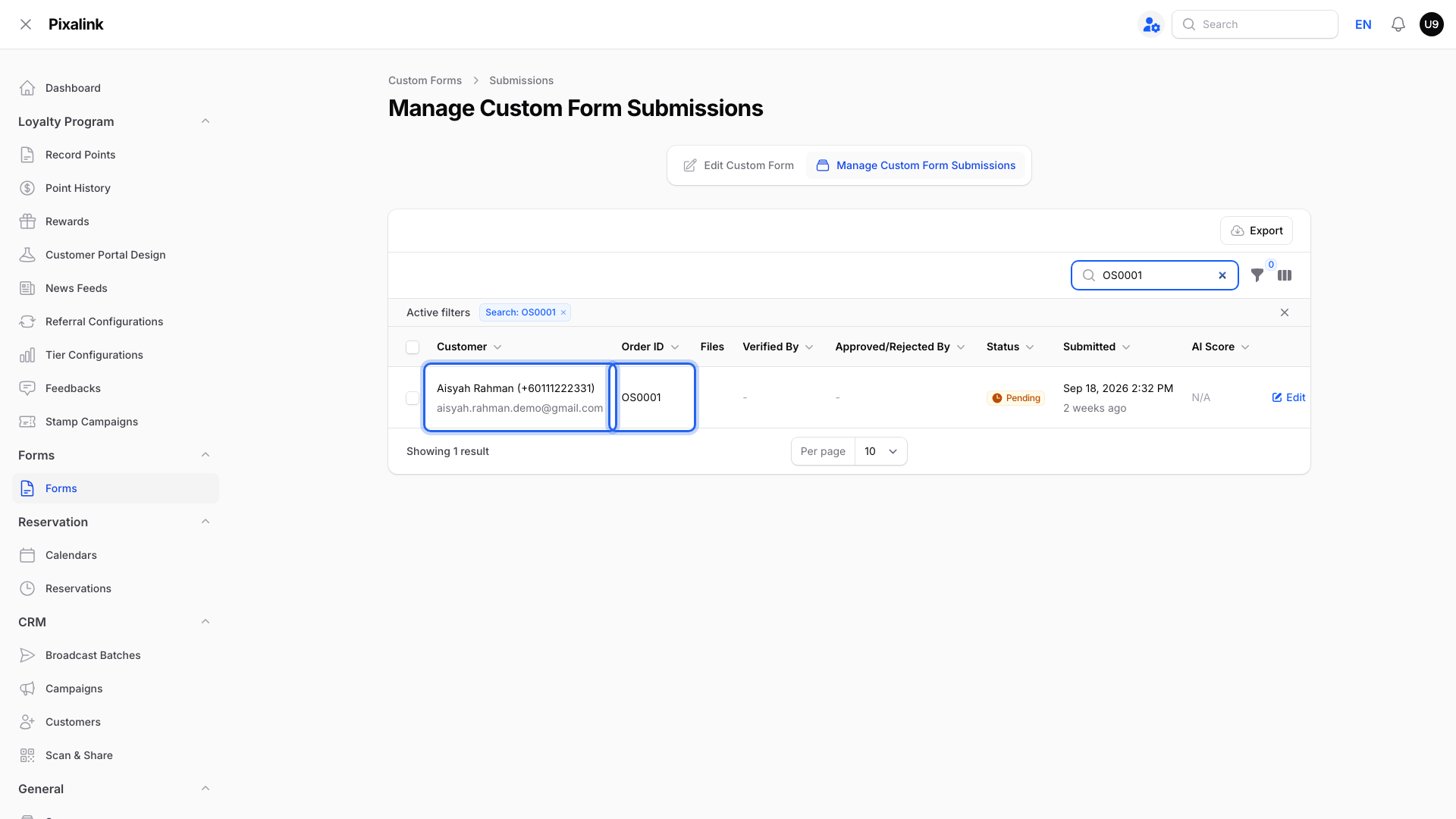
Search the same number. The Customer column shows the name, phone number and email.
What Your Customers Will See
Nothing changes for your customer. Looking up an order number does not touch their submission or points.
Good to Know
| What you see | What it means |
|---|---|
| Used status and a name under Used By | A customer has used this number |
| N/A status and Not used | The number is on your list but nobody has used it yet |
| No result | The number was never added or used on this form |
- Each form keeps its own list. Search the form the customer actually used.
- Used numbers are locked. You can't edit or delete them.
Tip
Use the filter next to the search box and pick Used to list only numbers customers have already taken.
Need Help?
If the Forms menu is missing, contact our support team to turn on custom forms for your account.