
How to Filter Customers by Points and Activity
What Is This?
The Customers page lets you filter your members by points, purchase activity, tier, and tags. This helps you build a focused list, for example your high-point and recently active members, before you export them or send them a campaign.
Real-Life Example
Farah runs a cafe with over 4,000 members. She wants to message only her most engaged ones. She filters for members with at least 500 points who bought something in the last two months, sorts by points, and exports the top slice to a spreadsheet for her WhatsApp blast.
How to Filter Customers by Points
-
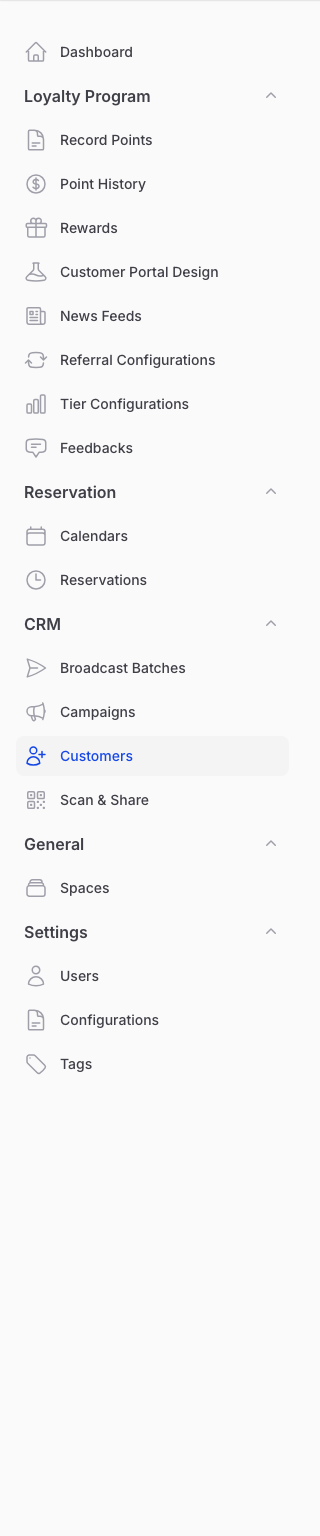
Go to CRM and then Customers in the Admin Panel sidebar.
-
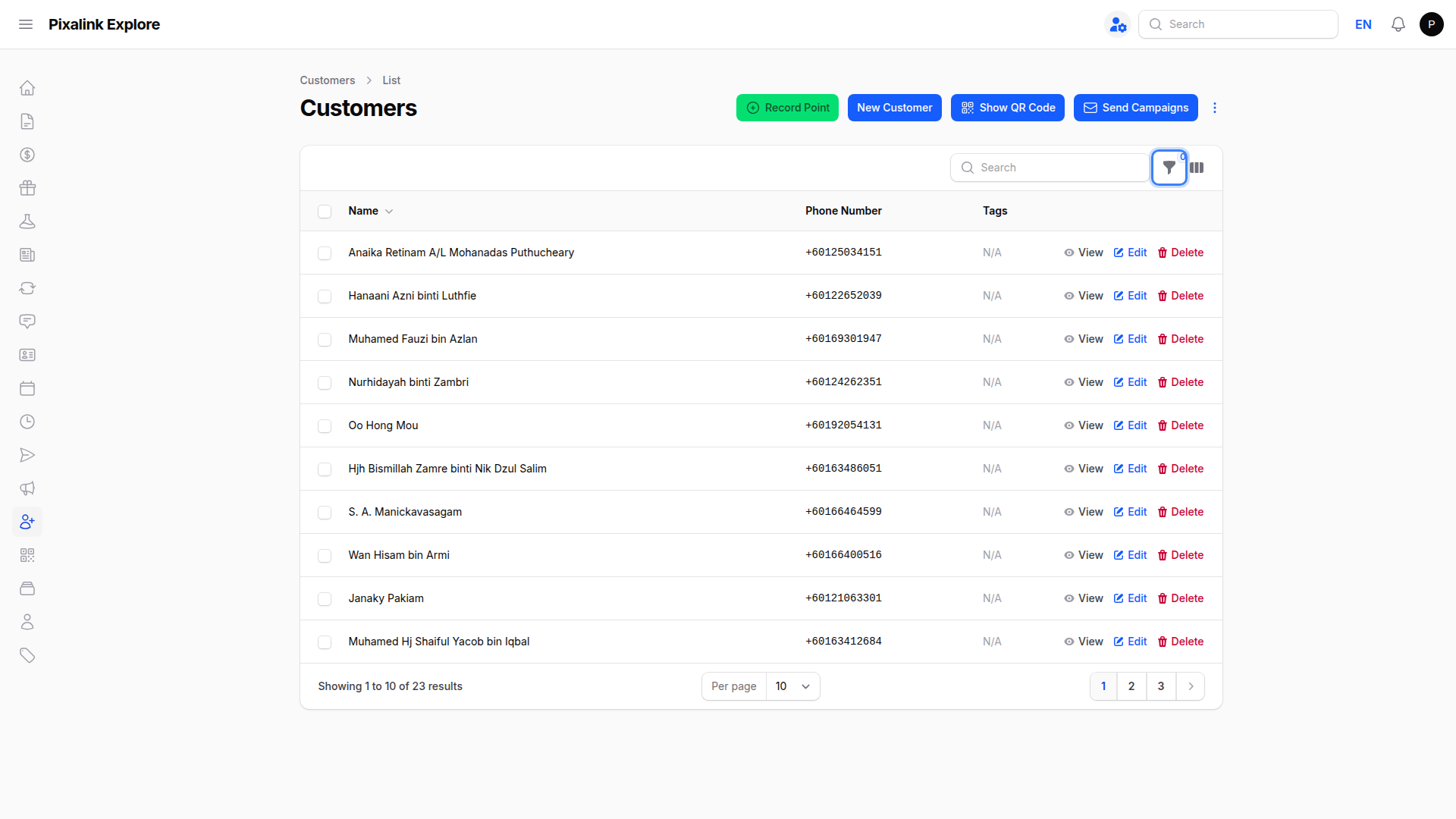
Click the filter icon at the top right of the customer table to open the filters panel.
-
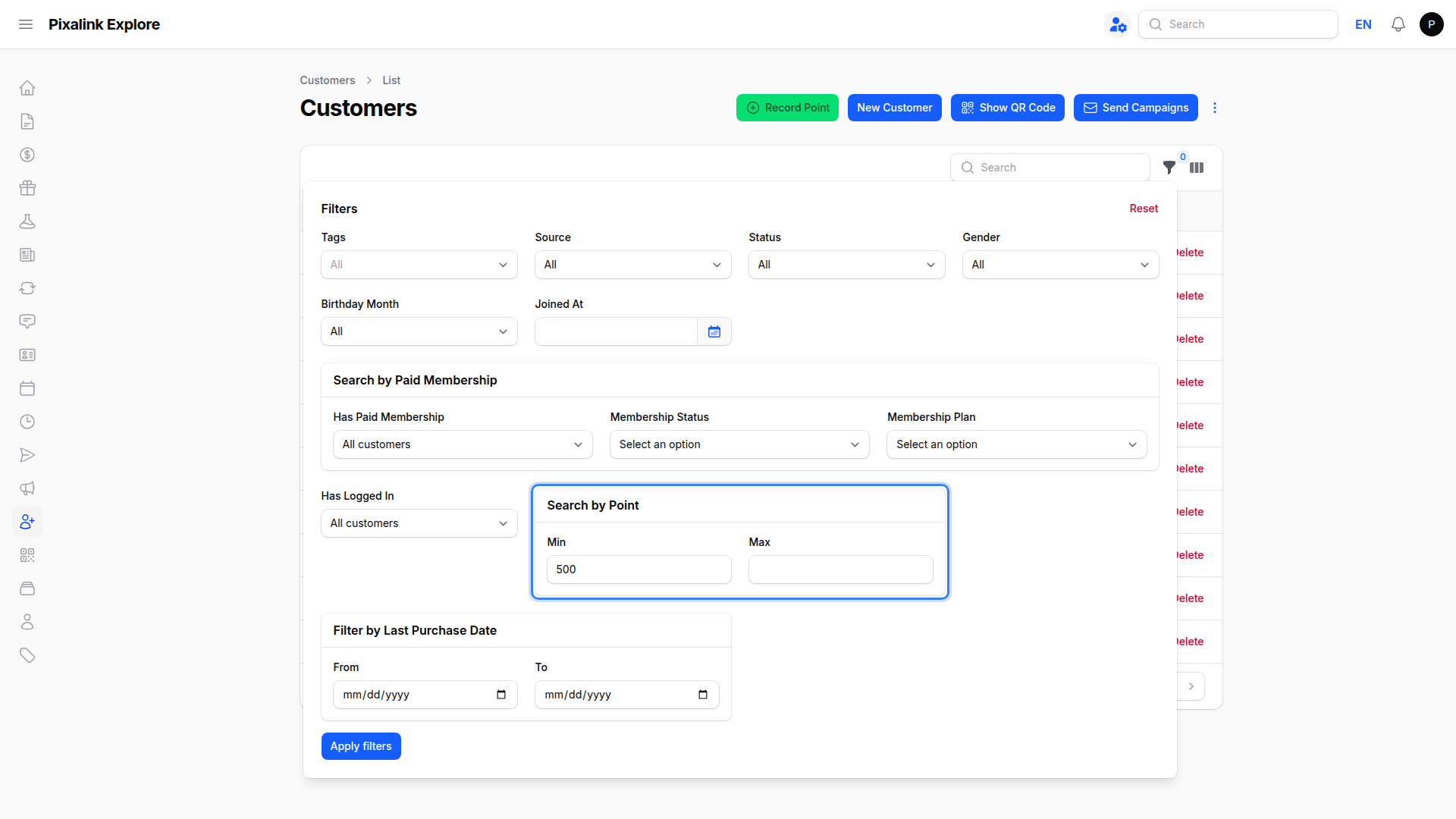
Under Search by Point, enter a Min value, and a Max value if you want a range. The list now shows only members within that points range.
-
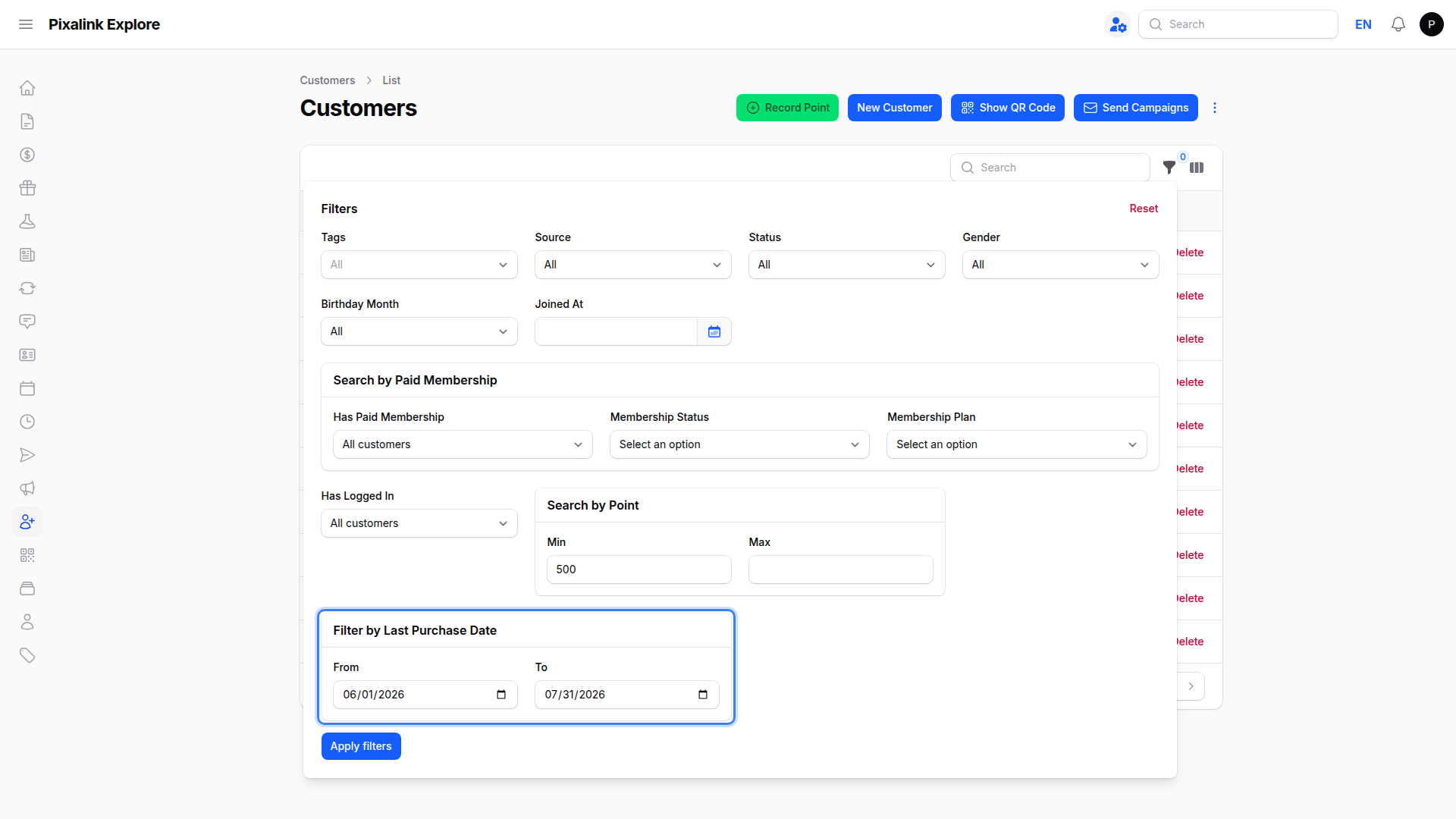
To keep only active members, open Filter by Last Purchase Date, set a From and To date, then click Apply filters.
-
Open the actions menu at the top right and select Export to download the filtered list as a spreadsheet.

Good to Know
- Export follows your filters. Whatever you have filtered on screen is what gets exported, so filter first, then export.
- Points is a proxy for spending. This page has no separate total-spend or visit-count filter. For spend or visits over a set period, use the Member Sales Report instead.
- Combine filters to narrow further. Add Tier, Tags, or Joined At on top of the points filter to tighten your list.
- To rank members, add the Current Point column using the column manager next to the filter icon, or sort your exported spreadsheet by the Current Point column.
Need Help?
If you are not sure which filters to use for a campaign, reach out to our support team and we will help you build the right list.
What's Next?
- How to Export Customer Data — download your filtered list as a spreadsheet
- How to Export a Member Sales Report — for spend and visits over a date range
- What Are Campaigns and How to Create One — message the members you filtered