Zu Wei
2 min read
1 view

How to Edit the Booking Messages Customers Receive

What Is This?

Pixalink sends messages when a booking is made, approved, rejected, cancelled or coming up. You can change the WhatsApp wording to sound like your business. You can also switch off any message you don't need.

Video Walkthrough

Music: "Carefree" by Kevin MacLeod, licensed under Creative Commons Attribution 4.0.

Real-Life Example

Ahmad runs a family restaurant in Kuantan. The standard confirmation was plain, so he added "Please arrive 10 minutes early. Terima kasih!" He sent a test to his own phone first. After he was happy, he saved.

How to Set It Up

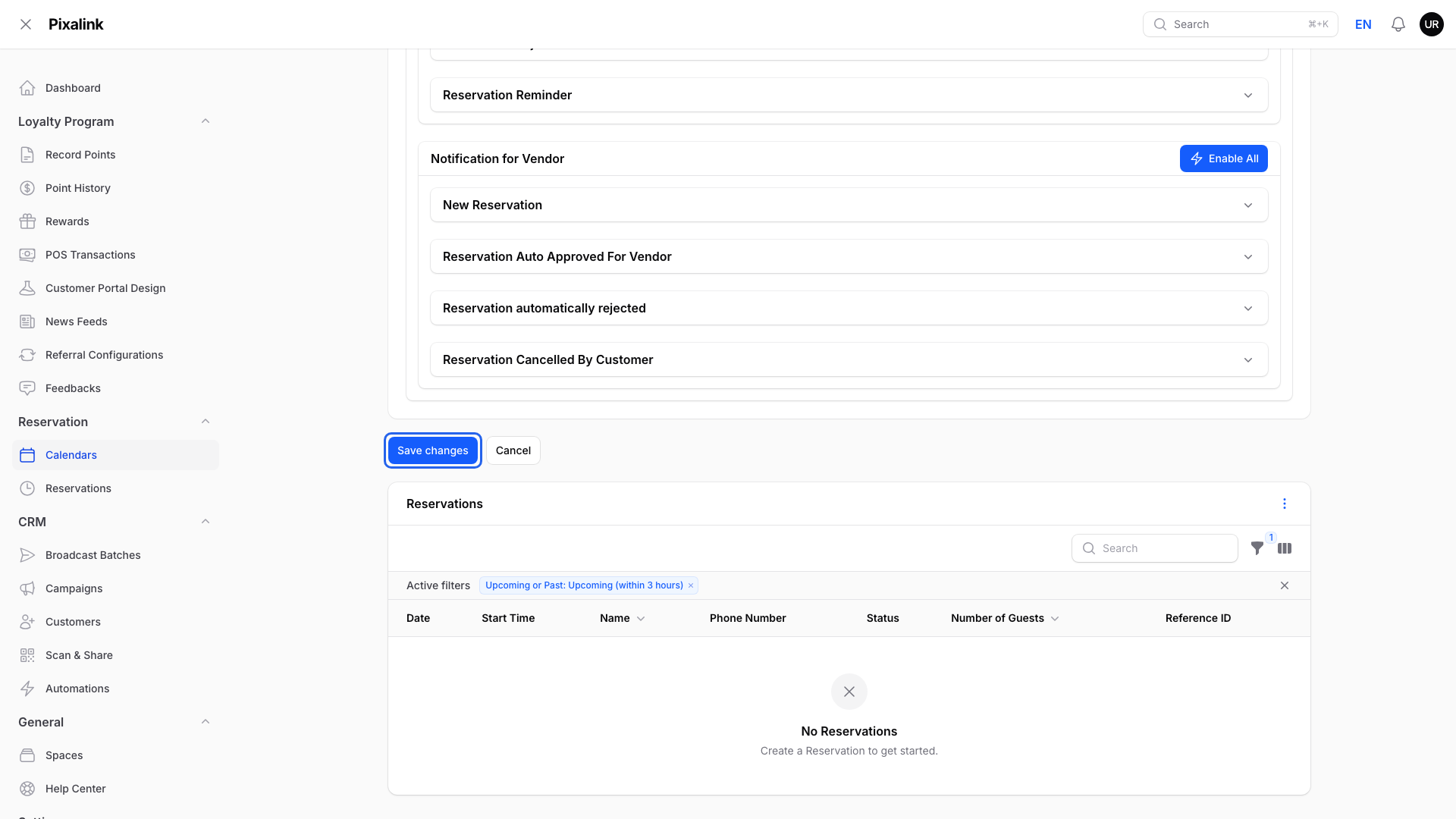
  1. Go to Admin Panel → Reservation → Calendars.
    Admin Panel → Reservation → Calendars, with Calendars highlighted.

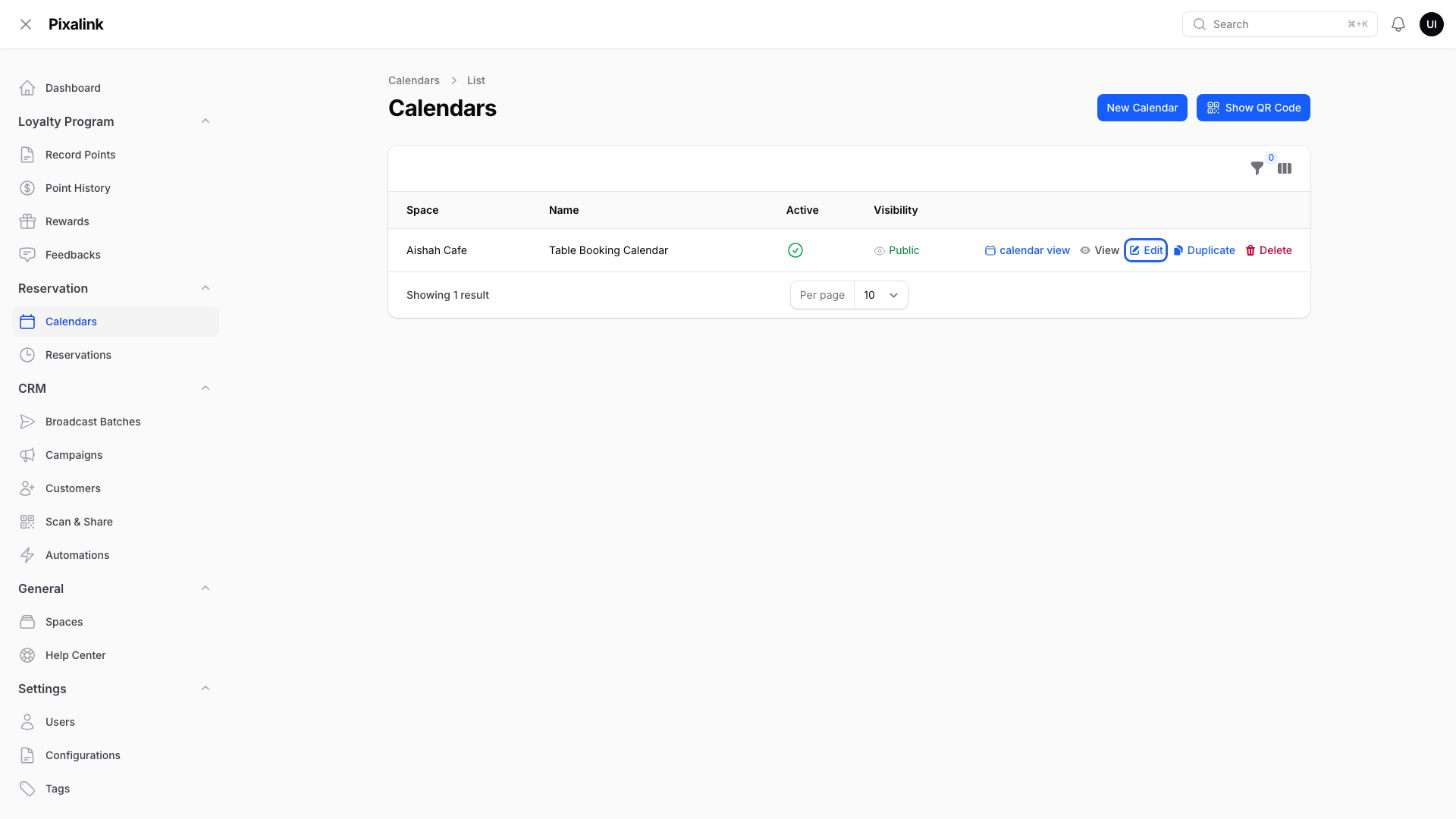
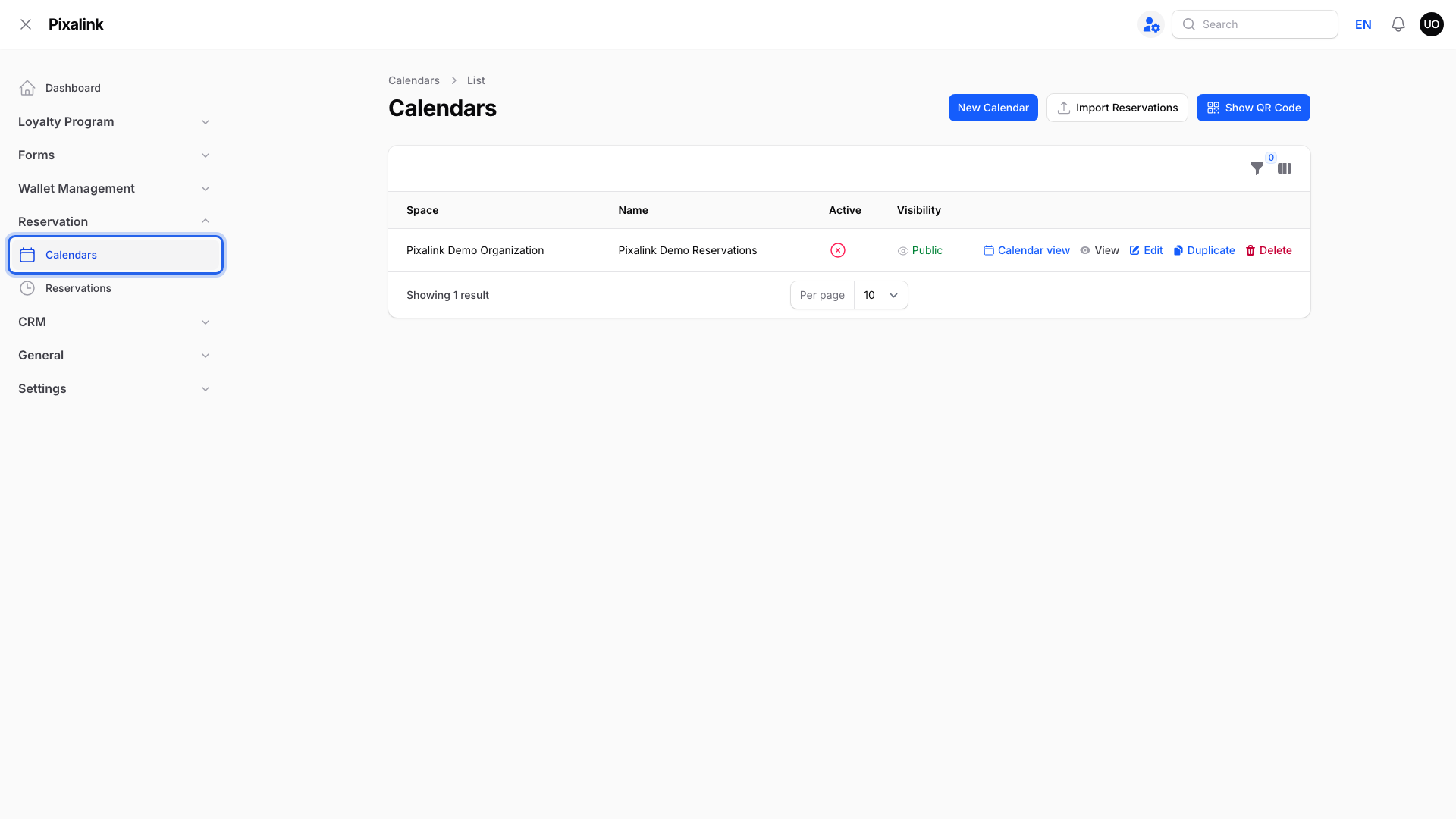
  2. Click Edit on your calendar.

    The Calendars list with the Edit link on the calendar row highlighted in a blue box.

  3. Open the Notifications tab.

    The calendar edit page with the Notifications tab highlighted in a blue box.

  4. Under Channels, tick how you want to reach customers: Email, SMS, WhatsApp or Web Push. Pick at least one. A greyed-out channel isn't set up for your business yet.

    The Channels box on the Notifications tab highlighted in a blue box, with Email ticked and SMS, WhatsApp and Web Push shown below it.

  5. Find Notification Settings. Messages for customers are under Notification for Customers. Messages for your own team are under Notification for Vendor.
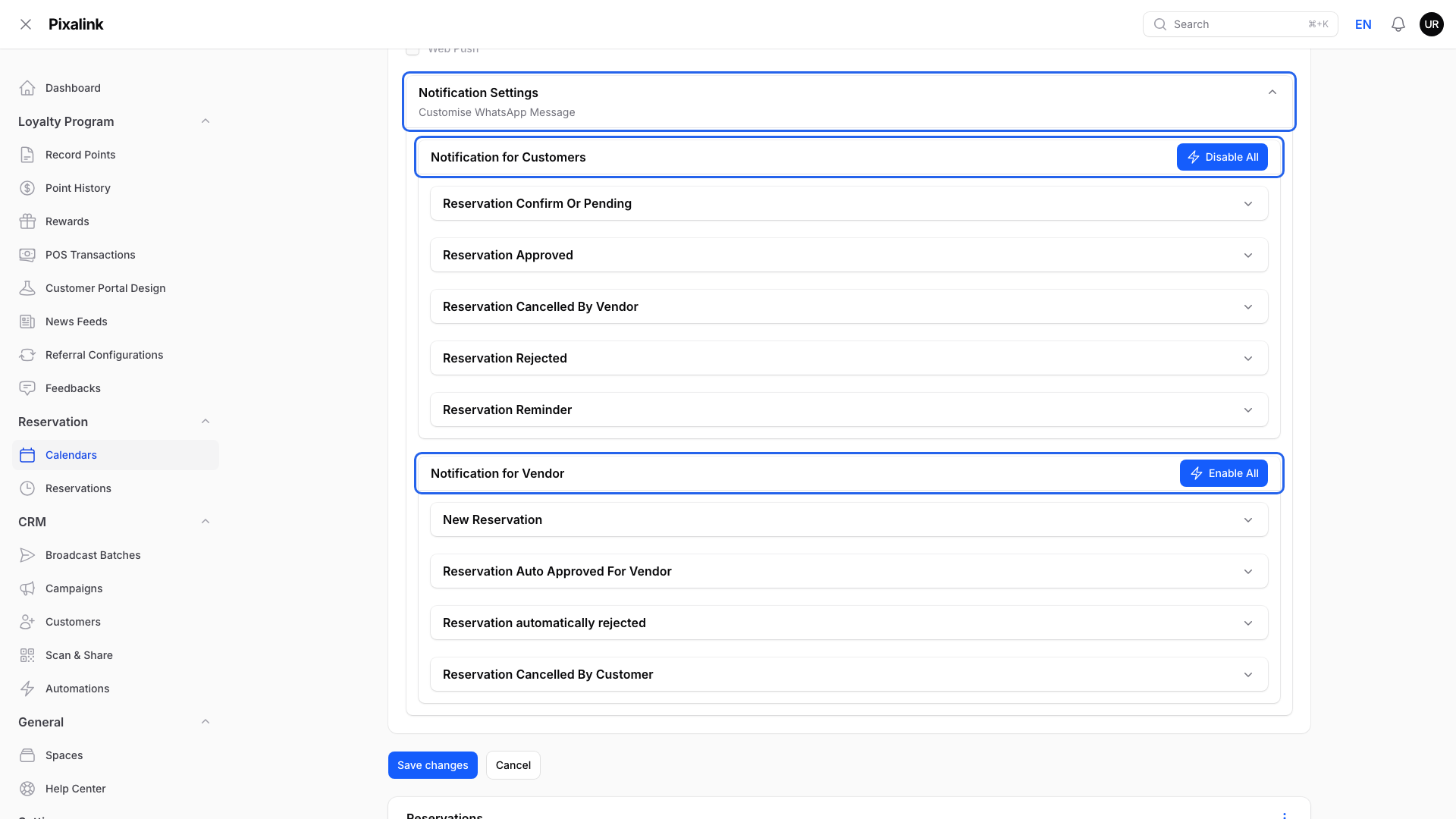
    The Notifications tab scrolled to Notification Settings, with the Notification Settings heading, Notification for Customers and Notification for Vendor each highlighted in a blue box.

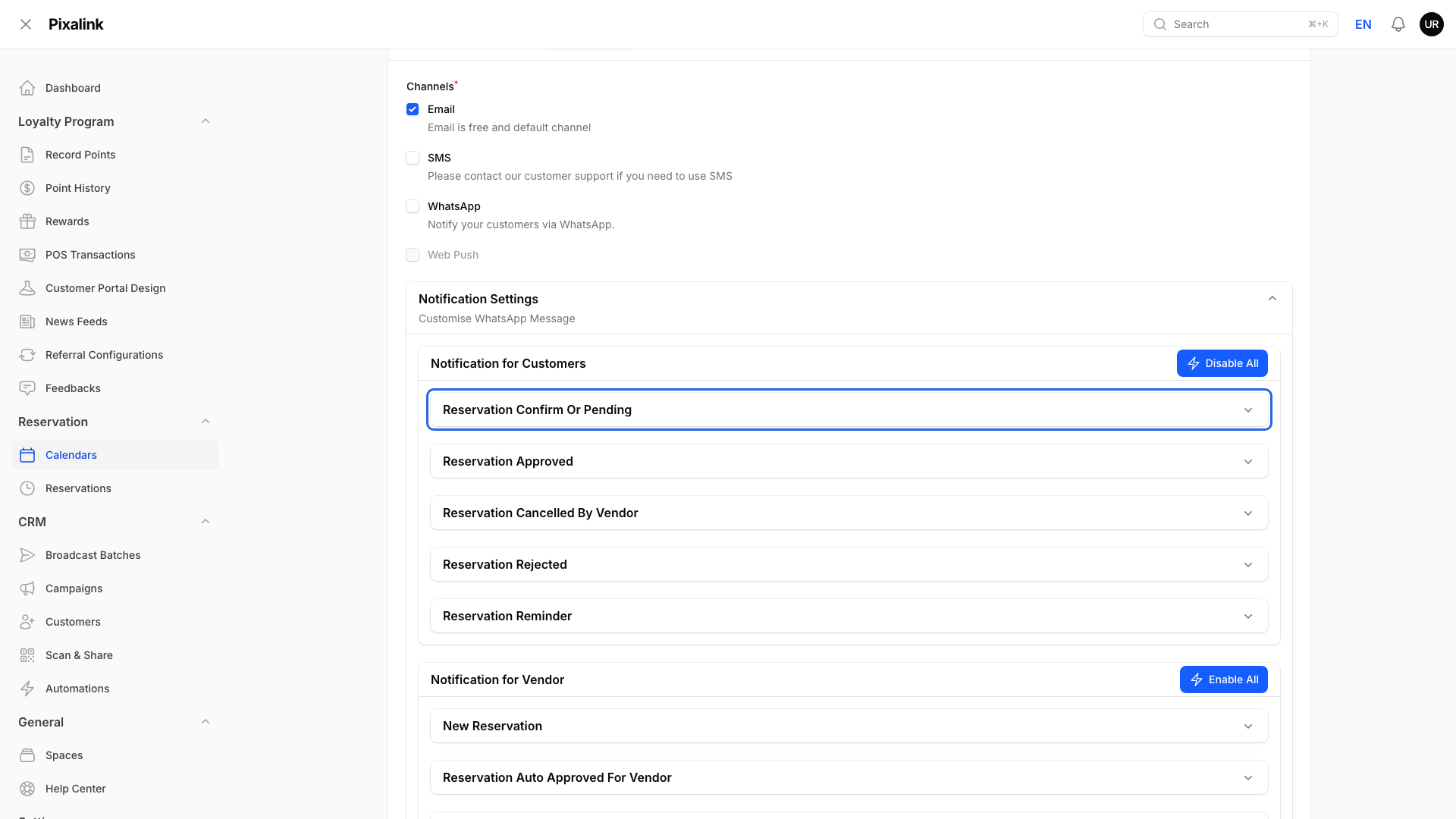
  6. Click the message you want to open.

    The list of customer messages under Notification for Customers, with Reservation Confirm Or Pending highlighted in a blue box before it is opened.

  7. Switch Enabled off to stop it, or leave it on.
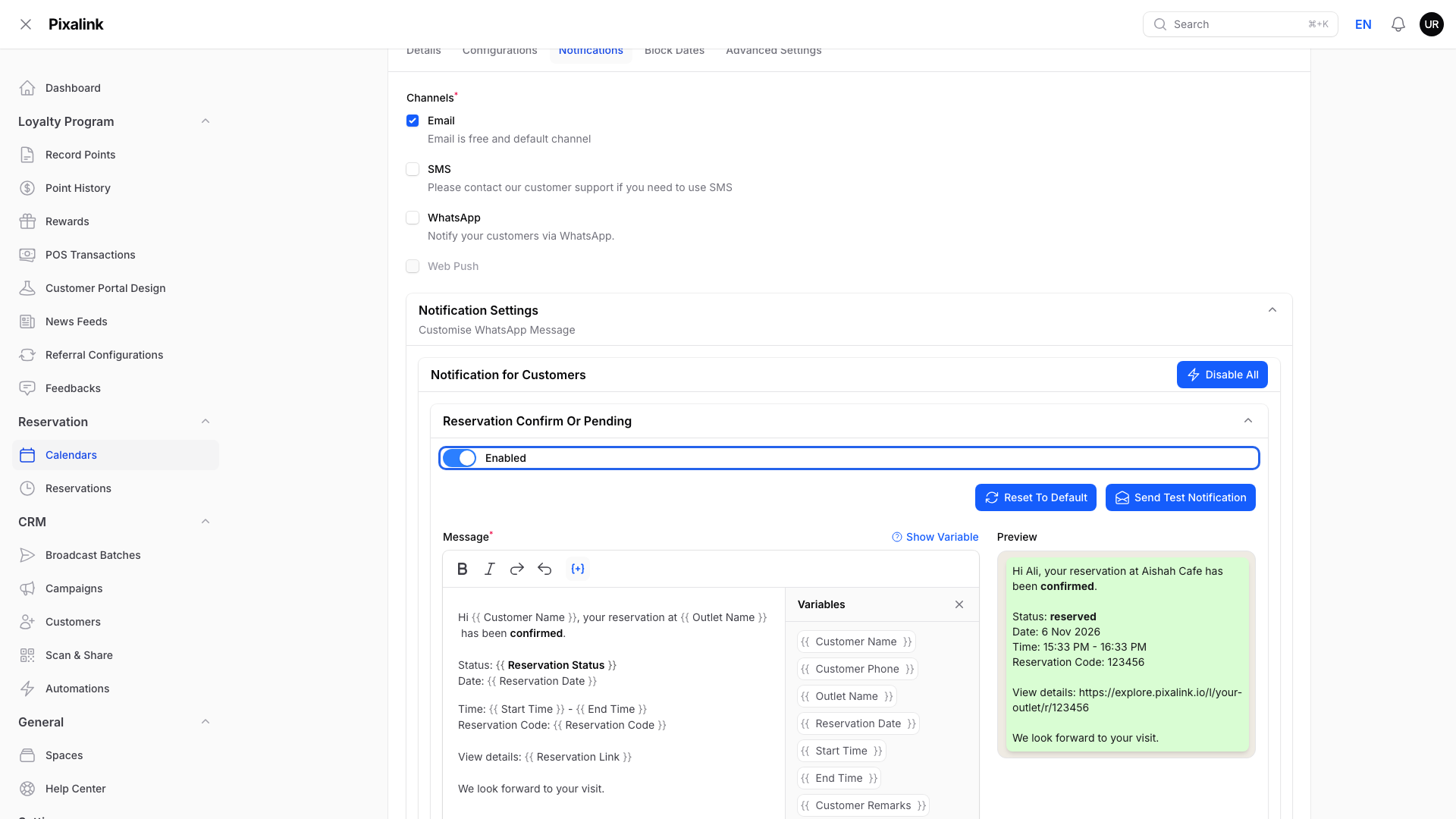
    The opened Reservation Confirm Or Pending message with the Enabled switch highlighted in a blue box and turned on.

  8. Edit the Message box. Use the variables panel beside it (click Show Variable if it's hidden) to add details like the customer's name or date. The Preview shows how it reads.
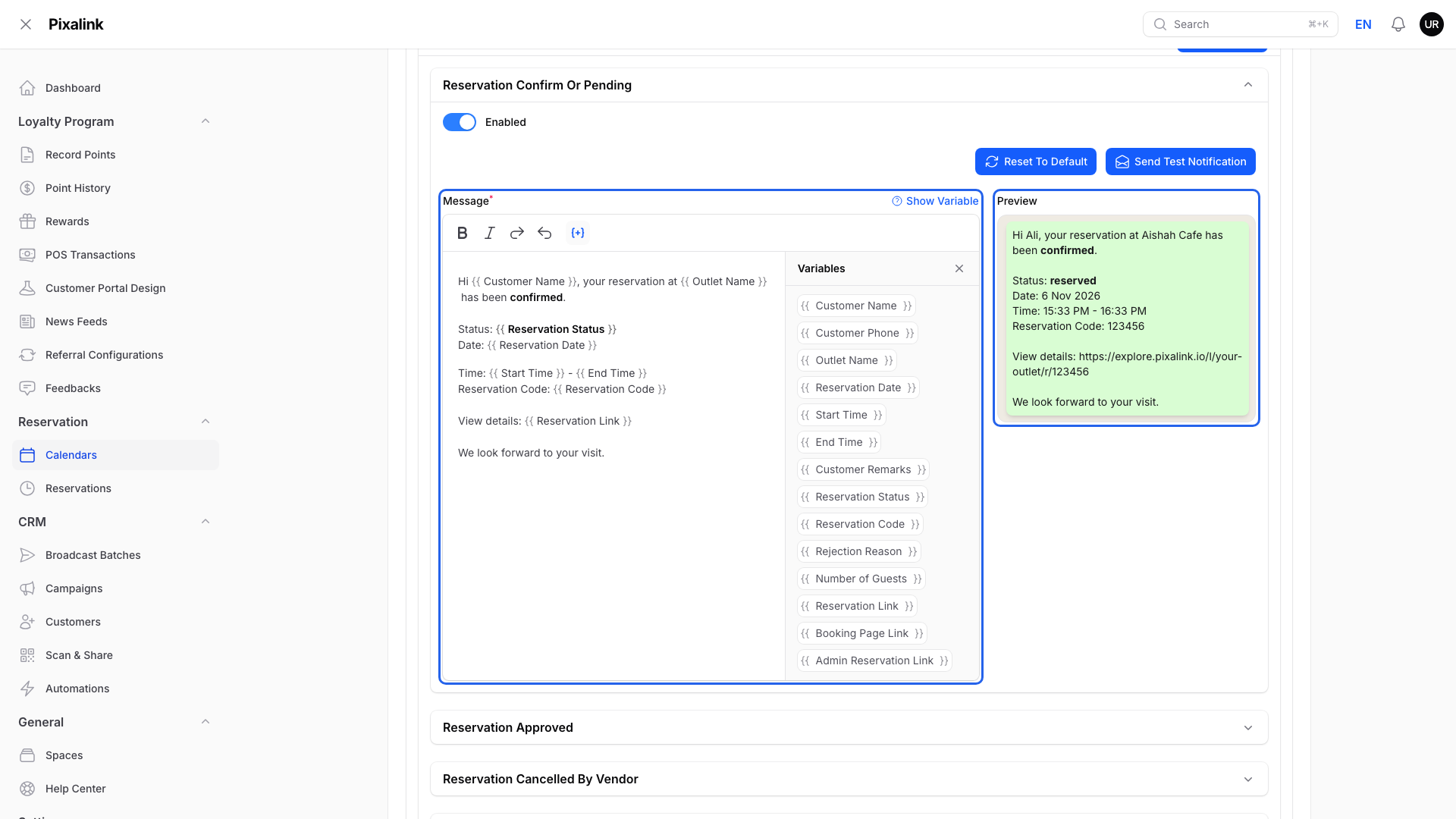
    The opened message with the Message box and the Preview next to it each highlighted in a blue box, with the variables panel open beside the wording.

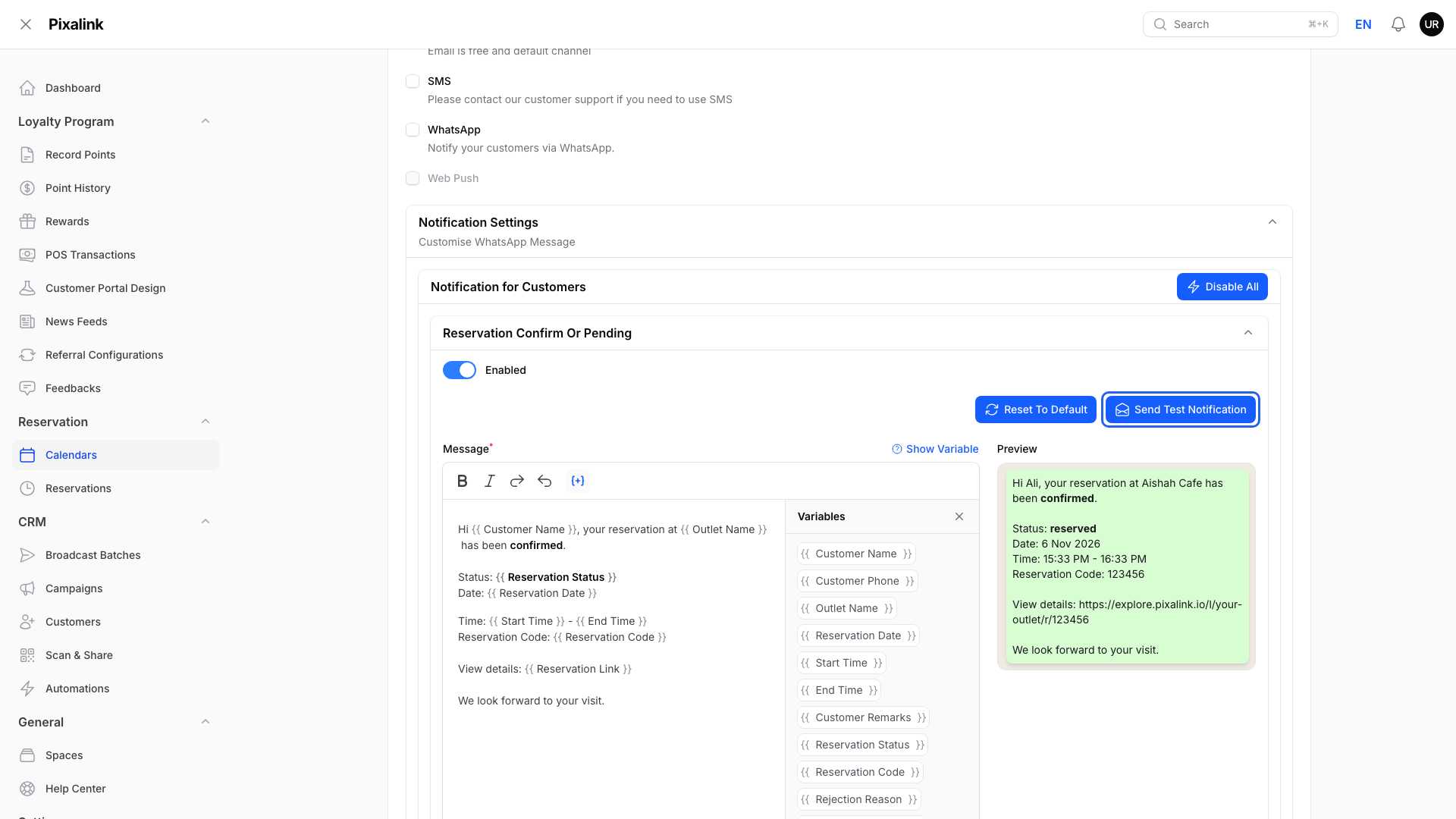
  9. Click Send Test Notification.

    The Send Test Notification button highlighted in a blue box above the Message box, ready to click.

  10. Enter your Phone Number and send.

    The Send Test Notification window with the empty Phone Number field highlighted in a blue box, before anything is sent.

  11. Click Save changes.

    The Save changes button highlighted in a blue box at the bottom of the Notifications tab, before saving.

To go back to Pixalink's original wording, click Reset To Default inside that message. It also switches the message back on. Click Save changes afterwards to keep it.

The Reset To Default button highlighted in a blue box above the Message box, after the wording has been edited.

Which Messages Appear

The list depends on Requires Approval Before Reservation. Calendars with approval also show Approved and Rejected messages for customers, and extra messages for your team. See Why Some Calendars Have More Reservation Notifications Than Others. Payment messages appear only if the calendar takes online payment.

Good to Know

  • Your wording is used for WhatsApp messages sent from a connected WhatsApp number. Email and SMS always use Pixalink's standard text.
  • Switching Enabled off stops that message on every channel.
  • Send Test Notification needs a connected WhatsApp number. Otherwise it is greyed out.
  • On the official WhatsApp number, customer messages use a separate template that Meta must approve. You edit it in the Official WhatsApp template box under each message. Until it is approved, the message goes out as plain text from your other WhatsApp number. See How to Get Your WhatsApp Notification Templates Approved.
  • To change when reminders go out, see How to Set When Reservation Reminders Are Sent.

Need Help?

Reach out to our support team. We're happy to help you get started.

What's Next?

Video transcript: Edit the Booking Messages Customers Receive
Pixalink sends messages when a booking is made, approved, rejected, cancelled or coming up. You can change the WhatsApp wording to sound like your business, and switch off any message you don't need. In the Admin Panel, open Reservation in the left menu, then select Calendars. Click Edit on your calendar. Open the Notifications tab. Under Channels, tick how you want to reach customers: Email, SMS, WhatsApp or Web Push. You need at least one. A greyed out channel isn't available for your business yet. Find Notification Settings. Messages for customers are under Notification for Customers. Messages for your own team are under Notification for Vendor. Click the message you want to open, like Reservation Confirm Or Pending. Switch Enabled off to stop this message, or leave it on. Edit the Message box. Here, we add a line asking guests to arrive ten minutes early. Use the Variables panel beside it to add details like the customer's name or date. Click Show Variable if it's hidden. The Preview shows how the message reads. To try it first, click Send Test Notification. Enter your own Phone Number and send, to see the message on your phone. To go back to the original wording, click Reset To Default. It also switches the message back on. Click Save changes to keep it. Your wording is used for WhatsApp messages sent from a connected WhatsApp number. Email and SMS always use Pixalink's standard text.

Was this article helpful?

Thank you for your feedback!

0 found this helpful 0 did not

Search