
How to Send Reservation Alerts to Your Staff WhatsApp Group
How to Send Reservation Alerts to Your Staff WhatsApp Group
What Is This?
You can link a WhatsApp group to your booking calendar so your team gets a message the moment a customer books. No more missed bookings or empty chairs — your front desk sees every reservation in the group chat they already check all day.
Real-Life Example
Wei Lin runs Glow Salon in Mont Kiara and takes bookings online so the chairs stay full. The problem was her front desk only saw new bookings if they logged into the system. A few got missed, and one busy Saturday two customers were booked into the same slot. Wei Lin linked her "Glow Salon Front Desk" WhatsApp group to the salon's booking calendar. Now every new booking lands in the group chat straight away. Her team preps the station in time, and the double-bookings have stopped.
How to Set It Up
Before you start, make sure your WhatsApp is connected to Pixalink and that your Pixalink number has been added to your staff WhatsApp group. The group only shows up if your number is already a member.
-
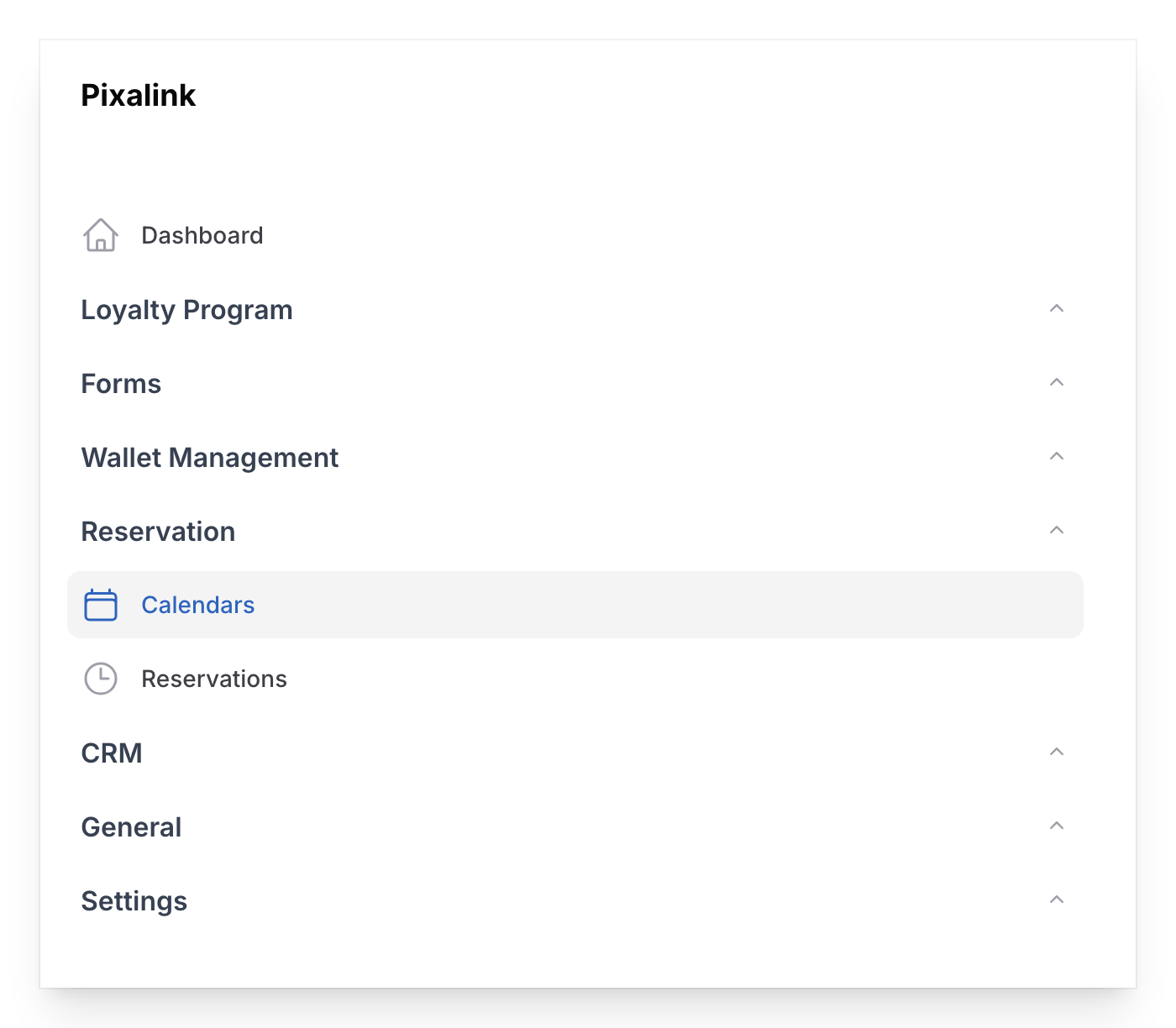
Go to Admin Panel → Reservation → Calendars, then open the calendar you want.
-
Open the Notifications tab and tick WhatsApp under Channels.

-
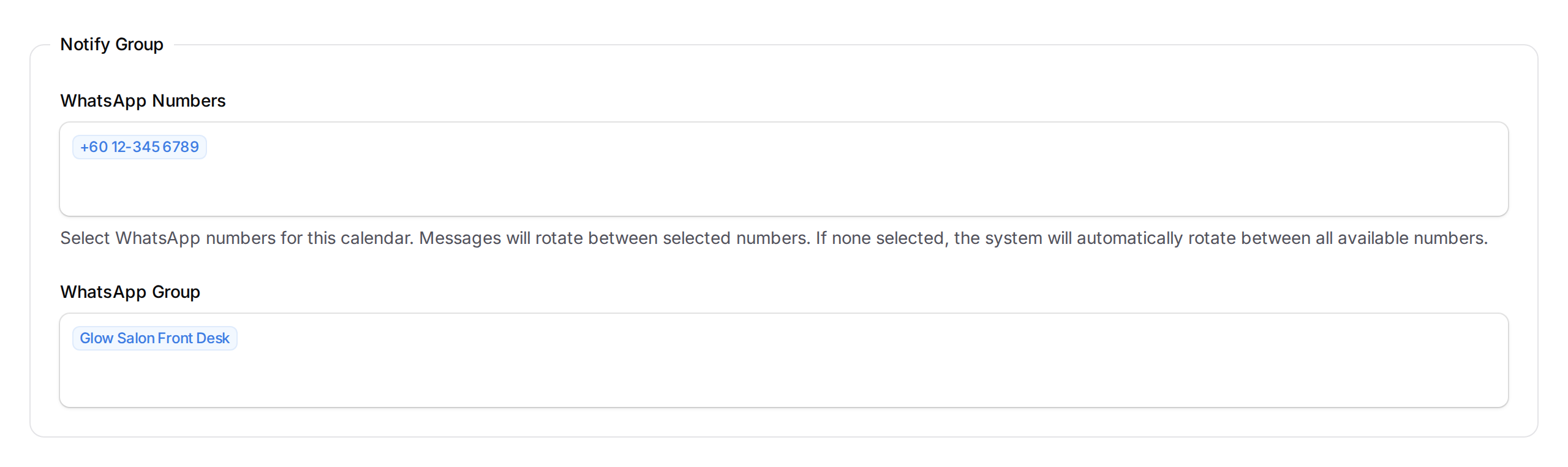
In the Notify Group section, pick your team's group under WhatsApp Group. You can leave WhatsApp Numbers empty to let Pixalink choose a connected number for you.
-
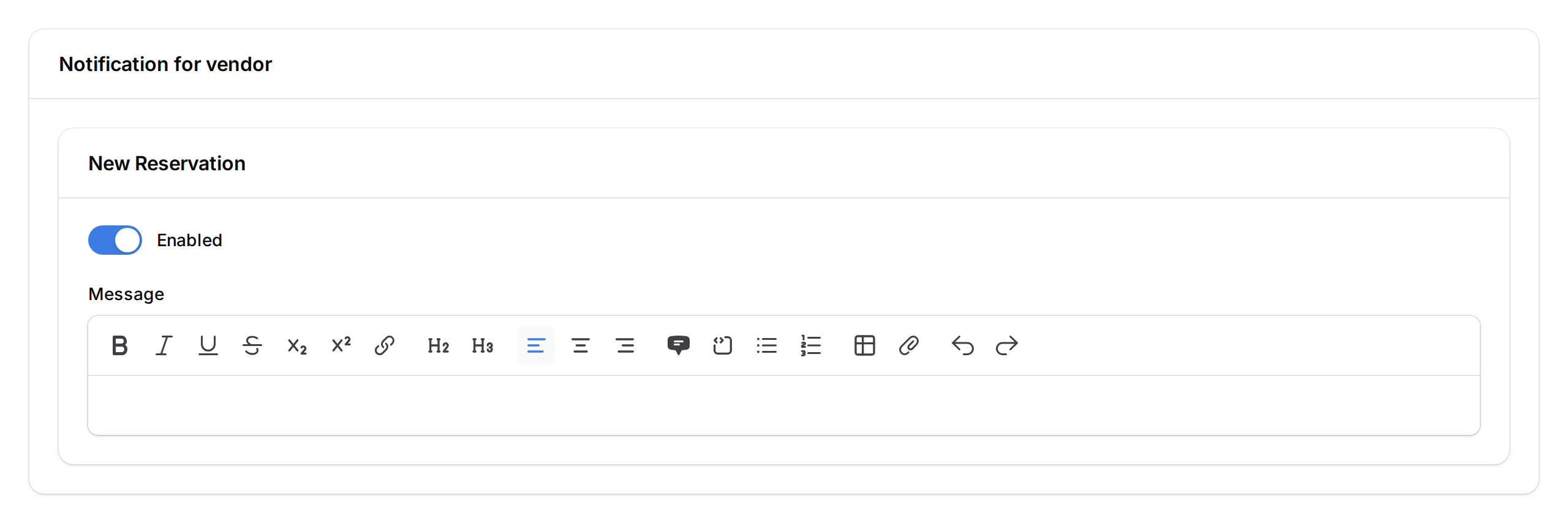
Scroll to Notification for vendor, turn on Enabled for the alerts you want such as New Reservation, then click Save.
What Your Customers Will See
Customers don't see anything new on their side. They do feel the result, though. Because your team acts on bookings right away, customers get faster confirmation and a smoother visit, with no double-booked slots. Each staff message shows the customer's name, the date, the time, and the number of people.
Good to Know
- Your Pixalink number must already be in the staff group, or the group won't appear in the list.
- Staff alerts and customer alerts are separate — staff alerts live under Notification for vendor.
- You can reword any alert, or reset it back to the default message.
- Use Send Test Notification on an alert to check the message before you go live.
- You can pick more than one group if different teams need the same alerts.
Need Help?
Contact our support team and we'll help you set up your staff alerts.