
Why Different Spaces Show Different Reservation Notifications
Why Different Spaces Show Different Reservation Notifications
What Is This?
If you've noticed that one space has fewer reservation notification templates than another, don't worry — it's not a bug. The number of notification templates depends on whether that space's calendar has the Requires Approval setting turned on or off. Each mode has a different set of notifications because the reservation process itself is different.
How It Works
When a customer makes a reservation, two things can happen depending on your calendar's approval setting:
- Without approval — the reservation is confirmed straight away. Fewer steps means fewer notifications.
- With approval — the reservation stays pending until you approve or reject it. Extra steps means extra notifications.
Here's what each mode looks like:
Customer Notifications
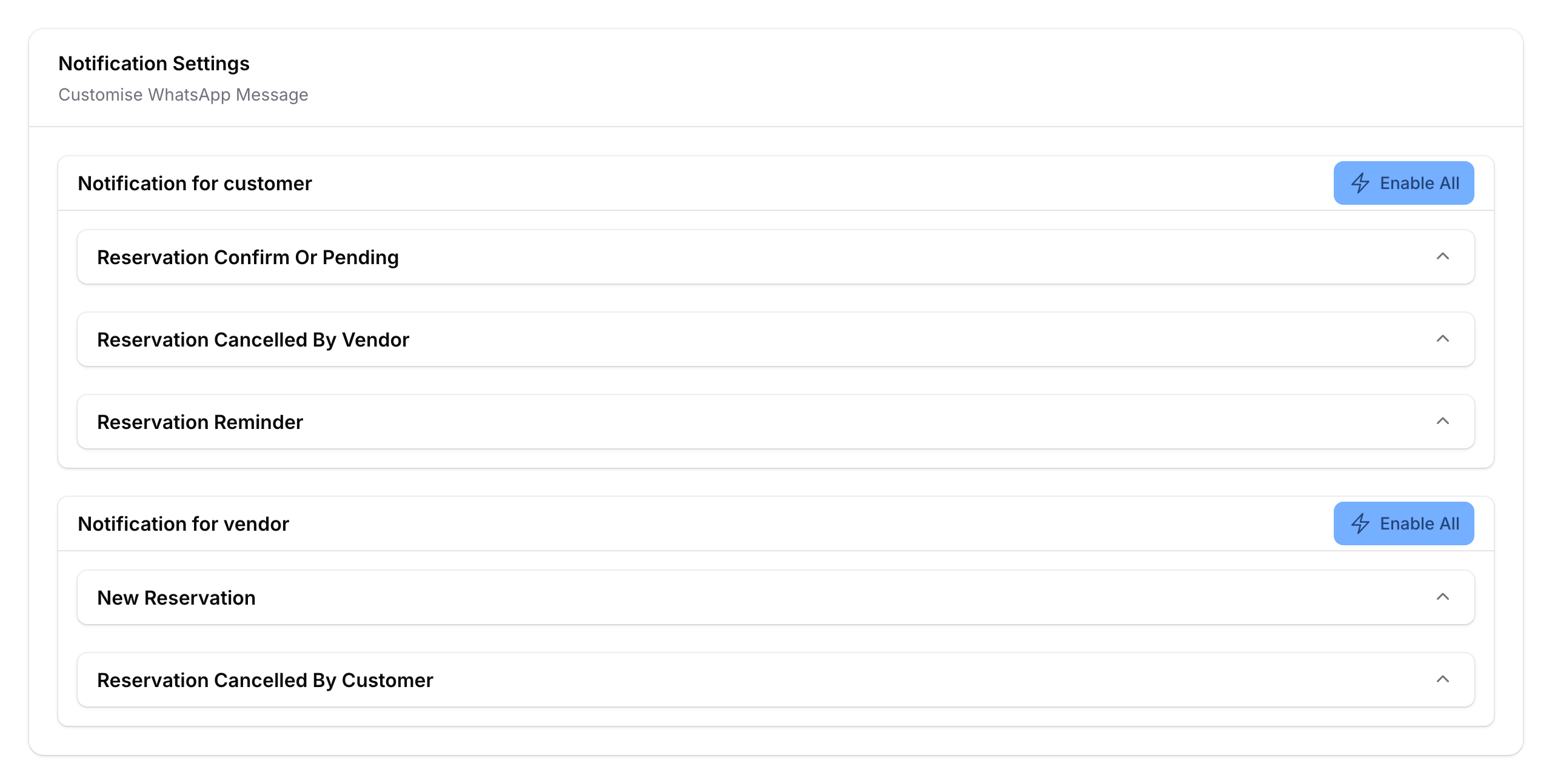
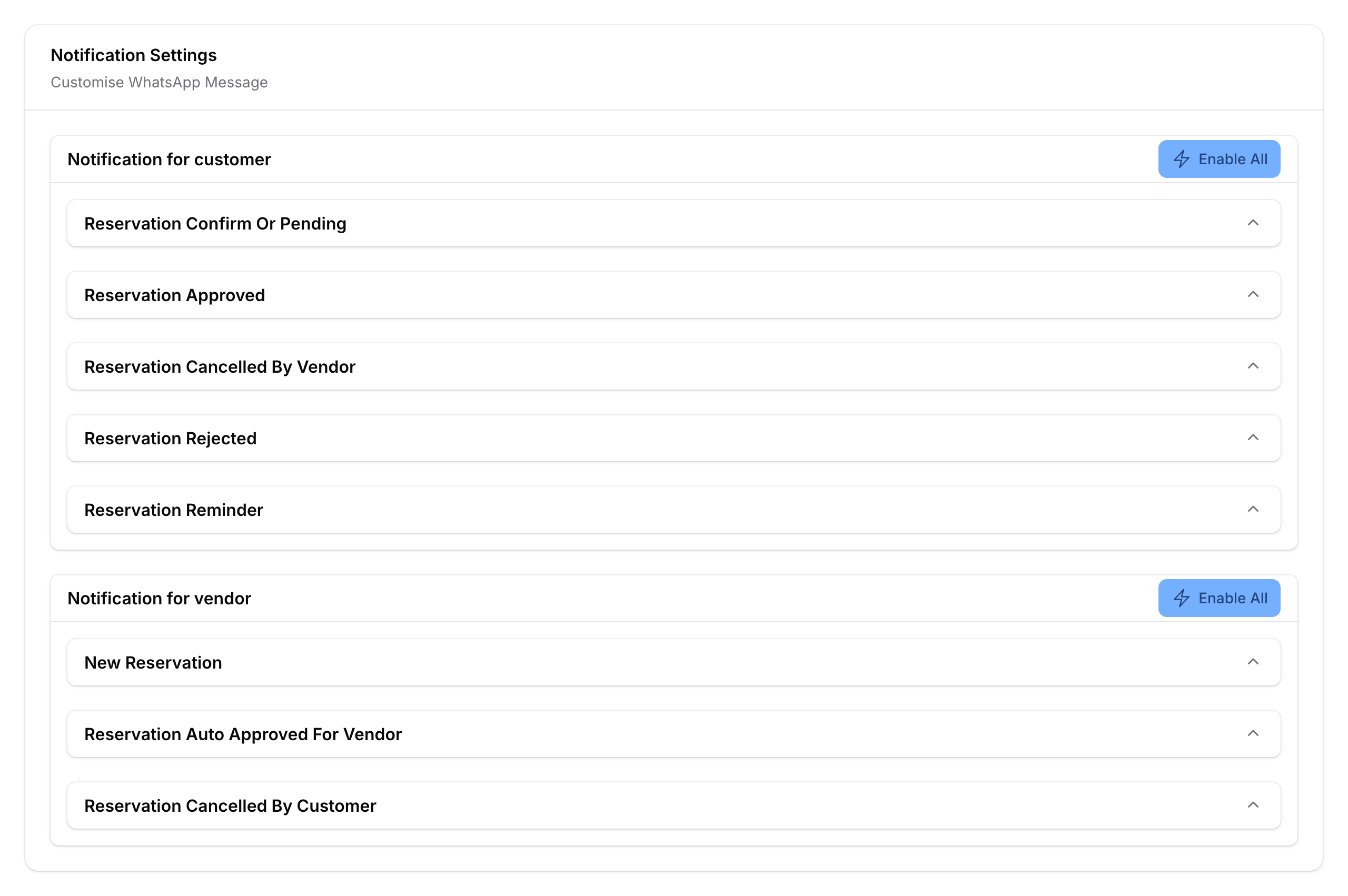
| Notification | Without Approval | With Approval |
|---|---|---|
| Confirm or Pending | Yes | Yes |
| Approved | — | Yes |
| Cancelled by Vendor | Yes | Yes |
| Rejected | — | Yes |
| Reminder | Yes | Yes |
| Total | 3 | 5 |
Vendor Notifications
Vendor Notifications
| Notification | Without Approval | With Approval |
|---|---|---|
| New Reservation | Yes | Yes |
| Auto-Approved for Vendor | — | Yes |
| Cancelled by Customer | Yes | Yes |
| Total | 2 | 3 |
The two extra customer notifications (Approved and Rejected) and one extra vendor notification (Auto-Approved for Vendor) only appear when approval is turned on — because those actions only exist in the approval workflow.
Without Approval (3 customer + 2 vendor)
With Approval (5 customer + 3 vendor)
Note: If your calendar also uses payment, you'll see additional payment-related notification templates regardless of the approval setting.
Real-Life Example
Aisyah runs a restaurant group with two outlets. Her fine dining restaurant, Seri Angkasa, requires approval because the kitchen needs to prepare special ingredients for each booking. Her casual cafe, Kopi Corner, takes walk-ins and bookings freely — no approval needed.
When Aisyah opens the notification settings for Seri Angkasa's calendar, she sees 5 customer notification templates and 3 vendor templates. But when she checks Kopi Corner's calendar, she only sees 3 customer templates and 2 vendor templates. At first she thinks something is wrong, but then she realises it's because Seri Angkasa has Requires Approval turned on. The extra templates — Approved, Rejected, and Auto-Approved for Vendor — only show up when approval is part of the booking process.
Good to Know
- The Requires Approval Before Reservation toggle is found on the calendar's edit page, near the top of the form.
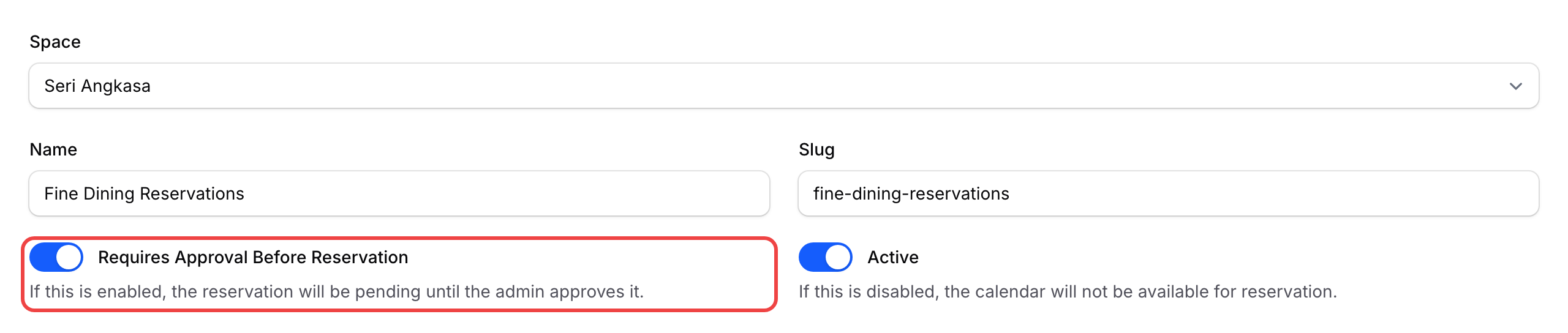
- When you turn approval on or off, the available notification templates update automatically — you don't need to do anything extra.
- Both modes always include the core notifications (Confirm or Pending, Cancelled, and Reminder). The approval-only templates are added on top of those.
- Payment notification templates (like payment received or payment rejected) show up separately based on your payment settings, not the approval toggle.
What's Next?
- Block dates — close off specific days or timeslots on your calendar.
- Create a calendar — set up a new calendar for your business.