
How to Set Up Default Timeslots on a Calendar
How to Set Up Default Timeslots on a Calendar
What Is This?
Default timeslots are the recurring weekly schedule for your calendar. They tell the system which days you're open, what times are available, and how many bookings each slot can accept. Once set, these timeslots repeat every week automatically.
Real-Life Example
Farah runs a yoga studio in Shah Alam. She offers classes on weekdays from 9:00 AM to 5:00 PM, with each class lasting 1 hour and room for 10 participants. Instead of adding every single slot by hand, she uses Bulk Add to fill Monday through Friday in one go — the system creates eight 1-hour slots per day automatically.
Video Walkthrough

How to Set It Up
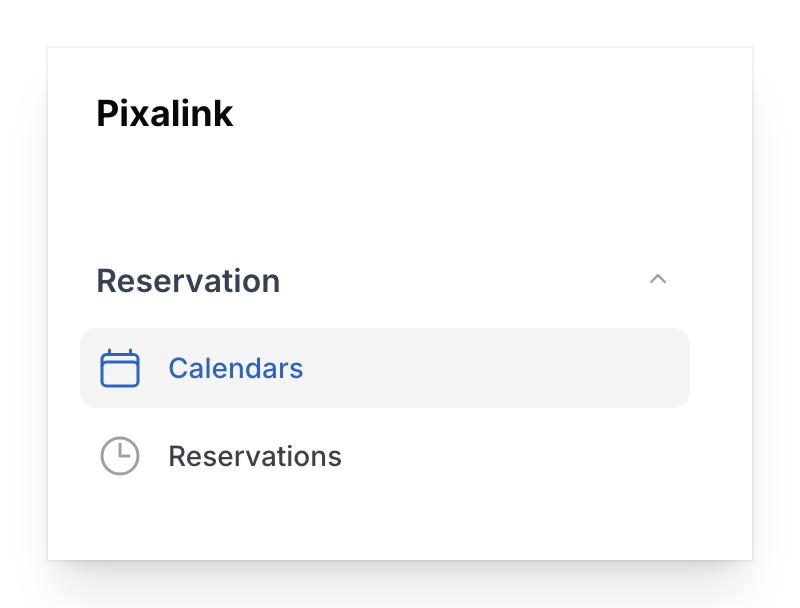
- Go to Admin Panel → Reservation → Calendars, find the calendar you want, click Edit, then click Modify Time Slot at the top of the page. (The Default Timeslots tab on the calendar's view page only shows your slots. You can't add or change them there.)
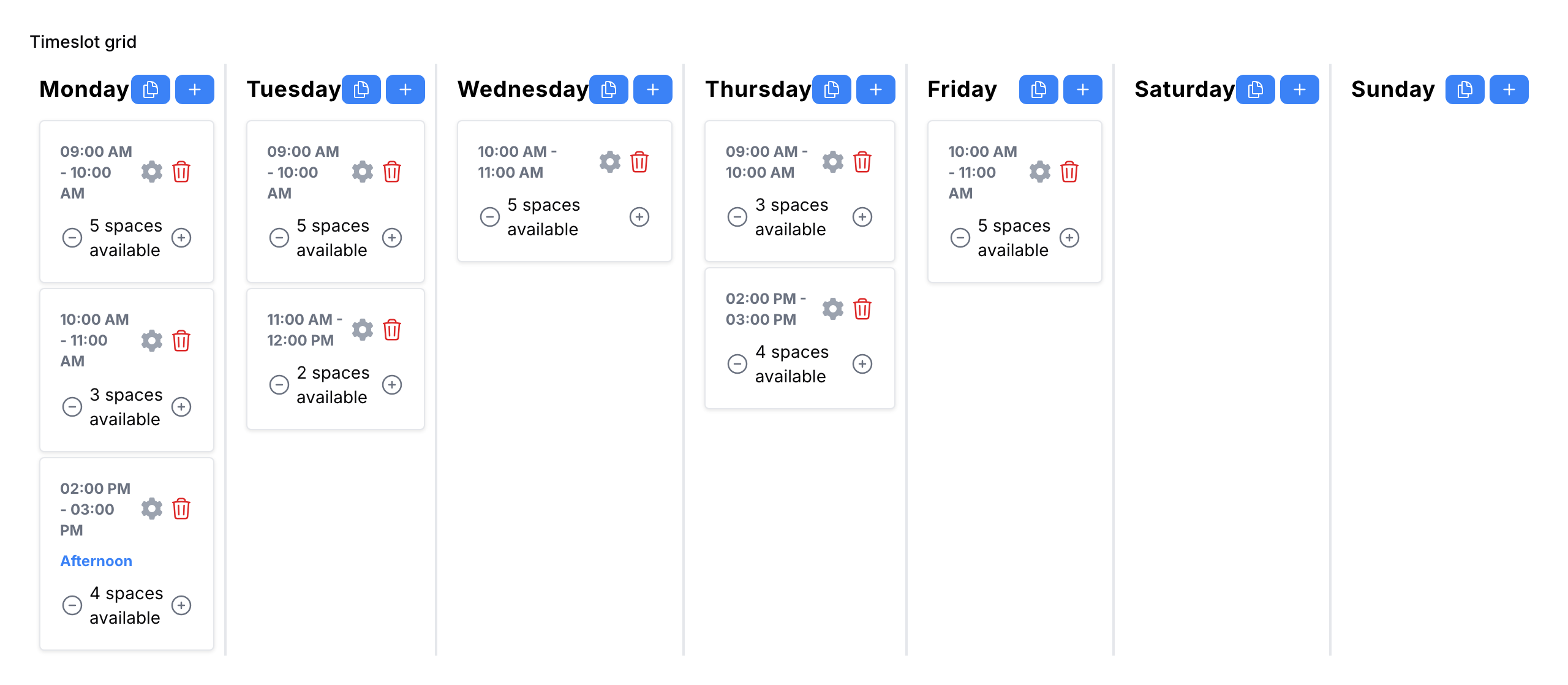
- Pick a day column (e.g., Monday) and press the Bulk Add button (the duplicate icon) to fill a full day at once.
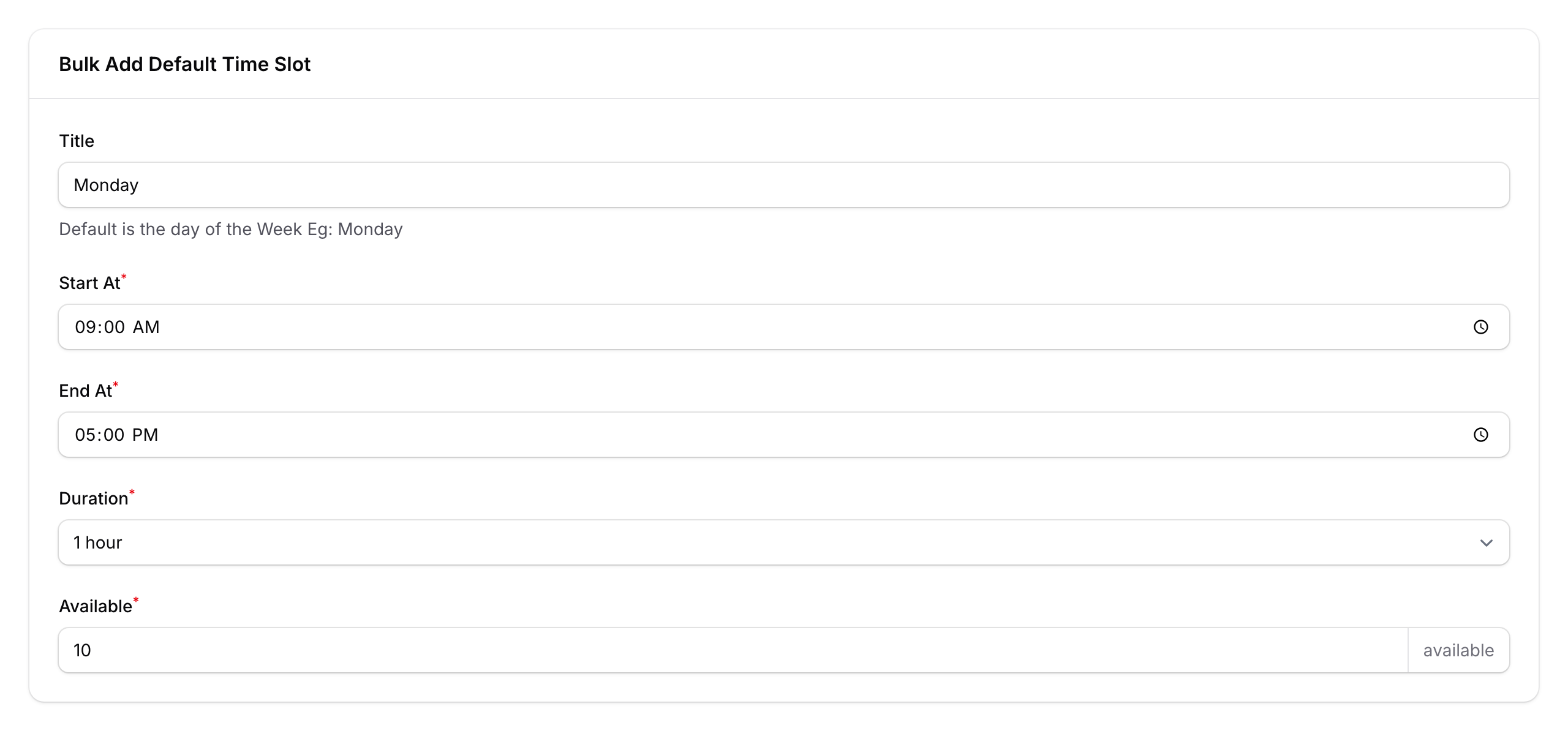
- Fill in the Bulk Add form — set a Title, Start At and End At times, Duration per slot, and how many bookings each slot can accept (Available). Tap Save and the system splits the time range into slots automatically.
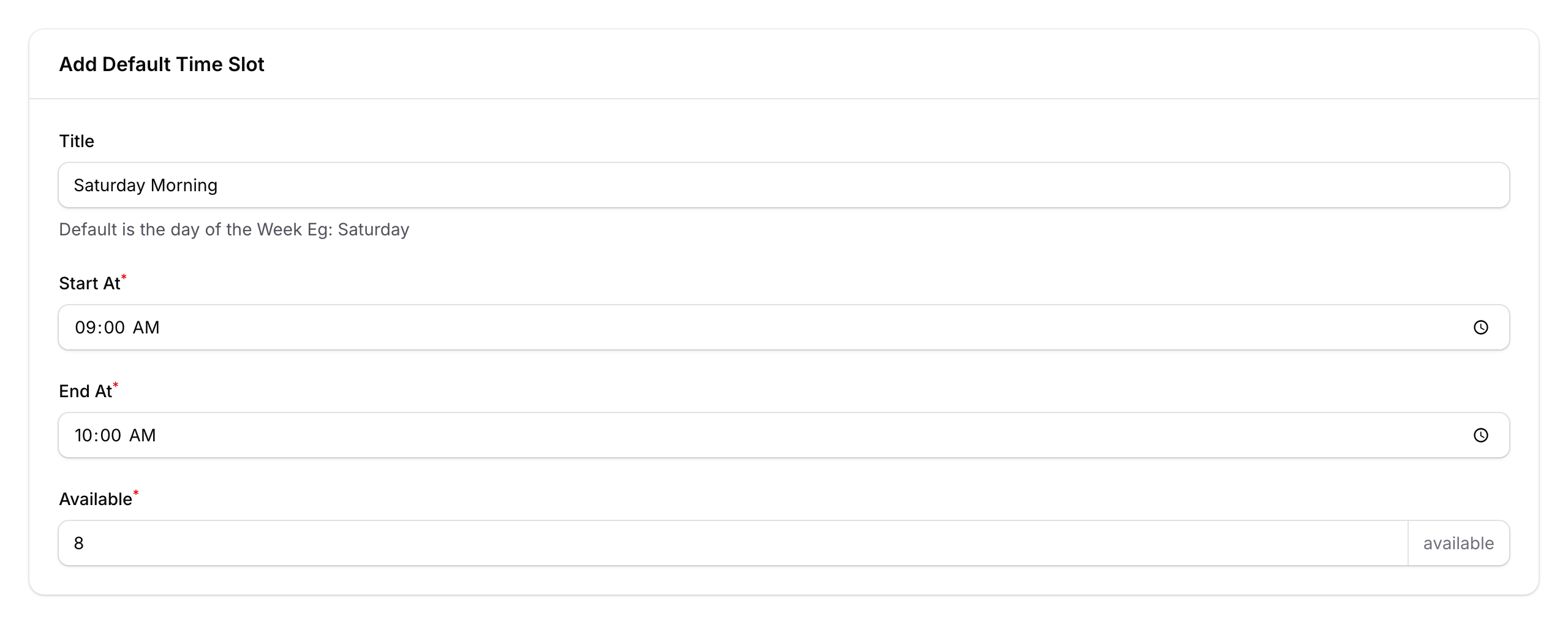
- For individual slots, press the Single Add button (the plus icon) on a day instead. Set the Start At, End At, and Available fields for that one slot, then save.
- Repeat for each day of the week your business operates.
What Your Customers Will See
When a customer picks a date on the booking page, they'll see the available timeslots for that day. Full slots won't appear. They pick a slot, enter their details, and submit the reservation.
Good to Know
- "Default" means weekly — these slots repeat every week unless you override them with blocked dates.
- Blocked dates always take priority. If you block a Tuesday, that Tuesday's default slots won't show up.
- You can mix durations — for example, 1-hour slots in the morning and 30-minute slots in the afternoon.
- Use the + and − buttons on any slot to adjust capacity, the cog icon to edit, or the trash icon to remove it.
- Use Bulk Edit (top-right button) to select and modify multiple slots at once.
- Days with no slots will show as unavailable to customers.
What's Next?
- Block dates — close off specific days or timeslots on your calendar.
- Add custom fields — collect extra details from customers when they book.
- Set up payment — charge customers when they book a timeslot.