
How Reservation Auto-Rejection Works and How to Set It Up
What Is This?
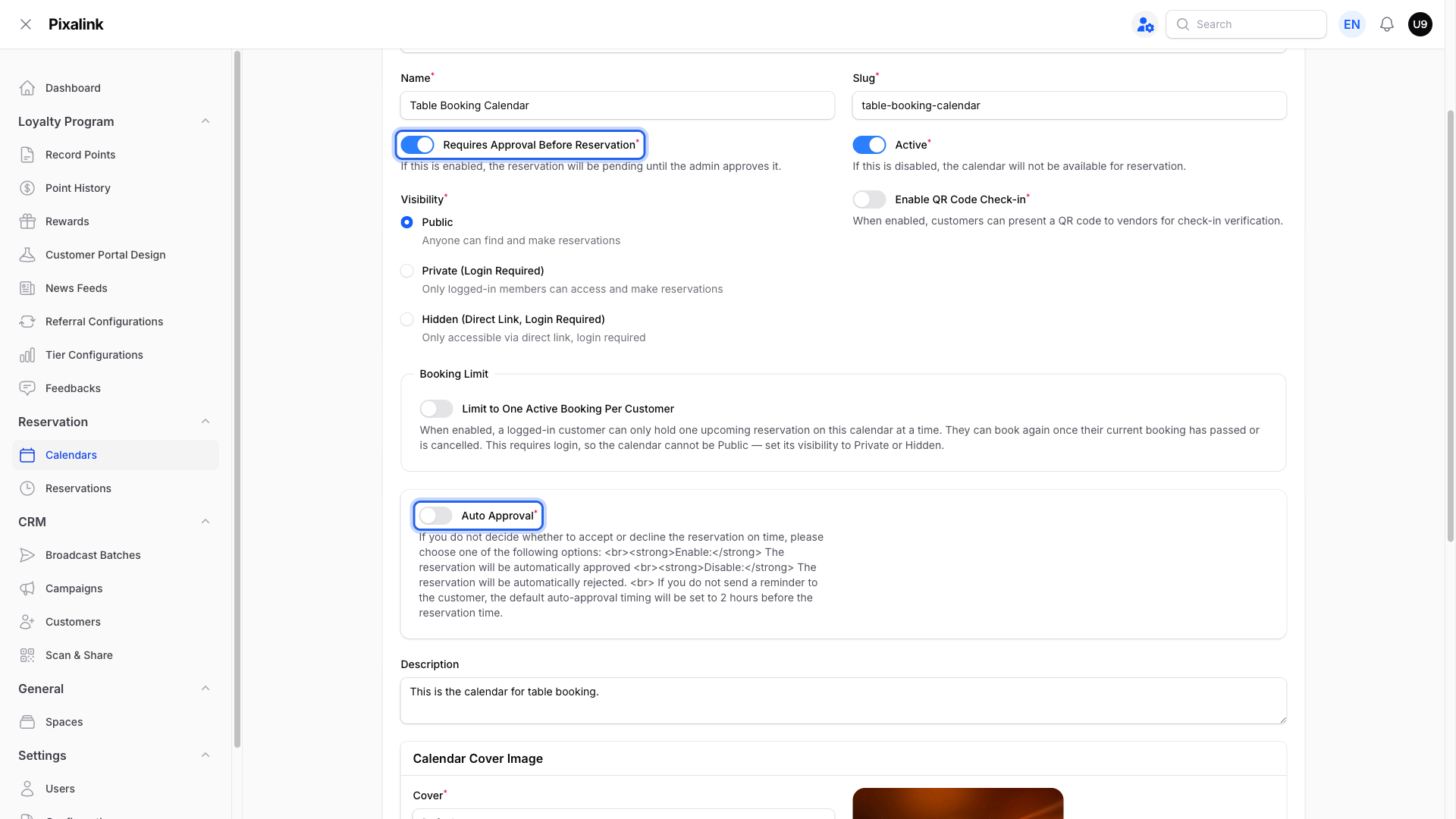
Some calendars ask your team to approve each booking before it is confirmed. Pixalink can automatically decline a booking that no one approves in time. This clears unconfirmed guests and frees the slot for someone else. The rule only runs when a calendar needs approval and Auto Approval is off. You control the timing with a setting called the Auto-Rejection Window.
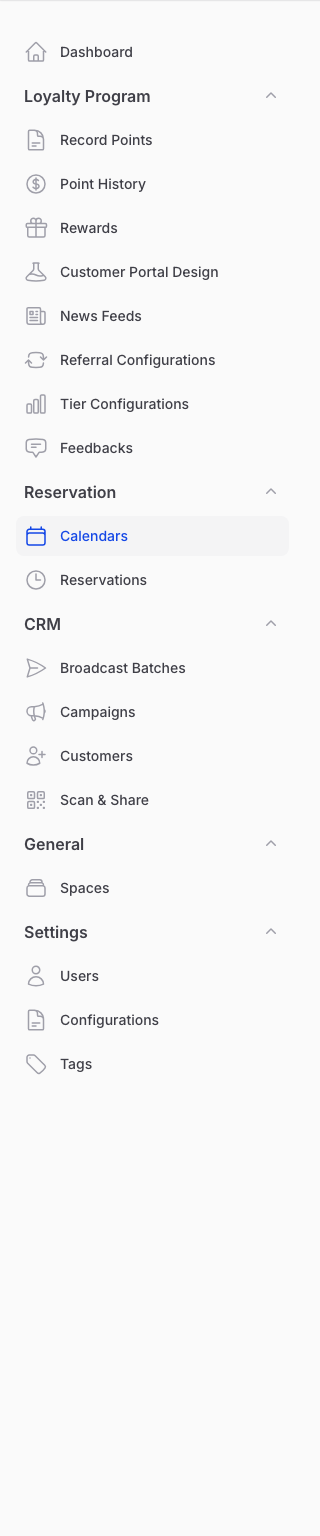
Open the Reservation menu, then Calendars, and edit a calendar. The approval settings sit on the Details tab.
How It Works
The Auto-Rejection Window lives on the Configurations tab. It sets how long before a booking start time an unapproved booking is declined. The starting value is 2 hours. You choose from a list of preset options ranging from 30 minutes up to 1 day.
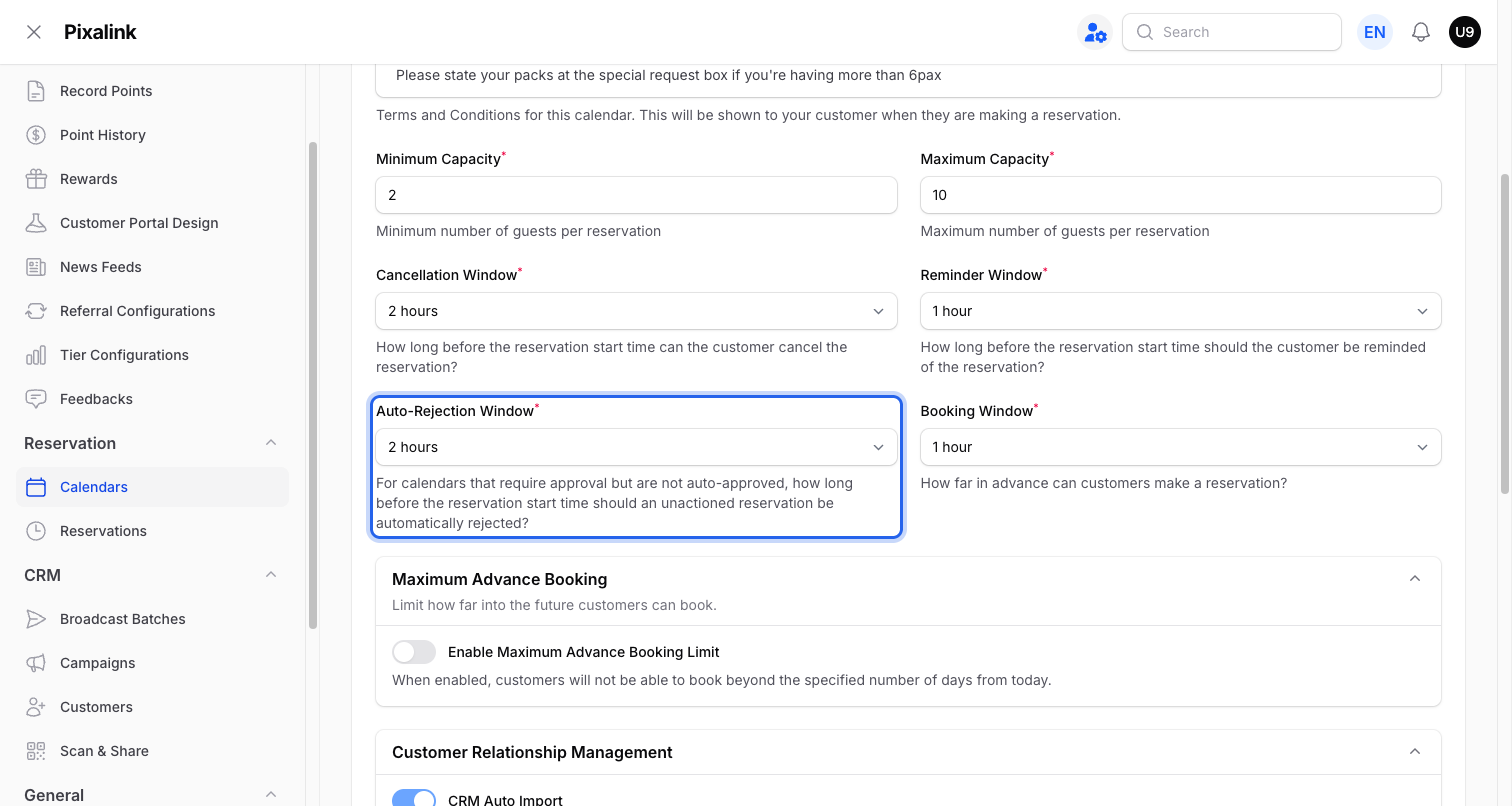
Pixalink checks pending bookings every 30 minutes. A booking is declined once its start time falls inside the window and it is still waiting. The countdown runs from the booking start time, not from when the guest booked.
flowchart TD
    A[Guest books a slot] --> B[Booking waits for approval]
    B --> C{Approved before the window?}
    C -->|Yes| D[Booking confirmed]
    C -->|No| E[Booking auto-rejected]
    E --> F[Guest and staff notified]
This explains why rejections often cluster in the morning. A guest may book late at night for an early slot the next day. The booking stays pending overnight while your outlet is closed. As the morning start time moves inside the window, the booking is declined, often before your team arrives.
Real-Life Example
Farah runs a restaurant and approves every table booking herself. A guest books an 8:00 am table at 11:00 pm the night before. With the window at 2 hours, the booking is declined near 6:00 am. Farah opens up at 7:30 am and finds the slot already gone. Turning on Auto Approval would have kept that booking instead.
Good to Know
- When a booking is auto-declined, the guest gets a rejection message on the channels your calendar uses: email, SMS, or WhatsApp. They simply see that the booking was rejected. Your team also receives an alert.
- The window has no off value. To stop auto-rejection, turn on Auto Approval so waiting bookings are approved instead. You can also turn off Requires Approval Before Reservation so bookings confirm right away.
- If you cannot approve bookings outside working hours, Auto Approval is the safest choice. A shorter window, such as 30 minutes, keeps bookings waiting until closer to the start time.
- Only free bookings and paid bookings that are already settled are handled this way. A booking still waiting for payment is left alone.
Need Help?
Start by checking the calendar approval settings and the Auto-Rejection Window. Our support team is happy to suggest the right setup for your opening hours.