
Exporting Member Lists, Sign-Up Counts, and Campaign Results
What Is This?
Pixalink lets you pull your member data out as a spreadsheet and read your key numbers on the Analytics dashboard. This helps you report to your boss, plan campaigns, and track growth. A few requests are shown on screen only, and some are not available yet. This guide shows what you can pull today and where.
How It Works
Export your member list
The member export is at Admin Panel → CRM → Customers. Click Filter first to narrow the list, then export.
You can filter by Joined At (a date range), Tags, Source, Status, and more. If you run more than one outlet, a Space filter also appears so you can pick one branch.
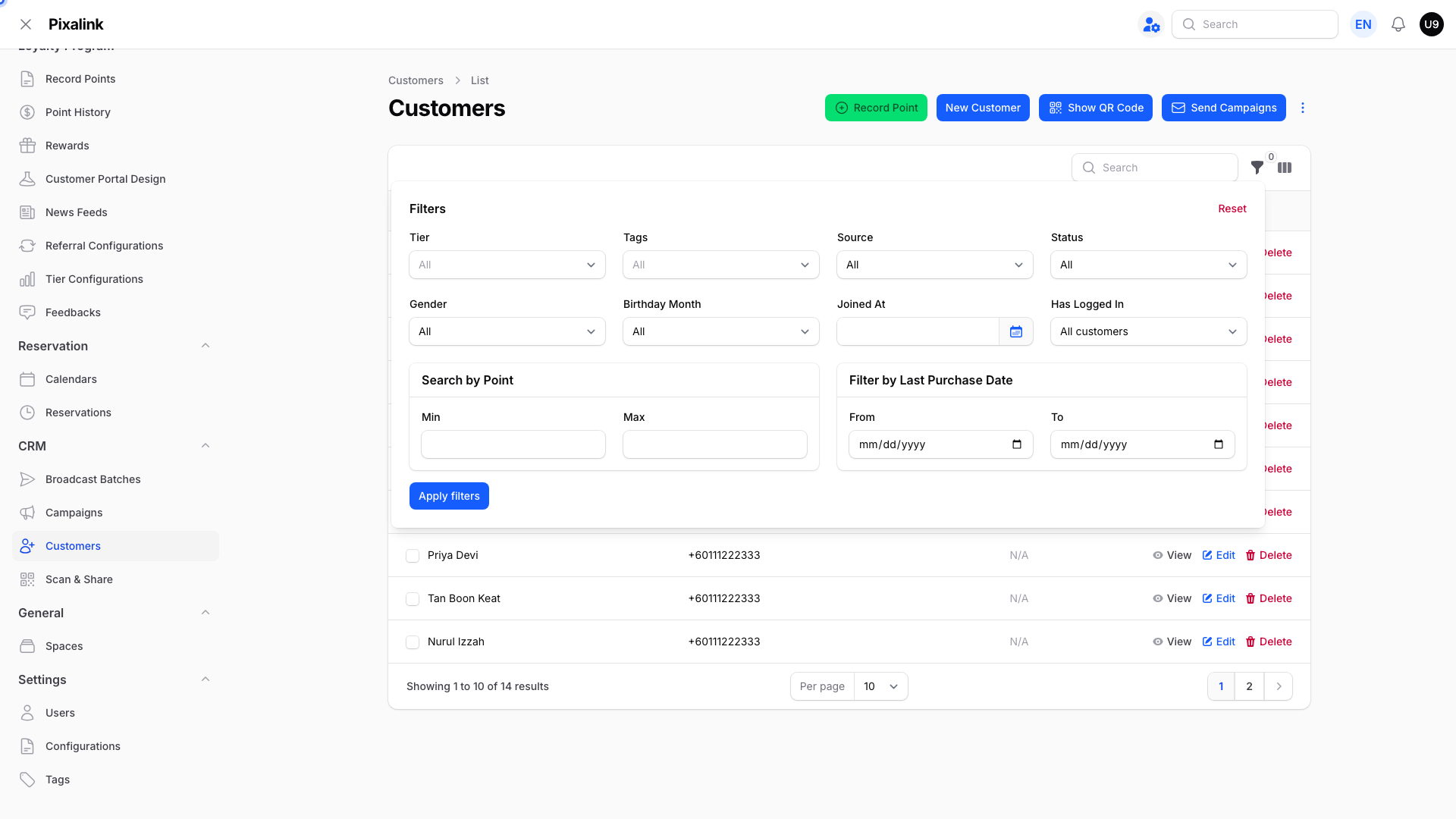
The download is a spreadsheet with columns like name, phone, joined date, points balance, tags, and tier. It only includes members that match your filters. Full steps are in How to Export Customer Data.
See sign-ups and points
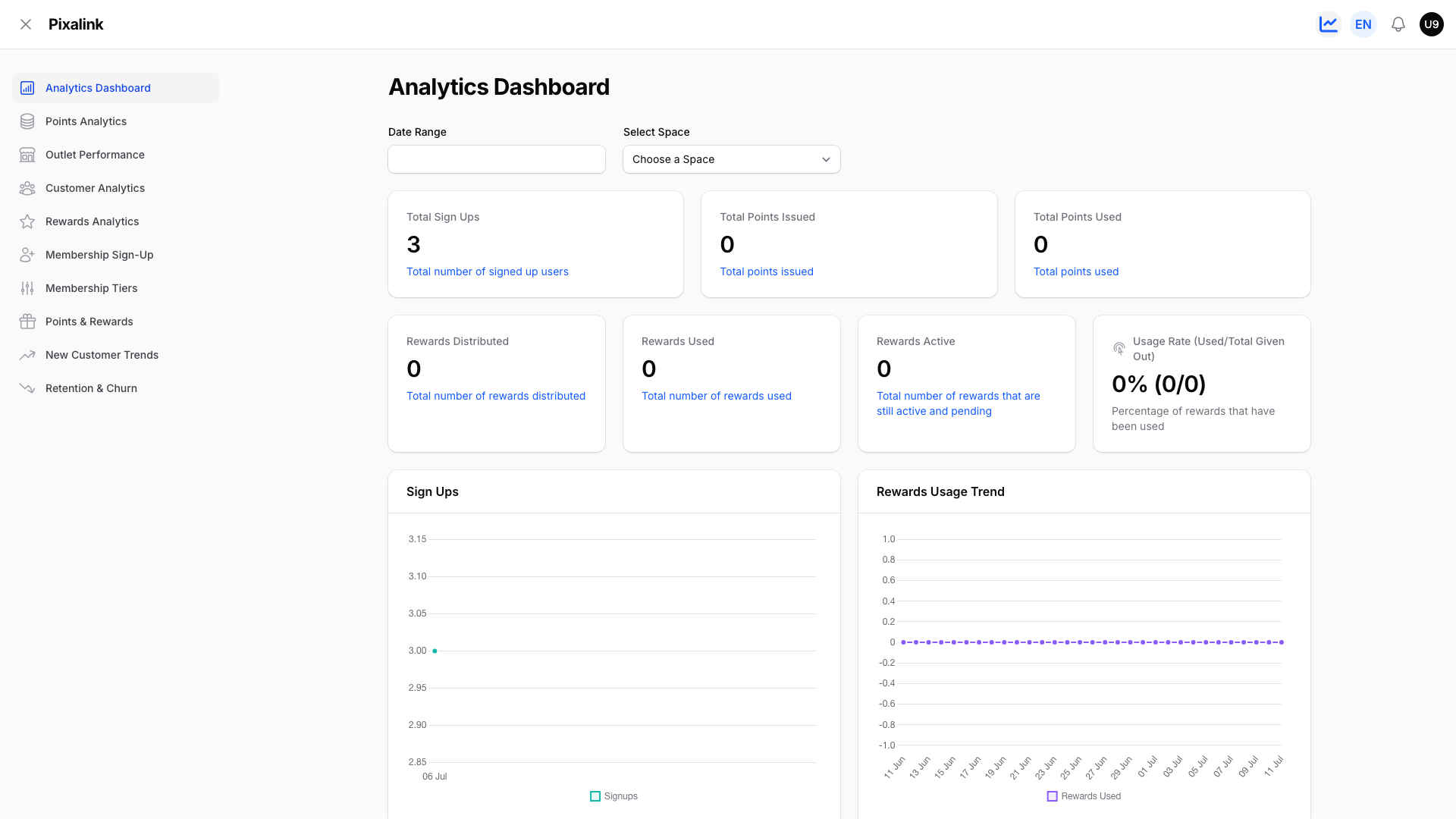
The Analytics panel answers most "how many" questions with no download needed. It shows Total Sign Ups, Total Points Issued, and Total Points Used, with a Date Range and a Select Space filter.
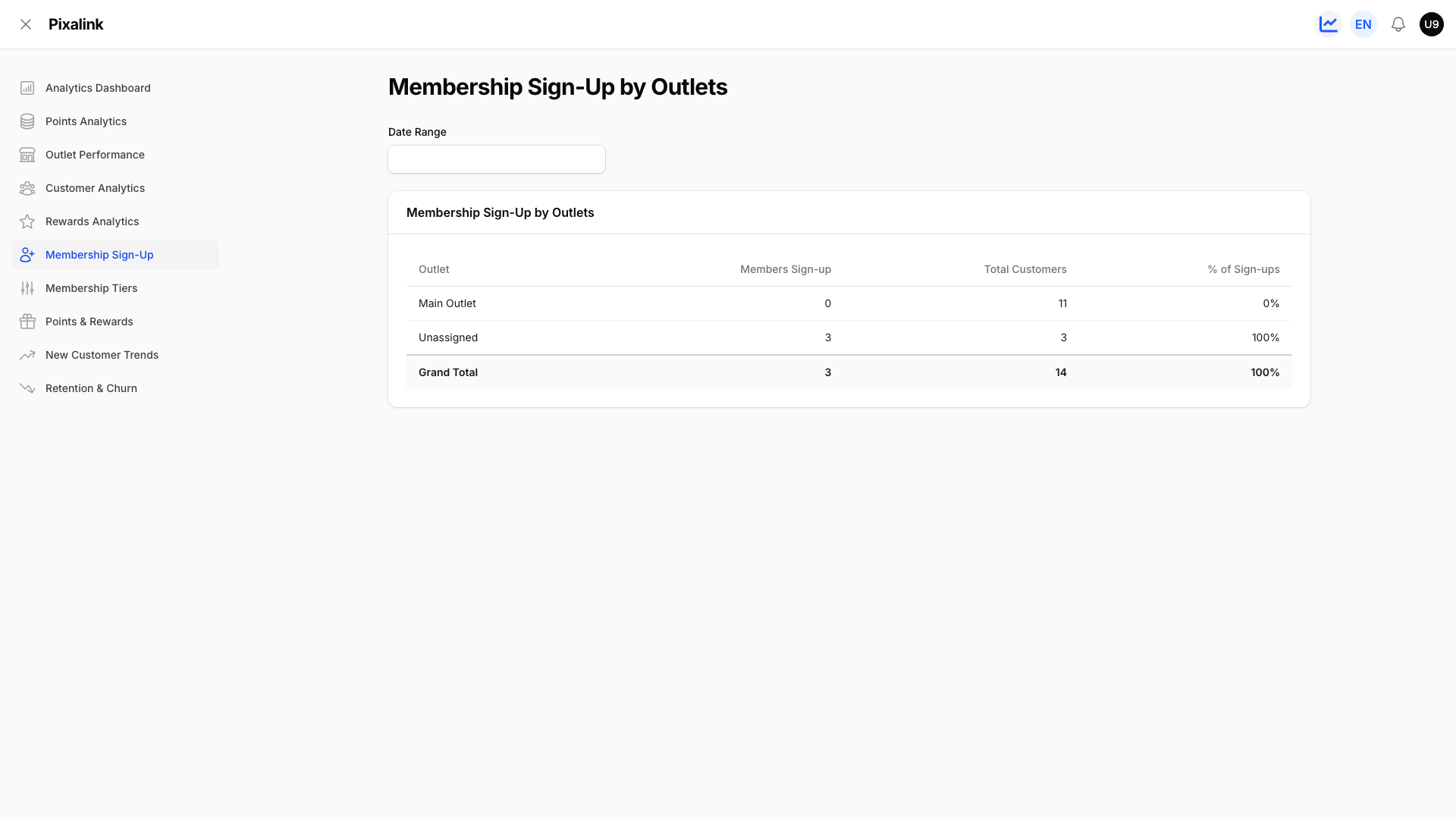
For sign-ups split by outlet, open the Membership Sign-Up report. It lists each outlet's sign-ups, plus a grand total, for the dates you pick.
More detail is in Navigating Your Analytics Dashboard.
Track voucher redemptions
Open a reward at Admin Panel → Loyalty Program → Rewards, then open its Customer Rewards tab. You can filter by date and by the outlet where the voucher was used, then export that list.
View campaign results
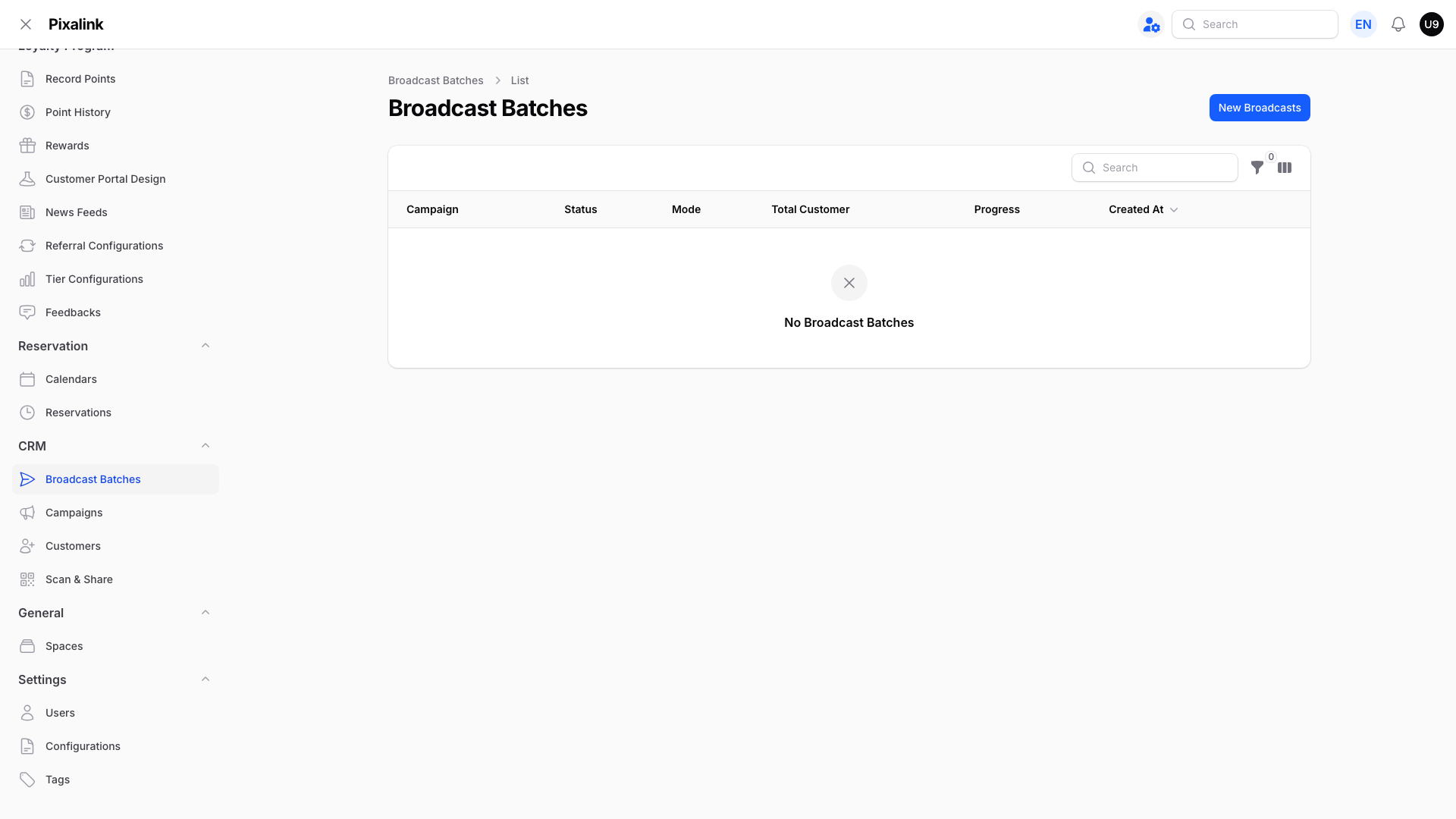
You can see broadcast results on screen at Admin Panel → CRM → Broadcast Batches. Each row shows the status, total customers, and progress. There is no button to download these results yet.
Real-Life Example
Siti runs Rasa Sayang restaurant in Shah Alam. Her boss asks how many new members joined last month. She opens the Analytics dashboard, sets the date range, and reads Total Sign Ups in seconds. Next she needs a list of those members for a WhatsApp campaign. She goes to the Customers page, filters by Joined At, and exports the list. Her report and her campaign list are both ready before lunch.
Good to Know
- Broadcast results can be read on screen, but they cannot be downloaded as Excel yet.
- Paid member lists can be exported, but not filtered by a purchase date range. Export the full list, then sort by the start date in your spreadsheet.
- Total Points Used can be shown for one outlet at a time using the Select Space filter. There is no single report that splits points used across every outlet side by side.
- Point History at Admin Panel → Loyalty Program → Point History can be exported when point uploads are switched on for your account.
Need Help?
If a number you need is not showing, contact our support team and we will point you to the right report.