
Bulk Point Imports and Customer Balances Explained
Bulk Point Imports and Customer Balances Explained
What Is This?
When you upload a points file, each row lands in Point History first. The customer's points balance updates a little later, on its own. This guide explains that gap, how to check your totals, and the one mistake to avoid.
How It Works
Both bulk tools live on the Point History page.

Go to Admin Panel → Loyalty Program → Point History and click the three-dot menu. Upload Transactions adds points from a file. Bulk Deduct Point removes points from a file.
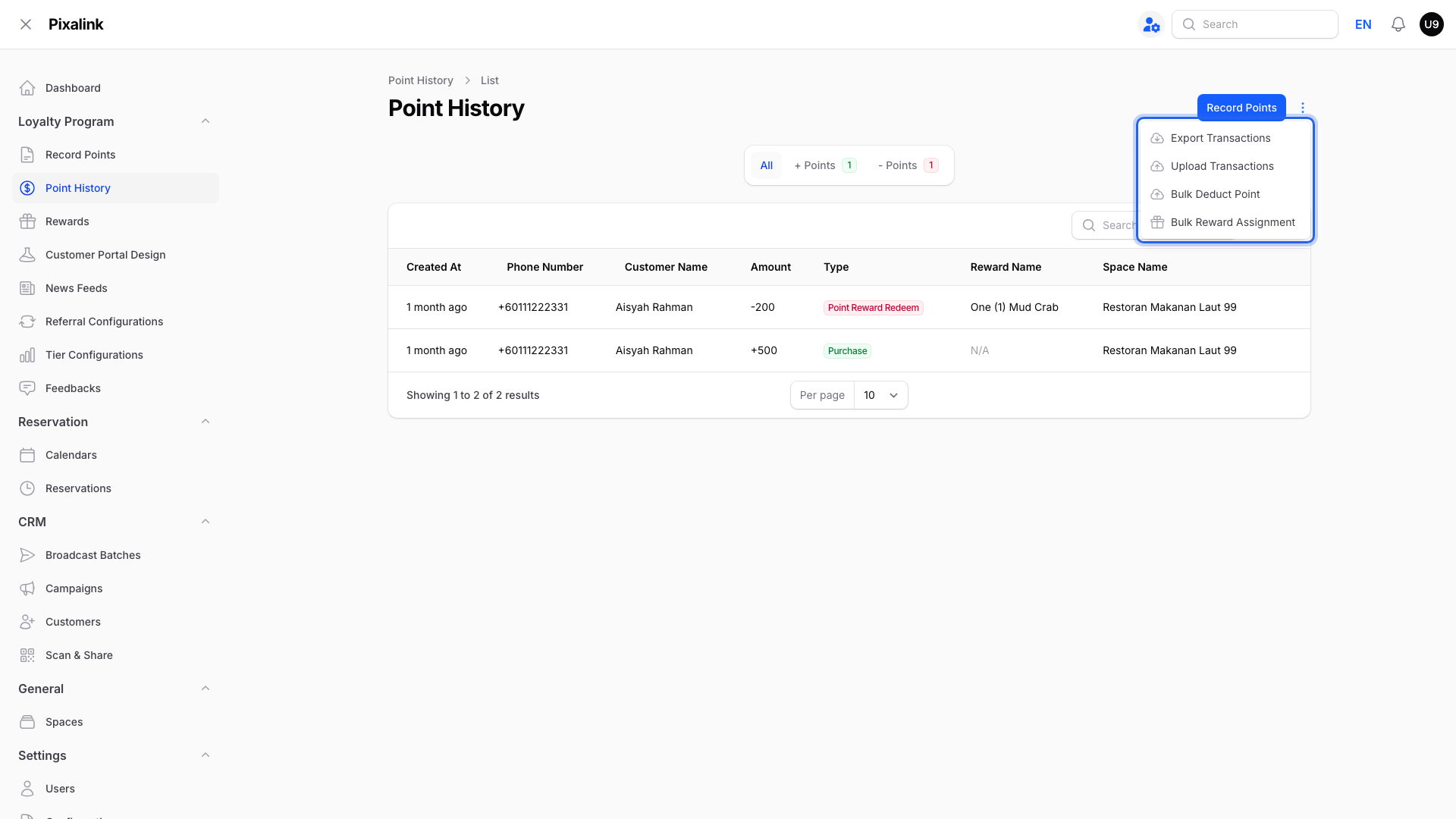
Here is what happens after you click Import:
- Rows are saved into Point History while the file is still being processed.
- When the whole file is done, you get a message with a count of imported rows.
- After that, the affected customers' balances are refreshed automatically, usually within a few minutes. If you use tiers, tiers are re-checked at the same time.
- Small files usually finish within minutes. Files with thousands of rows take longer.
flowchart LR
    A[You upload<br/>the file] --> B[Rows appear in<br/>Point History]
    B --> C[The whole file<br/>finishes]
    C --> D[Balances and tiers<br/>refresh on their own]
The balance is re-added from the customer's full point history, so a balance that looks behind usually catches up within a few minutes. If one still looks off after about 30 minutes, our support team can put it right (see Need Help? below). Duplicate rows never fix themselves, though — that is why re-uploading is risky.
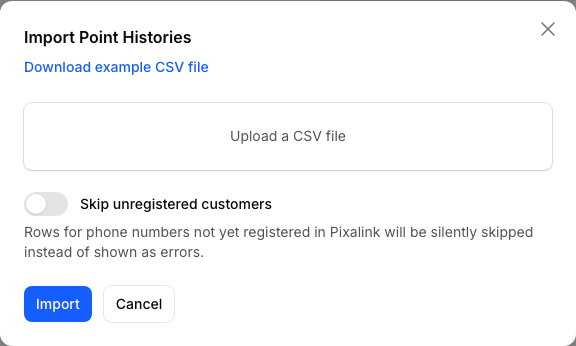
The upload window has a Skip unregistered customers switch, which starts off. Leave it off and new phone numbers in your file usually become new customers. If you send new customers a welcome message, the upload can trigger it on WhatsApp. Turn the switch on and those rows are quietly dropped instead. No error is shown and their points are not added, yet the completed message still counts them. Either way, check the phone numbers in your file before importing.
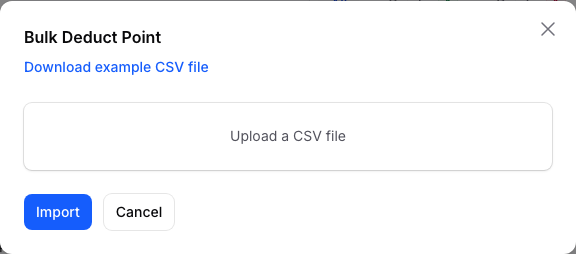
For deductions, put plain positive numbers in the Amount column, like 50. A row with a minus sign fails instead of deducting.
Real-Life Example
Ahmad runs Kopi Corner cafe in Bangsar. He moved off an old card system and uploaded his members' points. He opened a regular's profile straight away. The points sat in Point History, but the balance still showed the old number. He nearly uploaded the file a second time to "fix" it. Instead, he waited fifteen minutes and refreshed the page. The balance matched his file, and nobody got double points.
Good to Know
- Never upload the same file twice. Every row is added again, and customers end up with double points. Wait and refresh before you do anything else.
- If an entry shows a blank or 0 quantity, ignore it. Points come from the Amount column only.
- Use the + Points and - Points tabs on Point History to check totals after an import.
- Deducted points show as - Points entries dated the day you imported them.
Need Help?
If a balance still looks wrong 30 minutes after the completed message, contact our support team. Attach the exact file you uploaded so we can trace it row by row.
What's Next?
- How to Import Customers with Historical Loyalty Points — the full step-by-step import guide
- Set Up Welcome Messages and Vouchers for New Customers — what new customers get sent
- How to Set Up Point Expiry Rules — how expiry affects uploaded points