
Updated Sep 2, 2026
Zu Wei
2 min read
6 views

Reward Categories Explained

Reward Categories Explained

What Is This?

Reward categories are the groups your customers use to browse your rewards. Instead of one long list, they see a row of buttons, tap one, and get a shorter list. You decide the names, the icons and the order. This page explains how the groups behave, so you know what your customers see before you change anything.

Video Walkthrough
How It Works

A reward belongs to one category, or to none. Rewards with no category still show up under All, so nothing disappears when you start grouping.

A category button only appears once that group holds at least one reward the customer is allowed to see. That rule keeps empty buttons off the page. If you built a group and it hasn't appeared yet, it's waiting for its first visible reward.

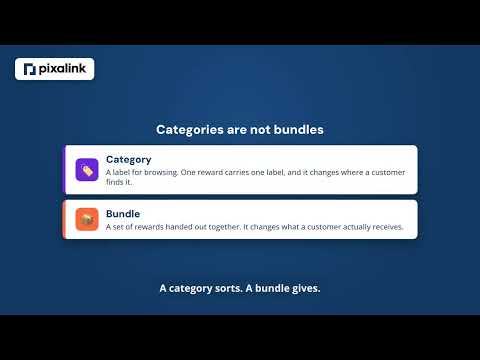
Categories are not the same thing as bundles. A category is a label for browsing, and one reward carries one label. A bundle is a set of rewards handed out together. Grouping a reward changes where a customer finds it, never what they receive.

Real-Life Example

Aishah runs Boba Lab, a bubble tea shop in Petaling Jaya. She set up Drinks, Snacks and Birthday Treats, then switched Snacks off for a quiet month. Her customers stopped seeing the Snacks button, but the snack rewards stayed claimable under All, so nobody lost a voucher. Later she deleted an old group she no longer wanted. Its rewards were not deleted with it. They simply went back to being ungrouped, and kept selling as before.
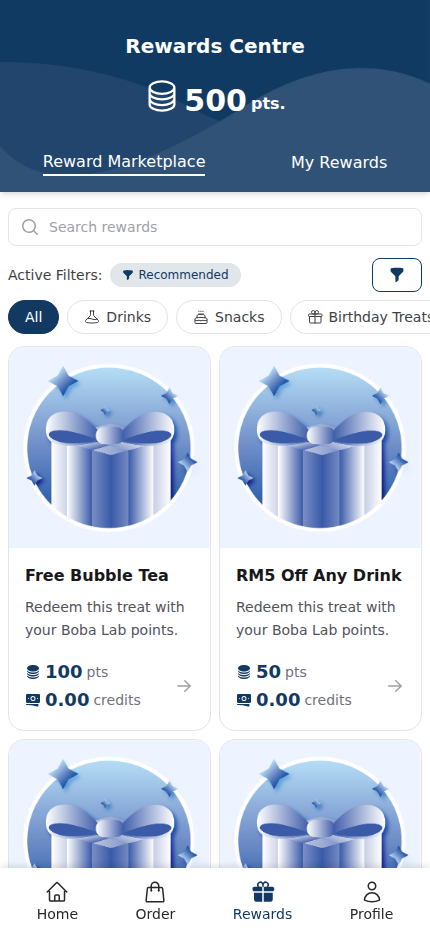
Customer rewards page showing the category bar with All selected above the reward cards

Good to Know

  • Switching a category off hides its button and keeps its rewards claimable under All.
  • Deleting a category never deletes rewards. Those rewards become ungrouped.
  • Your groups cover the whole business. A reward still belongs to its own outlet.
  • The order you drag your categories into is the order customers see them in.
  • A new group sits last until you move it.
  • The count beside each group tells you how many rewards sit inside it.
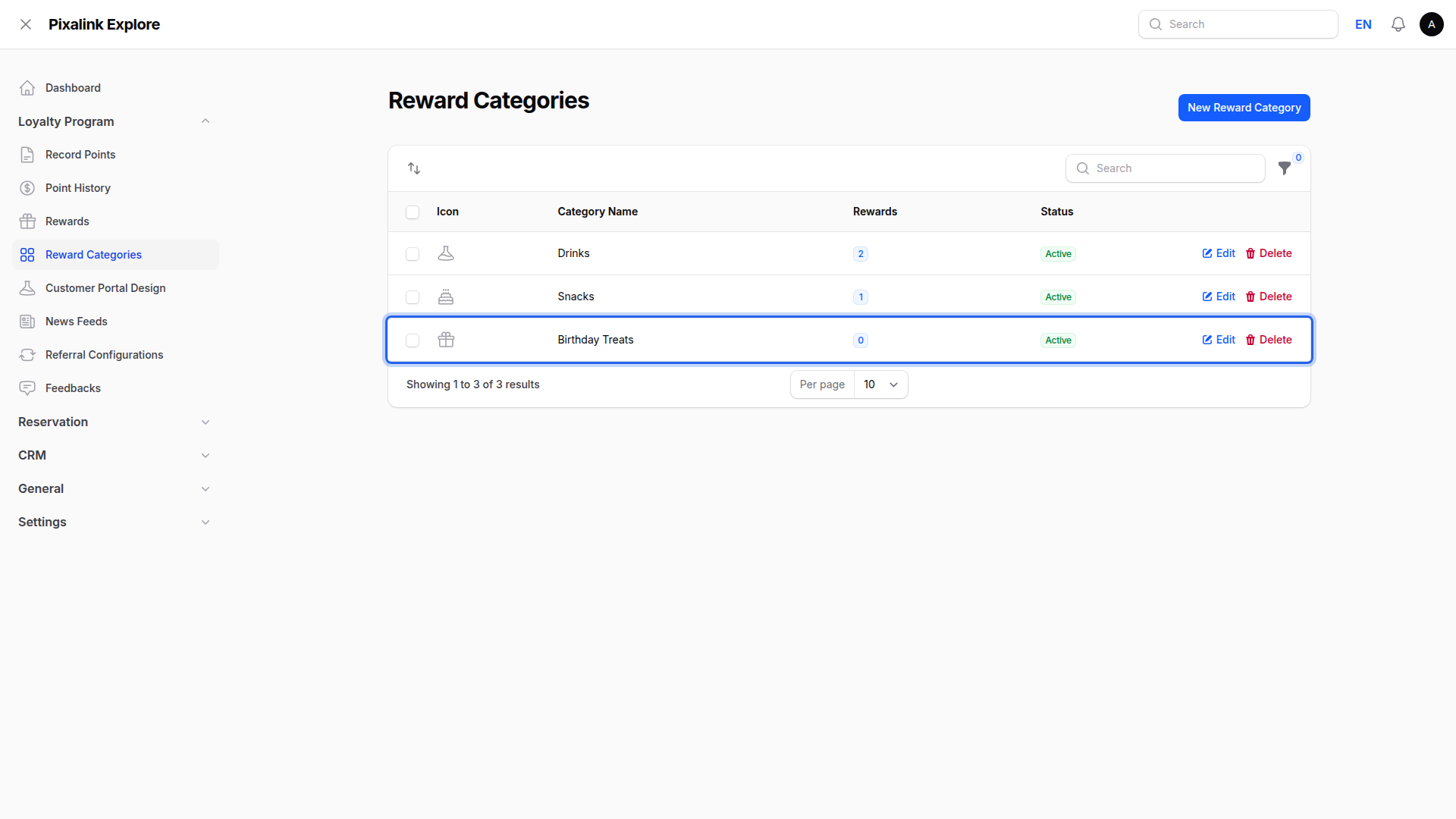
Reward Categories list showing three categories with the newly added one highlighted

Need Help?

Not sure why a group isn't showing for your customers? Contact our support team and we'll take a look with you.

What's Next?

Video transcript: Reward Categories Explained
A long list of rewards is a list most customers give up on. Reward categories break that list into groups they can tap. Here is how it works, and what your customers see. This is your rewards page. The highlighted row of buttons is your categories. Every reward still sits under All, so nobody loses sight of anything. The buttons simply give your customers a shortcut. Here your customer has tapped the Drinks button, so the page shows only the drink rewards. A list of twenty becomes a list of two. That is the whole idea. The faster somebody finds the reward they want, the more likely they are to claim it. You build the groups yourself. In the Admin Panel, open Loyalty Program in the left menu, then choose Reward Categories, just below Rewards. Each group is just a name, an icon, and a status. The number beside it tells you how many rewards sit inside. Add another group with the New Reward Category button. Then drag your groups into the order you want. A category button only appears once that group holds at least one reward the customer can actually see. So an empty group never clutters the page. If you built a group and it has not shown up yet, it is simply waiting for its first reward. One thing worth keeping straight. A category is a label for browsing, and a reward carries one label. Reward bundles are different. They are a set of rewards handed out together. Putting a reward in a category changes where a customer finds it. It never changes what they receive. Two things to know before you rearrange anything. Switching a group off hides its button, and the rewards inside stay claimable under All. Deleting a group never deletes rewards. They simply go back to being ungrouped, and keep selling as before. Group your rewards the way your customers think about them, and your rewards page stops being a list to scroll and starts being a menu to browse. Set yours up under Loyalty Program, Reward Categories.

Was this article helpful?

Thank you for your feedback!

0 found this helpful 0 did not

Search