
Birthday Voucher Validity Explained
Birthday Voucher Validity Explained
What Is This?
A birthday voucher gives each customer a treat around their birthday. A common question is where you set how long that voucher stays usable. The answer catches most merchants out. There is no validity setting inside the Birthday section. Validity comes from the reward itself, on a different tab.
How It Works
Go to Loyalty Program > Rewards and open your birthday reward.
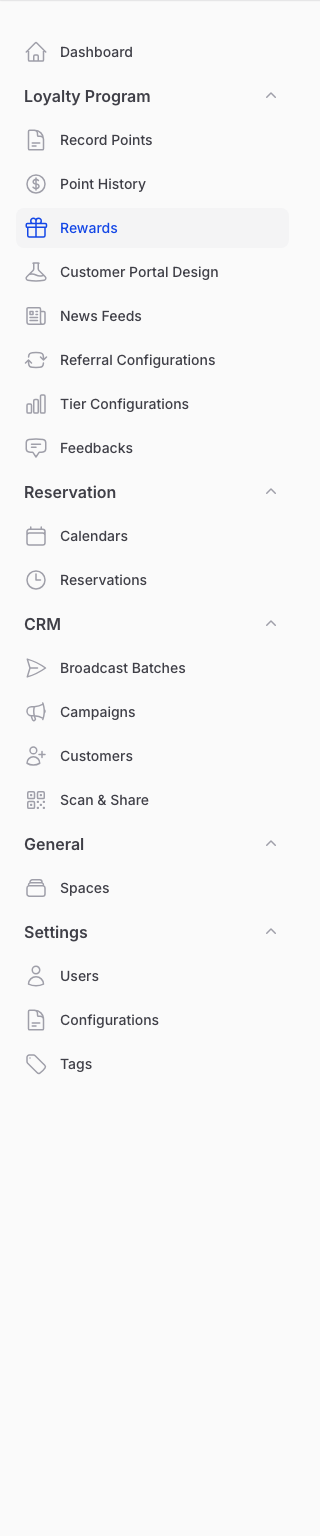
The Automations tab holds the Birthday section. It decides who gets the voucher and when. You get the auto-assign toggle, the quantity, the assignment time and the Delivery Schedule. There is no expiry setting here.
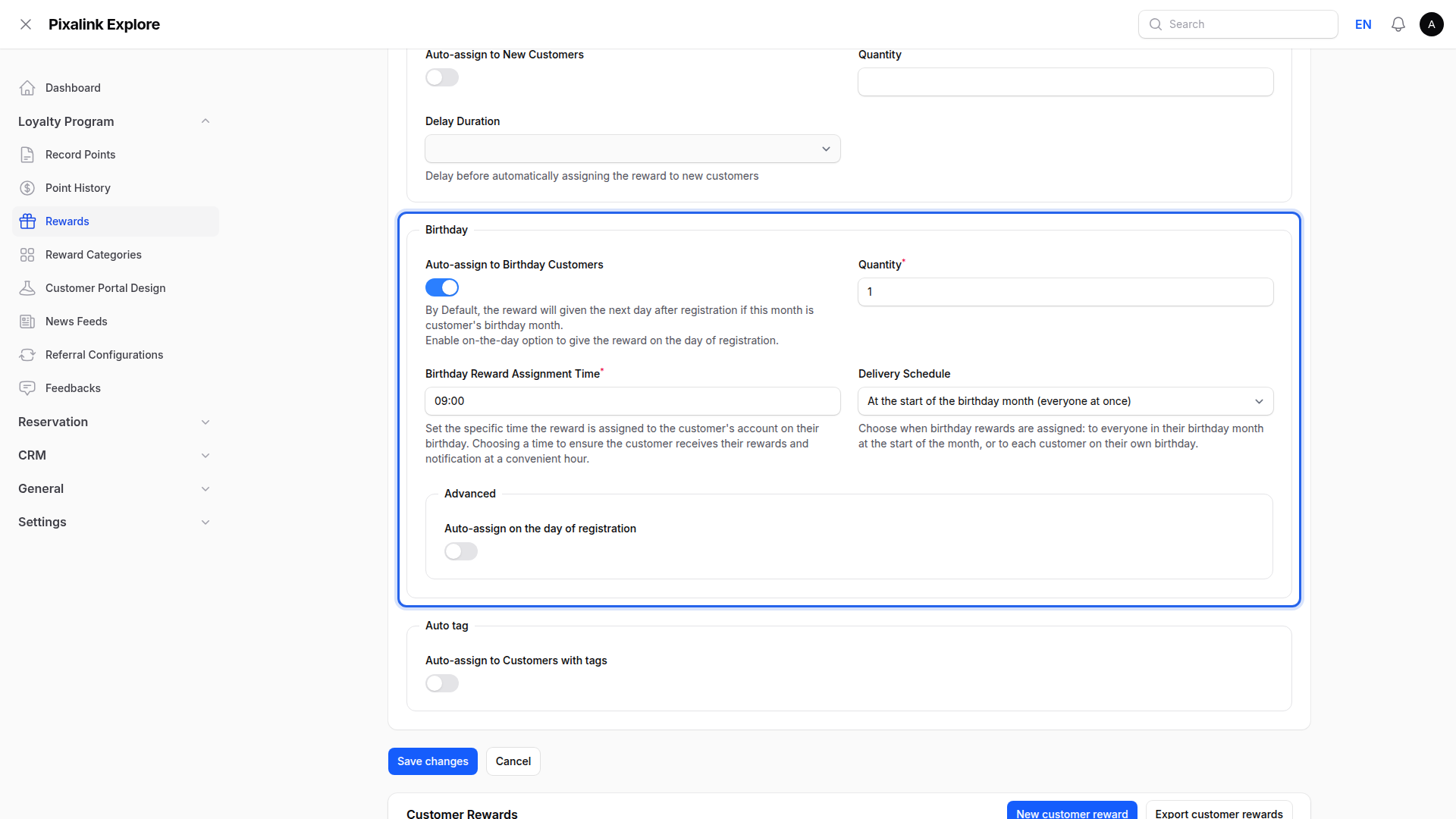
Validity sits on the Settings tab, in a section called Validity. Two settings shape how long a voucher lasts:
- Expiration Date is the last day the reward can be used. Customers have until 11:59 PM on that date.
- Custom Valid Day(s) after redemption turns on a rolling window. Set Valid Day(s) and each customer gets that many days from the moment their voucher arrives.
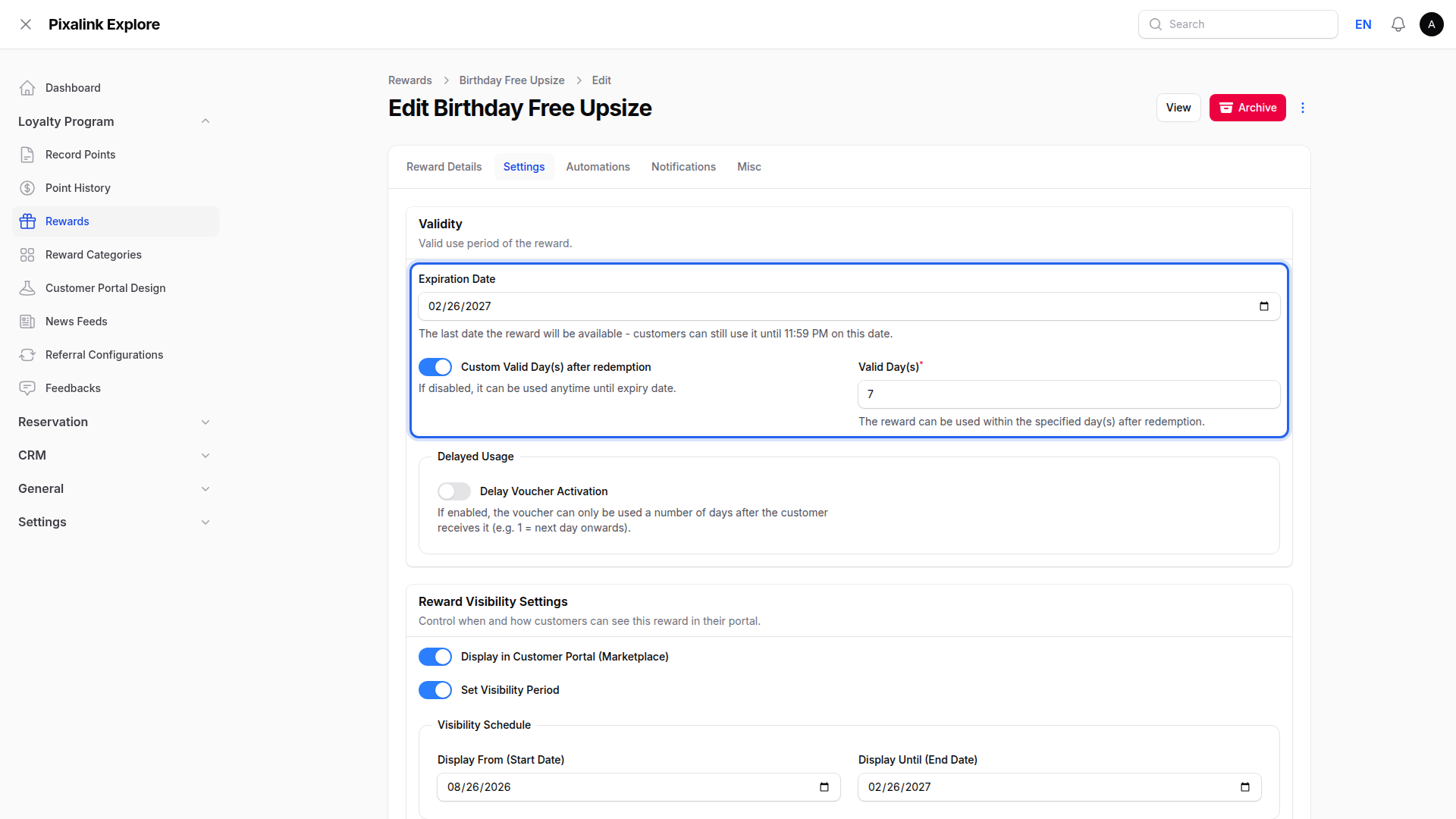
When you set both, whichever date falls first wins.
Here is the part worth knowing. The countdown starts when the voucher is given, not on the customer's birthday. A short Valid Day(s) can therefore run out before the birthday arrives.
Real-Life Example
Aishah runs a bubble tea shop. Her birthday reward uses Valid Day(s) of 7, with the Delivery Schedule set to the start of the birthday month.
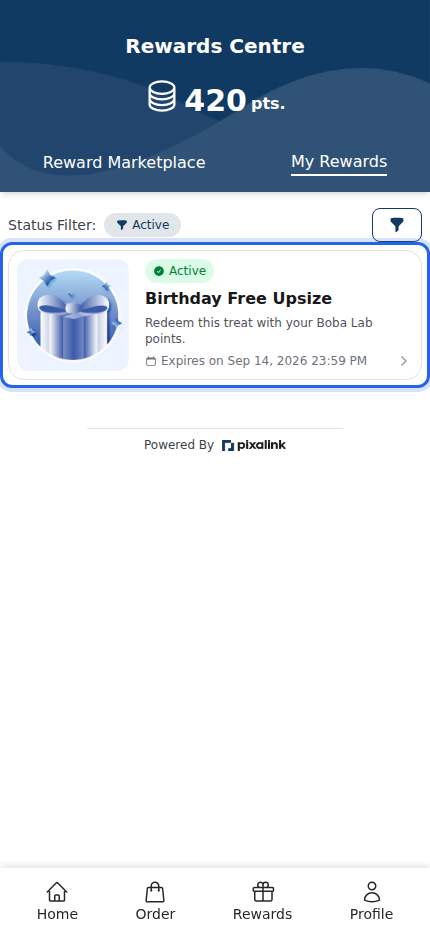
Siti joins on 7 September and her birthday is 24 September. Her voucher arrives the same day and expires on 14 September. That is ten days before the birthday it was meant to celebrate. Siti opens her portal, sees the date and thinks the shop made a mistake.
Aishah has two clean fixes. She can raise Valid Day(s) so the window covers the whole month. Or she can set the Delivery Schedule to On each customer's birthday, so the countdown starts on the day that matters.
Good to Know
- The expiry is locked in when the voucher is given. Editing the reward later leaves issued vouchers untouched.
- Customers see the date in their portal under My Rewards, written as "Expires on".
- Vouchers always lapse at the end of the day, at 11:59 PM.
- Leave Custom Valid Day(s) off and the voucher simply runs until the Expiration Date.
- Tier birthday vouchers and paid membership birthday vouchers work the same way. Their validity also comes from the reward's own Validity section.
Need Help?
If a customer says their birthday voucher expired too soon, compare the reward's Valid Day(s) against its Delivery Schedule. Those two settings are usually the cause. If they look right and the date still seems wrong, contact Pixalink support and we will walk through the setup with you.