
How to Send an SMS Campaign
How to Send an SMS Campaign
What Is This?
SMS reaches every mobile phone, even ones without internet or WhatsApp. It's a strong backup when your WhatsApp number is restricted, or when some customers never use WhatsApp. Each SMS uses paid credits, so this guide also shows how to check the cost before you send.
Real-Life Example
Siti runs Rasa Sayang restaurant in Shah Alam. Her WhatsApp number was restricted right before her weekend promotion. Many of her older regulars never used WhatsApp anyway. So Siti set up her "Come Back Treat" campaign with SMS as the channel. Her short message used just one SMS credit per customer. The counter under the message box showed this before she saved anything. Her weekend tables filled up, even without WhatsApp.
How to Set It Up
-
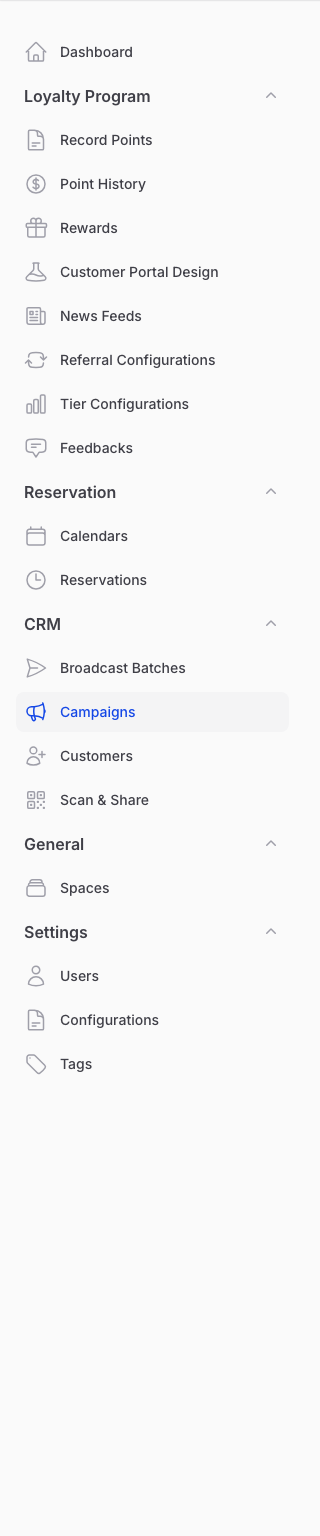
Go to Admin Panel → CRM → Campaigns.
-
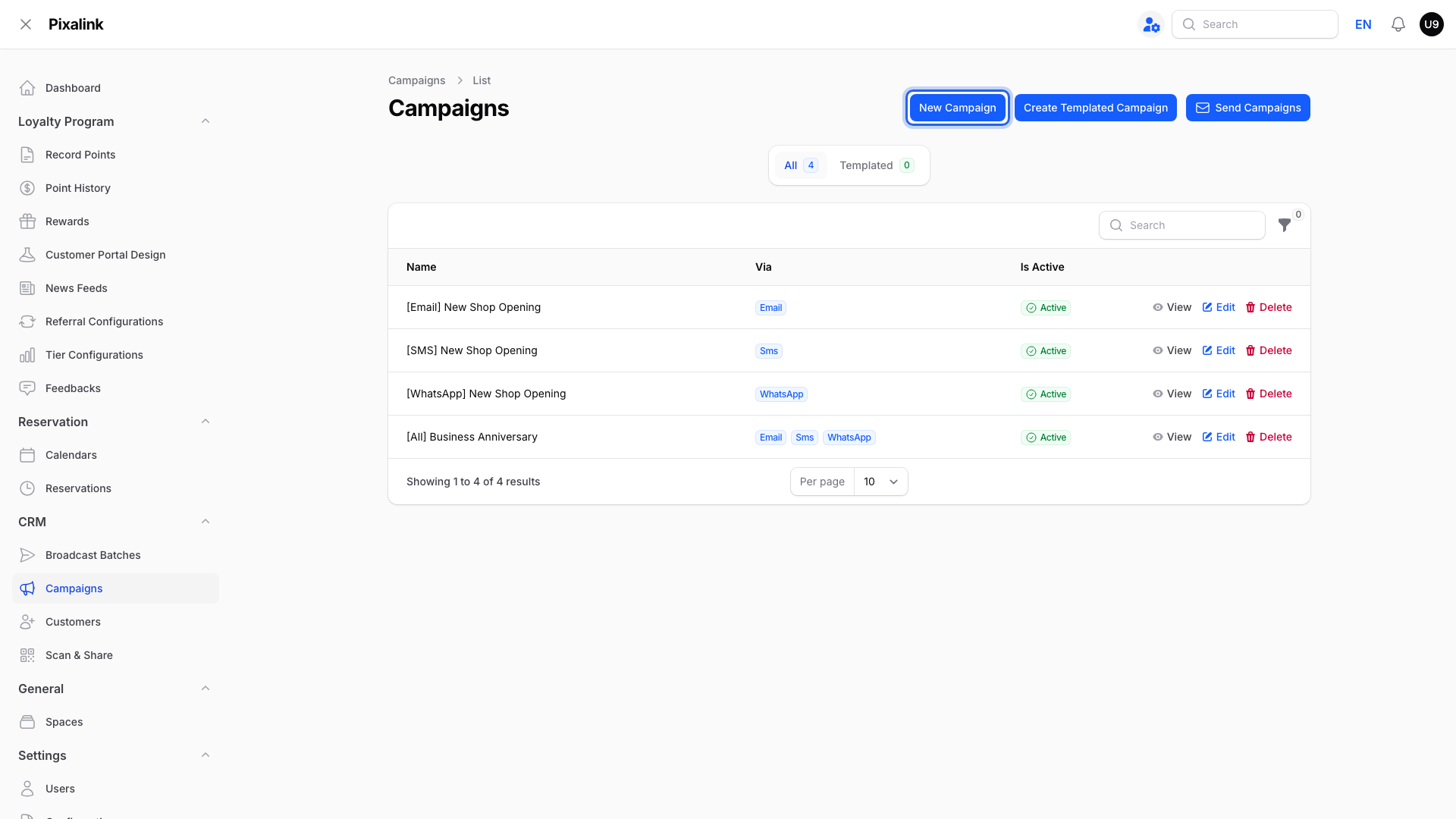
Click New Campaign.
-
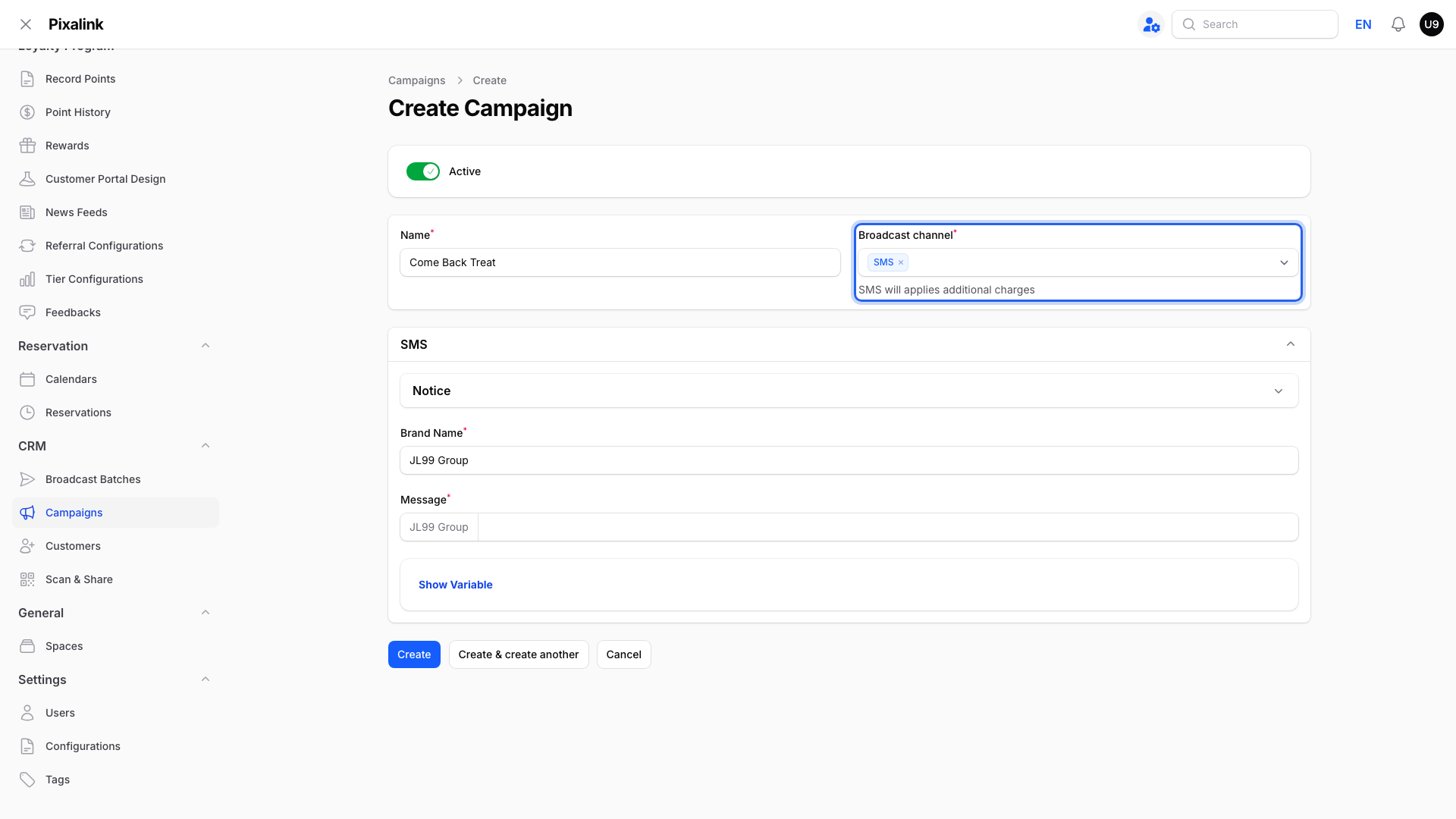
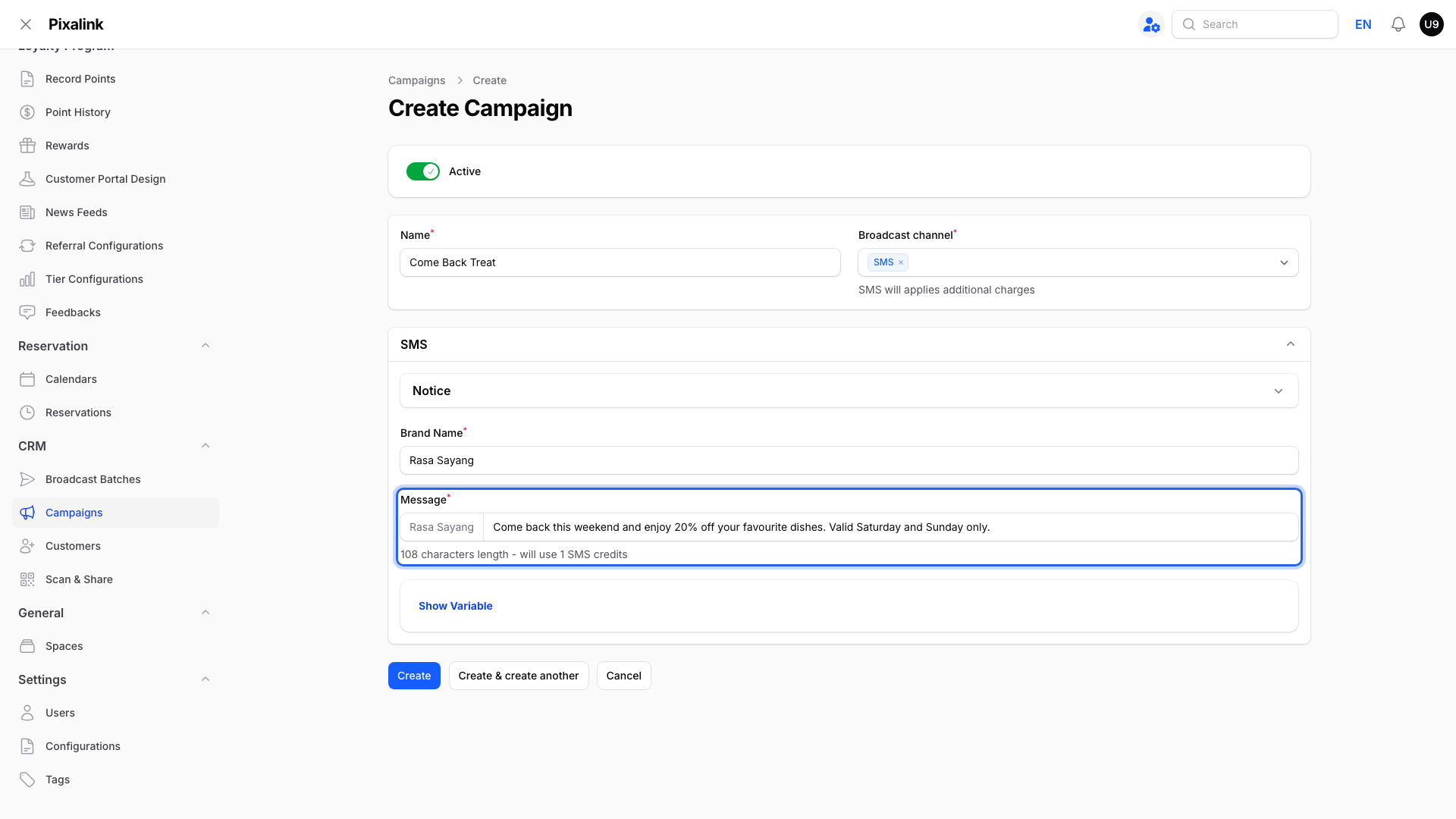
Pick SMS in the Broadcast channel box. You can keep other channels selected too.
-
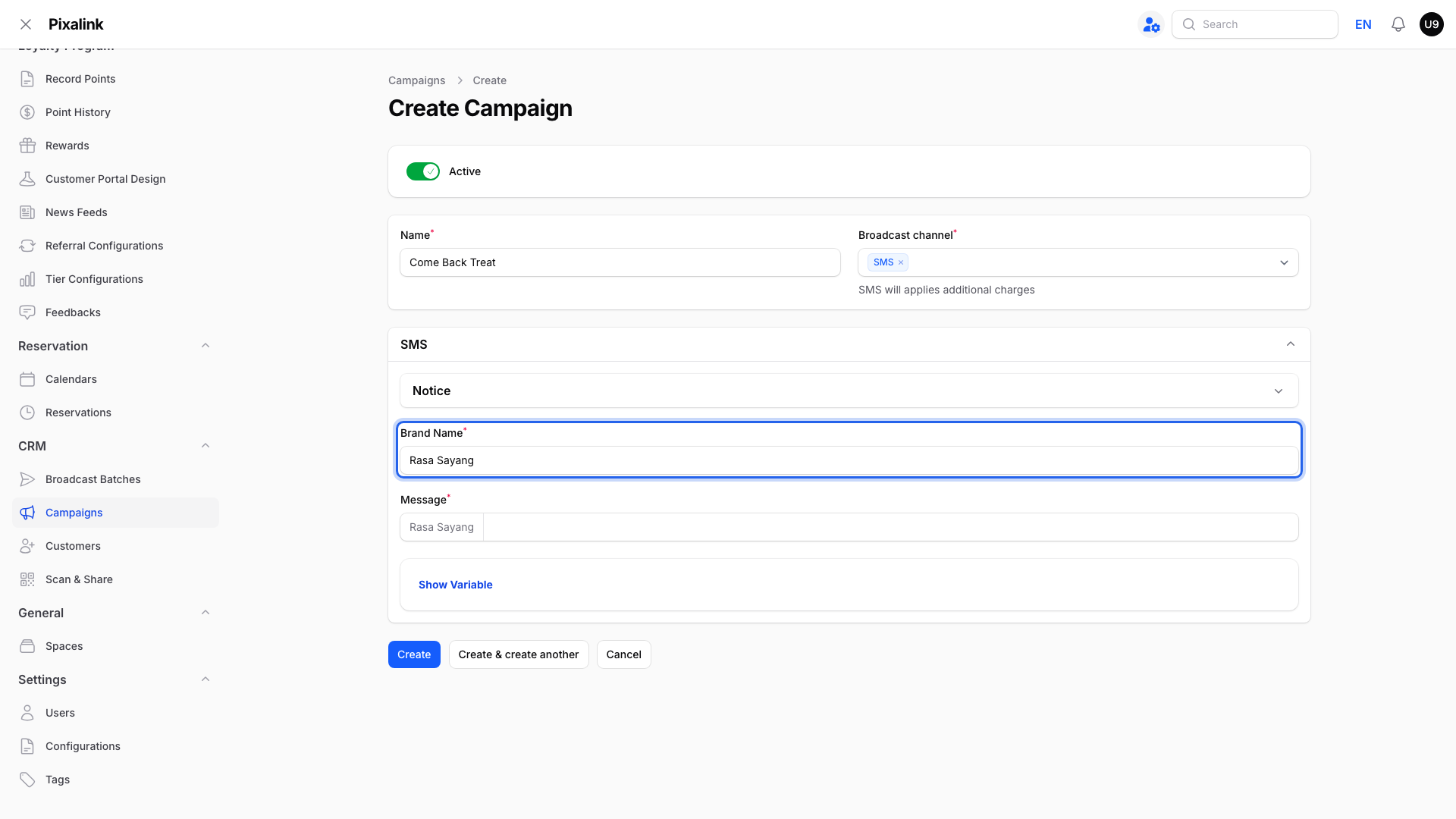
Type your shop's name in Brand Name. It appears at the start of every SMS.
-
Type your offer in Message. The line below it shows the character count and the SMS credits used per customer.
-
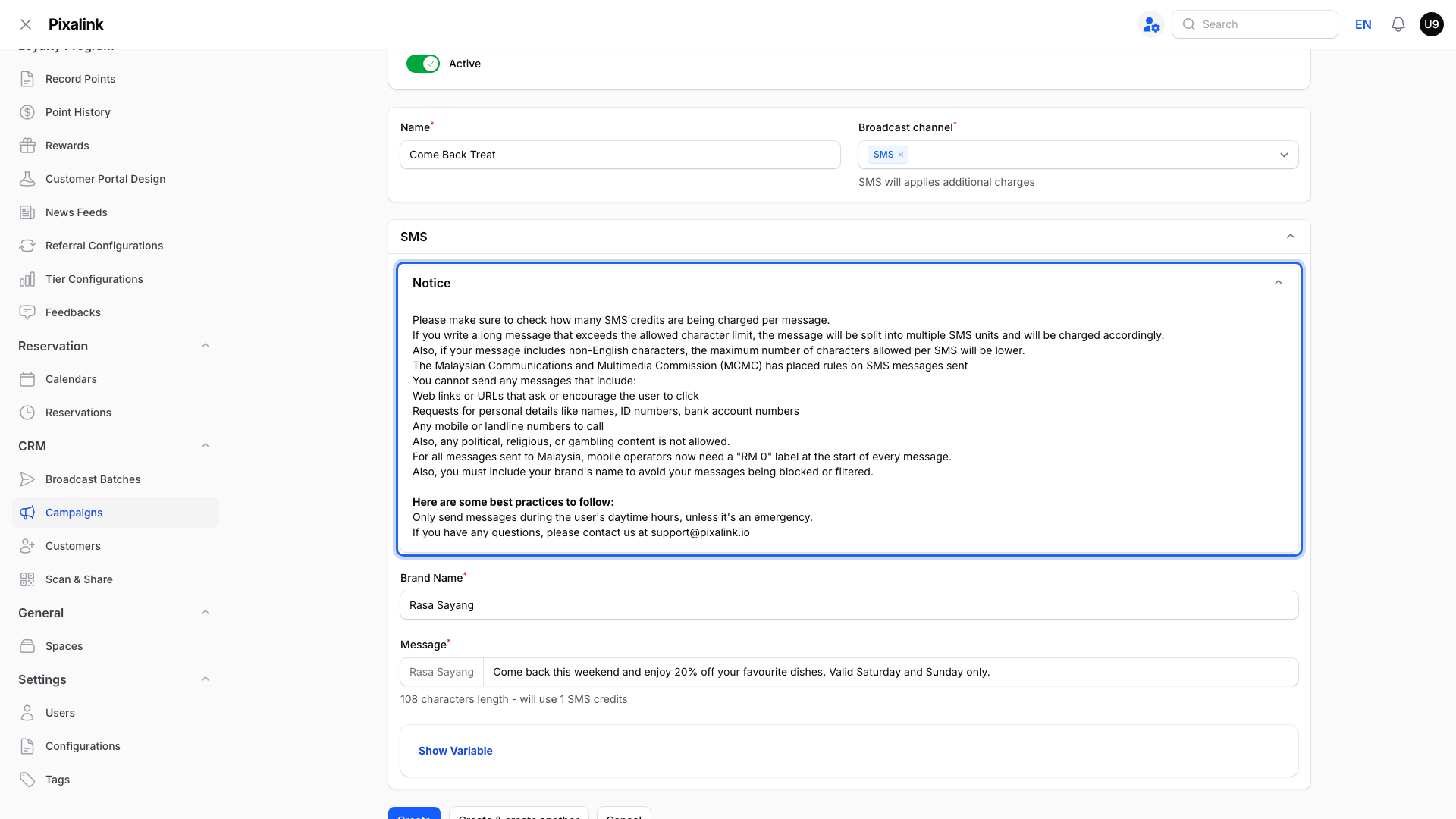
Open Notice and read the SMS rules. Messages can't include web links, phone numbers, or requests for personal details.
-
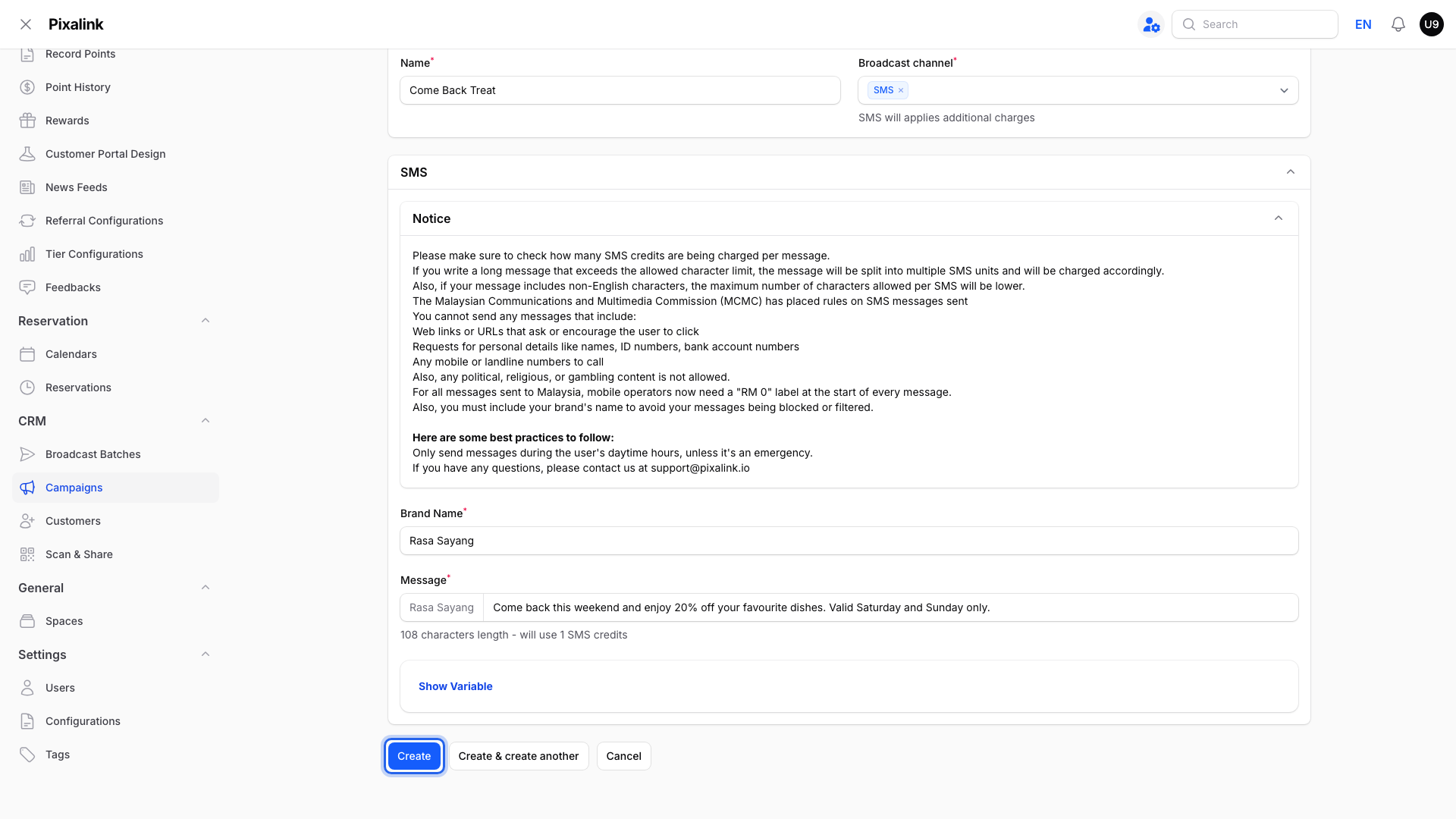
Click Create to save your campaign.
-
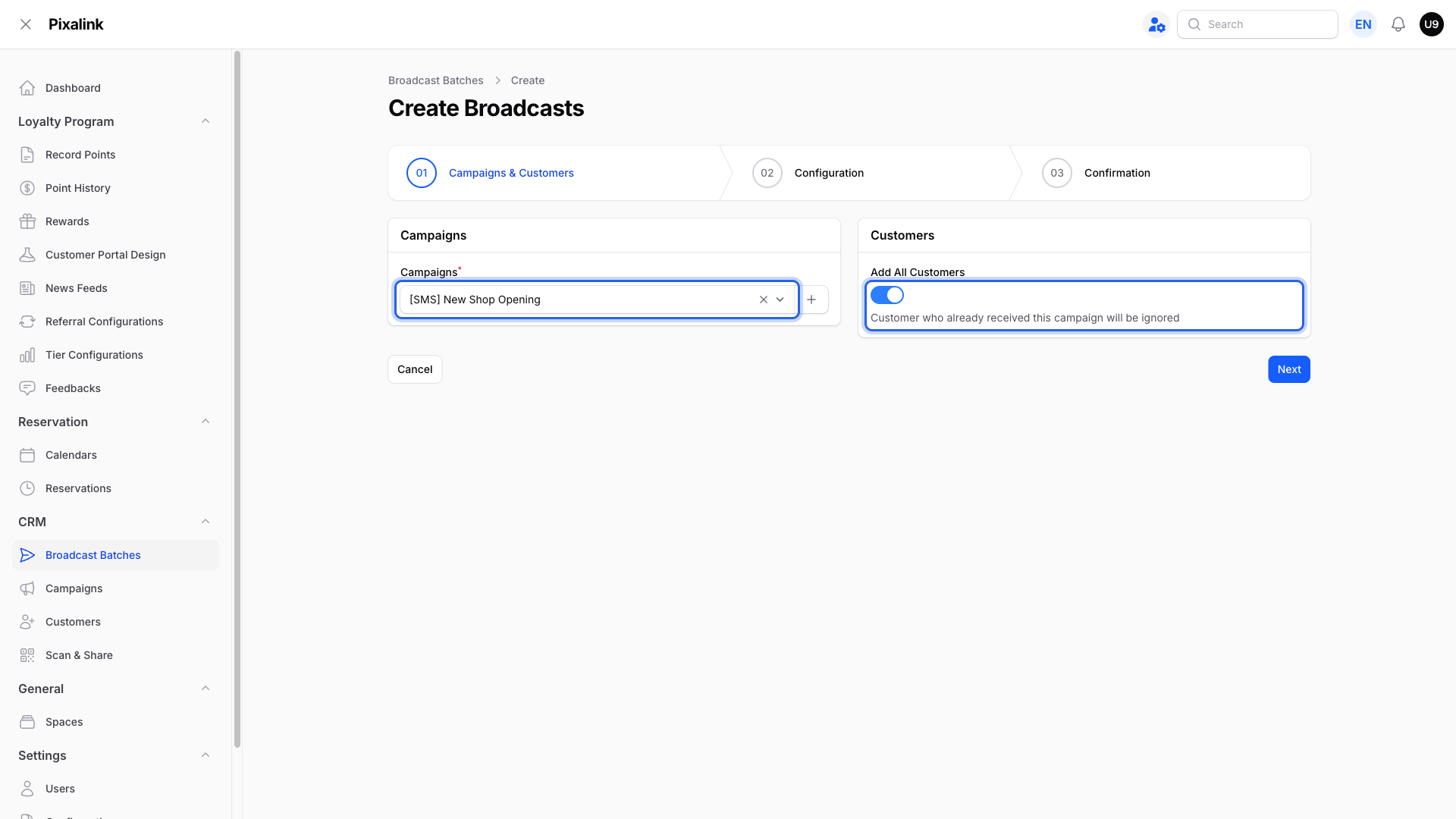
Click Send Campaigns on the Campaigns page to open the Create Broadcasts page. Pick your campaign, turn on Add All Customers (or choose tags or specific customers instead), then click Next and follow the steps to send. Customers who already received this campaign are skipped automatically, so nobody gets the same SMS twice.
What Your Customers Will See
Customers get a normal text message on their phone. It starts with your brand name, then your offer. SMS is plain text only — no photos, no buttons, no links.
Good to Know
- SMS has extra charges. Every message uses SMS credits, and the counter under the Message box shows how many before you save.
- No double sending. If you send the same campaign again, customers who already received it are skipped, so your regulars are never spammed with repeats. To message the same people again, create a new campaign.
- Long messages are split into more than one SMS, and each part is charged. English messages fit about 160 characters per SMS. Malay words with special letters or Chinese characters lower that limit to about 70.
- Keep your brand name short and clear. Malaysian mobile networks can block messages that don't carry a brand name.
- SMS is an add-on. If SMS isn't turned on for your account yet, contact support.
- Want photos or longer messages? WhatsApp or Email may fit better — see the channels guide below.
Need Help?
Contact our support team — we're happy to help you plan your first SMS campaign.