
How to See Who Invited a Customer
What Is This?
When your referral programme is running, you'll often want to know who invited a specific customer — to thank them, spot your top referrers, or settle a disputed reward. Pixalink keeps a record of every inviter → invitee pair, and there are two easy places to look it up.
Real-Life Example
Wei Lin at Kopi Lab notices a new customer, Siti, has been visiting every week. She wants to thank whoever introduced Siti. She opens Siti's customer profile, reads the Invited By field, and sees Ahmad — one of her regulars. A quick WhatsApp message later, Ahmad knows his referral mattered.
Method 1: Check One Customer
Best when you want the inviter for a specific person.
-
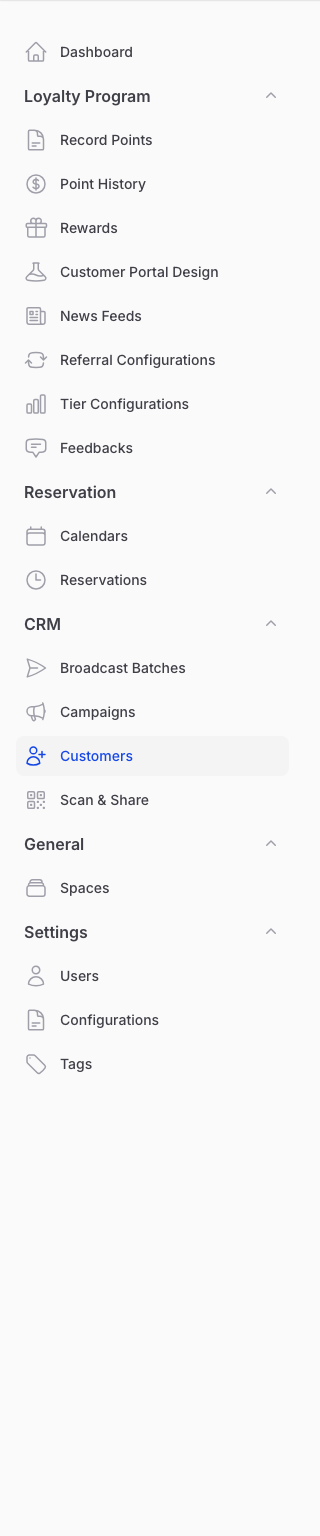
Go to Admin Panel → CRM → Customers, search for the invitee, and open their profile.
On the profile, look for the Invited By field. It shows the inviter's name as a clickable link — click it to jump to the inviter's profile. If the customer wasn't referred, the field shows N/A.
You can also turn on the Referred By column on the main customer list. Use the column toggle to switch it on for a sortable view across all customers.
Method 2: Browse All Referrals
Best when you want the full picture — top referrers, audit checks, or a list to export.
-
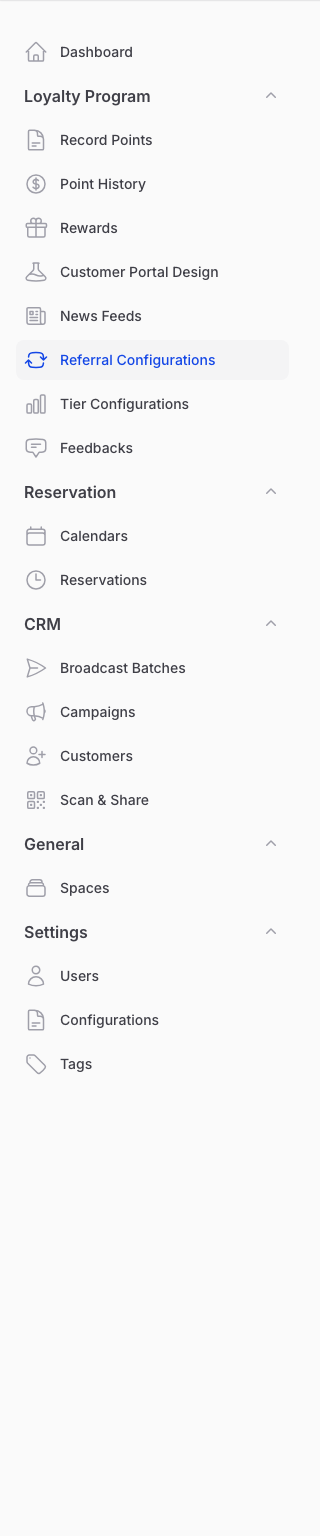
Go to Admin Panel → Loyalty Program → Referral Configurations, open your referral configuration, and switch to the Referrals tab.
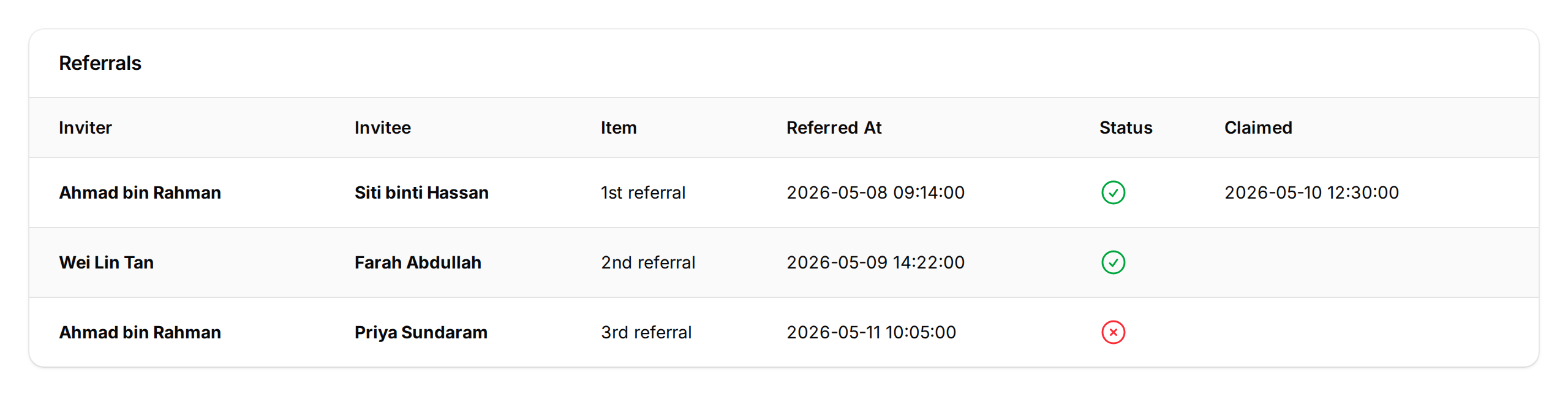
The Referrals table lists every referral with:
- Inviter and Invitee — name and phone, each linked to the customer's profile
- Item — which referral slot was used (1st, 2nd, 3rd, etc.)
- Referred At — the date the referral started
- Status — a tick or cross showing whether the inviter's reward is claimable
- Claimed — the date the inviter claimed their reward
To download the list as CSV, open the ⋮ dropdown menu in the header actions and pick Export Referrals.
Good to Know
- The Invited By field stays at N/A for customers who signed up without a referral link.
- A customer can only have one inviter — whoever's referral link they first used.
Need Help?
Can't see the Invited By field on a customer you know was referred? Reach out to support with their phone number and we'll trace what happened.